USD
  • EUR
  • INR
  • USD
Cart
Cart 0
  • You have no items in your shopping cart.
    Odoo Apps Extensions
    Cart
    Cart 0
    • You have no items in your shopping cart.
    Hire a Developer
    ×
    Contact Us!
    Send Again
    Close
    Please Login to Write Your Review
    Odoo Amazon S3 Cloud Storage

    Odoo Amazon S3 Cloud Storage

    x
    Free

    * Required Fields

    $149.00
    Add To Cart

    Odoo Amazon S3 Cloud Storage connects Odoo files with Amazon S3 buckets. Teams can store bills, invoices, and product images away from the Odoo server.


    • Upload Odoo attachments to an Amazon S3 bucket configured in Odoo.

    • Store invoices, vendor bills, product images, and other attachments.

    • Set bucket and object access rights for appropriate users.

    • Set expiry intervals for attachments marked Not Public.

    • Regenerate an attachment URL after its access interval expires.

    • Use Amazon S3 external storage with multiple Odoo databases.

    • Set the attachment location through Odoo System Parameters.

    Odoo Amazon S3 Cloud Storage
    Odoo Amazon S3 Cloud Storage
    $149.00
    Check How It Works

    Need Help Deciding?

    Support answers within one business day.

    Open a ticket
    $149.00
    Configure and Buy
    X
    • Description
    • Reviews
    • FAQ
    • Specifications
    • Cloud Hosting
    • Changelog

    Odoo Amazon S3 Cloud Storage is an Odoo module that uploads files to Amazon S3. Teams can keep invoices, bills, and images in a bucket.

    An admin opens Amazon S3 Cloud Configuration from Odoo Settings. The setup uses Secret Key, Access Key Id, Bucket Name, and Bucket Location, and the configuration can be activated or deactivated.

    After setup, files can sync from Odoo to S3 in real time. S3 storage cuts the file load on the Odoo server. Allowed users can still access stored files.

    The admin can set bucket and object access rights. For attachments with Not Public access, an expiry interval limits access, and an expired URL can be regenerated.

    Use a system parameter to set where attachments go. Several Odoo databases can use Amazon S3 as external storage. Webkul does not recommend this module for Odoo.sh or Odoo Online.

    For a broader cloud storage setup in Odoo, see Odoo Cloud Storage.
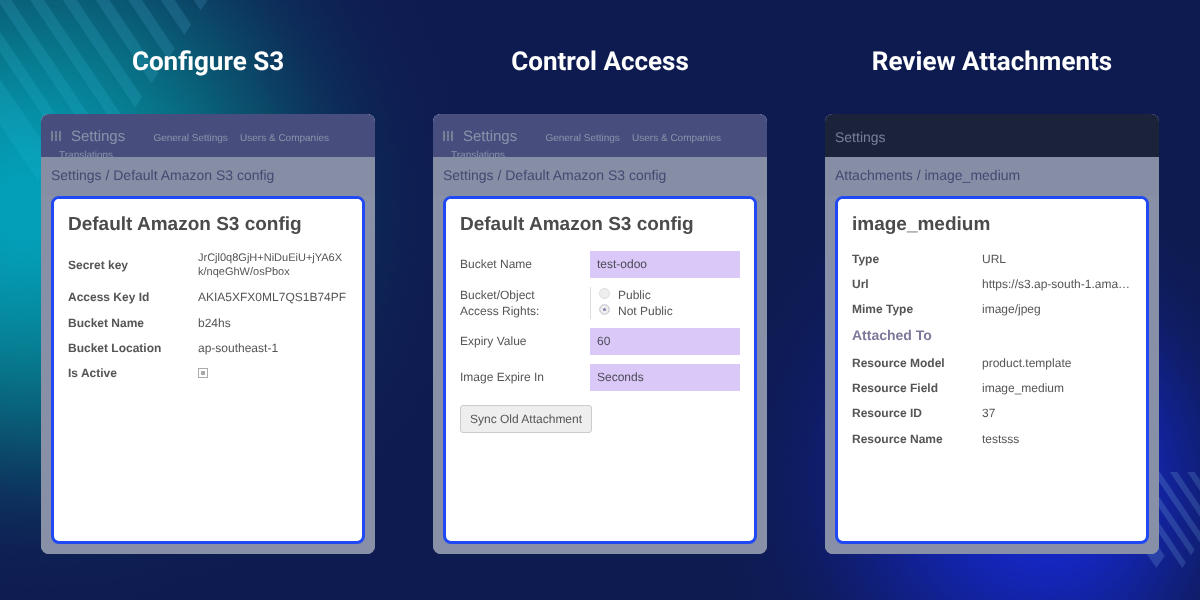
    Odoo Amazon S3 Cloud Storage

    Highlighted Features of Odoo Amazon S3 Cloud Storage

     S3 Attachment Storage

    Upload Odoo files to Amazon S3 buckets. This covers invoices, bills, and catalog images while easing local storage load.

     Backend Configuration

    Enter the AWS keys, bucket name, and bucket location from Odoo Settings. Then turn the setup on when it is ready.

     Access Rights

    Set access rights for the Amazon bucket and its objects. Only appropriate users can access or change the cloud data.

     Expiring Access

    Set an expiry interval for Not Public attachments. An admin can regenerate the URL once the access interval ends.

    Why Do We Need Odoo Amazon S3 Cloud Storage?

    Odoo stores attachments on its server. A growing set of invoices, bills, and images adds to that local attachment load.

    With several databases, a team may want to keep files in S3. This can cut the load on each Odoo server as the files grow.

    This module connects Odoo to an Amazon S3 bucket. It uploads attachments there and lets an admin control access to stored objects.

    In Settings, the configuration asks for Secret Key, Access Key Id, Bucket Name, and Bucket Location. The attachment location is set separately in System Parameters.

    If your team uses a different cloud provider, see Odoo Google Cloud Storage for another Odoo storage option.

    Odoo Amazon S3 Storage Use Cases

    • Store Accounting Files

      An accounting team places invoice and vendor bill attachments in its S3 bucket so staff can retrieve the files from cloud storage.

    • Keep Product Images

      A catalog team stores product image attachments outside the local Odoo server to lower its file load.

    • Serve Private Files

      An admin limits access to Not Public attachments with an expiry interval and can make a new URL after the old one expires.

    • Use Several Databases

      An organization stores attachment data from multiple Odoo databases in Amazon S3 so its teams can use one external storage service.

    Configure Amazon S3 in Odoo

    The Amazon S3 Cloud Configuration screen connects Odoo to an S3 bucket. An admin enters the AWS credentials and bucket details, then activates the configuration.
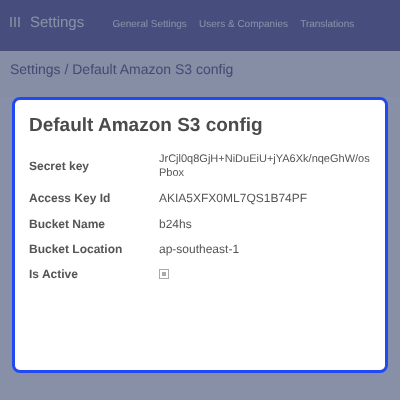
    • Open Settings and select Configuration under Amazon S3 Cloud Configuration.
    • Enter the Secret Key and Access Key Id.
    • Enter the Bucket Name and Bucket Location.
    • Activate or deactivate the configuration.
    Configure Amazon S3 in Odoo

    Set S3 Access and Expiry

    The admin can set access rights for the bucket or objects. Not Public attachments can have an expiry interval, after which access needs a valid AWS signature.
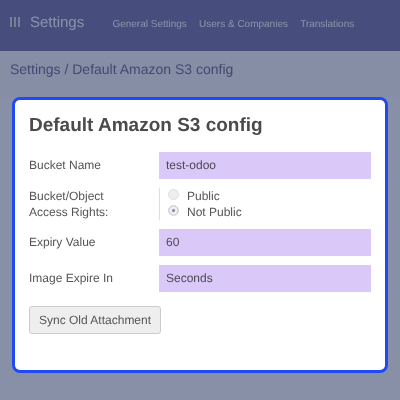
    • Set access rights for the Amazon bucket or object.
    • Use Not Public access for private attachments.
    • Set the attachment expiry interval.
    • Regenerate a new URL when an attachment URL expires.
    Set S3 Access and Expiry

    Upload Odoo Attachments to S3

    Odoo files go to S3, which cuts the local file load. The product page names invoices, bills, and catalog images as examples.
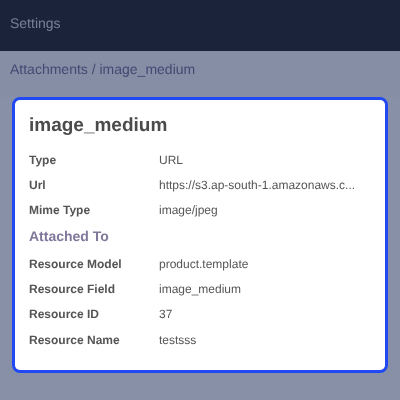
    • Upload attachments from Odoo to the configured S3 bucket.
    • Sync data from Odoo to S3 in real time after configuration.
    • Store invoice and vendor bill attachments.
    • Store product image attachments.
    Upload Odoo Attachments to S3

    Set the Attachment Location

    Admins set the file location through Odoo System Parameters. This step follows the Amazon S3 configuration.

    For another Odoo file storage option, see Odoo Google Drive Integration.
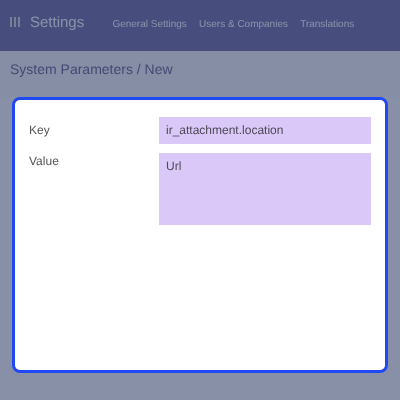
    • Activate developer mode in Odoo.
    • Open Settings, then Technical, then System Parameters.
    • Create a system parameter entry.
    • Use ir_attachment.location as the key.
    Set the Attachment Location

    Complete Odoo Amazon S3 Cloud Storage Feature List

    S3 Setup

    • Configure an Amazon S3 bucket from Odoo Settings.
    • Enter Secret Key, Access Key Id, Bucket Name, and Bucket Location.
    • Activate or deactivate the configuration.
    • Set the attachment location in Odoo System Parameters.

    Attachment Storage

    • Upload Odoo attachments to Amazon S3.
    • Store invoices, vendor bills, and product images.
    • Sync data in real time after configuration.
    • Use S3 external storage for multiple Odoo databases.

    Access and Recovery

    • Set bucket and object access rights.
    • Set expiry intervals for Not Public attachments.
    • Regenerate an expired attachment URL.
    • Restore attachments after an Odoo database crash as described by the product page.

    Odoo Amazon S3 Cloud Storage -

    For any query or issue please create a support ticket here http://webkul.uvdesk.com

    You may also check our other top-quality Odoo Modules.

    Specifications

    Product Version1.0.0
    Released8 years ago
    CategoryOdoo Apps, Tool, Cloudkul, 
    Last UpdatedNovember 25, 2026 (2 days ago)
    Supported Versions14.x  17.x  18.x  19.x  20.x  8.x  9.x  10.x  11.x  12.x  13.x  15.x  16.x  

    Ratings

    We'd love to hear your thoughts! Share your feedback and help us craft an even better experience tailored just for you.

    Write a review

    Frequently Asked Questions

     Where do Odoo attachments go?
    The module uploads Odoo attachments to an Amazon S3 bucket and reduces attachment storage on the Odoo server.
     
     Which Odoo files can it store?
    The product page names invoices, bills, and product images as examples of files stored in S3.
     
     What do I need before configuring it?
    You need an AWS account, Amazon S3 service, and a bucket for the Odoo data.
     
     Which details are required in the S3 configuration?
    The guide names Secret Key, Access Key Id, Bucket Name, and Bucket Location.
     
     Can I control who accesses S3 objects?
    Yes. The admin can set access rights for the Amazon bucket or objects.
     
     Can attachment links expire?
    Yes. An expiry interval can be set for Not Public attachments, and a new URL can be regenerated after expiry.
     
     Can several Odoo databases use S3 storage?
    Yes. The product page says Amazon S3 can be used as external storage for multiple Odoo databases.
     
     Does it work on Odoo.sh or Odoo Online?
    The product page does not recommend this module for Odoo.sh or Odoo Online because of platform limitations.

    Specification

    Detailed technical features and requirements to help you understand the module’s capabilities and ensure smooth integration with your system.

    Cloud Hosting for Websites & Applications

    Power your website or application with flexible, scalable cloud infrastructure designed for performance and growth.

    Move Your Website or Application to the Cloud

    Get started with Cloudkul hosting tailored to your needs.

    Flexible Cloud Plans Start small. Scale as you grow.
    Starting at US$25*
    ✓ Hosting for websites and applications
    ✓ Resources matched to your needs
    ✓ Scalable infrastructure for growth

    Configure Your Cloud Server

    RAM Flexible
    CPU Scalable
    Storage Flexible
    Built Around Your Project's Needs

    Choose server resources based on your workload, expected traffic, and performance requirements.

    Grow at Your Own Pace

    Start with the cloud resources your project needs today and adjust your server configuration as your business grows.

    Ready to Move to the Cloud?

    Explore flexible cloud hosting plans and choose your ideal configuration.

    Explore Cloud Hosting Plans

    * Starting price is indicative. Final pricing and available server resources depend on the selected hosting configuration and requirements.

    Change Logs

    Not Available