USD
  • EUR
  • INR
  • USD
Cart
Cart 0
  • You have no items in your shopping cart.
    Odoo Apps Extensions
    Cart
    Cart 0
    • You have no items in your shopping cart.
    Hire a Developer
    ×
    Contact Us!
    Send Again
    Close
    Please Login to Write Your Review
    Odoo Bridge for Opencart Multi Language Extension

    Odoo Bridge for Opencart Multi Language Extension

    x
    Free

    * Required Fields

    $125.00
    Add To Cart

    Odoo Bridge for Opencart Multi Language Extension syncs product translations between Opencart and Odoo in both directions.


    • Run bidirectional translation synchronization between the Opencart store and Odoo on demand.

    • Export and update translations for products and categories automatically each time.

    • Export Attribute and Attribute Option translations along with each product.

    • Map languages from the Opencart admin under Odoo Mapping.

    • Map the same language pairs from the Odoo admin under Ecomm Odoo Bridge.

    • Export product translations from Opencart to Odoo with one button click.

    • Synchronize an individual product's translation from Odoo back to Opencart.

    • Run a multilingual product sync in bulk for every product from Odoo.

    Odoo Bridge for Opencart Multi Language Extension
    Odoo Bridge for Opencart Multi Language Extension
    $125.00
    Check How It Works

    Need Help Deciding?

    Support answers within one business day.

    Open a ticket
    $125.00
    Configure and Buy
    X
    • Description
    • Reviews
    • FAQ
    • Customers ()
    • Specifications
    • Cloud Hosting
    • Changelog

    Odoo Bridge for Opencart Multi Language Extension is an Opencart module that syncs translations between an Opencart store and Odoo. The module works as an Opencart Odoo translation sync layer for catalogs sold in more than one language.

    An admin maps each language once on both platforms, then the module exports translations for products, categories, and attributes. That single export replaces typing the same product content twice, once in Opencart and again in Odoo.

    Every export carries the product text over in the mapped language. Shoppers then see matching names and descriptions in Opencart and Odoo. Admins pick how the sync runs, choosing a single Opencart-to-Odoo export, one product from Odoo, or a full bulk export.

    The module itself runs only as an add-on to the base connector module. That base module reads and writes the Opencart and Odoo data. It ships as version 1.5 under a single-application license, supporting Opencart 3.x.x.x with either Odoo 13.x or Odoo 14.x.

    Additionally, if you want the base framework that links your Opencart store to Odoo, then check Opencart Odoo Connector.
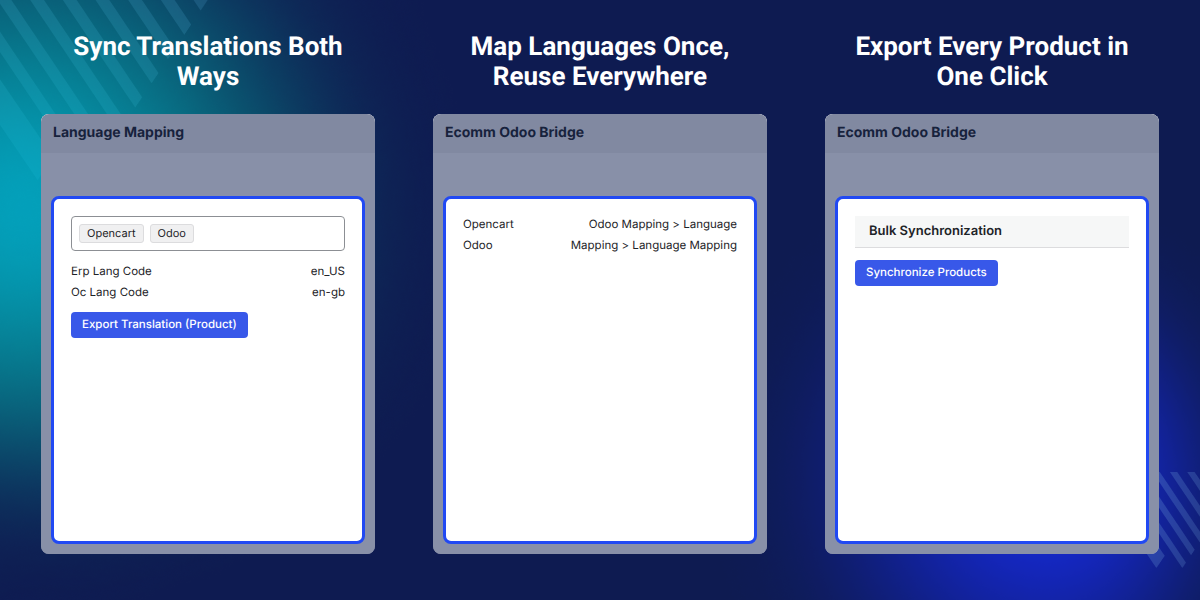
    Odoo Bridge for Opencart Multi Language Extension

    Highlighted Features of Odoo Bridge for Opencart Multi Language Extension

     Bidirectional Translation Sync

    Move product translations from Opencart to Odoo, or from Odoo back to Opencart, whenever admins need them updated. Either side can stay the source of truth for that particular run.

     Product & Category Translation

    Export and update translated names and descriptions for both products and their categories. Categories also carry translated names through Odoo V12, though not in newer Odoo releases.

     Attribute & Option Translation

    Carry Attribute and Attribute Option text over in the same export that moves the product, so variant labels stay translated too.

     Two-Sided Language Mapping

    Set up matching language pairs from the Opencart admin and separately from the Odoo admin, once, before any export runs.

     Individual Product Sync

    Push one product's translation from Odoo to Opencart straight from that product's own Action menu. The rest of the catalog stays untouched during that single push.

     One-Click Bulk Sync

    Synchronize the translations of every product from Odoo to Opencart in a single run. That single run replaces repeating the same export for every product.

    Why Do We Need Odoo Bridge for Opencart Multi Language Extension?

    Odoo Bridge for Opencart Multi Language Extension solves a gap left by the base Opencart Odoo Connector. That base connector already moves products and stock between the platforms. It does not carry translated product text along with them, though.

    Without this bridge, a store team managing several languages must re-enter the same product name and description in both systems.

    The same re-entry applies to attribute and option text as well. It costs real time on every product update across every language the store supports.

    Skipping this step also risks the Opencart storefront and the Odoo backend drifting apart. One language can drift out of sync while another stays correct.

    The module removes that manual step by reusing one shared language mapping for every export that follows. It exports translations through the same mapping an admin set up once. That mapping covers the Opencart side and the Odoo side alike.

    One practical detail worth knowing: category name translation only carries through Odoo V12. The category name field in Odoo V13 and later is no longer translatable. That one field stops moving between the two systems as a result.

    Also, if you want to keep template images aligned the same way, check our extension Odoo Bridge for Opencart Multi Image Extension.

    Use Cases

    • Multilingual Product Catalog Management

      Keep product translations across multiple Opencart languages aligned with a single Odoo source instead of editing each language manually.

    • Regional Market Expansion

      Map a new language once and export existing product translations from Odoo to support expansion into new language markets.

    • Centralized Translation Control in Odoo

      Edit translated product content in Odoo and export individual products to Opencart as they become ready for the storefront.

    • Bulk Translation Rollout for Large Catalogs

      Sync translations for an entire product catalog from Odoo to a new Opencart language in a single bulk run.

    Language Mapping at the Opencart End

    Language Mapping at the Opencart end links each Opencart language to its matching Odoo language. That pairing has to exist before any translation can be exported.
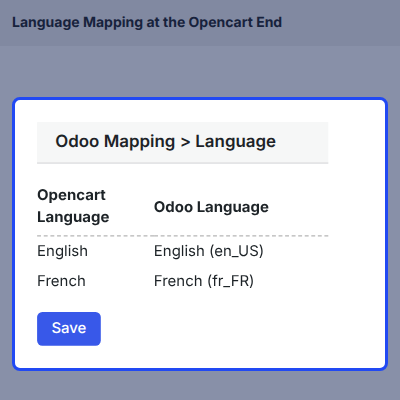
    • Open the Opencart admin panel and navigate to the Odoo Mapping menu in the sidebar.
    • Select Language from that menu to open the language mapping screen.
    • Pair each installed Opencart language with its matching language inside Odoo.
    • Save the mapping so every later export knows which language goes where.
    Language Mapping at the Opencart End

    Language Mapping at the Odoo End

    Exports started from either platform read from that one shared mapping. That mapping only needs to be entered correctly one single time.
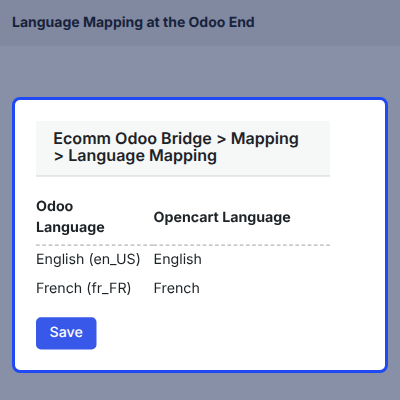
    • Open the Odoo backend and go to the Ecomm Odoo Bridge menu.
    • Select Mapping, then Language Mapping, to open the matching screen on the Odoo side.
    • Review or add the language pairs so they match the Opencart side exactly.
    • Save the mapping before running any product translation export in either direction.
    Language Mapping at the Odoo End

    Product Translation Export from Opencart to Odoo

    Product Translation Export from Opencart to Odoo sends translated product text from Opencart over to Odoo in one action. It suits teams that manage most product content inside Opencart first, before Odoo gets involved.
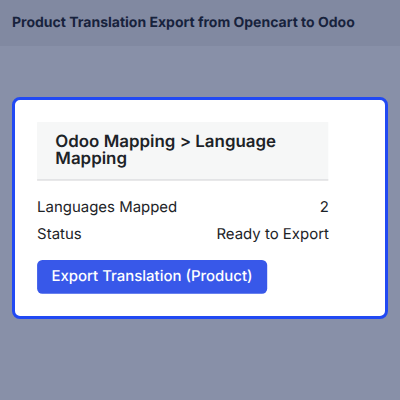
    • Go to the Odoo Mapping menu in the Opencart admin panel.
    • Select Language Mapping from that menu to open the export screen.
    • Click the Export Translation (Product) button to start the export run.
    • Odoo receives the translated product text for every language that was mapped.
    Product Translation Export from Opencart to Odoo

    Individual Product Translation Sync from Odoo to Opencart

    Individual Product Translation Sync pushes one product's translated text from Odoo to Opencart as soon as it is edited.
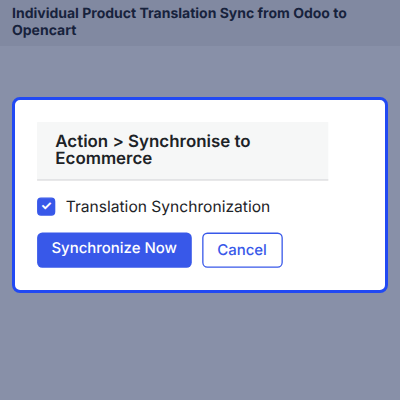
    • Open the product record inside the Odoo product catalog view.
    • Click the Action button, then select Synchronise to Ecommerce from the list.
    • Tick the Translation Synchronization option inside the pop-up window that opens.
    • Click Synchronize Now to send that product and its translation over to Opencart.
    Individual Product Translation Sync from Odoo to Opencart

    Bulk Product Translation Sync from Odoo to Opencart

    Bulk Product Translation Sync exports the translations of every product from Odoo to Opencart in a single run. This replaces syncing large catalogs one product at a time instead of all at once.
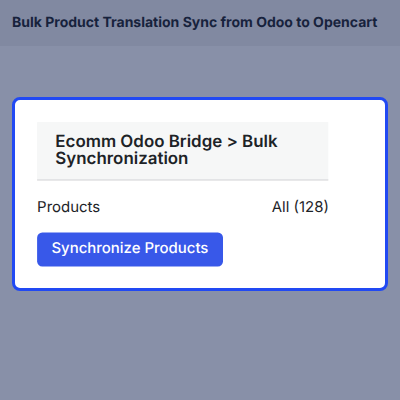
    • Open the Ecomm Odoo Bridge menu from inside the Odoo backend.
    • Select Bulk Synchronization from the list of available options there.
    • Click the Synchronize Products button to start the bulk export run.
    • Every product then syncs to Opencart along with its mapped-language translations.
    Bulk Product Translation Sync from Odoo to Opencart

    Prerequisites for using Odoo Bridge for Opencart Multi Language Extension Module

    Below is the list of things you would need before installing Odoo Bridge for Opencart Multi Language Extension:

    • Odoo Bridge for Opencart Multi Language Extension is a dependent module on Opencart Odoo Connector Module, which is the framework module to provide the structure to integrate Opencart with Odoo. The base module needs to be installed first for Odoo Bridge for Opencart Multi Language Extension to work.
    • For Odoo online(SAAS) users, you first need to install the Odoo.sh tool before installing Odoo Bridge for Opencart Multi Language Extension because Odoo restricts third-party software installations on Odoo online(SAAS).

     Dedicated Support For Your Odoo Bridge for Opencart Multi Language Extension

    Webkul's dedicated support provides you with the customizations and troubleshooting solutions for your Odoo Bridge for Opencart Multi Language Extension Module.

    For any query or issue please CREATE A TICKET HERE

    You may also check our other top-quality Odoo Extensions.

    Specifications

    Product Version1.5
    Released6 years ago
    Last UpdatedSeptember 29, 2026 (17 days ago)
    Supported Versions8.x  9.x  10.x  11.x  12.x  13.x  14.x  15.x  16.x  17.x  18.x  19.x  20.x  

    Ratings

    We'd love to hear your thoughts! Share your feedback and help us craft an even better experience tailored just for you.

    Write a review

    Frequently Asked Questions

     What does Odoo Bridge for Opencart Multi Language Extension do?
    Odoo Bridge for Opencart Multi Language Extension synchronizes product, category, and attribute translations between an Opencart store and Odoo, running in either direction the admin needs. It relies on the base Opencart Odoo Connector for the underlying data link.
     
     Does this module work on its own?
    No, it runs as an add-on to the Opencart Odoo Connector module. That module provides the base framework linking Opencart to Odoo and must be installed first.
     
     Can I use this with Odoo Online (SAAS)?
    Yes, but the Odoo.sh tool needs to be installed first, because Odoo restricts third-party module installations on the Online (SAAS) plan.
     
     Where do I set up language mapping?
    Language mapping is set up on both ends before running any translation export. Use Odoo Mapping > Language in the Opencart admin, and Ecomm Odoo Bridge > Mapping > Language Mapping in Odoo.
     
     How do I export a product's translation from Opencart to Odoo?
    Open Odoo Mapping in the Opencart admin, select Language Mapping, and click the Export Translation (Product) button to send translated product text to Odoo.
     
     Can I sync just one product's translation from Odoo?
    Yes, open the product in Odoo, click Action, select Synchronise to Ecommerce, tick Translation Synchronization, and click Synchronize Now to push that one product.
     
     How do I sync translations for every product at once?
    Open Ecomm Odoo Bridge in Odoo, select Bulk Synchronization, and click Synchronize Products to sync every product's translation to Opencart in one run.
     
     Does it translate category names on every Odoo version?
    Category name translation carries through Odoo V12 only, not in later Odoo versions. Odoo V13 and later versions no longer treat the category name field as translatable.
     
     Are attribute translations exported separately from the product?
    No, Attribute and Attribute Option translations export together with the product in the same synchronization, not as a separate step or a separate button.
     
     Does bulk synchronization update products that were already synced?
    Yes, the feature list describes bulk synchronization as exporting and updating translations, so already-synced products receive the latest translated text as well.
     
     Which Opencart and Odoo versions does it support?
    It supports Opencart 3.x.x.x, paired with either Odoo 13.x or Odoo 14.x on the Odoo side of the bridge.
     
     Does the module need any account or license to run?
    It ships as version 1.5 under a single-application license, and it needs the Opencart Odoo Connector base module active on the same store.

    Specification

    Detailed technical features and requirements to help you understand the module’s capabilities and ensure smooth integration with your system.

    Cloud Hosting

    Detailed technical features and requirements to help you understand the module’s capabilities and ensure smooth integration with your system.

    Default Configuration Details of Server

    1 GB
    RAM
    1 Core
    Processor
    30 GB
    Hard Disk
    1 GB RAM & 1 Core Processor
    Database

    Want to know more how exactly we are going to power up your eCommerce Website with Cloud to fasten up your store

    * Server Configuration may vary as per application requirements.

    Change Logs

    Not Available


