USD
  • EUR
  • INR
  • USD
Cart
Cart 0
  • You have no items in your shopping cart.
    Odoo Apps Extensions
    Cart
    Cart 0
    • You have no items in your shopping cart.
    Hire a Developer
    ×
    Contact Us!
    Send Again
    Close
    Please Login to Write Your Review
    Odoo Different Weight For Product's Variant

    Odoo Different Weight For Product's Variant

    x
    Free

    * Required Fields

    $15.00
    Add To Cart

    Odoo Different Weight For Product's Variant lets admins set a separate volume, gross weight, and net weight on each product variant.


    • Set a different weight for each product variant in Odoo.

    • Save a separate Volume value on every variant of a product template.

    • Enter the Gross Weight and Net Weight for each variant on its own form.

    • Stop template weight values from carrying forward to every variant.

    • Keep the Volume, Gross Weight, and Net Weight on the product template.

    • Edit variant weights from the Product Variants menu in the Sales app.

    • Manage variant weights in the Weights section of the Inventory tab.

    Odoo Different Weight For Product's Variant
    Odoo Different Weight For Product's Variant
    $15.00
    Check How It Works

    Need Help Deciding?

    Support answers within one business day.

    Open a ticket
    $15.00
    Configure and Buy
    X
    • Description
    • Reviews
    • FAQ
    • Customers ()
    • Specifications
    • Cloud Hosting
    • Changelog

    Odoo Different Weight For Product's Variant is an Odoo 8 module that stores weight and volume per variant. Admins can give each variant its own Volume, Gross Weight, and Net Weight values.

    In default Odoo 8, the volume, weight, and net weight on a product template carry forward to all of its variants. A different weight for a single variant is not possible without this module.

    After installation, an admin opens Sales, goes to Product Variants, and selects the variant to edit. The Weights section on the Inventory tab of that variant form holds the new values.

    Each variant form shows its attribute values, such as Memory: 16 GB, Color: White, and Wi-Fi: 2.4 GHz. That label makes it clear which variant record receives the weight and volume values.

    The product template keeps its own Volume, Gross Weight, and Net Weight fields in the same Weights section. Admins can set template values once and then change only the variants that differ.

    Additionally, if you want to set a separate extra price for each attribute value of a product, then check Odoo Product Variant Extra Price.
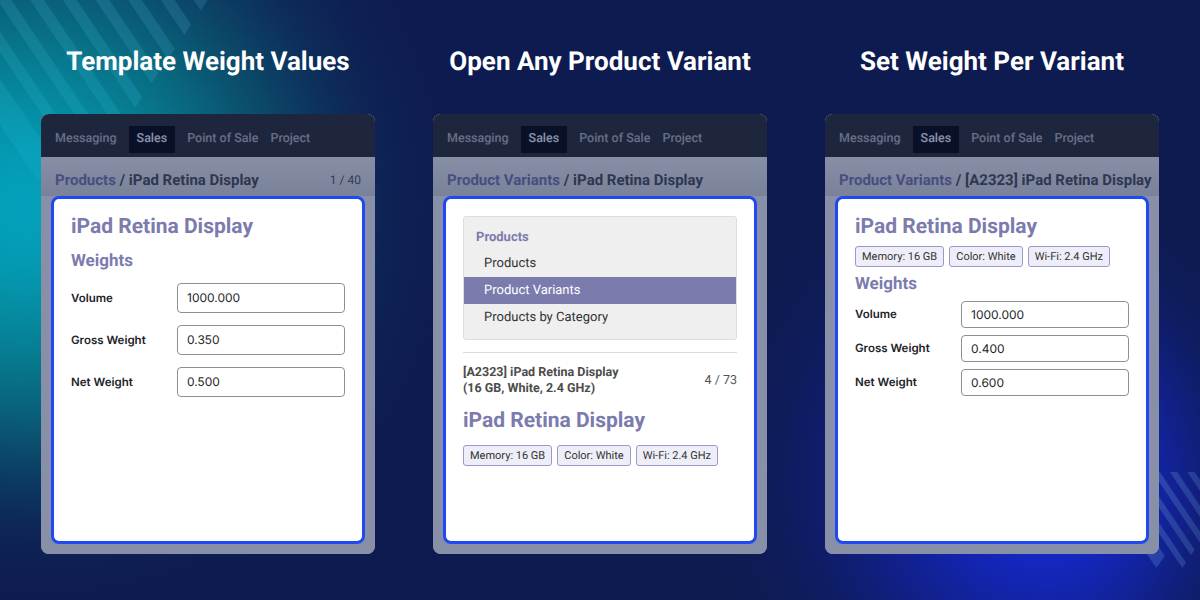
    Odoo Different Weight For Product's Variant

    Highlighted Features of Odoo Different Weight For Product's Variant

     Variant Gross Weight

    Enter a Gross Weight on each product variant that is different from the value on its product template.

     Variant Net Weight

    Save a Net Weight per variant, so two storage options of one device can carry separate values.

     Variant Volume

    Record a Volume value on every product variant instead of copying one volume from the product template.

     Template Values Kept

    Keep the Volume, Gross Weight, and Net Weight fields on the product template for the base product record.

    Why Do We Need Different Weights for Odoo Product Variants?

    Odoo Different Weight For Product's Variant fixes a gap in Odoo 8, where each variant copies weight and volume from its template.

    A product sold in several sizes, colors, or configurations often weighs a different amount in each version. Default Odoo still shows one volume, weight, and net weight for all of those variants.

    Store teams then keep wrong weights on some variants, or they create separate products to hold the correct values. Both options add manual work and make the product catalog harder to manage.

    With this module installed, the admin enters the correct values on the variant form itself. The template can hold a Gross Weight of 0.350 while one variant holds 0.400.

    Also, if you want to assign different vendors to each product variant, you can check our extension Odoo Manage Vendors Per Variant.

    Use Cases

    • Storage Size Variants

      Electronics stores can record a separate weight for each memory or storage option of one device model.

    • Clothing Size Variants

      Apparel sellers can give small, medium, and large variants of one garment their own gross and net weights.

    • Pack Size Variants

      Stores that sell one item in several pack quantities can save a matching volume and weight per pack variant.

    • Accurate Variant Records

      Inventory teams can keep correct weight data on each variant instead of creating separate products for every weight.

    Set Weight and Volume for Each Product Variant

    Admins can enter a separate Volume, Gross Weight, and Net Weight on any product variant in Odoo. These values stay on the variant and do not come from the product template.
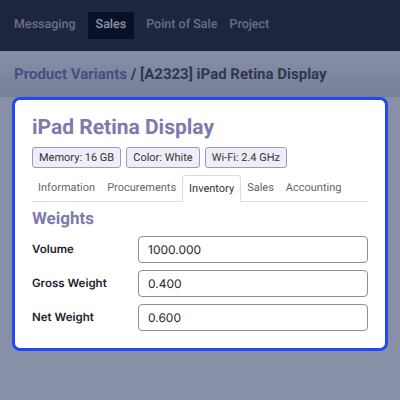
    • Open a variant form from Sales > Products > Product Variants.
    • Go to the Inventory tab and find the Weights section on the variant form.
    • Enter the Volume value that applies to this variant only.
    • Enter the Gross Weight value for the selected product variant.
    • Enter the Net Weight value and save the variant record.
    Set Weight and Volume for Each Product Variant

    Product Template Weight and Volume

    The product template keeps its own Volume, Gross Weight, and Net Weight fields in its Weights section. These template values describe the base product before an admin changes any of its variants.
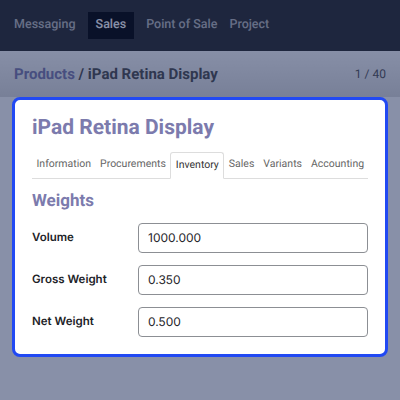
    • Open the product template from Sales > Products > Products.
    • Set the template Volume, such as 1000.000, in the Weights section.
    • Set the template Gross Weight, such as 0.350, for the base product.
    • Set the template Net Weight, such as 0.500, for the base product.
    Product Template Weight and Volume

    Find Variants in the Product Variants Menu

    The Product Variants menu in the Sales app lists every variant, and each record opens the form where its weights are set. The form header shows the internal reference and attribute values of the variant.
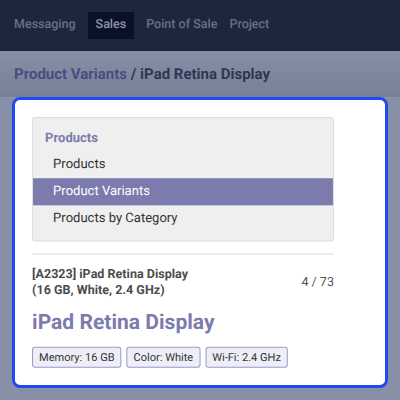
    • Click Product Variants under the Products section of the Sales menu.
    • Open a variant such as [A2323] iPad Retina Display (16 GB, White, 2.4 GHz).
    • Check the attribute tags, such as Memory: 16 GB, Color: White, and Wi-Fi: 2.4 GHz.
    • Move between variant records with the pager, for example 4 / 73.
    Find Variants in the Product Variants Menu

    Odoo Different Weight For Product's Variant Support -

    For any query or issue please create a support ticket here http://webkul.uvdesk.com

    You may also check our other top-quality Odoo Apps.

    Specifications

    Product Version1.0
    Released11 years ago
    CategoryOdoo Apps, Products, 
    Last UpdatedSeptember 30, 2026 (1 month ago)
    Supported Versions8.x  9.x  10.x  11.x  12.x  13.x  14.x  15.x  16.x  17.x  18.x  19.x  20.x  

    Ratings

    We'd love to hear your thoughts! Share your feedback and help us craft an even better experience tailored just for you.

    Write a review

    Frequently Asked Questions

     What does the Odoo variant weight module do?
    This Odoo 8 module lets admins set a separate Volume, Gross Weight, and Net Weight on each product variant. The variant values stay independent of the values on the product template.
     
     What happens to variant weights in Odoo without this module?
    In default Odoo 8, the volume, weight, and net weight of the product template carry forward to all of its variants, so every variant shares the same values.
     
     Where do I set the weight of a product variant?
    Go to Sales, open Product Variants, and select the variant you want to change. Enter the values in the Weights section on the Inventory tab and save the record.
     
     Which fields can I set for each product variant?
    You can set three fields on each product variant, which are Volume, Gross Weight, and Net Weight.
     
     Does the product template keep its own weight values?
    Yes, the product template keeps its own Volume, Gross Weight, and Net Weight in the Weights section of its own product form.
     
     Which Odoo version does this module support?
    The module supports Odoo 8, and the current product version listed in the user guide is 1.0.0.1.
     
     Can two variants of the same product have different volumes?
    Yes, each variant keeps its own Volume field, so two variants of one product template can store two different volume values.
     
     Do I need developer mode to install the module?
    Yes, the user guide asks you to activate the developer mode from the Settings menu before you update the module list and install the module.
     
     How do I install the variant weight module in Odoo?
    Copy the product_variant_weight folder into your Odoo addons and activate developer mode from Settings. Then open Apps, click Update Modules List, remove the Apps filter, and install the module.

    Specification

    Detailed technical features and requirements to help you understand the module’s capabilities and ensure smooth integration with your system.

    Cloud Hosting

    Detailed technical features and requirements to help you understand the module’s capabilities and ensure smooth integration with your system.

    Default Configuration Details of Server

    1 GB
    RAM
    1 Core
    Processor
    30 GB
    Hard Disk
    1 GB RAM & 1 Core Processor
    Database

    Want to know more how exactly we are going to power up your eCommerce Website with Cloud to fasten up your store

    * Server Configuration may vary as per application requirements.

    Change Logs

    Not Available