Send Again
Close
Odoo Invoice Tax Stamp is an Odoo module that lets a seller add a tax stamp to customer invoices. This stamp is legal evidence that tax has been paid on the invoice, and it makes the document legally valid.
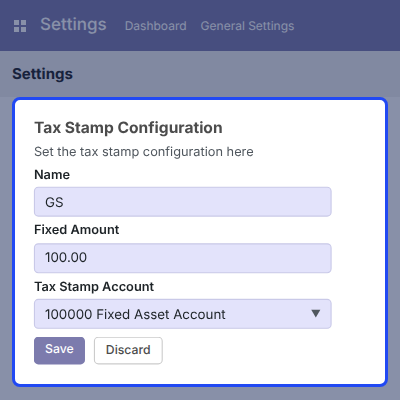
An admin sets up the charge once in the Invoicing section of General Settings. The setup asks for a label, a fixed amount, and the ledger account that will receive the value.
After this setup, any customer invoice in Odoo can carry the extra charge. It appears in the invoice totals under the configured label, and the final total includes it.
Sellers can click the Add Tax Stamp button on a draft invoice to apply the charge. They can also tick one checkbox so Odoo adds it automatically.
The fixed amount stays the same on every invoice, which gives accounting teams a predictable charge. The store listing covers Odoo releases from version 8 through version 12.
Additionally, if you want to print many customer invoices and vendor bills as one PDF file, then check Odoo Bulk Invoice PDF Generation.
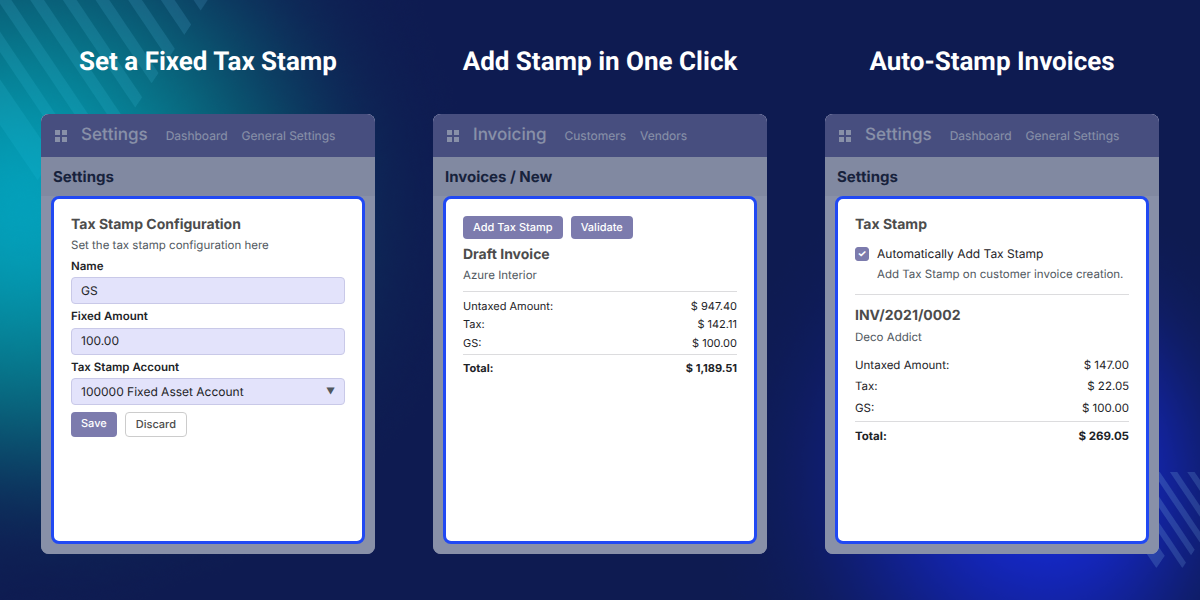
Set one fixed amount in the settings, and Odoo adds that same value to each stamped customer invoice.
Give the charge a name, such as GS, and the invoice totals list the fixed amount under that label.
Pick a ledger in the Tax Stamp Account field, so the charged value is recorded against the right account.
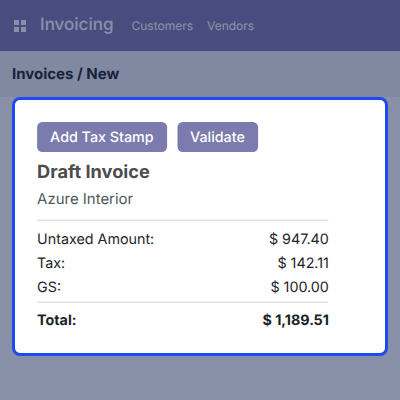
Click Add Tax Stamp on a draft customer invoice when only selected invoices need the extra amount.
Tick Automatically Add Tax Stamp once, and Odoo applies the charge to customer invoices with no manual step.
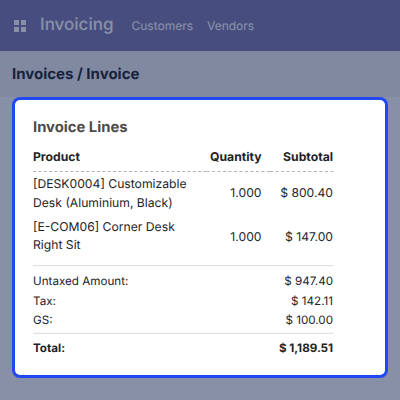
The invoice lists the charge under the tax line, and the final total includes the product amounts and the charge.
Odoo Invoice Tax Stamp fills a gap in Odoo Invoicing, which offers no built-in option for a fixed stamp charge on customer invoices.
Without the module, accountants add this charge by hand as an extra invoice line. They must type the amount each time and remember which account it belongs to.
Manual entry leads to missed charges, wrong amounts, and values posted to the wrong account. Each of these mistakes means editing or cancelling the invoice later.
The module keeps the label, the fixed amount, and the account together in one settings block. A seller then applies the charge with one button, or lets Odoo add it on every customer invoice.
In practice, a label of GS with a Fixed Amount of 100.00 shows as a GS line of $100.00. Odoo places that line between the Tax line and the invoice Total.
Also, if you want to print invoices and sales orders straight from Odoo without downloading the PDF first, you can check Odoo Print Invoice Or Report Without Download.
Sellers whose invoices need proof of paid tax can add the required charge to every customer invoice from Odoo.
Businesses that charge the same amount on each sale turn on automatic application and stop entering it by hand.
Accountants who charge only some invoices keep automation off and click the Add Tax Stamp button on each draft.
Finance teams that track this charge apart from sales choose a dedicated Tax Stamp Account in the settings.
Tax Stamp Configuration sits in the Invoicing section of Odoo General Settings. Admins define the label, the fixed amount, and the ledger account in one place before any invoice uses them.
The Add Tax Stamp button appears at the top of a draft customer invoice. A user clicks it to add the configured charge to that one invoice only.
Automatically Add Tax Stamp is a checkbox next to the configuration block in Invoicing settings. When ticked, Odoo applies the charge to customer invoices without the manual button.
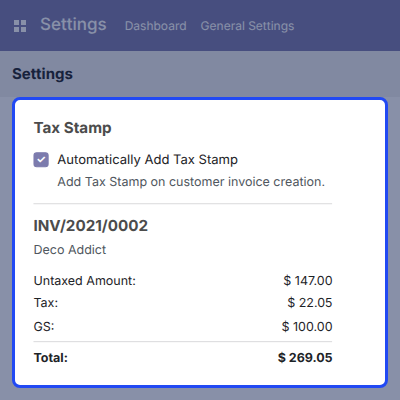
The fixed charge shows on the invoice along with the product amounts. It sits as its own line in the totals block, so the customer can see what it adds.
For any query or issue please create a support ticket here http://webkul.uvdesk.com
You may also check our other top-quality Odoo Apps.
Detailed technical features and requirements to help you understand the module’s capabilities and ensure smooth integration with your system.
Detailed technical features and requirements to help you understand the module’s capabilities and ensure smooth integration with your system.
We’re partnered with top-tier, trusted providers!
Want to know more how exactly we are going to power up your eCommerce Website with Cloud to fasten up your store
* Server Configuration may vary as per application requirements.



