USD
  • EUR
  • INR
  • USD
Cart
Cart 0
  • You have no items in your shopping cart.
    Odoo Apps Extensions
    Cart
    Cart 0
    • You have no items in your shopping cart.
    Hire a Developer
    ×
    Contact Us!
    Send Again
    Close
    Please Login to Write Your Review
    Odoo Library Management System

    Odoo Library Management System

    x
    Free

    * Required Fields

    $99.00
    Add To Cart

    Odoo Library Management System helps libraries manage books, members, book issue, return, and fines in Odoo, replacing manual records.


    • Manage books, authors, and publishers from one place in Odoo.

    • Add library members and keep their account information.

    • Issue books and receive returns without paper registers.

    • Find books fast with the improved book search.

    • Calculate fines for late book returns with library fine calculation.

    • Keep a full transaction history of every library activity.

    • Create book stock, then confirm and approve it for inventory.

    • Let users send a book issue request to the librarian.

    • Accept or reject new book requests from the Book Request tab.

    • Email the user when a requested book reaches stock.

    • Check book status in the Book Copy and Register tabs.

    • Set return policies and book categories in Configuration.

    Odoo Library Management System
    Odoo Library Management System
    $99.00
    Check How It Works

    Need Help Deciding?

    Support answers within one business day.

    Open a ticket
    $99.00
    Configure and Buy
    X
    • Description
    • Reviews
    • FAQ
    • Customers ()
    • Specifications
    • Cloud Hosting
    • Changelog

    Odoo Library Management System is an Odoo module that helps libraries manage books, authors and publishers, members, and book issue and return.

    Librarians create book entries and add book stock. Every stock entry needs confirmation and approval before it reaches inventory.

    Users click Issue on a book and see a popup that the request went to the librarian.

    Members can also request books that the library does not have. The librarian accepts or rejects each request.

    The module calculates fines, keeps account information, and records every transaction in a history.

    Additionally, if you want readers to issue books from a website, then check Odoo Website Library Management System.
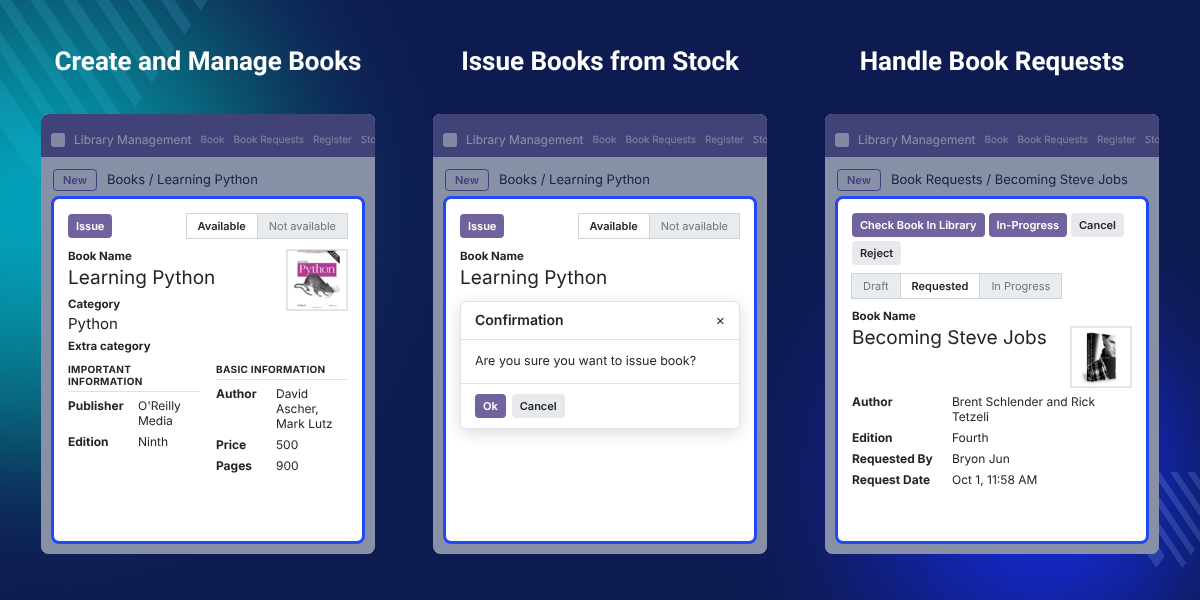
    Odoo Library Management System

    Highlighted Features of Odoo Library Management System

     Books, Authors, Publishers

    Manage books, authors, and publishers in an organized way, with book name, image, and category on each book.

     Library Members

    Keep library members in Odoo and maintain their account information along with issue and return activity.

     Book Issue and Return

    Issue books to members and receive them back, with a request sent to the librarian when a user clicks Issue.

     Fine Calculation

    Library fine calculation for late returns means librarians do not work out penalties by hand for each member.

     Improved Book Search

    Search the book list with the improved search, so users and librarians reach the right book in less time.

     Transaction History

    Every issue and return is stored as a transaction, so the library can look back at what happened to a book.

    Why Do We Need Odoo Library Management System?

    Odoo Library Management System replaces the registers and spreadsheets that make staff write down every book, member, and issue by hand.

    Stock counts, due dates, and fines then depend on how carefully each entry was written. Searching for one book takes time.

    The module moves this work into Odoo. Books, members, fines, and transactions sit in one library management software module.

    Librarians create book stock with the book name, type, and quantity. They confirm and approve it before the books go to inventory.

    Also, if you run a school or college and want library management inside a wider system, you can check our extension Odoo Education Management System.

    Odoo Library Management System Use Cases

    • Daily Issue and Return

      Librarians handle book issue and return for members from Odoo and checks each request in one place.

    • Replace Manual Records

      Libraries that kept books and members on paper move them to Odoo and search them instead of flipping pages.

    • Request a Missing Book

      Members ask for a book the library does not hold. The librarian accepts or rejects it, and the member gets an email once the book is in stock.

    • Approve New Stock

      Libraries add new copies by creating a stock entry, then confirming and approving it before the books show in inventory.

    • Apply Late Fines

      Libraries apply their return policy and calculate fines for books that come back late.

    Create and Manage Books in Odoo Library

    Every book is a record in the module. Librarians create a book from the Books section of the Library Management module.
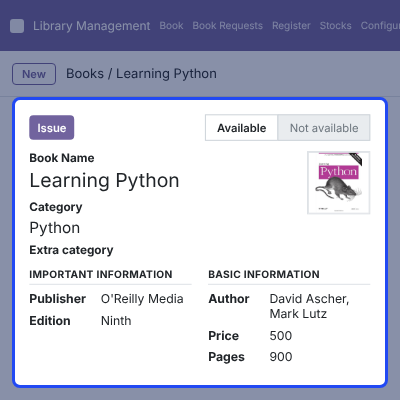
    • Open the Library Management module and go to Books.
    • Click Create to start a new book record.
    • Enter the book name and upload the book image.
    • Select the book category and fill in other details.
    • Save the record to add the book to the library.
    Create and Manage Books in Odoo Library

    Book Stock Confirmation and Approval

    Book stock management decides which books are available to issue. A stock entry goes through three steps before the books join inventory.
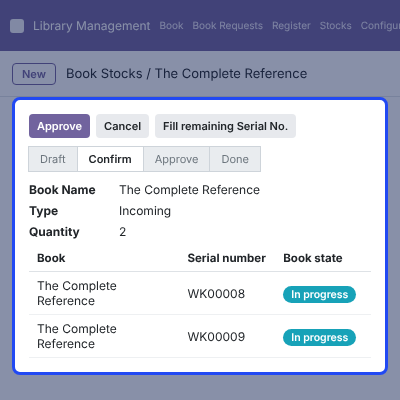
    • Go to Stock > Book Stock and click Create.
    • Enter the book name, type, and quantity.
    • Save the stock entry and click Confirm.
    • Click Approve to approve the book stock.
    • Click Done to add the books to inventory.
    • View the book stock in the inventory section.
    Book Stock Confirmation and Approval

    Issue Books from Stock

    Users issue a book straight from its record. The librarian receives the request, so no paper form is needed.
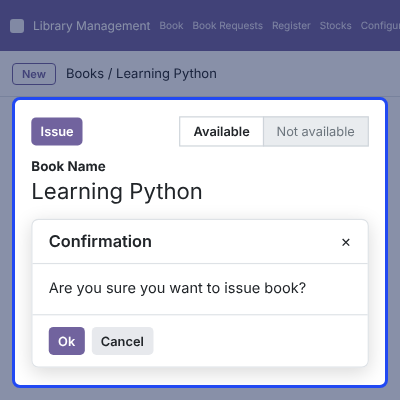
    • Click the Issue button on the book record.
    • A confirmation popup shows that the request was sent to the librarian.
    • Book issue and return are tracked for each library member.
    • Every issue and return is saved in the transaction history.
    Issue Books from Stock

    Book Request Management for Librarians

    When a book is not in the library, a user can request it. The librarian decides from the Book Request tab.
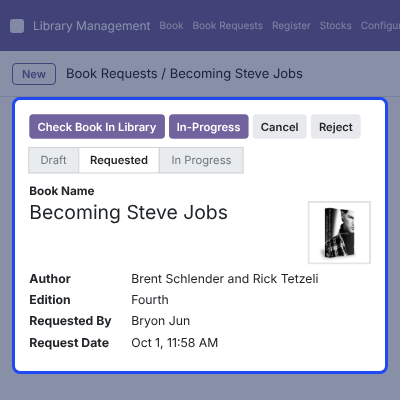
    • Open the Book Request tab to see all book requests.
    • Accept a request to add the book to the library.
    • Reject a request that the library will not fulfil.
    • The user gets an email notification once the book reaches stock.
    Book Request Management for Librarians

    Check Book Availability with Book Copy and Register

    Librarians can see which books are available and what state each book is in, without counting copies by hand.
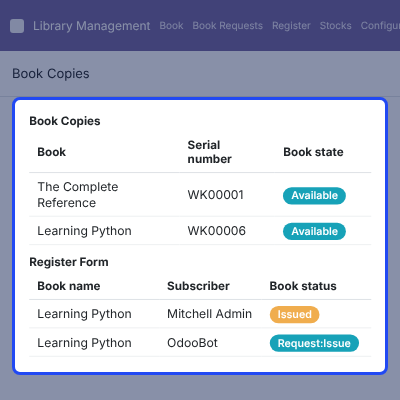
    • View the available books in the Book Copy section.
    • Check the status of each book in the Register tab.
    • Track item availability and due dates for issued books.
    • Use the improved book search to find a book quickly.
    Check Book Availability with Book Copy and Register

    Return Policy and Book Category Configuration

    Configuration holds the rules and groups that the library uses every day. Admins set them once from the Configuration menu.
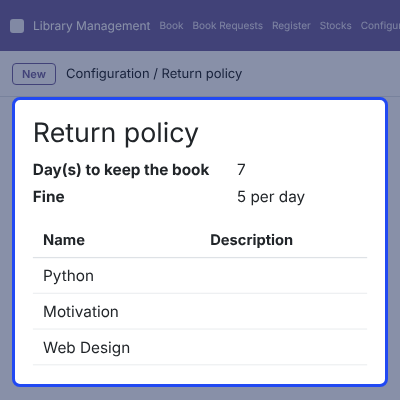
    • Go to Configuration > Library Configuration to create a return policy.
    • Go to Configuration > Category to create a book category.
    • Save each category entry to use it on book records.
    • Use the return policy with fine calculation for late returns.
    Return Policy and Book Category Configuration

    Complete Odoo Library Management System Feature List

    Book Management

    • Manage books, authors and publishers from one Odoo library module
    • Create a book with name, image, category, and other details
    • Create book categories from Configuration > Category
    • Find books with the improved book search

    Stock Management

    • Create book stock with book name, type, and quantity
    • Move stock through Confirm, Approve, and Done before it reaches inventory
    • View book stock in the inventory section
    • Check available books in Book Copy and book status in the Register tab
    • Track item availability and due dates

    Issue and Return

    • Issue a book with the Issue button and send the request to the librarian
    • Show a confirmation popup after the issue request is sent
    • Receive returned books and keep each issue and return on record
    • Create return policies from Configuration > Library Configuration

    Members and Book Requests

    • Manage library members and maintain their account information
    • Let users request books that are not in the library
    • Accept or reject each request from the Book Request tab
    • Email the user once a requested book reaches stock

    Fines and Records

    • Calculate fines for late returns
    • Maintain the complete transaction history of the library
    • Reduce manual work in daily library processes

    Odoo Library Management System Support -

    For any query or issue please create a support ticket here http://webkul.uvdesk.com

    You may also check our other top-quality Odoo Apps.

    Specifications

    Product Version1.0.0
    Released8 years ago
    CategoryOdoo Apps, Tool, 
    Last UpdatedOctober 5, 2026 (9 days ago)
    Supported Versions8.x  9.x  10.x  11.x  12.x  13.x  14.x  15.x  16.x  17.x  18.x  19.x  20.x  

    Ratings

    We'd love to hear your thoughts! Share your feedback and help us craft an even better experience tailored just for you.

    Write a review

    Frequently Asked Questions

     What does Odoo Library Management System do?
    Odoo Library Management System manages books, authors and publishers, library members, book issue, and book return in Odoo. It also calculates fines and keeps a transaction history.
     
     How do I add a new book?
    Open the Library Management module, go to Books, and click Create. Enter the book name, image, category, and other details, then save the record.
     
     How does book stock get added to inventory?
    Go to Stock > Book Stock and create an entry with the book name, type, and quantity. Confirm it, approve it, and click Done to add the books to inventory.
     
     What happens when a user clicks Issue on a book?
    A confirmation popup tells the user that the request was sent to the librarian.
     
     Can users request books that are not in the library?
    Yes. The librarian reviews the Book Request tab and accepts or rejects each request.
     
     Will the user know when a requested book is added?
    Yes. The user receives an email notification once the requested book reaches stock.
     
     Can I set a return policy?
    Yes. Go to Configuration > Library Configuration and create a new return policy configuration.
     
     Which Odoo versions does it support?
    The module is listed for Odoo 8.x to Odoo 20.x on the Webkul store.

    Specification

    Detailed technical features and requirements to help you understand the module’s capabilities and ensure smooth integration with your system.

    Cloud Hosting

    Detailed technical features and requirements to help you understand the module’s capabilities and ensure smooth integration with your system.

    Default Configuration Details of Server

    1 GB
    RAM
    1 Core
    Processor
    30 GB
    Hard Disk
    1 GB RAM & 1 Core Processor
    Database

    Want to know more how exactly we are going to power up your eCommerce Website with Cloud to fasten up your store

    * Server Configuration may vary as per application requirements.

    Change Logs

    Not Available


