USD
  • EUR
  • INR
  • USD
Cart
Cart 0
  • You have no items in your shopping cart.
    Odoo Apps Extensions
    Cart
    Cart 0
    • You have no items in your shopping cart.
    Hire a Developer
    ×
    Contact Us!
    Send Again
    Close
    Please Login to Write Your Review
    Odoo Website Product Compare

    Odoo Website Product Compare

    x
    Free

    * Required Fields

    $35.00
    Add To Cart

    Odoo Website Product Comparison helps store owners add a compare option to the Odoo website. Customers compare up to 4 products in one category.


    • Let customers compare up to 4 products on one page.

    • Compare only products that share a public category.

    • Compare different variants of the same product together.

    • Give customers full product information before they buy.

    • Let customers add products to the cart from the compare page.

    • Restrict the compare option to signed-in users.

    • Let admins choose which fields are available for comparison.

    • Add an Add to Compare checkbox below each product on the shop page.

    Odoo Website Product Compare
    Odoo Website Product Compare
    $35.00
    Check How It Works

    Need Help Deciding?

    Support answers within one business day.

    Open a ticket
    $35.00
    Configure and Buy
    X
    • Description
    • Reviews
    • FAQ
    • Customers ()
    • Specifications
    • Cloud Hosting
    • Changelog

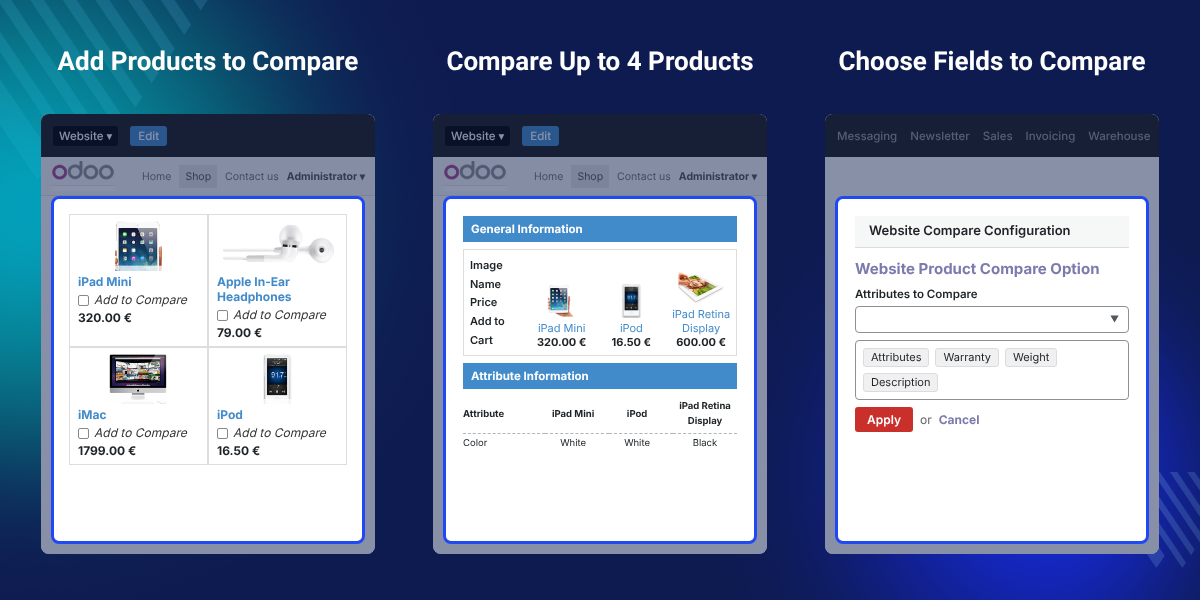
    Odoo Website Product Comparison is an Odoo website module that lets customers compare products in one public category on your own store. Each product has an Add to Compare checkbox below it.

    Shoppers tick it, then click the Compare button to open the compare page. The compare page lists up to 4 products in one table. It shows the full product information, so shoppers can pick the best option.

    Admins decide which fields appear in the comparison from the module configuration. Different variants of one product can also be compared together.

    An Add to Cart option sits on the compare page. The compare option is limited to signed-in users.

    Additionally, if you want to control how customers add products and reach the cart, then check Odoo Website Cart Settings.
    Odoo Website Product Comparison

    Highlighted Features of Odoo Website Product Comparison

     Same Category Comparison

    Products must share a public category to be compared, which keeps every comparison between similar items.

     Up to 4 Products

    One comparison holds a maximum of 4 products, shown together on the compare page.

     Variant Comparison

    Different variants of one product can be compared together, so shoppers choose the right size or color.

     Add to Cart Option

    Shoppers add a product to the cart straight from the compare page after choosing the best option.

     Admin-Selected Fields

    Admins choose which fields are available for comparison from the module configuration in the back office.

     Signed-In Users Only

    Only signed-in users get the compare option, so comparison stays limited to logged-in customers.

    Why Do We Need Odoo Website Product Comparison?

    Odoo Website Product Comparison answers a common store problem: shoppers leave to compare products on other sites, and many never return.

    Without a compare option, customers open extra tabs to check specifications. Each visit to another site lowers the chance of a sale on yours.

    The module keeps the whole comparison on your website. Shoppers compare products in one public category and buy from the compare page.

    Setup takes a few steps. Assign a public category to each product and enable variants in Sales > Settings if you sell them.

    Then set the compare fields under Website Addons > Webkul Website Addons > Configuration.

    Also, if you want to hide or grey out variants that have no stock on the storefront, you can check our extension Odoo Website Hide/Disable Attribute.

    Use Cases

    • Compare Similar Products

      Products from one public category sit together in one table, so customers check their details before buying.

    • Keep Shoppers on Your Site

      The comparison stays on the store's own website, so customers do not leave to check other sites.

    • Choose Between Variants

      For stores that sell sizes or colors, variants of one product appear together on one page.

    • Turn Comparison Into Orders

      After choosing, customers add the product to the cart from the compare page without going back to the shop.

    Add to Compare Option on Product Listing

    Each product on the shop page shows an Add to Compare checkbox below it. Shoppers tick the products they want to compare.
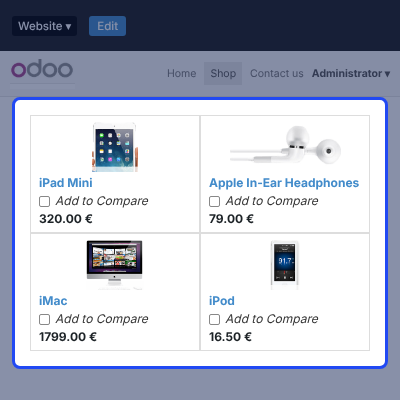
    • Display the Add to Compare checkbox below every product on the website.
    • Let customers tick products from the same category to compare them.
    • Limit the compare option to signed-in users only.
    • Keep customers on your own website while they compare.
    Add to Compare Option on Product Listing

    Compare Products From the Same Public Category

    Only products in the same public category can be compared together. Shoppers then click the Compare button to open the compare page.
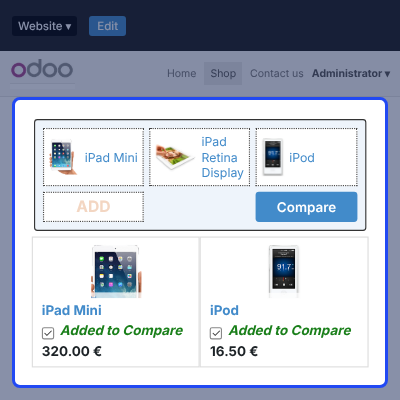
    • Compare products that share one public category.
    • Open the compare page with the Compare button.
    • Allow a maximum of 4 products in one comparison.
    • Compare different variants of one product together.
    Compare Products From the Same Public Category

    Side by Side Product Comparison Page

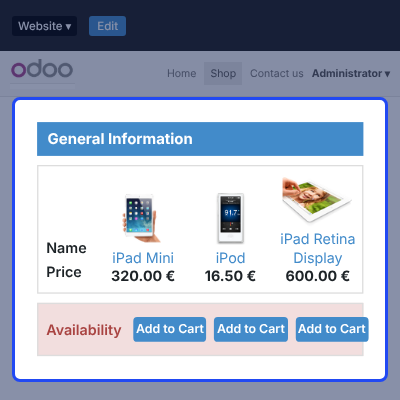
    The compare page lists the selected products in one table. Customers read the full product information before they buy.
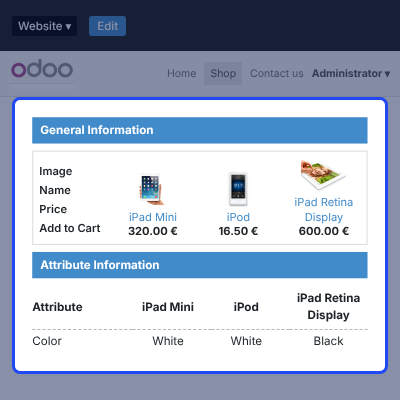
    • List up to 4 products in one table on one page.
    • Include general information such as the product image, name, and price.
    • Add the attribute fields the admin selected for comparison.
    • Give full product information before purchase.
    • Help customers pick the best option without leaving the store.
    Side by Side Product Comparison Page

    Add to Cart From the Compare Page

    The compare page lets shoppers add a product to the cart. They choose the best product and click Add to Cart.
    • Offer an Add to Cart option for each compared product.
    • Let customers buy straight from the comparison.
    • Save customers a trip back to the product listing.
    • Limit the compare page to signed-in users.
    Add to Cart From the Compare Page

    Website Compare Configuration

    Website Compare Configuration lets admins choose which fields are available for comparison. The settings sit in the Odoo back office.
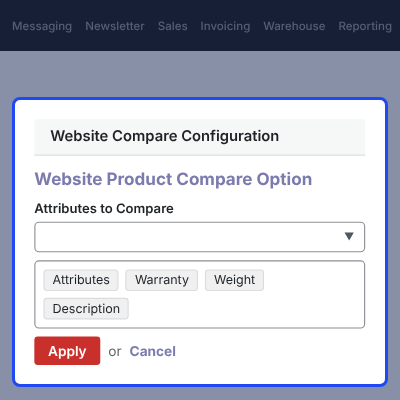
    • Open Website Addons > Webkul Website Addons > Configuration.
    • Use Edit to change the settings of an existing configuration.
    • Add a new configuration with the Create button.
    • Select the fields customers can compare on the website.
    Website Compare Configuration

    Assign Public Category to Product

    Products must share a public category to be compared. In the Website section of each product, admins set the category.
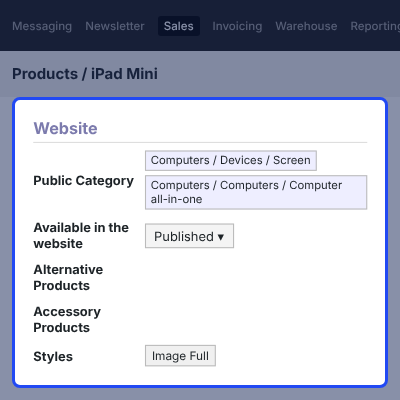
    • Go to Sales > Products.
    • Open an existing product and click Edit, or click Create for a new product.
    • Set the Public category in the Website section.
    • Give related products the same public category so customers can compare them.
    Assign Public Category to Product

    Product Variants and Attributes for Comparison

    Variants let customers compare different versions of the same product. After enabling variants in Sales settings, admins create them.
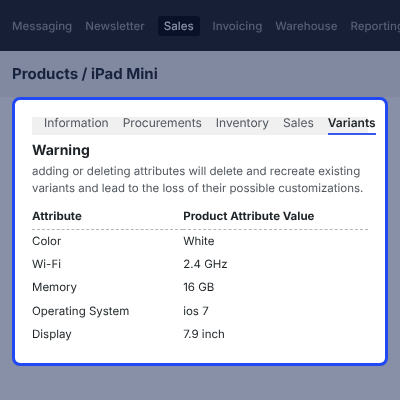
    • Go to Sales > Settings and enable products with several attributes, such as size or color.
    • Go to Products > Product Variants and click Create to add variants manually.
    • Import variants from a file with the Import button.
    • Open the product, click Edit, and select a variant from the dropdown or add a new one.
    • Save the product to link the variant to it.
    Product Variants and Attributes for Comparison

    Odoo Website Product Compare Support

    For any query or issue please create a support ticket here http://webkul.uvdesk.com

    You may also check our other top-quality Odoo Plugin.

    Specifications

    Product Version1.0
    Released10 years ago
    Last UpdatedOctober 12, 2026 (5 days ago)
    Supported Versions8.x  9.x  10.x  11.x  12.x  13.x  14.x  15.x  16.x  17.x  18.x  19.x  20.x  

    Ratings

    We'd love to hear your thoughts! Share your feedback and help us craft an even better experience tailored just for you.

    Write a review

    Frequently Asked Questions

     How does Odoo Website Product Comparison work?
    Odoo Website Product Comparison adds an Add to Compare checkbox below each product. Customers tick products from one public category and click Compare to open the compare page.
     
     How many products can customers compare at a time?
    One comparison holds a maximum of 4 products. The compare page shows them together.
     
     Which products can be compared together?
    Only products in the same public category can be compared together. Set the Public category in the Website section of each product.
     
     Can customers compare variants of the same product?
    Yes. Odoo Website Product Comparison lets customers compare product variants together. Create the variants first from Products > Product Variants.
     
     Can customers add products to the cart from the compare page?
    Yes. Customers choose the best product on the compare page and click Add to Cart. They do not need to go back to the product listing.
     
     Who can use the compare option?
    Only signed-in users get the compare option. Visitors who are not signed in do not get the feature.
     
     How do admins choose the fields shown in the comparison?
    Admins open Website Addons > Webkul Website Addons > Configuration. They click Edit or Create and select the fields available for comparison.
     
     Which Odoo versions does the module support?
    Odoo Website Product Comparison supports Odoo versions 8.x through 20.x. Check the version you need on the store page before you buy.
     
     How do I install the module?
    Extract the downloaded zip and copy the website_product_compare folder into your Odoo add-ons path. Turn on Developer Mode, click Update Modules List in Apps, search for website_product_compare, and click Install.

    Specification

    Detailed technical features and requirements to help you understand the module’s capabilities and ensure smooth integration with your system.

    Cloud Hosting

    Detailed technical features and requirements to help you understand the module’s capabilities and ensure smooth integration with your system.

    Default Configuration Details of Server

    1 GB
    RAM
    1 Core
    Processor
    30 GB
    Hard Disk
    1 GB RAM & 1 Core Processor
    Database

    Want to know more how exactly we are going to power up your eCommerce Website with Cloud to fasten up your store

    * Server Configuration may vary as per application requirements.

    Change Logs

    Not Available


