USD
  • EUR
  • INR
  • USD
Cart
Cart 0
  • You have no items in your shopping cart.
    Bagisto Laravel Extensions
    Cart
    Cart 0
    • You have no items in your shopping cart.
    Hire a Developer
    ×
    Contact Us!
    Send Again
    Close
    Please Login to Write Your Review
    Bagisto Tabby Payment Gateway

    Bagisto Tabby Payment Gateway

    x
    Free
    $99.00
    Add To Cart

    Bagisto Tabby Payment Gateway adds Tabby buy now, pay later to Bagisto checkout. Customers split a purchase into four interest-free installments.


    • Let customers pay in four interest-free installments with Tabby.

    • Send shoppers to the secure Tabby hosted page to choose a plan and pay.

    • Enable or disable the Tabby payment method in Bagisto admin.

    • Set the title, description, and logo that customers see at checkout.

    • Accept AED, SAR, and KWD from one accepted currencies setting.

    • Keep separate public and secret keys for sandbox and live mode.

    • Register the Tabby webhook from Bagisto admin with one click.

    • Create an invoice and a transaction for each paid order.

    • Send refunds created on an order to Tabby automatically.

    • Show the installment plan on product, cart, and checkout pages.

    • Test the full payment flow with Mock Mode before going live.

    Bagisto Tabby Payment Gateway
    Bagisto Tabby Payment Gateway
    $99.00
    Check How It Works

    Need Help Deciding?

    Support answers within one business day.

    Open a ticket
    $99.00
    Configure and Buy
    X
    • Description
    • Reviews
    • FAQ
    • Specifications
    • Cloud Hosting
    • Changelog

    Bagisto Tabby Payment Gateway is a Bagisto module that adds Tabby buy now, pay later to checkout. Shoppers split orders into four payments.

    Customers pay on the secure Tabby page, so card details never reach your store. They return to the store after payment.

    Admins connect the store to Tabby with a merchant code and API keys. Sandbox and live mode each use their own keys.

    Tabby accepts AED, SAR, and KWD, so the sales channel needs one of them. Check that Tabby is available in your country first.

    A webhook places the order even when the customer closes the tab after paying. Refunds made on an order go to Tabby.

    Additionally, if you want to text customers about orders and shipments, then check Bagisto SMS Notifications.
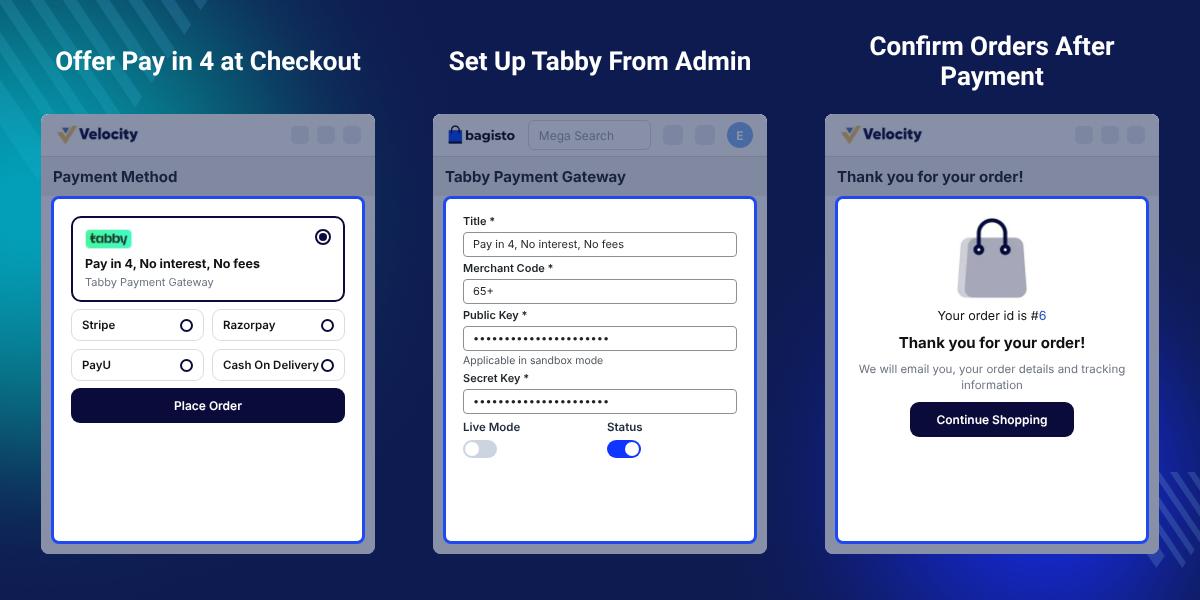
    Bagisto Tabby Payment Gateway

    Highlighted Features of Bagisto Tabby Payment Gateway

     Pay in 4 Installments

    Customers split a purchase into four interest-free installments on the Tabby hosted page.

     Secure Hosted Payment

    Customers pay on the Tabby page, so card details never pass through your Bagisto store.

     Sandbox and Live Keys

    Enter separate public and secret keys for sandbox and live mode, then switch with the Live Mode toggle.

     Webhook Registration

    Generate the Tabby webhook from Settings, so orders are placed even when customers close the tab.

     Single Payment Capture

    Each payment is captured once, so Tabby never charges a customer twice for the same order.

     Automatic Tabby Refunds

    A refund created on an order goes to Tabby without a visit to the Tabby dashboard.

     Installment Plan Widgets

    Product pages, the cart page, and checkout show the Tabby installment plan before customers pay.

     Mock Mode Testing

    Simulate approved, rejected, cancelled, and missing-notification results without calling Tabby.

    Why Do We Need Bagisto Tabby Payment Gateway?

    Bagisto Tabby Payment Gateway gives your store a pay in four option. Without one, shoppers pay the full amount at once, and larger carts stall.

    A store that wants Tabby Buy Now Pay Later must also handle webhooks, capture, and refunds. Doing this by hand takes time and invites errors.

    This Bagisto Installment Payment module covers each step. It sends shoppers to Tabby, places the order from the webhook, and creates the invoice.

    It also sends refunds back to Tabby, so the store team never keys the same refund twice.

    Tabby only notifies webhooks that you register through the store. The Generate Webhook button under Settings > Tabby Webhook does this.

    Also, if you plan to let several vendors sell on your store, you can check our extension Laravel Multi Vendor Marketplace.

    Bagisto Installment Payment Use Cases

    • Sell Higher-Priced Items

      Fashion and lifestyle stores let shoppers pay for a coat or a bag in four parts instead of one full amount.

    • Serve Gulf Region Buyers

      Stores that sell in AED, SAR, or KWD enable Tabby from the accepted currencies field.

    • Test Before Going Live

      Developers use sandbox keys and Mock Mode to check every payment result before real shoppers pay.

    • Recover Closed Tabs

      Customers who close the browser after paying still get an order, because the webhook confirms the payment.

    • Refund From the Order

      Support teams create a refund on the order, and the store passes it to Tabby without extra steps.

    • Show Plans Early

      Merchants display the installment plan on product and cart pages, so buyers see each payment before checkout.

    Shopping Cart and Checkout Start

    The Shopping Cart panel lists every item with its price and quantity controls. Customers click Continue to Checkout to begin the Tabby payment flow.
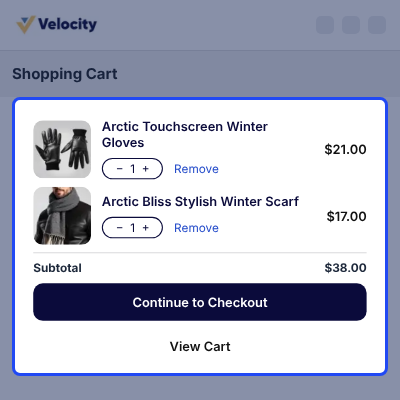
    • Review each cart item with its image, name, and price.
    • Change the quantity with the minus and plus buttons.
    • Delete an item with the Remove link.
    • See the cart Subtotal before checkout.
    • Click Continue to Checkout, or View Cart to open the full cart page.
    Shopping Cart and Checkout Start

    Checkout Address Step

    The Address step collects the billing and shipping address before payment. Customers pick a saved address and click Proceed.
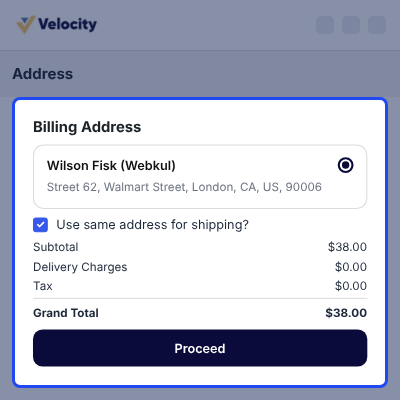
    • Choose the saved Billing Address card, or click the edit icon to change it.
    • Tick Use same address for shipping? to reuse the billing address.
    • Click Proceed to move to the payment step.
    • Check the Cart Summary with Subtotal, Coupon Discount, Delivery Charges, and Tax.
    • Read the Grand Total before paying.
    Checkout Address Step

    Tabby Buy Now Pay Later at Checkout

    Tabby appears in the Payment Method list with the title and description the admin set. Customers select Tabby and click Place Order.

    The store then sends the customer to the Tabby page, where the customer picks a plan and pays. This is how Tabby Buy Now Pay Later works at checkout.
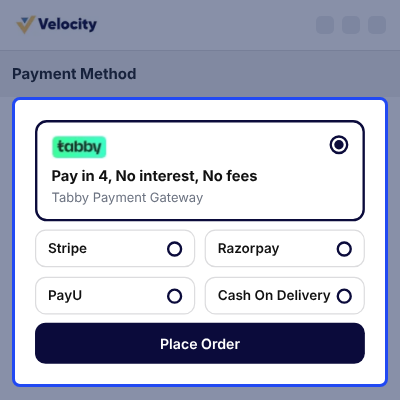
    • Show the Tabby card with the title Pay in 4, No interest, No fees.
    • Show the description Tabby Payment Gateway under the title.
    • Display the installment plan below the selected Tabby card.
    • Keep Tabby beside the other payment methods in the list.
    • Click Place Order to continue on the Tabby page.
    Tabby Buy Now Pay Later at Checkout

    Order Confirmation After Tabby Payment

    After payment, the customer returns to the store and sees the order confirmation with the order ID.

    If Tabby cannot approve the purchase, the customer sees a message and can pick another payment method.
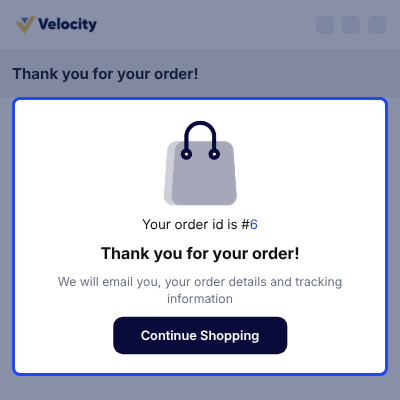
    • Show the order ID, for example Your order id is #6.
    • Show the Thank you for your order message.
    • Tell the customer that order details and tracking information arrive by email.
    • Offer a Continue Shopping button on the page.
    • Return the customer to the cart and place no order when Tabby cannot capture the payment.
    Order Confirmation After Tabby Payment

    Customer Order History

    Customers check the order status and the payment method from My Account > Orders. Each order opens with an Information tab and an Invoices tab.
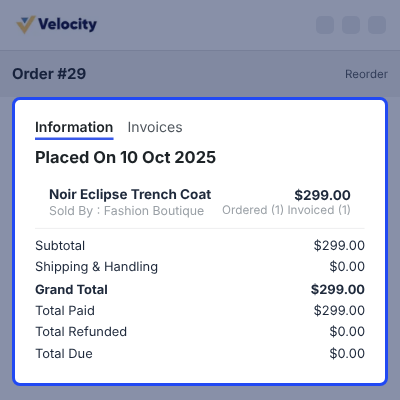
    • Open an order such as Order #29 and read the Placed On date.
    • See the SKU, name, price, item status, and subtotal of each item.
    • Read item status values such as Ordered and Invoiced.
    • Check Grand Total, Total Paid, Total Refunded, and Total Due.
    • Click Reorder to place the same order again.
    Customer Order History

    Bagisto Tabby Payment Gateway Configuration

    Admins set up Tabby from Configure > Sales > Payment Methods > Tabby Payment Gateway. The page holds the checkout text, the keys, and the status.

    This is the main screen of Bagisto Tabby Integration, and the Save button stores it.
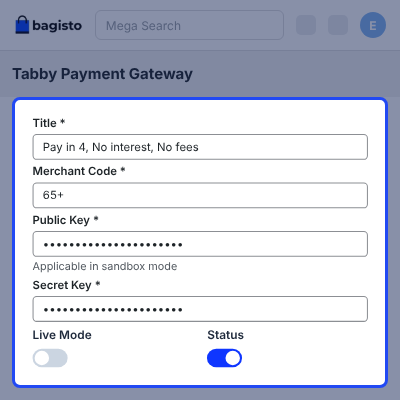
    • Set the Title and Description that customers see at checkout.
    • Enter the Merchant Code that Tabby gives your store.
    • Turn Live Mode on or off to switch between live and sandbox.
    • Add the live Public Key and Secret Key, and the Test Public Key and Test Secret Key.
    • Set Accepted currencies (default AED,SAR,KWD), the Logo (55 x 45 pixels), and Sort.
    • Switch the Status toggle to enable or disable the payment method.
    Bagisto Tabby Payment Gateway Configuration

    Support

    For any query or issue, please create a support ticket here http://webkul.uvdesk.com/. You may also check our all Bagisto Extensions.

    Specifications

    Product Version2.5.0
    Released10 days ago
    CategoryBagisto Laravel, 
    Last UpdatedNovember 13, 2026 (10 days ago)
    Supported VersionsBagisto  2.5.x  

    Ratings

    We'd love to hear your thoughts! Share your feedback and help us craft an even better experience tailored just for you.

    Write a review

    Frequently Asked Questions

     How does Bagisto Tabby Payment Gateway work?
    Bagisto Tabby Payment Gateway adds Tabby as a payment method at checkout. Customers click Place Order, pay on the Tabby page in four interest-free installments, and return to the store with an order confirmation.
     
     Which currencies does the Tabby payment method accept?
    Tabby accepts AED, SAR, and KWD, so the sales channel needs at least one of them enabled. Check that Tabby is available in your country before you buy the module.
     
     Which Bagisto version does the module support?
    The module supports Bagisto v2.5.0. It also works as a Tabby Payment Gateway for Bagisto stores that run on the Laravel framework.
     
     Do customers enter card details on my store?
    No. The store sends customers to the secure Tabby page, where they pick a plan and pay, so card details never reach your store.
     
     What happens if a customer closes the tab after paying?
    The Tabby webhook still places the order. Register it from Settings > Tabby Webhook with the Generate Webhook button, or run php artisan tabby:webhook.
     
     Can I test the module without Tabby keys?
    Yes. Turn on Mock Mode in the payment method settings and pick the result on the mock checkout page. The store ignores Mock Mode while Live Mode is on, so never keep it on in a live store.
     
     How do refunds work with Tabby?
    The admin creates a refund on the order. The store then sends the refund to Tabby automatically, so the admin does not need to open the Tabby dashboard.
     
     What happens if Tabby cannot approve or capture a payment?
    If Tabby cannot approve the purchase, the customer sees a message and can pick another payment method. If the capture fails, the store returns the customer to the cart and places no order.
     
     Can Tabby charge a customer twice for one order?
    No. The module captures each payment once, so Tabby never charges the same customer twice for the same order.
     
     Does the module need a special cache setup?
    Only when the store runs on more than one server. In that case, use a shared cache such as Redis or the database.
     
     Where can the admin see Tabby orders and transactions?
    Tabby orders appear under Sales > Orders. Each paid order also gets an invoice and a transaction under Sales > Transactions.

    Specification

    Detailed technical features and requirements to help you understand the module’s capabilities and ensure smooth integration with your system.

    Cloud Hosting for Websites & Applications

    Power your website or application with flexible, scalable cloud infrastructure designed for performance and growth.

    Move Your Website or Application to the Cloud

    Get started with Cloudkul hosting tailored to your needs.

    Flexible Cloud Plans Start small. Scale as you grow.
    Starting at US$25*
    ✓ Hosting for websites and applications
    ✓ Resources matched to your needs
    ✓ Scalable infrastructure for growth

    Configure Your Cloud Server

    RAM Flexible
    CPU Scalable
    Storage Flexible
    Built Around Your Project's Needs

    Choose server resources based on your workload, expected traffic, and performance requirements.

    Grow at Your Own Pace

    Start with the cloud resources your project needs today and adjust your server configuration as your business grows.

    Ready to Move to the Cloud?

    Explore flexible cloud hosting plans and choose your ideal configuration.

    Explore Cloud Hosting Plans

    * Starting price is indicative. Final pricing and available server resources depend on the selected hosting configuration and requirements.

    Change Logs

    • - Feature Add (+)
    • - Feature remove (-)
    • - Bug Fixed (!)
    • - Modification (*)
    Version 2.5.0
    • + Added a transaction for every paid order, so each Tabby payment is listed under Sales > Transactions in the admin panel.
    • ! Fixed a payment being captured twice when the shopper's return and Tabby's notification arrived together.
    • ! Fixed a failed capture leaving the payment locked, so that it could not be retried for a day.
    • ! Fixed an order being placed and invoiced when the payment capture failed on the shopper's return.
    • ! Fixed the shopper seeing an error when Tabby's notification was already placing the order.
    • * Updated the module to be compatible with Bagisto v2.5.0.
    • * Changed the minimum PHP version to 8.4.
    • * Rebuilt the module stylesheet with Tailwind CSS 4.