USD
  • EUR
  • INR
  • USD
Cart
Cart 0
  • You have no items in your shopping cart.
    CS-Cart Extensions
    Cart
    Cart 0
    • You have no items in your shopping cart.
    Hire a Developer
    ×
    Contact Us!
    Send Again
    Close
    Please Login to Write Your Review
    CS-Cart Canva Connect

    CS-Cart Canva Connect

    x

    * Required Fields

    $99.00
    Add To Cart
    30 Days Money Back Guarantee*
    Only One Time Payment

    CS-Cart Canva Connect lets administrators edit supported CS-Cart store images in Canva and update the same image directly from admin panel.


    • Connect CS-Cart with Canva to edit store images from one place.

    • Add the Design with Canva option to supported image sections.

    • Open product images in Canva directly from the product gallery.

    • Edit category icons and detailed images as separate image types.

    • Open banner images in Canva from the CS-Cart admin panel.

    • Edit promotion images without downloading or uploading files again.

    • Edit supported CMS page images through the Canva integration.

    • Send the edited design back to the same CS-Cart image.

    • Replace the existing image without creating a new image record.

    • Keep the same image ID after the edited image is saved.

    • Keep the image in its existing gallery position after editing.

    • Clear cached thumbnails automatically after image updates.

    • Choose Same as Source, JPG, PNG, GIF, or WebP for export.

    • Connect Canva with CS-Cart using OAuth 2.0 + PKCE.

    • Manage the Canva connection settings from the CS-Cart admin panel.

    CS-Cart Canva Connect
    CS-Cart Canva Connect
    $99.00
    30-Day Refund Policy.
    Check How It Works
    $99.00
    Configure and Buy
    30 Days Money Back Guarantee*
    Only One Time Payment
    X
    • Description
    • Reviews
    • FAQ
    • Customers ()
    • Specifications
    • Cloud Hosting
    • Changelog

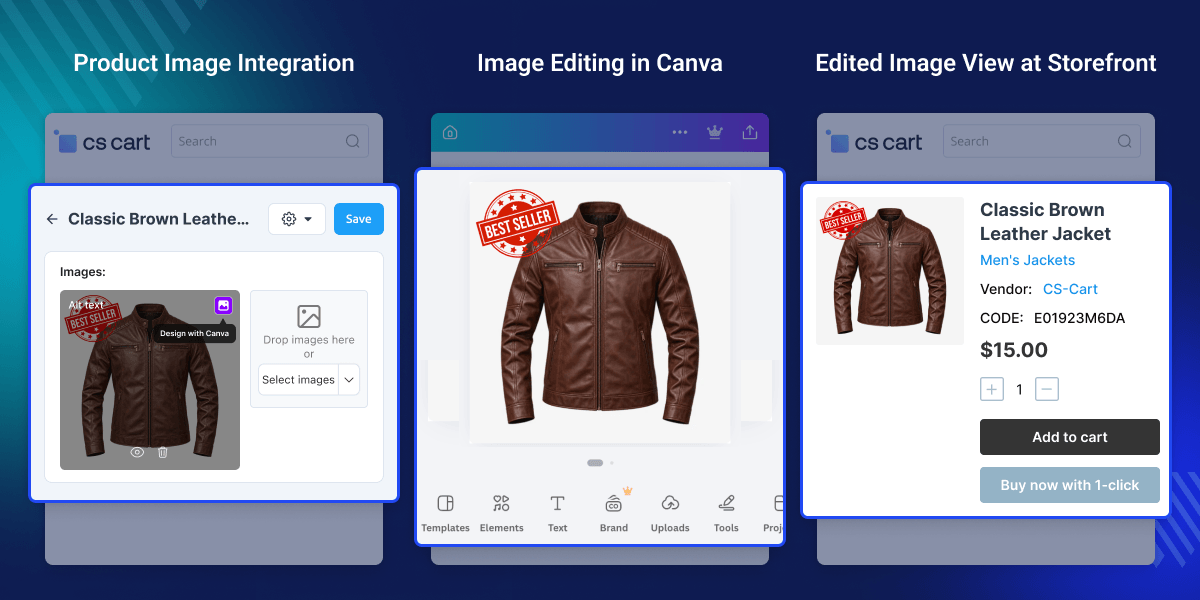
    CS-Cart Canva Connect integrates Canva with supported CS-Cart image areas. Administrators can open store images in Canva, edit them, and update them without downloading or uploading files again.

    Administrator can use the Design with Canva option to edit images from supported product, category, banner, promotion, and CMS image areas.

    This add-on supports separate editing for category icon and detailed images. This helps administrators manage both image types based on their use on the store.

    Administrator can also select the required export format from the add-on settings. The available options are Same as Source, JPG, PNG, GIF, and WebP.

    After editing, the finished design returns to CS-Cart and replaces the original image. The image ID and gallery position stay the same, while cached thumbnails are cleared automatically.

    Canva connection uses OAuth 2.0 + PKCE. Administrators can manage the Canva connection settings directly from the CS-Cart admin panel.

    Additionally, boost customer trust and retention by automatically confirming successful deliveries with the CS-Cart Delivery Confirmation Request add-on.
    CS-Cart Canva Connect

    Highlighted Features for CS-Cart Canva Image Editing

     Direct Canva Image Editing

    Open supported CS-Cart images in Canva directly from the admin panel and make the required changes.

     Product Image Editor

    Edit existing product images from the CS-Cart product gallery without downloading or uploading them again.

     Category Image Editing

    Edit category icons and detailed images separately from their own image sections in CS-Cart.

     Banner Image Editor

    Open supported banner images in Canva, make changes, and update them after editing.

     Promotion Image Editor

    Edit promotion images from the related CS-Cart image area without handling separate image files.

     CMS Image Support

    Use Canva to edit images in supported CS-Cart CMS image widgets from the admin panel.

     Automatic Image Replacement

    Return the edited design to the original CS-Cart image without creating a new image entry.

     Image Position Retention

    Keep the same image ID and gallery position after importing the edited design into CS-Cart.

    Why Do We Need CS-Cart Canva Connect?

    CS-Cart Canva Connect add-on offers a Design with Canva option for supported CS-Cart image areas. Admins can open an existing image in Canva and make changes without downloading or uploading the file again.

    CS-Cart Canva integration makes it easier to update product images, category visuals, banners, and promotional graphics without the extra work of downloading, editing, uploading, and replacing files.

    This add-on works with existing CS-Cart image records. This helps admins update store visuals while keeping the current image structure and records in place. As a result, image management becomes easier and more direct.

    Admins can edit product images directly from the product gallery. They can also edit category icons and detail images separately. Supported banners, promotions, and CMS images have their own Canva editing workflow.

    After editing, the add-on updates the existing image record with the new design. It keeps the same image ID and gallery position. This add-on also clears cached thumbnails after the image update, so the updated image can appear correctly.

    This gives CS-Cart stores a simple way to manage regular catalog and promotional image updates. It also reduces manual steps and saves time when admins need to refresh store visuals.

    Apart from this, if you want customers to find products faster, then you can explore CS-Cart Elastic Search Extension. It gives fast search results and works well with large product catalogs.

    Use Cases

    • Product Image Updates

      Edit product images in Canva to refresh product visuals from CS-Cart product gallery and keep product images fresh and ready for your store.

    • Category Image Management

      Edit category icons and detail images in Canva to keep category visuals clear, fresh, and easy to manage across your CS-Cart store.

    • Banner Design Updates

      Update banner images in Canva for seasonal campaigns, store news, special events, and sales promotions to keep your store visuals fresh.

    • Promotion Image Updates

      Edit promotion images in Canva to match current discounts, special offers, sales, and marketing campaigns with clear and updated visuals.

    • CMS Visual Management

      Update supported CMS page images with the CS-Cart image editor for fast and easy image changes across your store pages.

    • Storefront Image Updates

      Edit supported store images in Canva to refresh storefront visuals while keeping existing CS-Cart image records clear, organized, and easy to manage.

    Canva Integration Configuration

    Set up the Canva link from the CS-Cart admin panel before you use the image edit option.
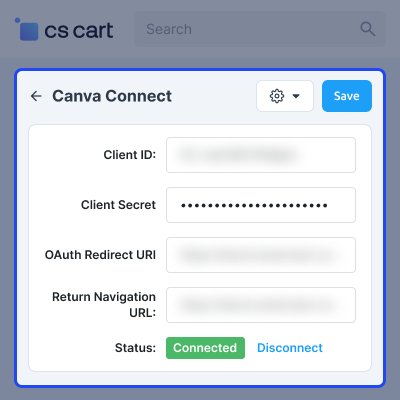
    • Open Admin Panel → Add-ons → Canva Connect → Settings.
    • Enter the Canva Client ID.
    • Enter the Canva Client Secret.
    • Set the Canva auth value as required.
    • Set the return navigation value as required.
    • Save the add-on settings.
    • Connect the Canva account from the CS-Cart backend.
    • Check the connection status in the add-on settings.
    Canva Integration Configuration

    Secure Canva Account Connection

    CS-Cart Canva Connect uses OAuth 2.0 + PKCE to connect the CS-Cart store with Canva.
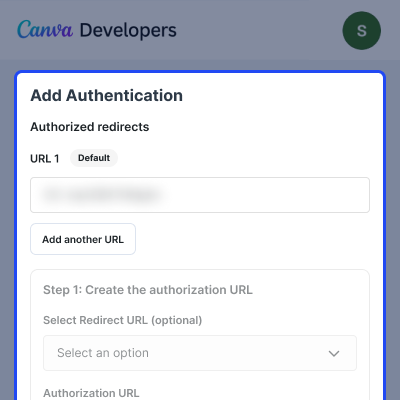
    • Connect Canva from the CS-Cart admin panel.
    • Use OAuth-based authorization.
    • Complete the Canva authorization process.
    • View the Canva connection status.
    • Manage the connection from the add-on settings.
    Secure Canva Account Connection

    Product Image Integration

    CS-Cart Canva add-on offers a Canva editing option for supported product images in the CS-Cart product gallery.
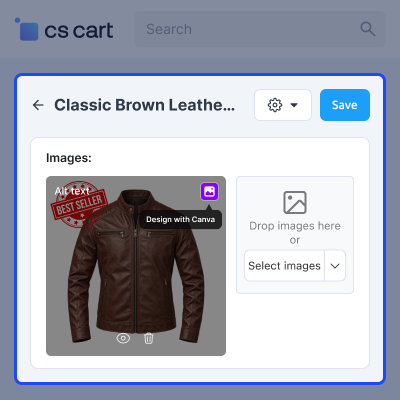
    • Open a product in the CS-Cart admin panel.
    • Open the product image gallery.
    • Find the image that you want to edit.
    • Hover over the selected product image.
    • Click the Canva icon to open the image in Canva.
    • Edit the image as needed in Canva.
    • Finish the design and send it back to CS-Cart.
    • Import the edited image into the product.
    • Keep the same image record and gallery position.
    Product Image Integration

    Category Image Integration

    Edit category icons and detailed images separately from their image sections in CS-Cart.
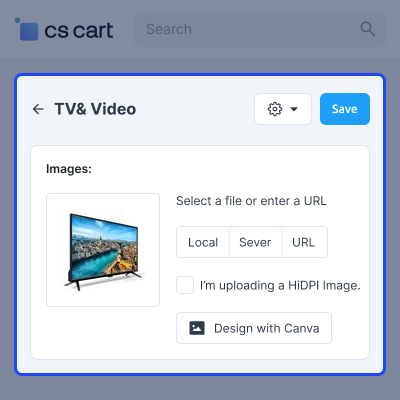
    • Open the required category from the CS-Cart admin panel.
    • Select the category icon or detailed image that you want to edit.
    • Use the Canva editing option for the selected image.
    • Open the selected image in Canva and start editing.
    • Make the required changes to the category image.
    • Return the completed design to the CS-Cart category.
    • Update the original image record with the edited design.
    Category Image Integration

     Support

    For any query or issue please create a support ticket here http://webkul.uvdesk.comYou may also check our other top-quality CS-Cart Add-ons.

    Specifications

    Product Version1.0
    ReleasedToday
    CategoryCS-Cart
    Last UpdatedAugust 26, 2026 (Today)
    Supported VersionsCS-Cart  CS-Cart Multivendor  4.16.x  4.17.x  4.18.x  4.19.x  4.20.x  

    Ratings

    We'd love to hear your thoughts! Share your feedback and help us craft an even better experience tailored just for you.

    Write a review

    Frequently Asked Questions

     How does Canva connect with CS-Cart?
    CS-Cart Canva Connect add-on uses OAuth 2.0 and PKCE to securely connect Canva with the CS-Cart admin panel for image editing.
     
     Which CS-Cart images can be edited in Canva?
    CS-Cart images can be edited directly in Canva wherever the default CS-Cart image uploader is available.
     
     What happens after editing an image in Canva?
    After editing, the design returns to CS-Cart and replaces the existing image. The image ID and gallery position stay unchanged.
     
     Which image formats can be used for export?
    This add-on supports Same as Source, JPG, PNG, GIF, and WebP. You can choose the required format in the add-on settings.
     
     Does Canva Connect for CS-Cart clear image cache automatically?
    Yes, this add-on clears cached thumbnails after an image update and helps the updated Canva design appear correctly on the storefront.

    Specification

    Detailed technical features and requirements to help you understand the module’s capabilities and ensure smooth integration with your system.

    Cloud Hosting

    Detailed technical features and requirements to help you understand the module’s capabilities and ensure smooth integration with your system.

    Default Configuration Details of Server

    1 GB
    RAM
    1 Core
    Processor
    30 GB
    Hard Disk
    1 GB RAM & 1 Core Processor
    Database

    Want to know more how exactly we are going to power up your eCommerce Website with Cloud to fasten up your store

    * Server Configuration may vary as per application requirements.

    Change Logs

    • - Feature Add (+)
    • - Feature remove (-)
    • - Bug Fixed (!)
    • - Modification (*)
    Version 1.0
    • + "Design with Canva" button added to product, category, banner, and promotion images - edit directly in Canva and the result is saved back automatically.


