- Description
- Reviews
- FAQ
- Customers ()
- Specifications
- Cloud Hosting
- Changelog
ERPNext Website Product Stock helps businesses show live stock availability on the Frappe Webshop. Customers can see if a product is in stock before they place an order.
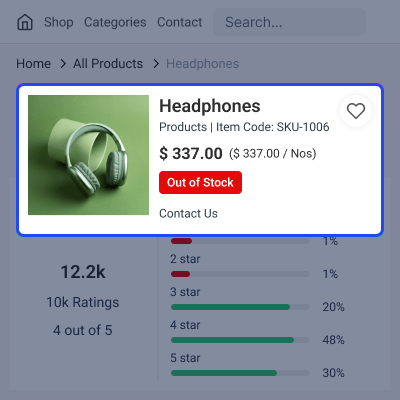
Stock badges appear on both the product listing page and the product detail page. Every product shows as In Stock, Low Stock, or Out of Stock based on what is currently available in inventory. Businesses can change badge colours, write custom stock messages, and choose how stock information is shown on the page. Messages can also display the exact available quantity using the {qty} placeholder
Global stock settings can be changed for any individual Website Item. Custom stock thresholds, display warehouses, messages, and ordering rules can all be set separately for specific products. can stop customers from ordering products that have no stock left. When this option is turned on, the Add to Cart button is hidden automatically for any product with zero available stock.
For businesses using warehouse groups, stock is calculated by adding up inventory from all child warehouses. Non-stock items are always shown as available and products that allow backorders do not show any stock badges.
ERPNext Website Product Stock reads stock data directly from ERPNext inventory records. It does not change how the standard webshop order process works and runs alongside all existing ERPNext and Webshop features without touching their core setup
This gives customers the information they need to make the right buying decisions while giving businesses full control over how product availability is shown on their online store.
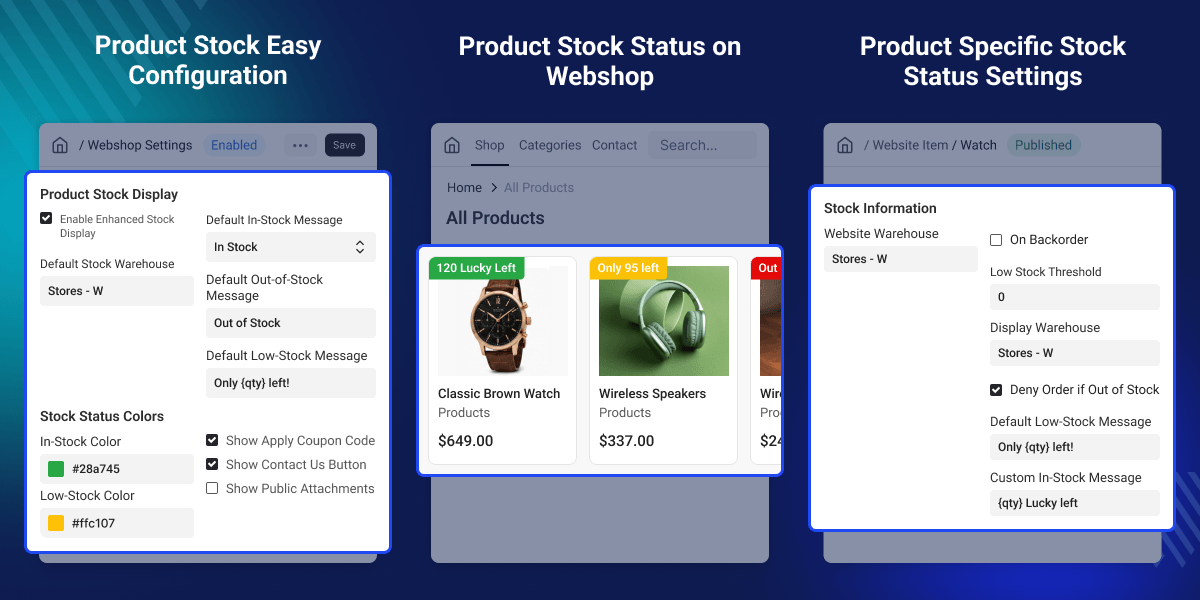
Highlighted Features of ERPNext Website Product Stock
Live Stock Status
Show live stock availability for every product on both the webshop product listing page and the product detail page.
Three Stock States
Every product shows as In Stock, Low Stock, or Out of Stock based on what is currently available in inventory.
Custom Stock Display
Choose to show stock status, stock quantity, or both together depending on what works best for your store.
Custom Badge Messages
Set custom messages and badge colors for each stock state. Use the {qty} placeholder to show the live stock number inside the message.
Product-Specific Stock Rules
Change the global stock settings for any individual Website Item by setting its own thresholds, warehouse, and messages.
Out-of-Stock Order Control
When a product runs out of stock, the Add to Cart button is hidden automatically to stop customers from placing orders for unavailable items.
Warehouse Group Support
When a warehouse group is selected, stock is calculated by adding up inventory from all child warehouses under that group.
Automatic Stock Handling
Non-stock items are always treated as available. Products that allow backorders do not show any stock badges.
Why Do We Need This ERPNext Website Product Stock Module?
Customers want to know if a product is available before they place an order. Without clear stock information, they may order items that are not in stock. This leads to confusion and a poor shopping experience.
A standard webshop may not show live stock status clearly or let businesses control how availability is displayed. Managing different stock display rules for different products also becomes very hard without the right tools.
ERPNext Website Product Stock fixes this by showing live stock badges, custom messages, quantity display, and product-specific stock settings. It can also hide the Add to Cart button for out-of-stock products to stop invalid orders from being placed.
gives businesses flexible stock display options using the latest inventory data from ERPNext. This helps customers make the right buying decisions every time.
Live stock information makes the shopping experience more accurate and gives customers a much more reliable way to shop online.
Use Cases
Inventory-Based Online Store
An online store can display live stock status for every product, helping customers know whether an item is available before placing an order.
Multi-Warehouse Product Management
A business using warehouse groups can show the combined stock from multiple child warehouses, giving customers a more accurate view of product availability
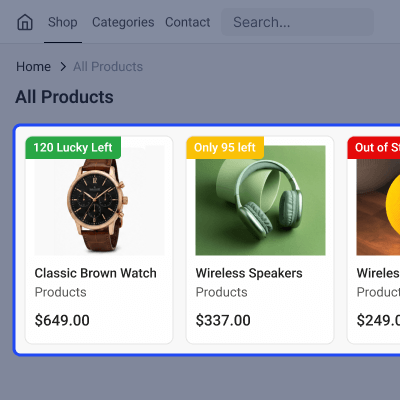
Live Stock Status Display
Display live stock information on both product listing and product detail pages so customers can check product availability before placing an order.
- Display stock badges on product listing pages.
- Show stock status on product detail pages.
- Support In Stock, Low Stock, and Out of Stock states.
- Show live stock information using ERPNext inventory data.
- Skip stock badges for backorder products.
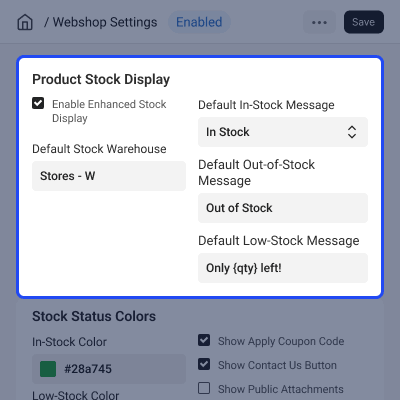
Flexible Stock Display Configuration
ERPNext Website Product Stock customize how stock information appears on the webshop to match your business requirements and customer experience.
- Display stock status, quantity, or both.
- Customize badge colors for each stock status.
- Set custom messages for every stock state.
- Use the (qty) placeholder to show live stock quantity.
- Configure global stock display settings.
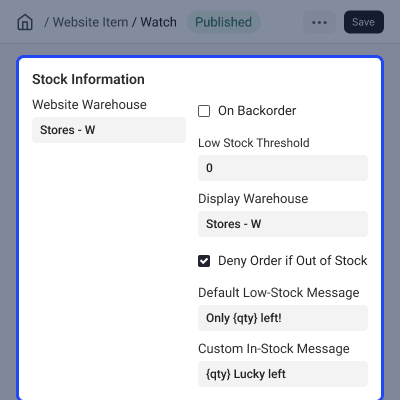
Product-Specific Stock Control
Override global stock settings for individual Website Items whenever different products require different stock display rules.
- Set a custom low stock threshold.
- Override default stock messages.
- Select a custom display warehouse.
- Enable Deny Order If Out of Stock for individual products.
- Apply product-specific stock display settings.
Smart Inventory and Order Management
Control ordering based on product availability while supporting different warehouse structures and inventory types.
- Hide the Add to Cart button when stock is zero.
- Prevent orders for out-of-stock products.
- Sum stock across child warehouses in a warehouse group.
- Treat non-stock items as always available.
- Work without changing the core ERPNext or Webshop order process.
Support
For any query or issue, please create a support ticket here CREATE A TICKET HERE
You may also check our other top-quality ErpNext Modules.
Specifications
FAQ’s
Specification
Detailed technical features and requirements to help you understand the module’s capabilities and ensure smooth integration with your system.
Cloud Hosting
Detailed technical features and requirements to help you understand the module’s capabilities and ensure smooth integration with your system.
Move to Cloud Today
We’re partnered with top-tier, trusted providers!



Default Configuration Details of Server
RAM 1 Core
Processor 30 GB
Hard Disk
Database
Want to know more how exactly we are going to power up your eCommerce Website with Cloud to fasten up your store
* Server Configuration may vary as per application requirements.
