Send Again
Close
Odoo POS Payment Reference adds reference fields to POS payment methods for entering payment details during POS payments.
Configure the Payment Reference option from payment method settings and add the reference fields required for payments.
Set each reference field as Text or Number. You can also make fields mandatory when required during payments.
During payment, configured fields appear in the Payment Reference window. Enter values and click Validate to continue.
You can display entered references on the POS order receipt. Enable Show in Order Receipt from payment method settings.
Additionally, if you want QR-based payments and more payment gateways in POS, you can check our module Odoo POS Payment Base.
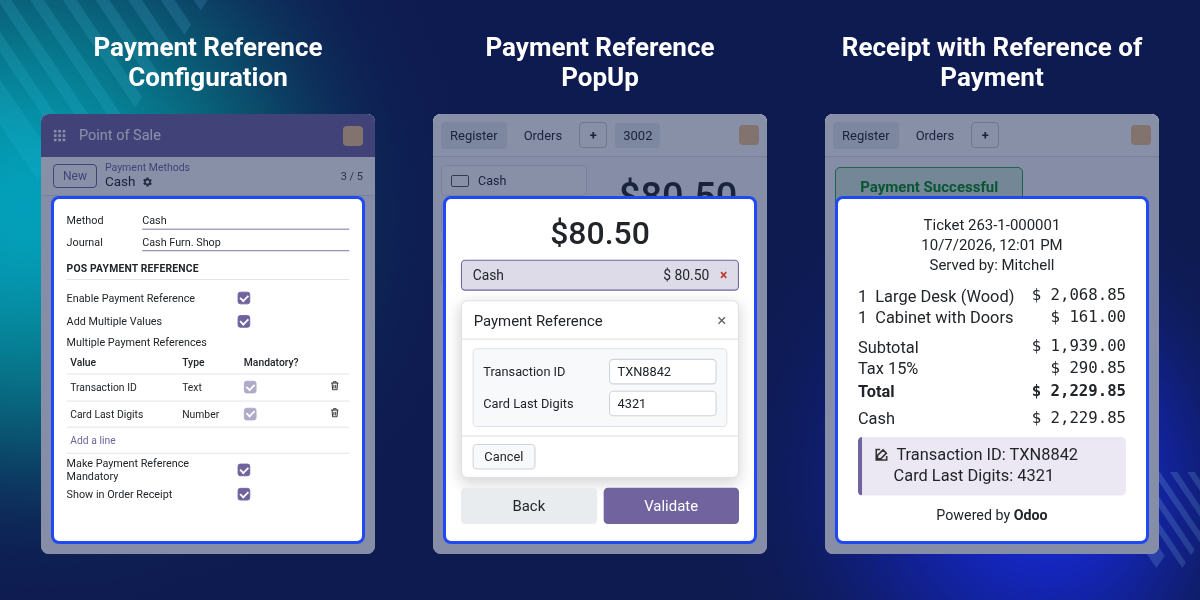
Enable payment references from the POS payment method settings.
Add multiple reference fields to collect the required payment details.
Set each reference field as Text or Number as required.
Make a reference field mandatory when a value is required during payment.
Enter the required reference values in the Payment Reference window.
Show the entered payment references on the POS order receipt.
POS payments may require extra reference details. The default payment flow may not provide fields to enter these details.
Odoo POS Payment Reference adds reference fields to POS payment methods. This gives users a simple way to collect payment references.
You can add multiple reference fields and set each field as Text or Number. You can also make fields mandatory when needed.
During payment, users can enter the required values in the Payment Reference window. This keeps reference entry clear.
The entered references can also appear on the POS order receipt. This helps users view payment reference details after completing the payment.
Also, if you want to create your own POS receipt design from the Odoo backend, you can check our module Odoo POS Receipt Design.
Add reference fields to collect the required details during POS payments.
Add more than one reference field when a payment needs multiple values.
Set each reference field as Text or Number based on the required value.
Make a reference field mandatory when users must enter a value.
Odoo POS Payment Reference Display the entered payment references on POS order receipts.
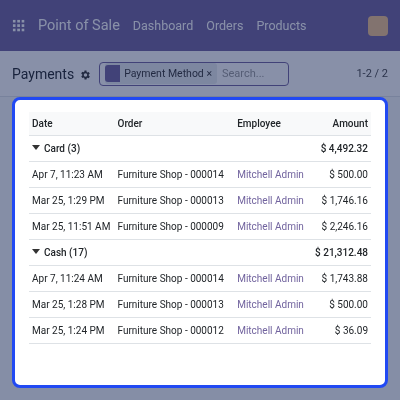
View payment records with details such as the payment method, date, order, employee, and amount.
Set up payment references from the POS payment method using Odoo POS Payment Reference.
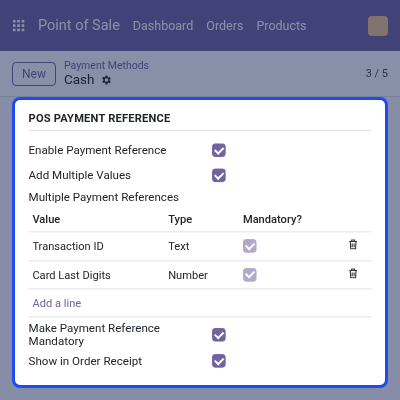
Enter payment references while processing a POS payment.
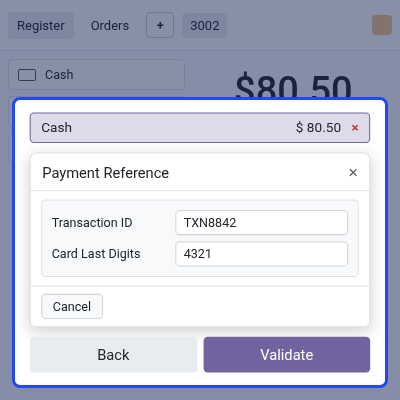
Display payment references on the POS order receipt.
If you need to print more than one receipt for an order, you can also check Odoo POS Multiple Receipts.
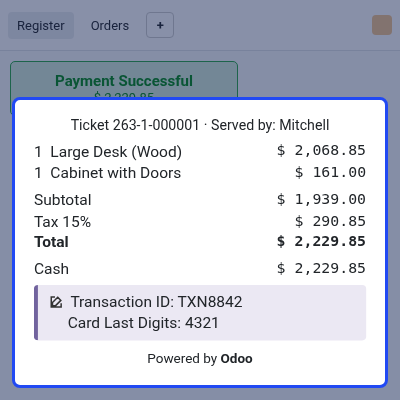
Check payment records from the Payments section in Point of Sale.
For any query or issue, please create a support ticket here CREATE A TICKET HERE
You may also check our top-quality Odoo Apps.
Detailed technical features and requirements to help you understand the module’s capabilities and ensure smooth integration with your system.
Detailed technical features and requirements to help you understand the module’s capabilities and ensure smooth integration with your system.
We’re partnered with top-tier, trusted providers!
Want to know more how exactly we are going to power up your eCommerce Website with Cloud to fasten up your store
* Server Configuration may vary as per application requirements.



