Send Again
Close
Odoo POS Revolut Terminal Integration connects Revolut terminals with Odoo POS. It lets businesses accept payments at checkout and manage them from the Point of Sale.
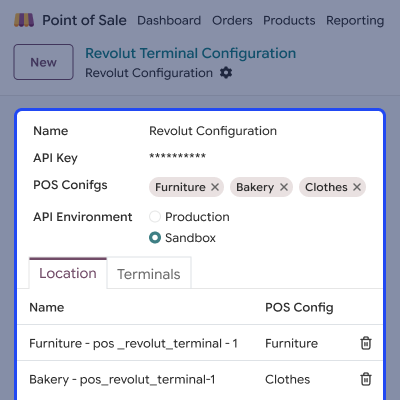
Set up the Revolut connection in the Odoo backend. Enter the API key, choose the API environment, and select the POS configurations for the setup.
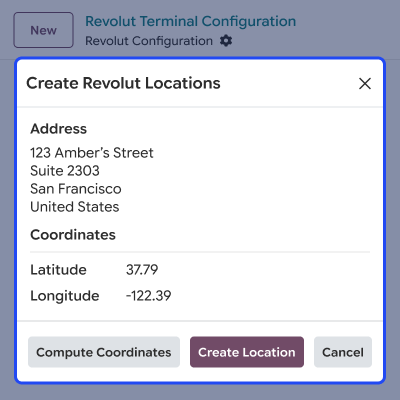
Create a payment location by entering the address details. Click Compute Coordinates to get the location data, then save the location in Odoo.
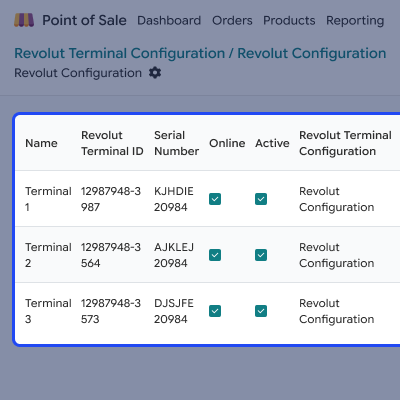
Fetch the available Revolut terminals from the backend. Review the terminal ID, serial number, and online status before selecting a terminal for payments.
Link the Revolut setup, location, and terminal to the POS payment method. This prepares the selected terminal for use during checkout payments.
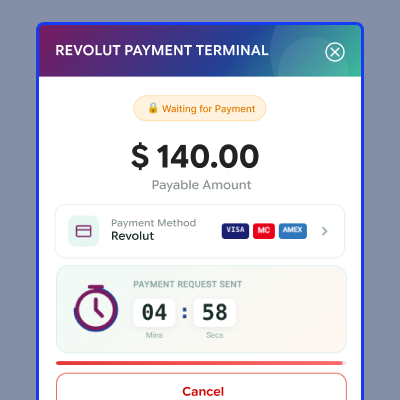
At checkout, select Revolut to send the payment request to the configured terminal. A timer shows the payment status while the customer completes the payment.
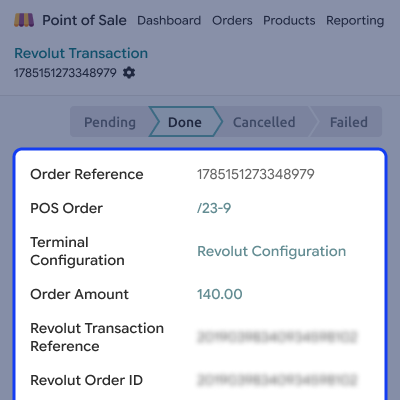
After the payment is complete, the POS shows the result and payment details. Odoo also updates the related transaction in the backend for later review.
Odoo POS Revolut Terminal Integration gives businesses a simple way to manage terminal payments and review Revolut transaction records within Odoo.
Apart from this, you can explore the Odoo POS Linkly/EFTPOS Payment Terminal Integration module for another option to process payments through connected terminals.
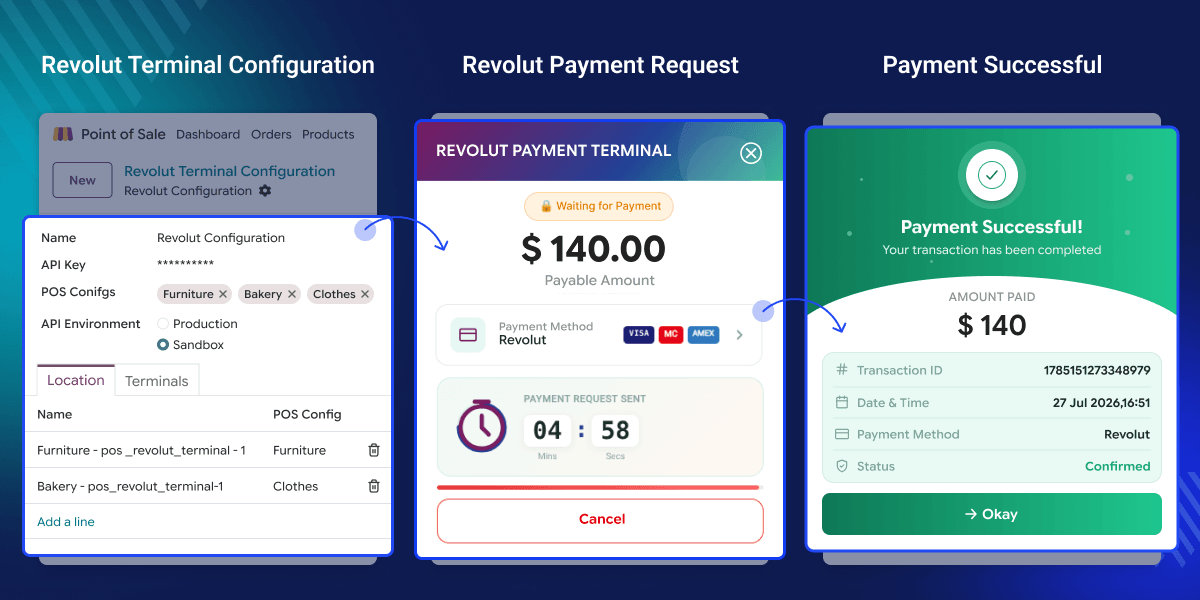
Connect Revolut terminals with Odoo POS and process payments directly from the checkout.
Create Revolut payment locations with address details and calculate their coordinates in Odoo.
Fetch available Revolut terminals and view their ID, serial number, and online status.
Link the Revolut configuration, location, and terminal with the required POS payment method.
Send payment requests to the selected Revolut terminal directly from the Odoo POS.
View payment progress in the POS and check transaction details in the Odoo backend.
Odoo POS does not connect directly with Revolut payment terminals. This can make terminal payments harder to handle during checkout.
Businesses may need to set up terminals, payment locations, and devices on their own. This can add more work to daily POS tasks.
The module brings Revolut terminals into Odoo POS. Users can manage the connection, assign terminals, and set up payment locations from the backend.
At checkout, staff can select Revolut and send the payment request to the terminal. The Point of Sale then shows the payment progress and final result.
The module keeps payment data linked to the POS. Users can also view transaction details in the Odoo backend and check them when needed.
Additionally, if you want to explore another POS terminal payment option and process payments through connected terminals, then the Odoo POS Geidea Payment Terminal Integration module can help simplify the payment process.
Accept Revolut payments at the POS. Staff can use a connected terminal to take customer payments and complete each sale at checkout.
Take customer payments through Revolut terminals at checkout. Staff can check the payment result and keep each order linked to the Odoo POS.
Use Revolut terminals with Odoo POS. Staff can send payment requests, check payment results, and view transaction records in one place.
Set up the Revolut connection in Odoo POS. Add the API key, choose the API environment, and assign the POS configurations.
Create a Revolut payment location from the configuration screen. Enter the address and use the coordinate tool to add its location details.
Fetch the available Revolut terminals and check their details and status from the configuration.
Connect the Revolut setup with the Odoo POS payment method. Select the configuration, location, and terminal required for payments.
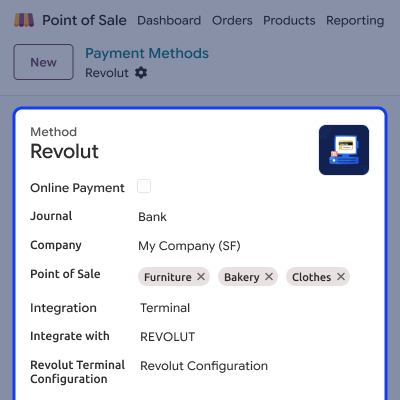
Send a payment request to the selected Revolut terminal from Odoo POS. The payment screen shows the amount and tracks the request.
View completed Revolut payment details in the Odoo backend. The transaction record keeps key order, payment, and terminal information together.
For any query or issue, please create a support ticket here CREATE A TICKET HERE
You may also check our other top-quality Odoo Modules
Detailed technical features and requirements to help you understand the module’s capabilities and ensure smooth integration with your system.
Detailed technical features and requirements to help you understand the module’s capabilities and ensure smooth integration with your system.
We’re partnered with top-tier, trusted providers!
Want to know more how exactly we are going to power up your eCommerce Website with Cloud to fasten up your store
* Server Configuration may vary as per application requirements.



