Send Again
Close
Pimcore DataImport Bundle module imports any Pimcore DataObject class from a spreadsheet. The class is selected during import, and its own definition controls the available fields.
Import data from CSV, XLSX, or ZIP files into Pimcore. CSV files support common delimiters, while XLSX reads the first sheet. ZIP files can include a sheet and a media folder for image or asset imports.
The bundle supports text, numbers, booleans, dates, selects, multi-value fields, quantities, relations, assets, images, and galleries. It also handles localized fields, object bricks, field collections, and classification store data.
Build a new Pimcore class from spreadsheet headings when needed. The wizard proposes field types from the file values, while each proposed field can be reviewed and edited before the class is created.
Use mapping templates to save column-to-field bindings for repeated imports. Templates can be reused, edited, duplicated, created before a file is available, or deactivated without losing their saved configuration.
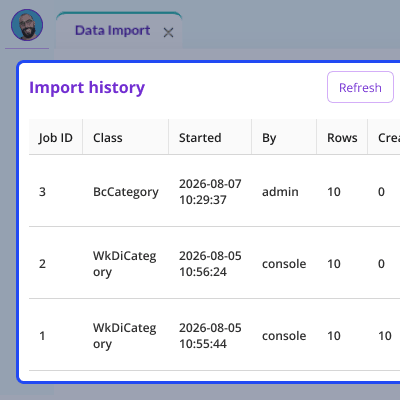
For larger data loads, imports run as background jobs with live progress and per-step counts. Also the failed rows are listed on the import job and can be downloaded, corrected, and imported again into Pimcore.
Apart from this, if you want to connect Pimcore with your Magento 2 store, then you can check Pimcore Connector for Magento 2.
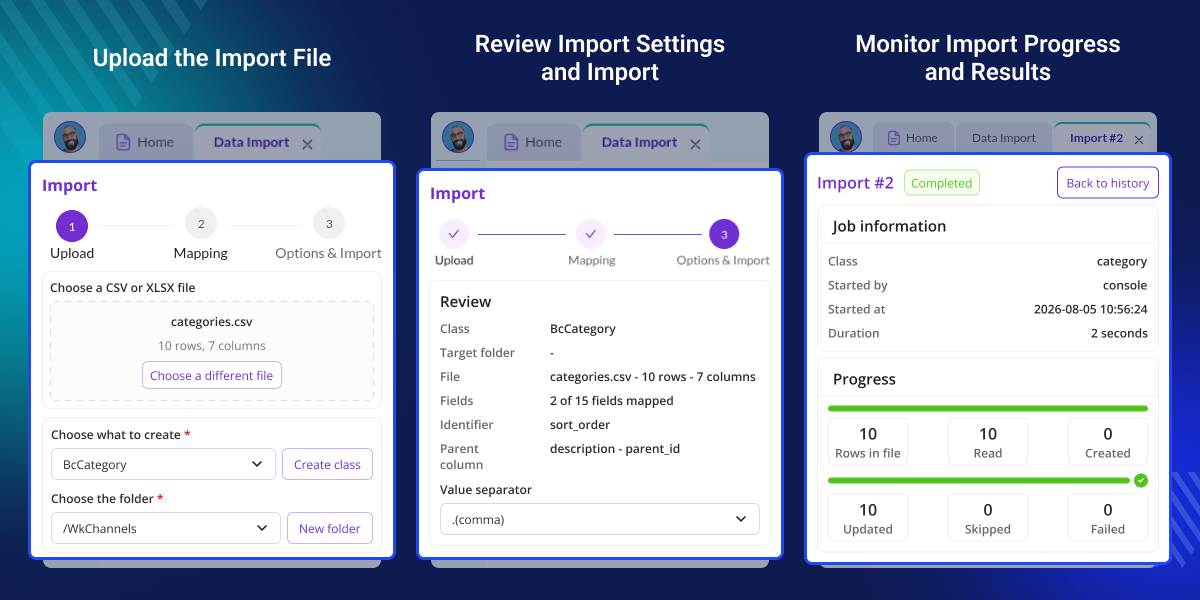
Import data from CSV, XLSX, or ZIP files, with ZIP support for media stored inside the archive.
Choose the Pimcore DataObject class at import time instead of working with hardcoded classes or fields.
Match spreadsheet columns to Pimcore fields through a mapping wizard with suggested bindings.
Import one language per run using supported language suffixes or bracketed column names.
Use URLs, existing Pimcore asset paths, or files inside an uploaded ZIP for images and assets.
Import object bricks, field collections, classification store values, quantities, and localized sub-fields.
Create a Pimcore class from uploaded spreadsheet headings and configure each proposed field before saving.
Save mappings and reuse them for future files, with tools to edit, duplicate, fork, activate, or deactivate templates.
Use a selected identifier field to decide if a row creates a new object or updates an existing one.
Run large imports in the background, view live progress, stop jobs cooperatively, and review row-level errors.
Manual data entry becomes difficult when a Pimcore project has many DataObjects, relations, media files, or localized values. Repeating the same work can take time and lead to inconsistent records.
A basic spreadsheet import may also fall short when each Pimcore class has different fields. Hardcoded mappings cannot easily handle changing classes, field definitions, complex field types, or different import structures.
This bundle reads the selected class definition at import time. It lets teams map columns, reuse templates, import related data, and handle media without building a separate import flow for each class.
Failed rows stay tied to the job and can be downloaded for correction, which gives teams a practical way to handle large data loads. For teams managing catalogs, content records, product data, media, or other Pimcore DataObjects, this approach reduces repetitive spreadsheet work.
It also provides a consistent and streamlined process for handling imports. Additionally, you can also check Pimcore Connector for Shopify if required to connect your Shopify store with Pimcore.
Load product records, quantities, images, categories, brands, and other product fields from structured spreadsheet data.
Move large sets of content into Pimcore DataObjects while mapping columns to the selected class definition.
Import images and assets from URLs, Pimcore paths, or media folders included in a ZIP archive.
Run separate imports for different languages using localized column naming conventions.
Save a mapping template and reuse it when similar files are received on a regular basis.
Create many new DataObjects from a spreadsheet using an identifier field to control create-or-update behavior.
Import CSV, XLSX, or ZIP files into any selected Pimcore DataObject class. The bundle supports flexible field types, localized and complex fields, object relations, images, assets, quantities, and media files.
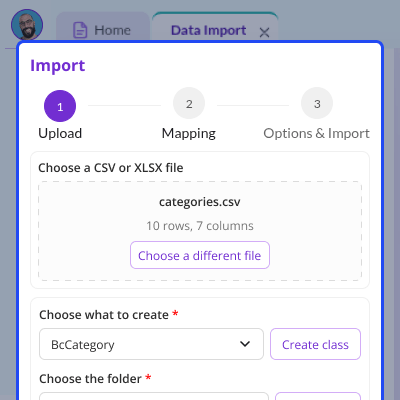
A fresh Pimcore project can start with a class built from the uploaded file. The wizard reads the headings and proposes field types from the values in the file.
Each proposed field remains editable before the class is created. This gives teams control over the field name, type, and required settings.
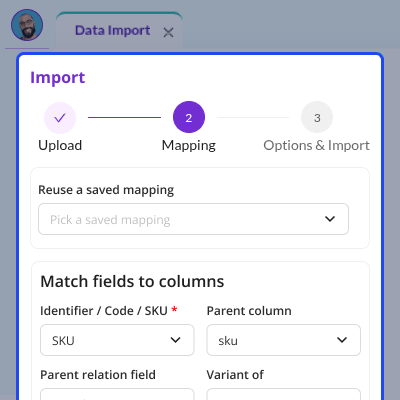
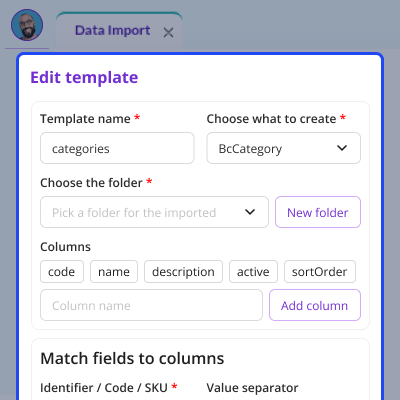
Saved mappings reduce repeated setup for recurring spreadsheet imports. Each template keeps its mapping information and can be offered again when a similar file is uploaded.
Templates can be managed without uploading a file. Their stored columns can be edited so the mapping can grow with future spreadsheet formats.
Imports run as background jobs with live progress and step counts. A job can be stopped cooperatively while it is running.
Each job keeps its own row-level errors. If a worker cannot complete the job, the job records the reason instead of leaving the import hanging.
For any query or issue, please create a support ticket here http://webkul.uvdesk.com/
You may also check our quality Magento 2 Extensions.
Detailed technical features and requirements to help you understand the module’s capabilities and ensure smooth integration with your system.
Detailed technical features and requirements to help you understand the module’s capabilities and ensure smooth integration with your system.
We’re partnered with top-tier, trusted providers!
Want to know more how exactly we are going to power up your eCommerce Website with Cloud to fasten up your store
* Server Configuration may vary as per application requirements.
Name (en), and read a datetime written to the minute.wk_data_import permission, per area and per folder.


