Send Again
Close
Most PrestaShop reporting forces a choice: a static Stats block that answers only the questions it was built for, or a custom module that has to be rewritten every time the shop owner thinks of a new question. In between sits the alternative most stores actually use — opening phpMyAdmin and writing SQL by hand. That is slow, it is error-prone, and it is completely unavailable to anyone who does not already know the database schema.
AI Reporting removes that middle ground. You type a question the way you would ask a colleague — "top 5 products by revenue this month", "how many orders are waiting to be shipped", "which customers have not ordered in 90 days" — and the module turns it into a query, runs it safely, and returns a table or a chart you can read, adjust, export or save. It is built for shop owners, managers and marketing staff who need an answer today, not for the developer who would otherwise have to write it.
This PrestaShop edition reads your data through a hybrid layer. Orders, order line items, Products and Customers are served from dedicated denormalised flat tables that you rebuild on demand, so the heavy questions stay fast. The remaining entities — Refunds, Product Inventory, Category, Abandoned Cart, Product Reviews and Wishlist — are queried live through a curated, read-only whitelist. Product Reviews and Wishlist appear only when the productcomments and blockwishlist modules are installed, and disappear again automatically when they are not.
Additionally, you can grow your reporting surface by integrating AI Reporting with your other Webkul modules.
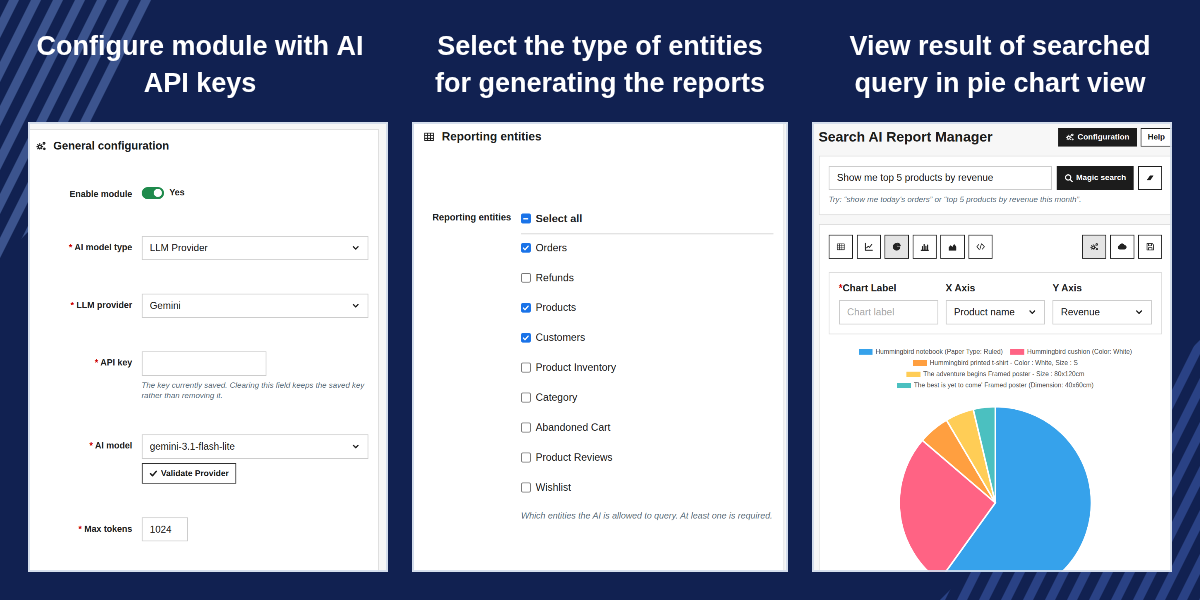
Type a question in ordinary language and the configured AI provider converts it into SQL, which the module then guards and runs against your shop data. The answer comes back as a result grid you can read, chart, export or save.
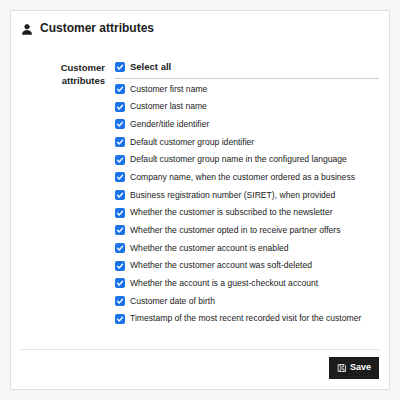
Orders, Refunds, Products, Customers, Product Inventory, Category, Abandoned Cart, Product Reviews and Wishlist. You decide which of them the AI is allowed to query, and at least one must stay enabled.
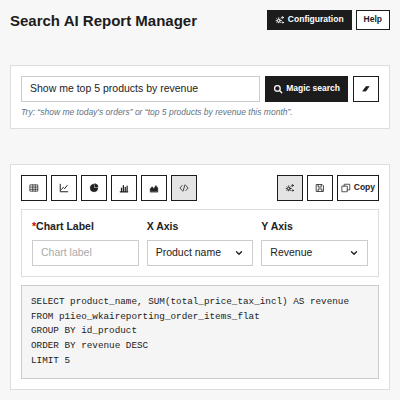
Every result can be shown as a table, a line chart, a pie chart, a bar chart or an area chart. A dedicated panel lets you set the chart label and choose which column feeds the X-axis and which feeds the Y-axis, without re-running the query.
Download the table view as a CSV file whose header row uses the same readable column headings the page shows, and download any chart view as a PNG image generated in the browser.
The Magic Search page is where a question becomes a result. Type it, and the module builds a prompt containing your schema and worked examples, sends it to your configured AI provider, guards the returned SQL and executes it.
Orders, order line items, Products and Customers are copied into dedicated flat tables so the questions that matter most run fast. The rebuild is yours to trigger, per entity, and reports progress live while it works.
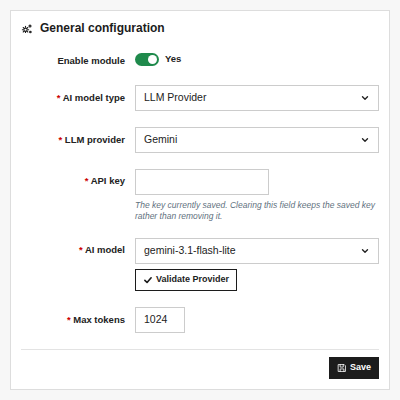
Two ways to connect an AI service are supported, and both are configured from the same General screen. The active type is preconfigured as a self-hosted or hosted reporting endpoint with a token key, while the LLM Provider type talks directly to one of six supported vendors.
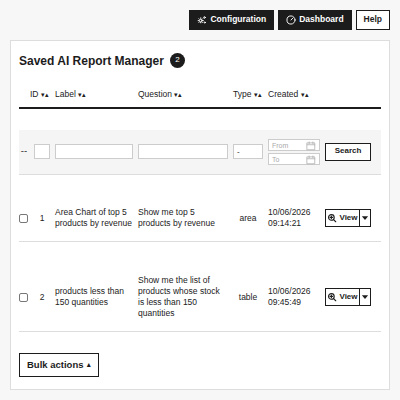
Saved reports live in their own Back Office section with two interchangeable modes. The list gives you search, filtering and bulk delete; the dashboard gives you a wall of live cards.
For any query or issue please create a support ticket here http://webkul.uvdesk.com
You may also check our other top-quality PrestaShop Modules.
Detailed technical features and requirements to help you understand the module’s capabilities and ensure smooth integration with your system.
Detailed technical features and requirements to help you understand the module’s capabilities and ensure smooth integration with your system.
We’re partnered with top-tier, trusted providers!
Want to know more how exactly we are going to power up your eCommerce Website with Cloud to fasten up your store
* Server Configuration may vary as per application requirements.



