USD
  • EUR
  • INR
  • USD
Cart
Cart 0
  • You have no items in your shopping cart.
    Odoo Apps Extensions
    Cart
    Cart 0
    • You have no items in your shopping cart.
    Hire a Developer
    ×
    Contact Us!
    Send Again
    Close
    Please Login to Write Your Review
    Odoo Employee Overtime Based On Work Reports

    Odoo Employee Overtime Based On Work Reports

    x
    Free

    * Required Fields

    $65.00
    Add To Cart

    Odoo Employee Overtime Based On Work Reports lets employees send daily work reports for overtime approval, and managers approve, complete, or deny them.


    • Let employees send their daily work report for overtime approval.

    • Allow reporting managers to approve or reject each overtime report.

    • Let only the employee's coach mark a report as Done or deny it.

    • Mark completed reports as half day or full day overtime.

    • Add only Done overtime reports to the employee payslip.

    • Notify employees by email when their report status changes.

    • Review all overtime requests from the Need Approval menu.

    • Filter and group reports by status, employee, department, or month.


    Odoo Employee Overtime Based On Work Reports
    Odoo Employee Overtime Based On Work Reports
    $65.00
    Check How It Works

    Need Help Deciding?

    Support answers within one business day.

    Open a ticket
    $65.00
    Configure and Buy
    X
    • Description
    • Reviews
    • FAQ
    • Customers ()
    • Specifications
    • Cloud Hosting
    • Changelog

    Odoo Employee Overtime Based On Work Reports is an Odoo app that turns the daily work report into an overtime request. Employees send the report for approval, and managers decide on it.

    An employee tracks task time during the day, opens the Work Summary, and ticks Request for approval of this worksheet. The report then waits in the Need Approval list.

    A reporting manager approves or rejects the pending report. After approval, the employee's coach clicks Complete and then Done Now, or clicks Deny to refuse the overtime.

    Each report shows an Overtime Type of Half Day or Full Day. Only reports in the Done state reach the payslip, so unapproved hours never affect salary.

    Employees get an email each time a manager acts on their report. The list view also gives HR a summary of how often each team works overtime hours.

    This app depends on another module, so to use it you also need Odoo Employee Daily Work Report.
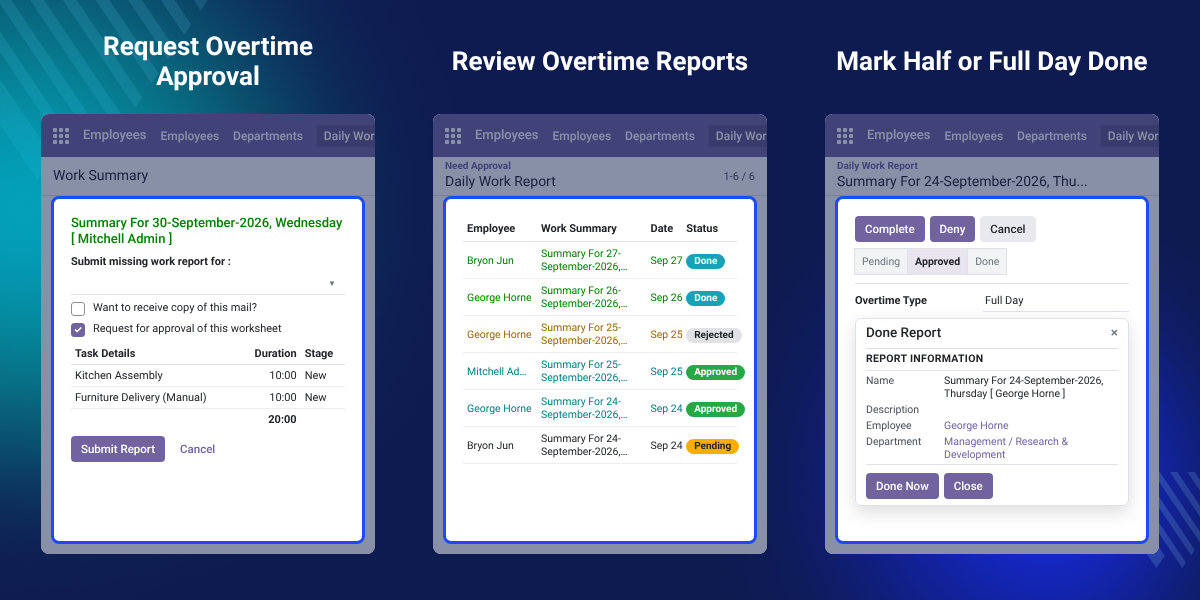
    Odoo Employee Overtime Based On Work Reports

    Highlighted Features of Odoo Employee Overtime Based On Work Reports

     Overtime Approval Requests

    Employees tick one checkbox in the Work Summary to send the day's report for overtime approval.

     Two-Level Review

    Reporting managers approve or reject first, then the coach marks the report Done or denies it.

     Half or Full Day Overtime

    Every report carries an Overtime Type of Half Day or Full Day for clear payroll records.

     Payslip Ready Reports

    Only reports in the Done state are reflected on the employee payslip, so pay matches approvals.

    Why Do We Need Overtime Tracking Based on Work Reports in Odoo?

    Overtime is one of the larger costs a business carries. Paying it without proof of the work done makes that cost hard to control and hard to explain later.

    Odoo does not link daily work reports to overtime approval by default. HR has to collect hours from staff, check them by hand, and pass them to payroll.

    This app keeps the whole flow in Odoo. Staff request approval from their daily report, managers review it, and only Done reports go on to the payslip.

    A practical detail: the Need Approval list colours each row by state, so Pending, Approved, Rejected, and Done reports stand apart at a glance.

    Also, if you want employees to log exact time with a task timer, you can check our extension Odoo Project Task Start Stop.

    Odoo Employee Overtime Based On Work Reports Use Cases

    • Weekend Work Claims

      Staff who work on a Saturday or Sunday send that day's report and claim it as overtime.

    • Department Overtime Review

      Department reporting managers check pending requests from their team and accept the valid ones.

    • Accurate Overtime Pay

      Payroll teams pay only the overtime a coach has marked Done, as half day or full day.

    • Monitor Overtime Frequency

      HR groups reports by employee or month to see how often each person works extra hours.

    Send Daily Work Report for Overtime Approval

    Employees send the overtime request from the Work Summary pop-up. It opens from the Submit Daily Report icon in the Odoo top bar.

    The pop-up lists the tasks worked on that day with their durations, so the manager sees the hours behind the claim. Also, if you want project managers to review hours by project, you can check our extension Odoo Project Timesheet Reports.
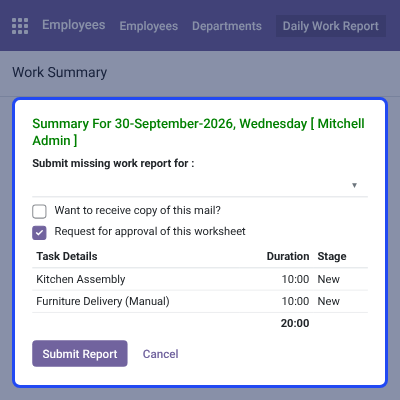
    • Tick Request for approval of this worksheet to ask for overtime.
    • Pick a past day in Submit missing work report for.
    • Tick Want to receive copy of this mail? for your own copy.
    • Check Task Details, Duration, and Stage for each task.
    • Click Submit Report to send the work report.
    Send Daily Work Report for Overtime Approval

    Overtime Reports Need Approval List

    Managers open Employees > Daily Work Report > Need Approval to see every report sent for overtime approval.

    The list gives a quick summary of overtime reporting across teams, with a coloured status badge on each row.
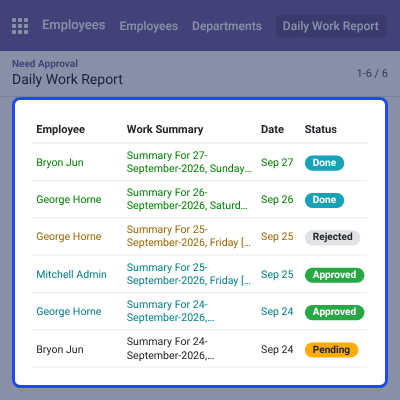
    • See Employee, Department, Work Summary, Status, and Date.
    • Track reports in Pending, Approved, Rejected, and Done states.
    • Filter by Rejected, Approved, Denied, Done, or Need Approval.
    • Group by Department, Employee, Status, Month, or Work Day.
    Overtime Reports Need Approval List

    Approve or Reject Overtime Work Reports

    The employee reporting manager or the department reporting manager reviews each pending report. One click moves it forward to the coach or sends it back to the employee.
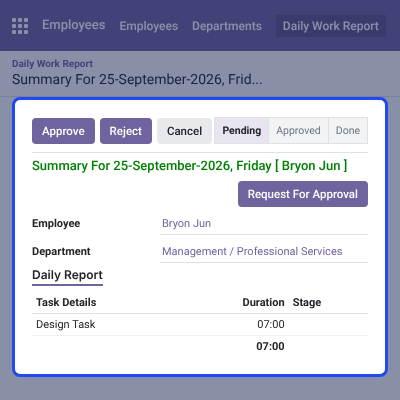
    • Click Approve to accept the overtime request.
    • Click Reject to turn the request down.
    • Follow progress on the Pending, Approved, and Done status bar.
    • Check the Employee, Department, and task hours on the report.
    • Employees can also click Request For Approval on the report form.
    Approve or Reject Overtime Work Reports

    Mark Overtime Report as Done

    Only the employee's coach can complete an approved report. Clicking Complete opens the Done Report pop-up, where the coach checks the details one last time.

    Done reports are the ones that reach the payslip, marked as half day or full day overtime.
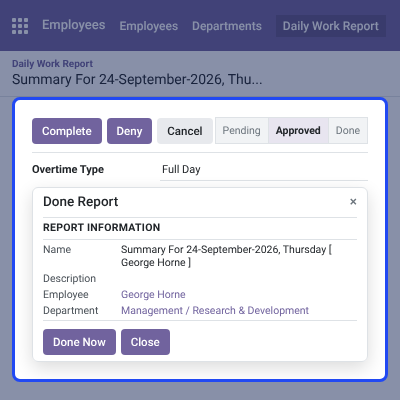
    • Click Complete on an approved work report.
    • Review Name, Description, Employee, and Department.
    • Click Done Now to mark the report as Done.
    • See the Overtime Type as Half Day or Full Day.
    Mark Overtime Report as Done

    Deny an Overtime Work Report

    The coach can deny an approved or completed report when the overtime should not be paid. Odoo asks for confirmation first, so a report is never denied by a stray click.

    Additionally, if you want to reward staff who put in the extra effort, then check Odoo Employee Reward System.
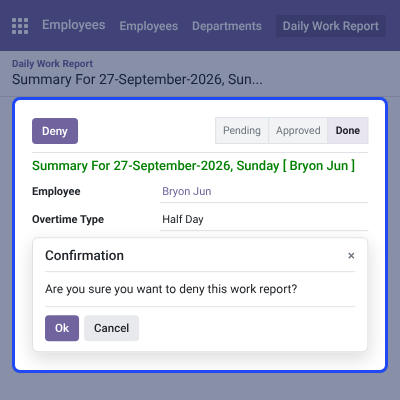
    • Click Deny on the work report.
    • Read the prompt: Are you sure you want to deny this work report?
    • Click Ok to deny it, or Cancel to keep it.
    • Denied reports stay off the employee payslip.
    Deny an Overtime Work Report

    Work Report Status Email Notification

    Employees are notified of the status of their report. Odoo sends the email when a manager acts on it, so nobody has to chase HR for an update.
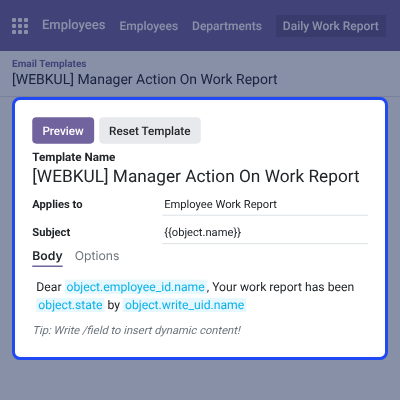
    • Uses the [WEBKUL] Manager Action On Work Report template.
    • Applies to the Employee Work Report record.
    • Names the employee, the new status, and the manager.
    • Admins can edit the template Body and Options.
    Work Report Status Email Notification

    Complete Odoo Employee Overtime Based On Work Reports Feature List

    Overtime Requests

    • Send the daily work report for overtime approval from the Work Summary
    • Request approval with the Request for approval of this worksheet checkbox
    • Use the Request For Approval button on a saved work report
    • Show task details, time intervals, duration, and stage on each report

    Approval Workflow

    • Let employee or department reporting managers accept or turn down reports
    • Let only the employee's coach mark a report Done or deny it
    • Confirm each denial through a pop-up before it is saved
    • Track every report through Pending, Approved, and Done stages

    Payroll and Overtime Type

    • Mark reports as Half Day or Full Day overtime
    • Reflect only Done reports on the employee payslip
    • Keep rejected and denied reports out of payroll

    Reporting and Notifications

    • Review requests under Employees > Daily Work Report > Need Approval
    • Filter by status and group by department, employee, month, or work day
    • See how often each team works overtime hours
    • Email employees when their report status changes

    Odoo Employee Overtime Based On Work Reports Support -

    For any query or issue please create a support ticket here http://webkul.uvdesk.com

    You may also check our other top-quality Odoo Apps.

    Specifications

    Product Version1.0.0
    Released8 years ago
    CategoryOdoo Apps, Tool, 
    Last UpdatedSeptember 30, 2026 (18 days ago)
    Supported Versions8.x  9.x  10.x  11.x  12.x  13.x  14.x  15.x  16.x  17.x  18.x  19.x  20.x  

    Ratings

    We'd love to hear your thoughts! Share your feedback and help us craft an even better experience tailored just for you.

    Write a review

    Specification

    Detailed technical features and requirements to help you understand the module’s capabilities and ensure smooth integration with your system.

    Cloud Hosting

    Detailed technical features and requirements to help you understand the module’s capabilities and ensure smooth integration with your system.

    Default Configuration Details of Server

    1 GB
    RAM
    1 Core
    Processor
    30 GB
    Hard Disk
    1 GB RAM & 1 Core Processor
    Database

    Want to know more how exactly we are going to power up your eCommerce Website with Cloud to fasten up your store

    * Server Configuration may vary as per application requirements.

    Change Logs

    Not Available


