USD
  • EUR
  • INR
  • USD
Cart
Cart 0
  • You have no items in your shopping cart.
    Odoo Apps Extensions
    Cart
    Cart 0
    • You have no items in your shopping cart.
    Hire a Developer
    ×
    Contact Us!
    Send Again
    Close
    Please Login to Write Your Review
    Odoo Matomo (formerly Piwik) Integration

    Odoo Matomo (formerly Piwik) Integration

    x
    Free

    * Required Fields

    $59.00
    Add To Cart

    Odoo Matomo (formerly Piwik) Integration connects your Odoo website with Matomo to track visitors and view real-time web analytics reports.


    • Get real-time data analytics updates for your Odoo website and eCommerce.

    • Track online visits to one or more websites and view reports on them.

    • Track the traffic that reaches your Odoo website from search engines.

    • Measure the time that each visitor spends on your Odoo website.

    • See the geolocation of your customers and new users on a visitor map.

    • Follow page transitions to see which pages a visitor opens next.

    • Add the Piwik Url and Website ID from the Odoo Configuration menu.

    • Generate the Matomo tracking code in Odoo with a single Apply button.

    Odoo Matomo (formerly Piwik) Integration
    Odoo Matomo (formerly Piwik) Integration
    $59.00
    Check How It Works

    Need Help Deciding?

    Support answers within one business day.

    Open a ticket
    $59.00
    Configure and Buy
    X
    • Description
    • Reviews
    • FAQ
    • Customers ()
    • Specifications
    • Cloud Hosting
    • Changelog

    Odoo Matomo (formerly Piwik) Integration is an Odoo module that sends visitor data from your Odoo website to Matomo. Store owners then read real-time analytics reports about their visitors in Matomo.

    Matomo, earlier known as Piwik, is a free and open source web analytics application. It runs on a PHP and MySQL web server, so the visitor data stays on your own server.

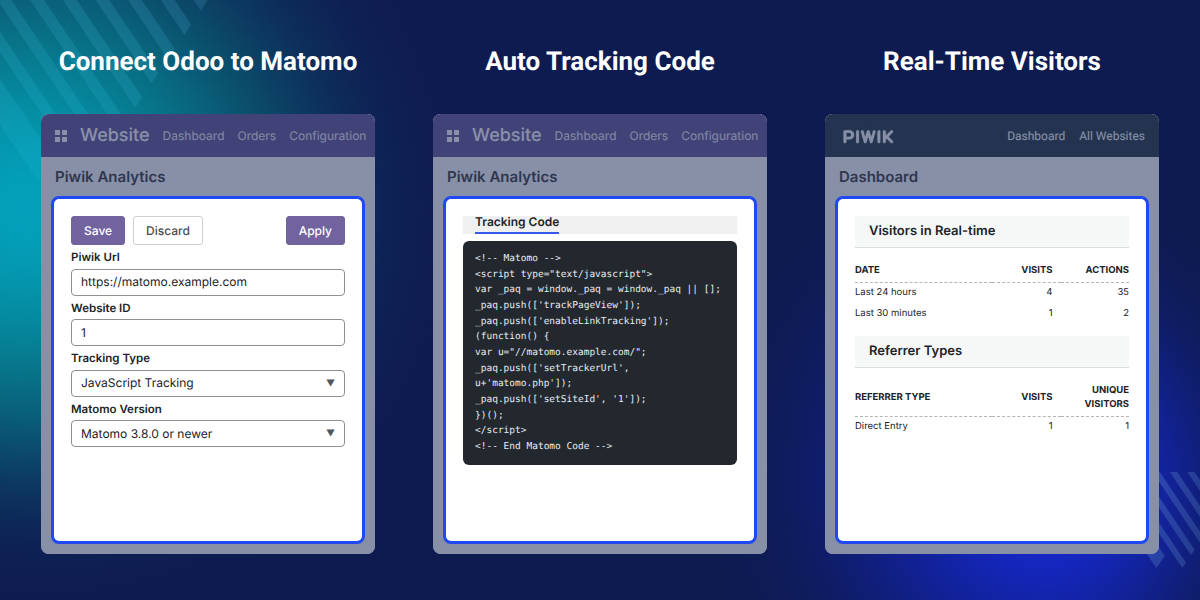
    An admin copies the website ID and URL from the Matomo admin panel and pastes them into Odoo. A click on Apply builds the JavaScript tracking code, and Save keeps the settings.

    After this setup, Matomo records each visit to your Odoo website as it happens. Reports show visits over time, visitor locations, referrer types, and the time spent on the site.

    These reports also show the language a visitor uses, the pages they like, and the files they download. Store owners use this data to find new markets and improve their online shop.

    Additionally, if you want to set meta titles, meta descriptions, and image alt text for products and categories, then check Odoo Website SEO Suite.
    Odoo Matomo (formerly Piwik) Integration

    Highlighted Features of Odoo Matomo (formerly Piwik) Integration

     Real-Time Visitor Data

    Matomo shows visits and actions from the last 30 minutes and the last 24 hours as visitors browse your store.

     Search Engine Traffic

    Referrer reports show how many visits reach your Odoo website from search engines and from other sources.

     Visitor Geolocation

    The Visitor Map places each visit by country, so you can see where your customers and new users come from.

     Time Spent and Page Transitions

    Matomo measures how long each visitor stays and records the pages they move between during one visit.

     JavaScript or Image Tracking

    Choose JavaScript Tracking, the recommended way, or select the image tracking method in the Tracking Type field.

     Tracking Code Generated in Odoo

    Click Apply, and Odoo builds the Matomo tracking code from your Piwik Url and Website ID in the Tracking Code tab.

    Why Do We Need Odoo Matomo (formerly Piwik) Integration?

    Odoo Matomo (formerly Piwik) Integration links an Odoo website to a Matomo server, so every visit is tracked in a self-hosted analytics tool.

    Without the module, a developer has to place the Matomo tracking script on the website pages by hand. Each change to the Matomo URL or website ID then means editing that code again.

    With the module, this setup moves into the Odoo backend, where an admin fills in two values and picks a tracking type. A click on Apply then makes Odoo generate the tracking code for the website.

    In practice, the website ID comes from Settings > Websites > Manage in Matomo. The admin pastes that ID and the Matomo URL into the Piwik Analytics form under Configuration.

    Also, if you want to manage marketing and analytics tags on your Odoo website from one place, you can check our extension Odoo Google Tag Manager.

    Use Cases

    • Watch Live Store Activity

      Store owners open the Matomo dashboard to see who is on the Odoo website now and which actions they take.

    • Measure Search Engine Reach

      Marketing teams check referrer types to learn how much store traffic comes from search engines each day.

    • Find New Customer Locations

      Sellers use the Visitor Map to spot countries where new users come from and plan sales for those regions.

    • Keep Analytics Data In-House

      Businesses that prefer open source tools run Matomo on their own server and keep visitor data under their control.

    Matomo Website ID and URL for Odoo

    Matomo gives each tracked website an ID and a URL in its admin panel. Admins copy both values from Matomo before they set up the module in Odoo.
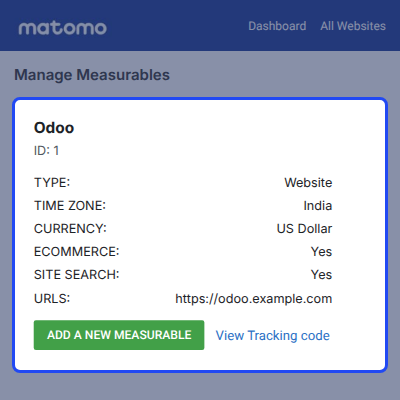
    • Open the Matomo admin panel and click the Settings gear icon.
    • Go to Websites > Manage to open the Manage Measurables page.
    • Find your Odoo website in the list of tracked websites.
    • Copy the ID shown under the website name, for example ID: 1.
    • Copy the website address shown next to URLS for the Odoo setup.
    Matomo Website ID and URL for Odoo

    Piwik Analytics Configuration in Odoo

    Piwik Analytics is the Odoo form that connects your website to Matomo. Admins open it from the Configuration menu of the Website app and fill in four fields.
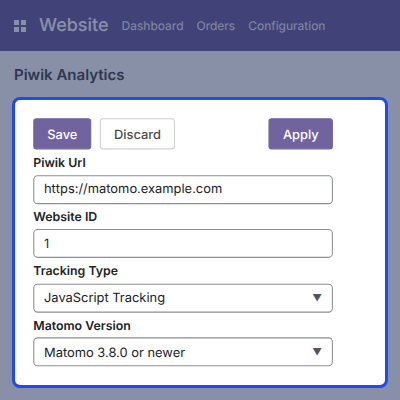
    • Enter the address of your Matomo server in the Piwik Url field.
    • Paste the ID copied from Matomo into the Website ID field.
    • Pick JavaScript Tracking or the image tracking method in Tracking Type.
    • Select the Matomo Version, such as Matomo 3.8.0 or newer.
    • Click Apply to build the tracking code, and then click Save.
    Piwik Analytics Configuration in Odoo

    Matomo Tracking Code for the Odoo Website

    Tracking Code tab shows the Matomo script that Odoo generates after you click Apply. Odoo places this tracking code on each page of your website.
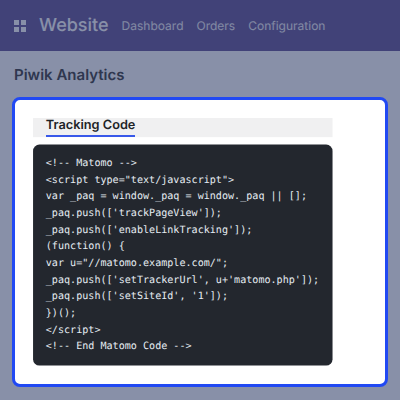
    • Odoo builds the code from the Piwik Url and the Website ID.
    • The script carries the trackPageView and enableLinkTracking calls from Matomo.
    • The script points to the matomo.php tracker on your own Matomo server.
    • The note on the form recommends JavaScript as the main way to track visitors.
    • Admins who do not want JavaScript can select the image tracking method instead.
    Matomo Tracking Code for the Odoo Website

    Real-Time Visitor Analytics in Matomo

    Matomo dashboard shows visitor activity on your Odoo website as it happens. Store owners read visits, actions, locations, and traffic sources on one screen.
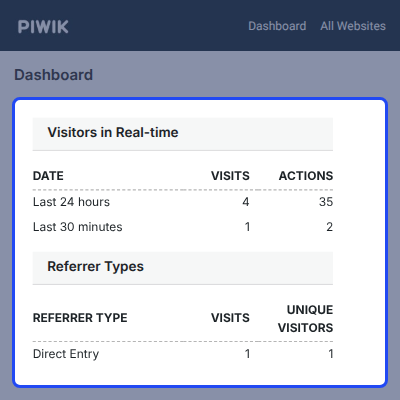
    • Visitors in Real-time lists visits and actions for the last 24 hours and 30 minutes.
    • Each live visit shows the time, the visit length, the browser, and the entry type.
    • Visits Over Time draws a daily graph of the visits to your Odoo website.
    • Visitor Map shows the countries your visitors come from in a World-Wide view.
    • Referrer Types splits visits into direct entry, search engines, and other sources.
    Real-Time Visitor Analytics in Matomo

    Odoo Matomo (formerly Piwik) Integration Support

    For any query or issue please create a support ticket here http://webkul.uvdesk.com

    You may also check our other top-quality Odoo Extensions.

    Specifications

    Product Version1.0.2
    Released9 years ago
    Last UpdatedOctober 6, 2026 (4 days ago)
    Supported Versions8.x  9.x  10.x  11.x  12.x  13.x  14.x  15.x  16.x  17.x  18.x  19.x  20.x  

    Ratings

    We'd love to hear your thoughts! Share your feedback and help us craft an even better experience tailored just for you.

    Write a review

    Frequently Asked Questions

     What does Odoo Matomo (formerly Piwik) Integration do?
    Odoo Matomo (formerly Piwik) Integration adds the Matomo tracking code to your Odoo website. Matomo then shows real-time reports on visits, search engine traffic, visitor location, and time spent on the site.
     
     Do I need my own Matomo installation to use this module?
    Yes, you need Matomo running on a server, because the module sends visitor data to that Matomo installation. You then read all visitor reports inside the Matomo dashboard, not in Odoo.
     
     Where do I find the Website ID and the Piwik Url?
    Open the Matomo admin panel and go to Settings > Websites > Manage. Copy the website ID and the website URL shown there into the Odoo Piwik Analytics form.
     
     Where is the Matomo configuration in Odoo?
    The Matomo setup sits under Piwik Analytics in the Configuration menu of the Odoo Website app. The form holds the Piwik Url, Website ID, Tracking Type, and Matomo Version fields.
     
     Can I track visitors without JavaScript?
    Yes, you can select the image tracking method in the Tracking Type field instead of JavaScript. The form note still recommends JavaScript Tracking as the main way to track visitors.
     
     How is the tracking code added to my website pages?
    Odoo builds the tracking code when you click Apply on the Piwik Analytics form. The code appears in the Tracking Code tab, and Odoo places it on each page of your website.
     
     Can Matomo show traffic from search engines?
    Yes, the Referrer Types report in Matomo shows visits that come from search engines. The same report also lists direct entry visits and other traffic sources.
     
     Can I see where my website visitors are located?
    Yes, the Visitor Map in the Matomo dashboard shows the geolocation of your visitors. The map uses a World-Wide view to show visits from every country.
     
     Which Odoo versions does the module support?
    The Webkul store lists Odoo Matomo (formerly Piwik) Integration for Odoo versions 8.x through 20.x. Pick your Odoo version on the product page before you buy.

    Support

    For any query or issue, please create a support ticket here http://webkul.uvdesk.com/. 

    You may also check our top-quality Odoo Extensions.

    Specification

    Detailed technical features and requirements to help you understand the module’s capabilities and ensure smooth integration with your system.

    Cloud Hosting

    Detailed technical features and requirements to help you understand the module’s capabilities and ensure smooth integration with your system.

    Default Configuration Details of Server

    1 GB
    RAM
    1 Core
    Processor
    30 GB
    Hard Disk
    1 GB RAM & 1 Core Processor
    Database

    Want to know more how exactly we are going to power up your eCommerce Website with Cloud to fasten up your store

    * Server Configuration may vary as per application requirements.

    Change Logs

    Not Available


