USD
  • EUR
  • INR
  • USD
Cart
Cart 0
  • You have no items in your shopping cart.
    Odoo Apps Extensions
    Cart
    Cart 0
    • You have no items in your shopping cart.
    Hire a Developer
    ×
    Contact Us!
    Send Again
    Close
    Please Login to Write Your Review
    Odoo SMS OTP Authentication

    Odoo SMS OTP Authentication

    x
    Free

    * Required Fields

    Choose MOB Version

    $45.00
    Add To Cart

    Odoo SMS OTP Authentication lets customers use an OTP, sent to their mobile, for Odoo website login and signup. Admins set the OTP rules.


    • Let customers do a login with OTP sent to their mobile number

    • Run mobile number verification with an OTP during website signup

    • Enable OTP for sign-in and sign-up separately

    • Set the OTP time limit and the maximum OTP attempts

    • Choose a numeric or alphanumeric one-time password type

    • Send the OTP by SMS, by email, or by both at the same time

    • Resend the OTP after the previous one expires

    • Customise the SMS template used for OTP messages

    • Block a signup when the duplicate mobile number is already registered

    • Recover a forgotten password with OTP verification

    Odoo SMS OTP Authentication
    Odoo SMS OTP Authentication
    $45.00
    Check How It Works

    Need Help Deciding?

    Support answers within one business day.

    Open a ticket
    $45.00
    Configure and Buy
    X
    • Description
    • Reviews
    • FAQ
    • Customers ()
    • Specifications
    • Cloud Hosting
    • Changelog

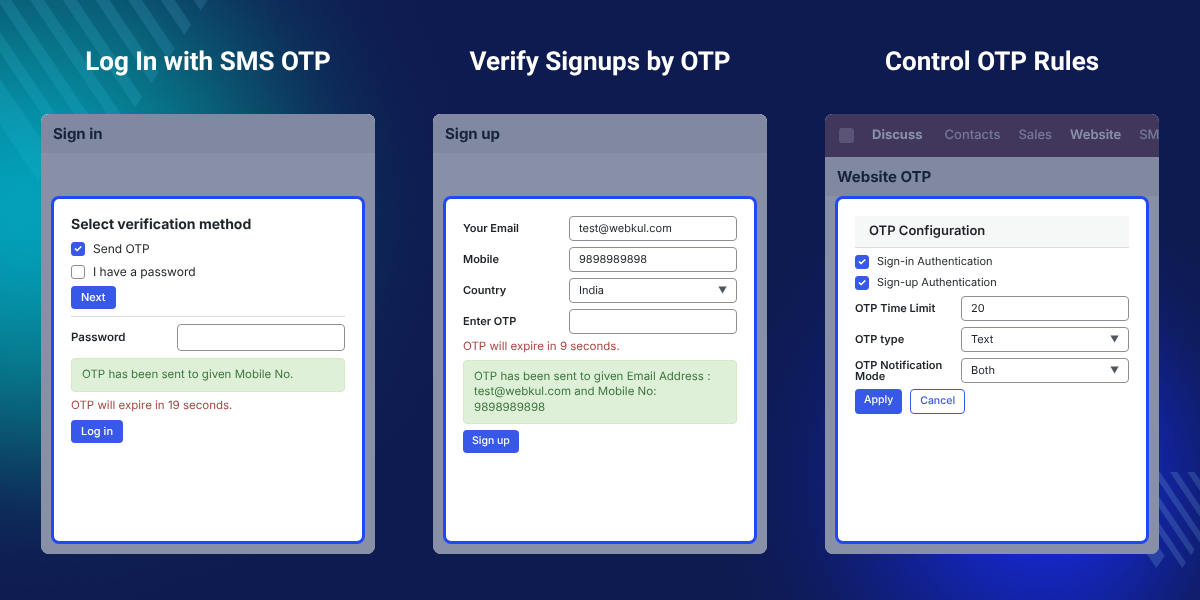
    Odoo SMS OTP Authentication is an Odoo website module that lets customers log in or register with a one-time password sent to their mobile number.

    Login starts with a choice of Email ID or Mobile No. Next, the customer selects Send OTP or I have a password.

    Signup works the same way. Customers fill in their details, click Send OTP, and finish after entering the correct code.

    Admins turn OTP on for sign-in and sign-up separately. They also set the OTP time limit, the OTP type, and how it is delivered.

    Odoo versions 8.x to 20.x are supported. You need a configured SMS gateway, and common browsers work fine.

    Additionally, if you want to send SMS messages from your Odoo store, then check Odoo SMS Notification.
    Odoo SMS OTP Authentication

    Highlighted Features of Odoo SMS OTP Authentication

     OTP Login

    Log in to the Odoo website with an OTP sent to the registered mobile number.

     OTP Signup

    New customers confirm their mobile number with an OTP before the store creates the account.

     Flexible OTP Settings

    Admins set the OTP time limit, the maximum attempts, and a numeric or alphanumeric OTP type.

     SMS and Email Delivery

    Send each OTP by SMS, by email, or by both, based on the notification mode in the settings.

     Resend OTP

    A new OTP is one click away once the earlier one expires, with no need to restart the form.

     Duplicate Number Check

    The signup stops with a message when another user already uses the same mobile number.

    Why Do We Need Odoo SMS OTP Authentication?

    Odoo SMS OTP Authentication gives the Odoo website a second way to verify customers. A password alone cannot prove who holds the registered phone.

    A plain signup form cannot confirm that a mobile number belongs to the customer. Wrong or shared numbers then weaken Odoo website security.

    This module sends an OTP to the mobile number at login and at signup. Customers enter the correct code to continue, and admins control the rules.

    On the login page, a live countdown such as "OTP will expire in 19 seconds" tells customers how long the code stays valid.

    Also, this module builds on Odoo Website OTP Authentication, so install that extension first.

    Additionally, if you want customers to log in or sign up without being sent to another page, then check Odoo Website Login/Sign-Up.

    Also, if you want customers to confirm their email address after signup, you can check our extension Odoo Website Email Verification.

    Lastly, if you want extra fields such as mobile number and country on the signup form, then check Odoo Advance Signup.

    Odoo SMS OTP Authentication Use Cases

    • Verify New Customers

      An online store confirms every new customer's mobile number at signup, so order calls and delivery updates reach the right person.

    • Strengthen Website Security

      A store with saved addresses and order history asks for an OTP at login, so only the phone owner reaches the account.

    • Passwordless Sign-In

      When a password is forgotten, a customer picks Send OTP on the login page and sign in with the code from their phone.

    • Reduce Duplicate Accounts

      The store blocks a second signup that uses a mobile number already linked to another user.

    Odoo OTP Configuration Settings

    The OTP Configuration window holds every OTP rule for the website. Admins open it from Configuration > Settings > Website Webkul Addons.
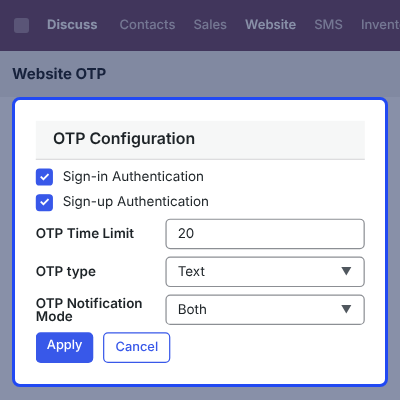
    • Tick Sign-in Authentication to ask for an OTP on the login page.
    • Tick Sign-up Authentication to ask for an OTP on the signup page.
    • Enter the OTP Time Limit to set how long each OTP stays valid.
    • Pick the OTP type, numeric or alphanumeric.
    • Set the OTP Notification Mode to SMS, Email, or Both.
    • Set the maximum number of OTP attempts a customer gets.
    Odoo OTP Configuration Settings

    Odoo Website Login with Mobile Number

    A login with OTP can start from a mobile number instead of an email address. The code goes to that number.
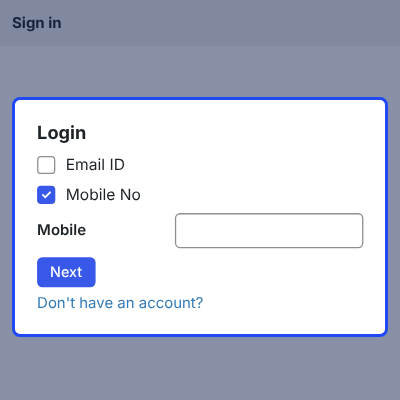
    • Choose Email ID or Mobile No with the radio buttons.
    • Enter the registered mobile number in the Mobile field.
    • Click Next to move to the verification step.
    • Use the Don't have an account? link to reach the signup page.
    Odoo Website Login with Mobile Number

    Select OTP or Password Verification Method

    After Next, the Select verification method screen asks how to sign in. Customers can use an OTP or their existing password.
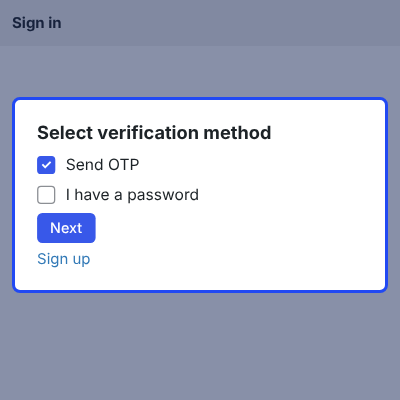
    • Select Send OTP to receive a code on the registered mobile number.
    • Select I have a password to log in with the usual password.
    • Click Next to continue with the chosen method.
    • Use the back arrow to return to the previous step.
    • Use the Sign up link to create a new account.
    Select OTP or Password Verification Method

    OTP Expiry Time on Odoo Login

    Once the OTP goes out, the login page shows a confirmation and a countdown. Customers type the code into the Password field and click Log in.
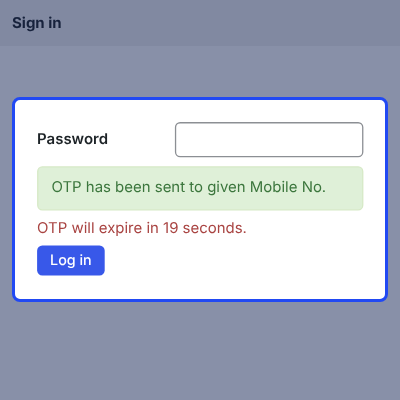
    • A green message confirms that the OTP went to the given mobile number.
    • A red line shows the time left, such as "OTP will expire in 19 seconds".
    • Expiry follows the OTP Time Limit set by the admin.
    • Log in signs the customer in when the OTP matches.
    OTP Expiry Time on Odoo Login

    Odoo Website Signup with OTP Verification

    A Send OTP link sits beside the Sign up button on the standard form. Accounts exist only after the customer enters the right OTP.
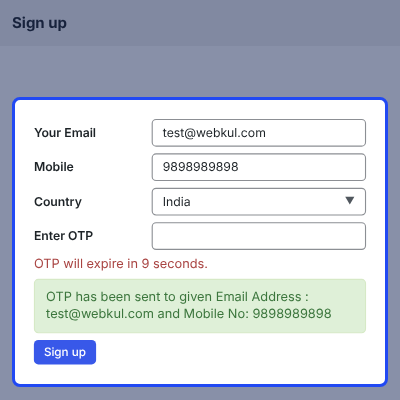
    • Fill in Your Email, Your Name, Mobile, Password, Confirm Password, and Country.
    • Click Send OTP to request the code.
    • Enter the code in the Enter OTP field, which appears after sending.
    • A message shows the email address and mobile number that received the OTP.
    • Click Sign up to finish the registration.
    Odoo Website Signup with OTP Verification

    Resend OTP on Odoo Signup

    When the OTP expires, a Resend OTP link appears inside the OTP field. Customers keep the details already filled in.
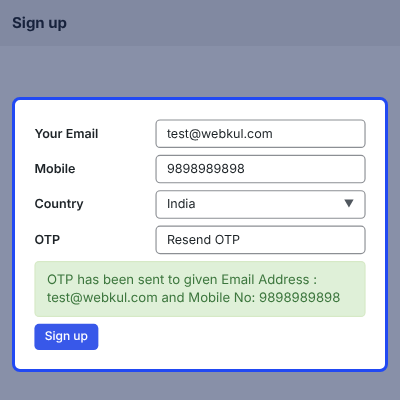
    • Click Resend OTP to get a new code after expiry.
    • A new code follows the same OTP type and time limit.
    • A sent message shows where the new OTP went.
    • A close icon beside the field clears the OTP entry.
    Resend OTP on Odoo Signup

    Duplicate Mobile Number and Error Messages

    Each form gets checked, and a clear message shows when something is wrong. Customers know what to fix before they try again.
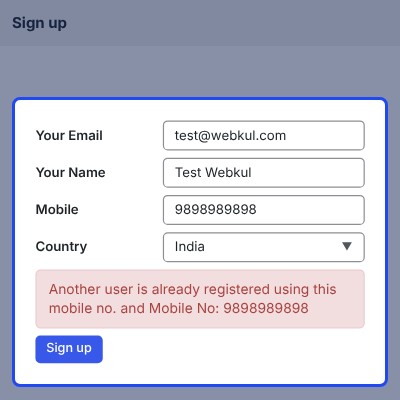
    • "Another user is already registered using this mobile no." appears for a duplicate number.
    • "Please enter a valid email address." appears when the email is wrong.
    • "Failed to send OTP !! Please ensure that you have given correct Mobile No." appears when delivery fails.
    • Messages show in red boxes above the Sign up and Next buttons.
    Duplicate Mobile Number and Error Messages

    Complete Odoo SMS OTP Authentication Feature List

    OTP Login and Signup

    • Log in to the Odoo website with an OTP sent to the registered mobile number
    • Choose Email ID or Mobile No on the login page
    • Select Send OTP or I have a password as the verification method
    • Sign up on the website with mobile number verification by OTP
    • Recover a forgotten password with OTP verification

    OTP Settings

    • Enable sign-in authentication and sign-up authentication separately
    • Set the OTP time limit from the backend
    • Set the maximum number of OTP attempts
    • Generate a numeric or alphanumeric OTP
    • Manage all options from Configuration > Settings > Website Webkul Addons

    Delivery and Templates

    • Send the OTP by SMS, by email, or by both at the same time
    • Customise the SMS template used for OTP messages
    • Resend the OTP after the earlier one expires
    • Show a live countdown until the OTP expires
    • Show a confirmation message after sending the OTP

    Validation and Messages

    • Detect a mobile number already registered with another account
    • Show an error for an invalid email address
    • Show an error when the OTP fails to reach the mobile number
    • Keep the filled signup details while the customer requests a new OTP
    • Verify the mobile number at registration

    Compatibility and Requirements

    • Support every Odoo version from 8.x up to 20.x
    • Work across common browsers
    • Require the Odoo SMS Notification and Website OTP Authentication modules
    • Require a configured SMS gateway to send OTP messages
    • Use a single application license

    Dedicated Support For Odoo SMS OTP Authentication Module

    Webkul's dedicated support provides you with the customizations and troubleshooting solutions for your Odoo SMS OTP Authentication Module.

    For any query or issue please CREATE A TICKET HERE

    You may also check our other top-quality Odoo Apps.

    Specifications

    Product Version1.0.0
    Released7 years ago
    Last UpdatedOctober 8, 2026 (2 days ago)
    Supported Versions8.x  9.x  10.x  11.x  12.x  13.x  14.x  15.x  16.x  17.x  18.x  19.x  20.x  

    Ratings

    We'd love to hear your thoughts! Share your feedback and help us craft an even better experience tailored just for you.

    Write a review

    Frequently Asked Questions

     How does Odoo SMS OTP Authentication work?
    Odoo SMS OTP Authentication sends a one-time password to the customer's mobile number at website login and signup. The customer enters the code to finish the step. Admins set the OTP time limit, type, and delivery mode in the settings.
     
     Which Odoo versions does the module support?
    The module supports every Odoo version from 8.x up to 20.x.
     
     Can customers choose between OTP and password at login?
    Yes. After the customer clicks Next on the login page, the Select verification method screen offers Send OTP and I have a password.
     
     Can I turn on OTP for signup only or login only?
    Yes. The OTP Configuration window has separate Sign-in Authentication and Sign-up Authentication options. Admins can enable either one or both.
     
     What happens when the OTP expires?
    The code stops working once the OTP Time Limit ends. On the signup form, the customer clicks Resend OTP to receive a new code.
     
     Can the OTP go by email as well as SMS?
    Yes. The OTP Notification Mode offers SMS, Email, or Both. Admins pick one in the OTP Configuration window.
     
     What happens if a mobile number is already registered?
    The signup stops, and the form shows "Another user is already registered using this mobile no." The customer must use a different number.
     
     Do I need an SMS gateway before installing the module?
    Yes. You need a configured SMS gateway, the Odoo SMS Notification module, and the Odoo Website OTP Authentication module.

    Specification

    Detailed technical features and requirements to help you understand the module’s capabilities and ensure smooth integration with your system.

    Cloud Hosting

    Detailed technical features and requirements to help you understand the module’s capabilities and ensure smooth integration with your system.

    Default Configuration Details of Server

    1 GB
    RAM
    1 Core
    Processor
    30 GB
    Hard Disk
    1 GB RAM & 1 Core Processor
    Database

    Want to know more how exactly we are going to power up your eCommerce Website with Cloud to fasten up your store

    * Server Configuration may vary as per application requirements.

    Change Logs

    Not Available


