USD
  • EUR
  • INR
  • USD
Cart
Cart 0
  • You have no items in your shopping cart.
    Odoo Apps Extensions
    Cart
    Cart 0
    • You have no items in your shopping cart.
    Hire a Developer
    ×
    Contact Us!
    Send Again
    Close
    Please Login to Write Your Review
    Odoo Scheduled Survey with Follow-Up

    Odoo Scheduled Survey with Follow-Up

    x
    Free

    * Required Fields

    $45.00
    Add To Cart

    Odoo Scheduled Survey with Follow-Up sends a survey on a date you set and follows up with users who have not responded, once or on a repeating cycle.


    • Enable scheduled delivery on any Odoo survey form.

    • Set the exact date and time a survey mail goes out.

    • Send an automatic follow-up mail to non-respondents.

    • Choose a Once or Repeatedly cycle for the follow-up mail.

    • Add authorized users who manage each scheduled survey.

    • Share surveys with anyone or restrict them to invited people.

    • Pick recipients from existing contacts or add emails directly.

    • Track every reminder sent in the follow-up history log.

    • Check cron status before a survey is due to go out.

    Odoo Scheduled Survey with Follow-Up
    Odoo Scheduled Survey with Follow-Up
    $45.00
    Check How It Works

    Need Help Deciding?

    Support answers within one business day.

    Open a ticket
    $45.00
    Configure and Buy
    X
    • Description
    • Reviews
    • FAQ
    • Customers ()
    • Specifications
    • Cloud Hosting
    • Changelog

    Odoo Scheduled Survey with Follow-Up is an Odoo extension that sends a survey on a date the admin sets.

    Admins open a survey form, tick Enable cron job for this survey, and set the Scheduled Date. The cron job sends the survey when that date arrives.

    The same survey can carry a follow-up mail for users who stay silent, sent Once or Repeatedly on a set cycle.

    Authorized Users manage the survey. The Sharing Options tab sets whether it goes to anyone with the link or only to invited people.

    The survey list shows each record's Draft or In Progress status, alongside its Scheduled Date and Cron Status.

    Also, to send survey questions to a mailing list instead of scheduling one form, check Odoo Website Survey to Mailing List.
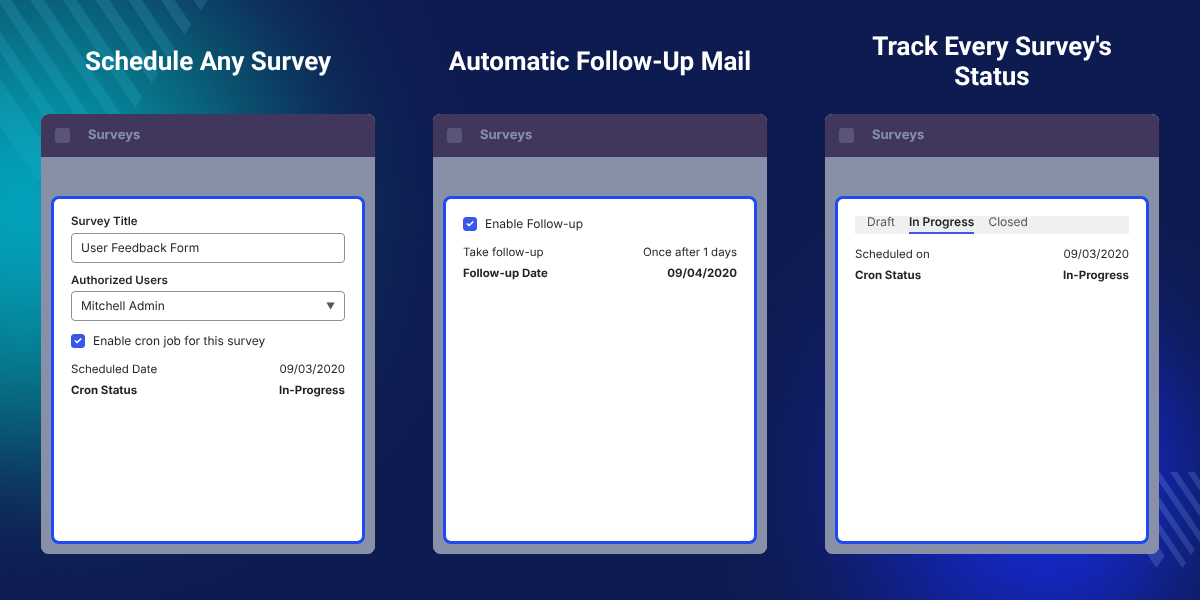
    Odoo Scheduled Survey with Follow-Up

    Highlighted Features of Odoo Scheduled Survey with Follow-Up

     Scheduled Survey Delivery

    Set a Scheduled Date on any survey and the cron job sends it automatically that day.

     Automated Follow-Up Mail

    Send a survey reminder mail to anyone who skipped the first survey.

     Authorized User Access

    Name the users who can manage a given scheduled survey.

     Flexible Sharing Options

    Open a survey to anyone with the link, or restrict it to invited people only.

     Follow-Up History Tracking

    Review every reminder mail sent for a survey from its follow-up history log.

     Cron Status Monitoring

    Check the Cron Status field to confirm a survey's scheduled job is active.

    Why Do We Need Odoo Scheduled Survey with Follow-Up?

    Odoo Scheduled Survey with Follow-Up exists because a default Odoo survey only goes out the moment an admin publishes it.

    That forces someone to send each survey by hand at the right time. A survey with no response just ends there.

    This module adds a Scheduled Date field and a cron job, so the send happens on its own. A Follow-Up mail then reaches anyone who stays silent.

    On the survey form, the only extra step is ticking Enable cron job for this survey and setting a Scheduled Date.

    Also, to trigger a survey right after signup instead of on a fixed date, check our extension Odoo Survey After Signup.

    If you also want repeating reminder mails for internal tasks and events, check our extension Odoo Reminder Mail.

    For quick like-or-dislike feedback on a product page instead of a full survey, check Odoo Website Product Vote-Up/Down.

    Use Cases for Scheduled Surveys in Odoo

    • Post-Purchase Feedback Timing

      Schedule a customer feedback survey for a few days after an order, instead of sending it the moment it ships.

    • Event Follow-Up Reminders

      Send a reminder survey to attendees who skipped the first invite.

    • Recurring Satisfaction Checks

      Repeat a follow-up survey on a cycle to track changing feedback over time.

    • Scheduled Campaign Surveys

      Line up a survey to launch on a campaign date without anyone sending it by hand.

    Odoo Survey Scheduling Settings

    Survey Scheduling Settings let admins set a future send date on a survey form, instead of publishing it right away.
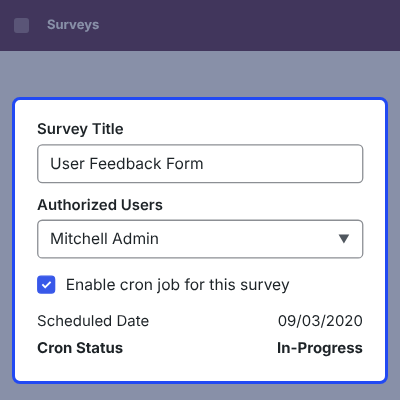
    • Add a Survey Title and the Authorized Users who manage the scheduled survey.
    • Tick Enable cron job for this survey to turn on scheduled delivery.
    • Set the Scheduled Date the survey mail should go out.
    • Check the Cron Status field to confirm the scheduled job is active.
    • The survey stays in Draft until its Scheduled Date triggers the send.
    Odoo Survey Scheduling Settings

    Follow-Up Mail Settings for Odoo Surveys

    Follow-Up Mail Settings send a reminder survey mail after the first one, for recipients who stay silent.
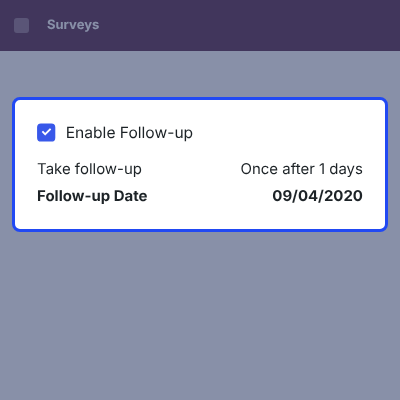
    • Tick Enable Follow-up to turn on the reminder mail for that survey.
    • Set Take follow-up to Once or Repeatedly.
    • Enter the number of days after the first mail the follow-up should wait.
    • The Follow-up Date field shows when that reminder mail goes out.
    • The Follow-up History log records every reminder mail sent for the survey.
    Follow-Up Mail Settings for Odoo Surveys

    Sharing Options for Scheduled Surveys

    Sharing Options decide who can open and answer a scheduled survey once it goes out.
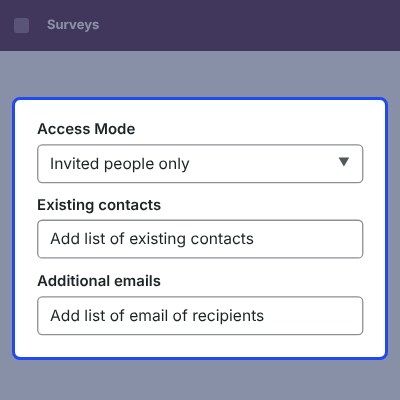
    • Choose Anyone with the link to let anyone who has the URL respond.
    • Choose Invited people only to restrict responses to selected recipients.
    • Add recipients from Existing contacts already saved in Odoo.
    • Add recipients by typing their addresses into the Additional emails field.
    • The access mode applies to both the first survey mail and any follow-up mail.
    Sharing Options for Scheduled Surveys

    Scheduled Survey Status Overview

    The survey list shows every scheduled survey's delivery state, so admins do not have to open each record to check progress.
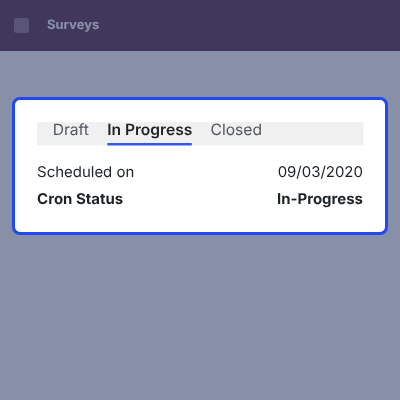
    • Surveys appear in Draft, In Progress, or Closed columns on the kanban board.
    • Each card shows Scheduled on with the date the survey is due to go out.
    • Each card also shows Cron Status, confirming whether the scheduled job is still active.
    • Follow-up History on the survey record lists every reminder mail that has gone out.
    • Admins can spot a survey that has not triggered yet without opening the record.
    Scheduled Survey Status Overview

    Complete Odoo Scheduled Survey with Follow-Up Feature List

    Scheduling & Delivery

    • Enable the Scheduled Survey Feature on any Odoo survey form
    • Set the Scheduled Date the survey should go out
    • Let the cron job send the survey automatically on that date
    • Check the Cron Status field to confirm the job is active
    • Keep a survey in Draft until its Scheduled Date triggers delivery

    Follow-Up Mail

    • Enable a Follow-up mail for any scheduled survey
    • Set Take follow-up to Once or Repeatedly, after a chosen number of days
    • Check the Follow-up Date field for the next reminder mail
    • Track every reminder sent in the Follow-up History log

    Access & Sharing

    • Add Authorized Users who can manage a scheduled survey
    • Share the survey with Anyone with the link
    • Restrict delivery to Invited people only
    • Pick recipients from Existing contacts or the Additional emails field

    Survey Setup & Monitoring

    • Add a Survey Title, description, and questions from the standard Odoo Survey tabs
    • View every scheduled survey's Draft, In Progress, or Closed status in one kanban board
    • Check each card's Scheduled on date and Cron Status without opening the record

    Odoo Scheduled Survey with Follow-Up Support -

    For any query or issue please create a support ticket here http://webkul.uvdesk.com

    You may also check our other top-quality Odoo Apps.

    Specifications

    Product Version1.0.0
    Released8 years ago
    CategoryOdoo Apps, Tool, 
    Last UpdatedOctober 7, 2026 (12 days ago)
    Supported Versions8.x  9.x  10.x  11.x  12.x  13.x  14.x  15.x  16.x  17.x  18.x  19.x  20.x  

    Ratings

    We'd love to hear your thoughts! Share your feedback and help us craft an even better experience tailored just for you.

    Write a review

    Frequently Asked Questions

     What does Odoo Scheduled Survey with Follow-Up do?
    This module sends a survey automatically on a date the admin sets. A reminder mail can follow to anyone who stays silent.
     
     How do I schedule a survey?
    Tick Enable cron job for this survey on the survey form, then set the Scheduled Date. The cron job sends the survey on that date.
     
     Can the follow-up mail repeat?
    Yes. Set the follow-up cycle to Repeatedly instead of Once, and the reminder mail keeps going out on the same schedule.
     
     Who can see a scheduled survey?
    Access depends on the survey's sharing option: Anyone with the link, or Invited people only, added from Existing contacts or Additional emails.
     
     What happens if the cron job is not active?
    The Cron Status field on the survey shows whether the job is running. A survey will not go out while that job is inactive.
     
     Can I restrict a survey to specific employees?
    Yes. Choose Invited people only and add those employees from Existing contacts or the Additional emails field.
     
     Where do I see which surveys have gone out?
    The survey list shows each record as a card in the Draft, In Progress, or Closed column, with its Scheduled on date and Cron Status.
     
     Is there a record of follow-up mails sent?
    Yes. The Follow-up History log on each survey record lists every reminder mail that has gone out.
     
     Which Odoo versions does the module support?
    The module supports Odoo versions 8.x through 20.x.

    Specification

    Detailed technical features and requirements to help you understand the module’s capabilities and ensure smooth integration with your system.

    Cloud Hosting

    Detailed technical features and requirements to help you understand the module’s capabilities and ensure smooth integration with your system.

    Default Configuration Details of Server

    1 GB
    RAM
    1 Core
    Processor
    30 GB
    Hard Disk
    1 GB RAM & 1 Core Processor
    Database

    Want to know more how exactly we are going to power up your eCommerce Website with Cloud to fasten up your store

    * Server Configuration may vary as per application requirements.

    Change Logs

    Not Available


