- Description
- Reviews
- FAQ
- Customers ()
- Specifications
- Cloud Hosting
- Changelog
Krayin CRM Multi-DB SaaS is a Krayin extension that turns one Krayin install into a multi-tenant CRM platform. Each tenant runs in its own database, so one tenant's records can never show up in another CRM.
Visitors sign up on the platform domain in three steps, Account, Verify email, and optional Profile, while a super admin can create a tenant from the panel using an email, password, and username.
After sign-up, the tenant database is built in the background. The tenant then reaches a seeded Krayin CRM at a subdomain such as username.krayin.com, ready to use.
Super admin manages every tenant from one Tenants grid. Status, outgoing mail type, and domain show for each row. Leads, quotes, and dashboard figures are gathered from all tenant databases.
Tenants can switch on their own SMTP server so mail arrives from their own domain. Uploads are kept in a separate directory for each tenant.
Additionally, if you want to sync Krayin leads, contacts, and products with Odoo, then check Krayin CRM Odoo Connector.
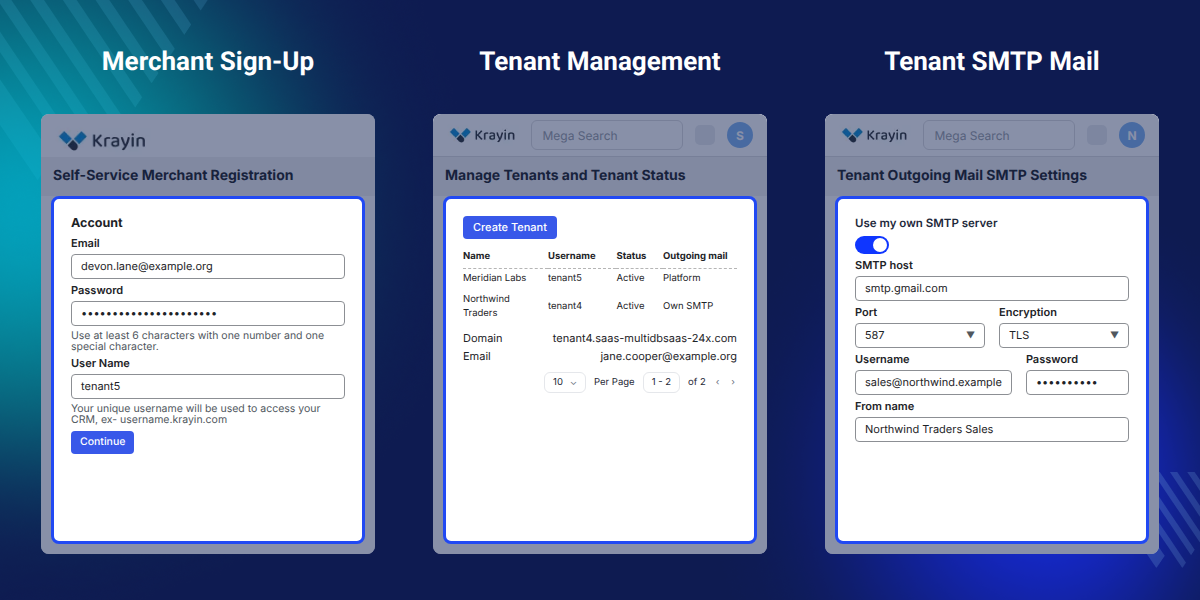
Highlighted Features
Database per Tenant
Keep each tenant in a separate database, so leads, contacts, and quotes stay isolated between accounts.
Self-Service Sign-Up
Let merchants register, verify their email, and receive a working CRM on their own subdomain without admin help.
Cross-Tenant Reports
See total, active, and blocked tenants, plus leads and quotes gathered from every tenant database.
Tenant SMTP Server
Send tenant CRM mail from its own domain, with a test email and a fallback to the platform server.
Queued Tenant Setup
Build each tenant database on the queue while a status page refreshes by itself every 5 seconds.
Signed Email Checks
Protect sign-up with one-time codes, and confirm tenant owners with signed links that expire in 24 hours.
Why Do We Need Krayin CRM Multi-DB SaaS?
Krayin CRM Multi-DB SaaS places each tenant in a separate database. Deleting a tenant removes its database, and each tenant can be rebuilt without touching the others.
Default Krayin CRM serves one business from one database. Selling it as a SaaS CRM needs a way to host many companies on the same install.
Keeping all tenants in shared tables raises the risk of data leaks. It also makes backups, removals, and repairs harder for a single customer.
The SaaS tenant prune databases command lists databases that belong to no tenant, letting operators drop them without hunting for them by hand.
Also, if you want your SaaS platform hosted and tuned on AWS, you can check Krayin AWS Cloudkul Silver Plan.
Use Cases
-
Launch a SaaS CRM Business
Offer Krayin to paying customers, each with a private CRM on its own subdomain.
-
Agency Client Workspaces
Give every client a separate CRM and database, so client pipelines never overlap.
-
Franchise and Branch CRMs
Run one CRM per branch while head office reviews leads and quotes across all branches.
-
Branded Sales Email per Tenant
Let each business send quotes and follow-ups from its own mail domain through its own SMTP.
Self-Service Merchant Registration
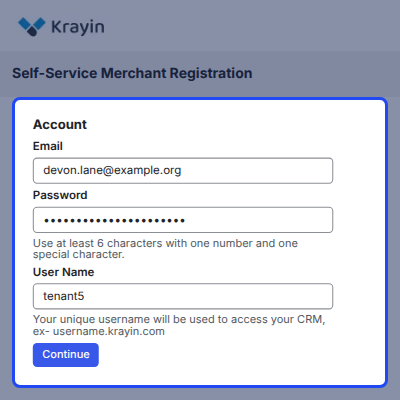
Merchant Registration lets visitors create their own CRM on the platform domain. The form walks through three steps shown in a progress list.
- Enter Email, Password, and User Name on the Account step.
- Use the user name as the CRM address, for example username.krayin.com.
- Apply one password rule: at least 6 characters with one number and one special character.
- Refuse reserved usernames and addresses already in use.
- Add Name, Phone, and Description on the Profile step, or click Skip & Register.
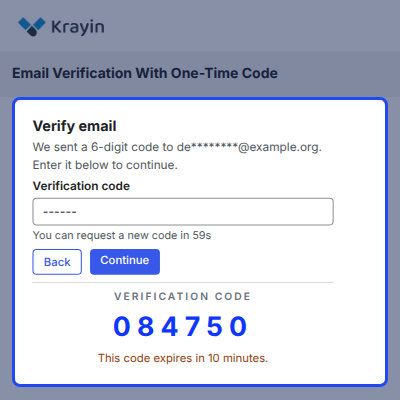
Email Verification With One-Time Code
Email verification confirms the sign-up address before any tenant account is created. The platform emails a 6-digit verification code to the merchant.
- Show a masked address on the Verify email step.
- Expire the verification code after 10 minutes.
- Limit wrong attempts on the verification code.
- Enforce a wait before a new code, with a countdown on the form.
- Cap the number of resends for one registration.
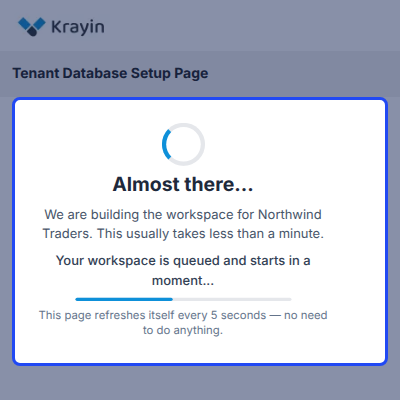
Tenant Database Setup Page
Tenant database setup page appears at the tenant address while its CRM is being built. Setup runs on the queue, so registration returns at once.
- Show an Almost there message with the tenant name.
- Refresh the page every 5 seconds until the CRM is ready.
- Keep slow database builds from timing out a web request.
- Roll back the registration if setup cannot start, so the username and email stay free.
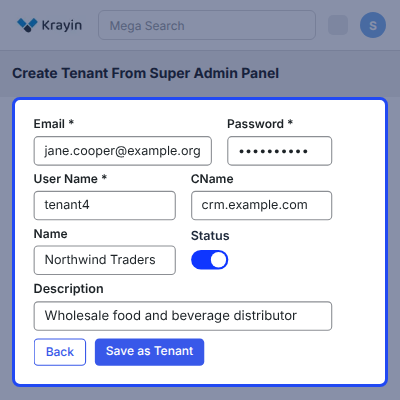
Create Tenant From Super Admin Panel
Create Tenant page lets the super admin add a tenant in one step. The account is active at once, and its CRM is built in the background.
- Fill in Email, Password, and User Name as required fields.
- Add an optional CName, such as crm.example.com, after pointing a CNAME record at the platform.
- Enter the tenant Name and Description.
- Set Status with a toggle, then click Save as Tenant.
- Refuse a custom domain that would take over another tenant address.
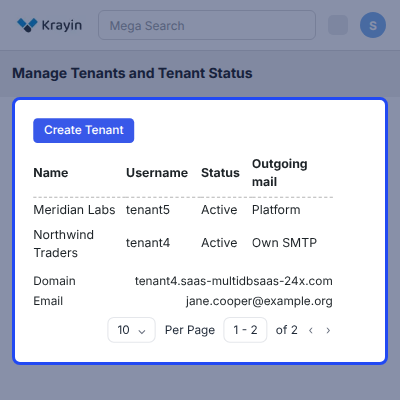
Manage Tenants and Tenant Status
Tenant grid lists every tenant with its address, owner email, and outgoing mail status. The super admin can edit, block, or delete any tenant from the Actions column.
- View ID, Name, Email, Username, Domain, CName, Status, and Outgoing mail columns.
- See whether mail goes through the Platform server or the tenant's Own SMTP.
- Update the tenant owner's email, name, and password inside their CRM.
- Deactivate a tenant, so its address tells visitors the account is blocked.
- Delete a tenant together with its database.
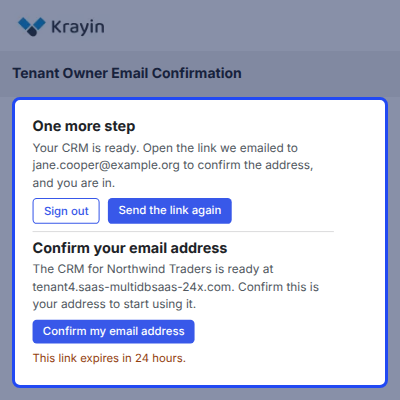
Tenant Owner Email Confirmation
A tenant admin created by the super admin confirms the email address before using the CRM. Until then, the CRM shows a One more step page.
- Send a Confirm my email address button to the tenant owner.
- Sign the confirmation link and expire it after 24 hours.
- Offer Send the link again and Sign out on the waiting page.
- Open the tenant dashboard with a verified message after confirmation.
- Never hold back users that the tenant admin invites.
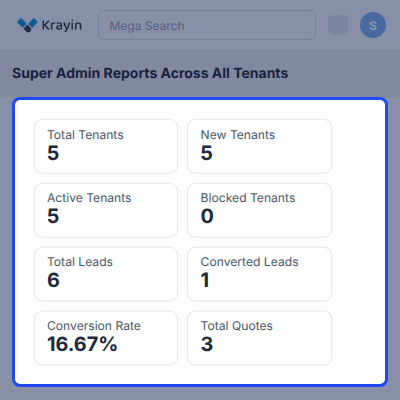
Super Admin Reports Across All Tenants
Super admin reports gather dashboard figures, leads, and quotes from every tenant database. The platform owner gets one view of activity across all CRMs.
- Track Total Tenants, New Tenants, Active Tenants, and Blocked Tenants.
- See Total Leads, Converted Leads, Conversion Rate, and Total Quotes.
- Browse leads with Subject, Tenant, Stage, Lead Value, and Created At.
- Browse quotes with Subject, Tenant, Grand Total, and Created At.
- Search and filter both grids across all tenants.
Tenant Outgoing Mail SMTP Settings
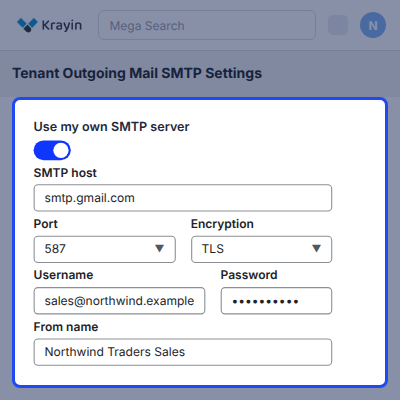
Outgoing mail (SMTP) settings let a tenant send CRM email through its own mail server. Mail then arrives from the tenant's own domain instead of the platform address.
- Switch on Use my own SMTP server and enter SMTP host, Port, Encryption, Username, and Password.
- Set the From address and From name under Sender identity.
- Allow only ports 25, 465, 587, and 2525, and refuse private network hosts.
- Store the SMTP password encrypted and never show it again.
- Send a test email that reports exactly what the mail server said.
- Check Current status, the last failure, and when the server last worked.
Support
After the completion of the Server Setup, we will provide limited period support for 30 days to the customer so that they can check and ensure the configuration.
Our Support Period includes the SLA of around 12 to 24 hours and covers only issues regarding the Server Setup and Configuration (Issues regarding third-party applications or modules are not included in this support). Mode of Communication are Ticket and Email: [email protected]
For any query or issue please create a support ticket here - http://webkul.uvdesk.com
Specifications
Frequently Asked Questions
saas tenant prune databases command to list tenant databases that belong to no tenant and drop them when asked.Specification
Detailed technical features and requirements to help you understand the module’s capabilities and ensure smooth integration with your system.
Cloud Hosting
Detailed technical features and requirements to help you understand the module’s capabilities and ensure smooth integration with your system.
Move to Cloud Today
We’re partnered with top-tier, trusted providers!



Default Configuration Details of Server
RAM 1 Core
Processor 30 GB
Hard Disk
Database
Want to know more how exactly we are going to power up your eCommerce Website with Cloud to fasten up your store
* Server Configuration may vary as per application requirements.
Change Logs
- - Feature Add (+)
- - Feature remove (-)
- - Bug Fixed (!)
- - Modification (*)
- + Compatibility with Krayin CRM v2.2.6
