USD
  • EUR
  • INR
  • USD
Cart
Cart 0
  • You have no items in your shopping cart.
    Odoo Apps Extensions
    Cart
    Cart 0
    • You have no items in your shopping cart.
    Hire a Developer
    ×
    Contact Us!
    Send Again
    Close
    Please Login to Write Your Review
    Odoo POS BlueSnap Payment Acquirer

    Odoo POS BlueSnap Payment Acquirer

    x
    Free

    * Required Fields

    $99.00
    Add To Cart

    Odoo POS BlueSnap Payment Acquirer adds the BlueSnap gateway to Odoo Point of Sale. Cashiers show a QR code, and customers pay by card on their phone.


    • Add BlueSnap as a payment method in Odoo Point of Sale.

    • Generate a QR code for the exact amount of the POS payment line.

    • Let customers enter card details on a secure BlueSnap payment page.

    • Watch the payment line move from in process to done or failed.

    • Show a Payment Done pop-up so the cashier can validate the order.

    • Retry a failed BlueSnap payment from a Payment Failed pop-up.

    • Block removal of a completed BlueSnap payment line.

    • Switch between Test Mode and Production for the BlueSnap credentials.

    • Track every transaction in the backend as New, Failed, or Done.


    Odoo POS BlueSnap Payment Acquirer
    Odoo POS BlueSnap Payment Acquirer
    $99.00
    Check How It Works

    Need Help Deciding?

    Support answers within one business day.

    Open a ticket
    $99.00
    Configure and Buy
    X
    • Description
    • Reviews
    • FAQ
    • Customers ()
    • Specifications
    • Cloud Hosting
    • Changelog

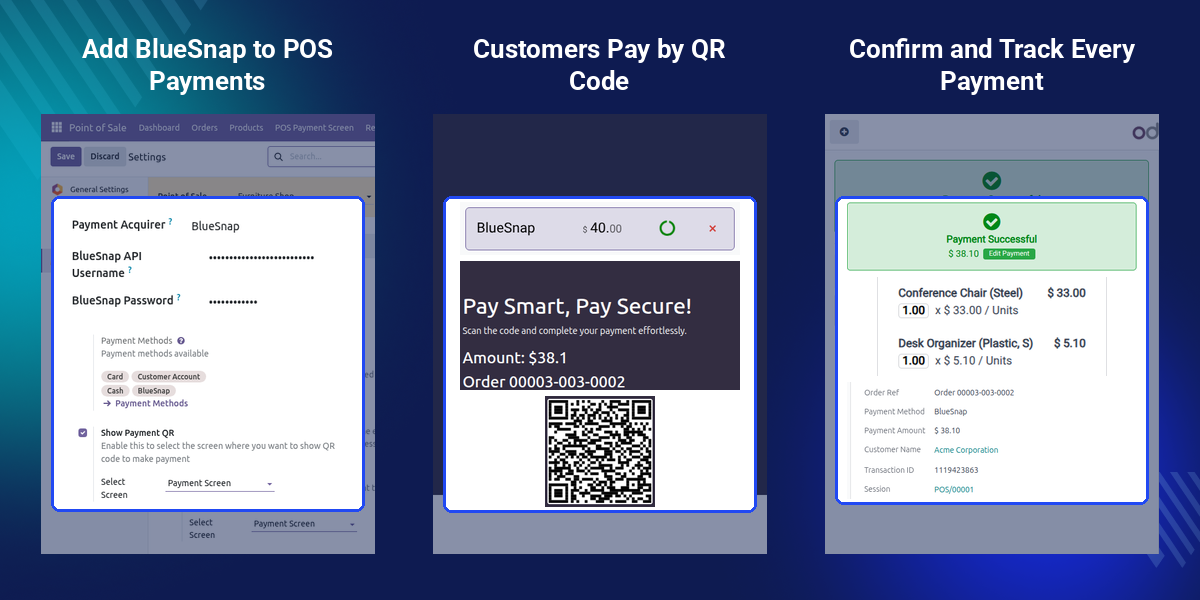
    Odoo POS BlueSnap Payment Acquirer is an Odoo module that lets a shop accept BlueSnap card payments at the Point of Sale. It works with the Odoo POS Payment Base module to turn the payment amount into a QR code.

    Cashiers add products, open the payment screen, and pick BlueSnap. A payment line and a QR code appear, and the customer pays on the BlueSnap card page.

    Every attempt is saved as a POS payment transaction. It holds the order reference, customer, amount, BlueSnap transaction ID, session, and a New, Failed, or Done status.

    Admins add the BlueSnap API username and password under Point of Sale > Configuration > Payment Acquirer Configuration, then choose Test Mode or Production. Show Payment QR is switched on in the Point of Sale settings.

    Installation needs the Point of Sale app and the Odoo POS Payment Base module. A BlueSnap merchant account with API credentials is also required.

    Additionally, shops that want a second card gateway at the same register can look at the Odoo POS Stripe Payment Acquirer.
    Odoo POS BlueSnap Payment Acquirer

    Highlighted Features of Odoo POS BlueSnap Payment Acquirer

     Easy BlueSnap Setup

    Enter the BlueSnap API username and password once, pick Test Mode or Production, and the credentials are ready for every POS.

     BlueSnap Payment Method

    Cashiers pick BlueSnap beside Cash and Card, because the module creates the payment method for the Point of Sale.

     QR Code Payment

    Customers scan the QR code for the payment line amount and continue to the card page.

     Live Payment Status

    A progress icon sits on the payment line while the payment is in process, and it updates when the payment is done or failed.

     Cashier Pop-ups

    Done, Failed, and In Process pop-ups guide the cashier at each step.

     Backend Transaction Records

    Every attempt is stored as a POS payment transaction with its order, customer, amount, and status.

     Prerequisites For Odoo POS BlueSnap Payment Acquirer

    Odoo POS BlueSnap Payment Acquirer works in conjunction with the following module:

    You would need to install this module for Odoo Odoo POS BlueSnap Payment Acquirer to work properly.

    Why Do We Need Odoo POS BlueSnap Payment Acquirer?

    Many shops already accept cards through BlueSnap online. At the counter, they want the same gateway inside Point of Sale, so the money lands in one BlueSnap account.

    Without a connector, cashiers charge the card on a separate device and key the result into the order by hand. That costs time and invites a wrong amount or a missed charge.

    Odoo POS BlueSnap Payment Acquirer keeps the whole step inside the POS. Each QR code carries the exact payment line amount, and the line itself shows when the customer has paid.

    Failures are easy to follow up. Managers open POS Payment Screen > POS Payment Transactions and see each order reference with its New, Failed, or Done status.

    Use Cases

    •  Retail Checkout Counter

      A cashier rings up products, picks BlueSnap, and shows the QR code. Customers pay from their own phone.

    •  Contactless Card Entry

      Customers type their own card details on the BlueSnap page, so the cashier never handles the card.

    •  Test Before Going Live

      Store owners run trial payments in Test Mode, then switch the same credentials to Production.

    •  Daily Payment Review

      Managers open the transaction list at day end and check which payments are Done or Failed. Shops that also take part payments can look at Odoo POS Partial Payment.

    Configure BlueSnap Credentials in Odoo

    Each payment acquirer record stores the BlueSnap account details. Admins add the credentials once, and the POS reads them when a payment starts.
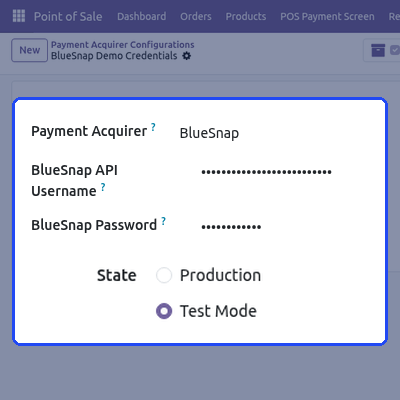
    • Open Point of Sale > Configuration > Payment Acquirer Configuration and create a record.
    • Set Payment Acquirer to BlueSnap.
    • Enter the BlueSnap API Username and BlueSnap Password. Both fields are masked.
    • Choose Production or Test Mode in the State field.
    • Use the active button on the record to switch the credentials on or off.
    • Only one active BlueSnap record is allowed at a time.
    Configure BlueSnap Credentials in Odoo

    Add BlueSnap to the POS Payment Methods

    On install, the module creates a payment method named BlueSnap. It then appears next to Cash, Card, and Customer Account in the Point of Sale settings.

    Show Payment QR makes sure the QR code appears on the screen the shop chooses.
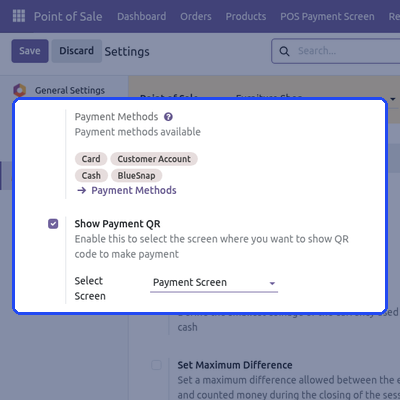
    • Open Point of Sale > Configuration > Settings and choose the Point of Sale.
    • Check that BlueSnap is listed under Payment Methods.
    • Turn on Show Payment QR.
    • Pick the display in the Select Screen field.
    • Manage the BlueSnap record from Point of Sale > Configuration > Payment Methods.
    Add BlueSnap to the POS Payment Methods

    Set Up the POS Payment Screen

    The POS Payment Screen is the page that shows the QR code to the customer. Admins set it up from the POS Payment Screen menu. Shops that sell in India can also check the Odoo POS Cashfree Payment Acquirer.
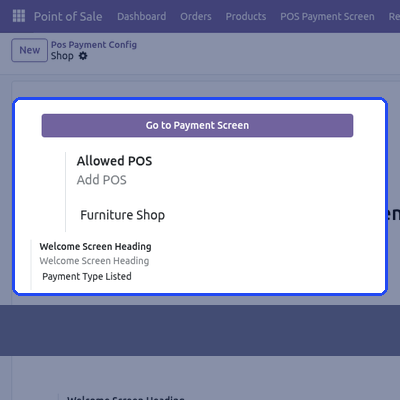
    • Open POS Payment Screen > POS Payment Screen Configuration.
    • Name the screen and add the Point of Sale in Allowed POS.
    • Copy the Display Url to open the screen on a customer-facing display.
    • Edit the Welcome Screen Heading, Sub-Heading, and Message.
    • Set the Header and Footer text.
    • Click Go to Payment Screen to open the page directly.
    Set Up the POS Payment Screen

    Collect BlueSnap Payments With a QR Code

    Picking BlueSnap on the payment screen adds a payment line and generates the QR code for that amount. The line shows a progress icon until the customer pays.

    Customers scan the code and open the BlueSnap payment page on their phone.
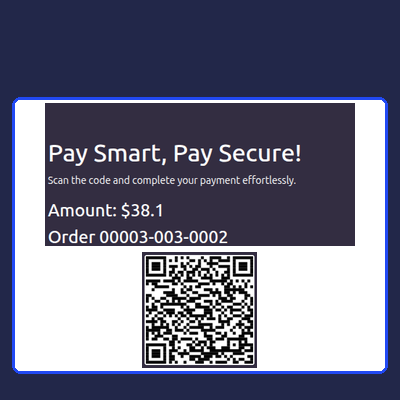
    • Pick BlueSnap on the POS payment screen to start the charge.
    • The QR code carries the amount of the payment line and the order reference.
    • The customer enters Name on Card, Card Number, Exp. Date, and Security Code.
    • Pay Now sends the card details to BlueSnap.
    • Only one BlueSnap charge can be pending at a time.
    • Zero-decimal currencies such as JPY and KRW are handled.
    Collect BlueSnap Payments With a QR Code

    Confirm Payment Status in the POS

    The POS checks the transaction while the customer pays. Once BlueSnap confirms it, a Payment Done pop-up appears and the cashier can validate the order.

    Payment line protection stops a paid or active payment from being lost by mistake.

    • A Payment Done pop-up appears when the payment is complete.
    • A Payment Failed pop-up offers Retry or Discard.
    • Validate shows a Payment in Process message while the charge is pending.
    • A completed BlueSnap payment line cannot be deleted.
    • Deleting a pending line asks for confirmation first.
    Confirm Payment Status in the POS

    Track BlueSnap Transactions in the Backend

    Every BlueSnap attempt is saved as a POS payment transaction. Admins review them without opening a POS session. For other gateways at the same register, see the Odoo POS Nexi Payment Acquirer.
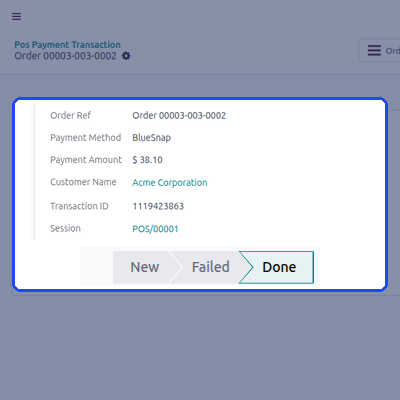
    • Open POS Payment Screen > POS Payment Transactions.
    • The list shows Order Ref, Payment Method, Customer Name, POS Payment Amount, and State.
    • Group the list by method to see BlueSnap on its own.
    • Open a record to see Transaction ID and Session.
    • The status bar moves through New, Failed, and Done.
    Track BlueSnap Transactions in the Backend

    Support

    For any query or issue, please create a support ticket here CREATE A TICKET HERE

    You may also check our top-quality Odoo Apps.

    Specifications

    Product Version1.0.0
    Released4 days ago
    Last UpdatedOctober 15, 2026 (3 days ago)
    Supported Versions17.x  18.x  19.x  20.x  

    Ratings

    We'd love to hear your thoughts! Share your feedback and help us craft an even better experience tailored just for you.

    Write a review

    Frequently Asked Questions

     What does Odoo POS BlueSnap Payment Acquirer do?
    Odoo POS BlueSnap Payment Acquirer lets Odoo Point of Sale accept payments through the BlueSnap payment gateway. The cashier shows a QR code, and the customer pays by card on the BlueSnap page.
     
     Which modules must be installed first?
    The module needs the Point of Sale app and the Odoo POS Payment Base module. The base module provides the QR payment process.
     
     How does the QR payment work?
    The POS creates a QR code for the payment line amount. The customer scans it and lands on a BlueSnap page to enter card details.
     
     Which card details does the customer enter?
    The page asks for Name on Card, Card Number, Exp. Date, and Security Code, and then the customer clicks Pay Now.
     
     Can the cashier see the payment status in the POS?
    Yes, The payment line shows a progress icon while the charge is in process. A pop-up then reports Done or Failed.
     
     What happens after a successful payment?
    The POS shows a Payment Done pop-up, and the cashier can validate the order.
     
     Can a completed BlueSnap payment line be removed?
    No, A completed BlueSnap payment line cannot be deleted. For a line still in process, the POS asks for confirmation before it deletes it.
     
     What happens if a BlueSnap payment fails?
    The transaction is marked Failed and a Payment Failed pop-up appears. The cashier can choose Retry to start a new BlueSnap line.
     
     Are BlueSnap transactions available in the backend?
    Yes, Each attempt is saved as a POS payment transaction with a New, Failed, or Done status. The list is under POS Payment Screen > POS Payment Transactions.

    Specification

    Detailed technical features and requirements to help you understand the module’s capabilities and ensure smooth integration with your system.

    Cloud Hosting

    Detailed technical features and requirements to help you understand the module’s capabilities and ensure smooth integration with your system.

    Default Configuration Details of Server

    1 GB
    RAM
    1 Core
    Processor
    30 GB
    Hard Disk
    1 GB RAM & 1 Core Processor
    Database

    Want to know more how exactly we are going to power up your eCommerce Website with Cloud to fasten up your store

    * Server Configuration may vary as per application requirements.

    Change Logs

    Not Available


