USD
  • EUR
  • INR
  • USD
Cart
Cart 0
  • You have no items in your shopping cart.
    Odoo Apps Extensions
    Cart
    Cart 0
    • You have no items in your shopping cart.
    Hire a Developer
    ×
    Contact Us!
    Send Again
    Close
    Please Login to Write Your Review
    Odoo POS On Screen Keyboard

    Odoo POS On Screen Keyboard

    x
    Free

    * Required Fields

    $39.00
    Add To Cart

    Odoo POS On Screen Keyboard adds a virtual keyboard to Point of Sale. Cashiers type in product search, customer search and POS popups on the screen.


    • Type in the POS product search box without a physical keyboard.

    • Search contacts on the POS customer screen by clicking the keys.

    • Fill POS popups, opening notes and order notes on the screen.

    • Switch between letters, a number row and two symbol pages.

    • Press Backspace, Space, Enter or Clear while the field keeps focus.

    • Drag the keyboard to any spot on the POS screen and drop it.

    • Keep that spot and compact mode after the browser reloads.

    • Shrink the keys with compact mode on a crowded POS window.

    • Turn the keyboard on or off for each POS shop in Settings.

    • Runs on Odoo Point of Sale, in Odoo Community and in Odoo Enterprise.

    Odoo POS On Screen Keyboard
    Odoo POS On Screen Keyboard
    $39.00
    Check How It Works

    Need Help Deciding?

    Support answers within one business day.

    Open a ticket
    $39.00
    Configure and Buy
    X
    • Description
    • Reviews
    • FAQ
    • Specifications
    • Cloud Hosting
    • Changelog

    Odoo POS On Screen Keyboard is an Odoo Point of Sale module that draws a virtual keyboard on the POS screen. Cashiers type into search boxes, notes and popups without a hardware keyboard.

    Clicking a text field in POS opens the keys by itself. Every key lands at the cursor in that field, so the product list filters while a cashier types.

    Order data stays as POS creates it. Each key writes into the same POS field a hardware keyboard would. Every press also sends the input and change events POS search listens for.

    Point of Sale > Configuration > Settings holds the switch, inside the PoS Interface section. Enable On-Screen Keyboard is ticked after install, and every POS shop holds its own value.

    Only the Point of Sale app is needed. Odoo Community and Odoo Enterprise both run it, in desktop POS mode. Under 768 pixels of window width, the keys stay hidden.

    Also, if you want a touch-first POS layout to go with the keys, you can check our module Odoo POS Gen X.
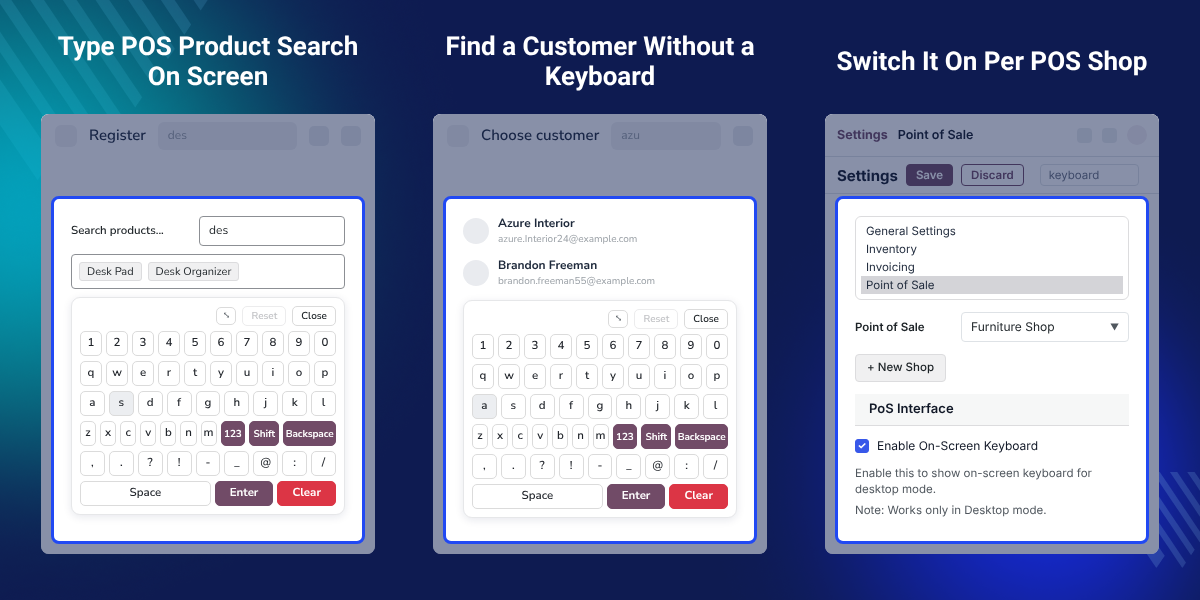
    Odoo POS On Screen Keyboard

    Highlighted Features of Odoo POS On Screen Keyboard

     Opens On Focus

    Keys appear when a cashier clicks a search box, a note field or a popup input inside POS.

     Live Product Search

    Each key press reaches the POS search, so the product list narrows while a cashier types.

     Letters and Symbols

    One key swaps the layout between QWERTY letters, a number row and two pages of symbols.

     Drag and Drop

    Drag the keys to any corner of the POS screen, and that spot waits there for the next order.

     Compact Mode

    Compact mode shrinks the keys, so the keyboard hides less of the product list behind it.

     Per Shop Switch

    Each POS shop turns the keyboard on or off from its own Point of Sale settings page.

    Why Do We Need Odoo POS On Screen Keyboard?

    A till is built for speed and for a small desk. Words still have to be typed there: part of a product name, a contact name, a note for the packing team.

    Odoo Point of Sale gives a cashier the numpad for prices and quantities. Search boxes and note fields, though, wait for a keyboard that is not always on the desk.

    Odoo POS On Screen Keyboard draws those letters on the POS screen itself. A cashier clicks the field, types with the mouse, and the keys go away when the field is left.

    Each key lands at the cursor, so one letter in the middle of a contact name can be fixed. Backspace clears a selected block in one press, and Clear empties the whole field.

    For product search by brand or barcode as well as by name, you can check our module Odoo POS Advance Search.

    Use Cases

    •  Long Product Names

      A shop whose products share long names. Staff type a few letters, then watch the POS list narrow to one product.

    •  Notes On the Order

      A bakery counter that types a cake message or a packing note on the order. Kitchen teams can read those notes on our module Odoo POS Kitchen Screen.

    •  Shop By Shop Rollout

      A chain that switches the keys on in one POS shop, watches a few shifts, then rolls them out to the rest.

    •  Till With No Keyboard

      A desk that runs POS on a monitor and a mouse. Cashiers click the keys on screen instead of hunting for a keyboard. If that till is also left alone between orders, our module Odoo POS Screen Lock locks the open session.

    Type in POS Product Search On Screen

    Product search is the field a cashier uses most. Clicking it opens the on-screen keyboard at the bottom of the POS screen.
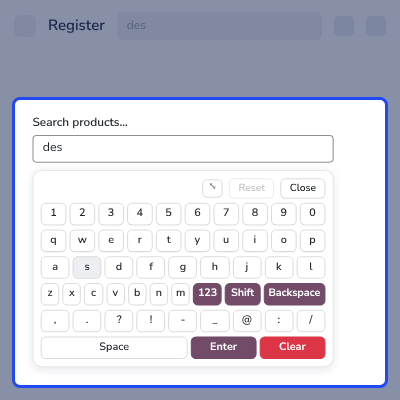
    • Click the Search products box on the POS product screen.
    • Every key press reaches the POS search and narrows the product list.
    • Keys land at the cursor, so search text can be edited mid-word.
    • Clear empties the search box in one press and keeps it focused.
    • Enter leaves the search box and closes the keyboard again.
    Type in POS Product Search On Screen

    Type on the POS Customer Screen

    POS keeps a search box of its own on the customer screen. The keyboard follows a cashier into it and stays up while the contact list reloads.

    When receipts leave the till by message, our module Odoo POS Send Receipt & Greetings via WhatsApp sends them from the same session.
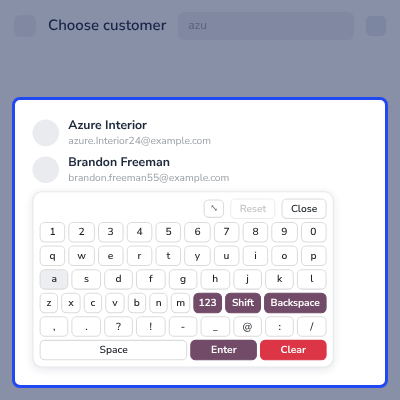
    • Open the customer screen from the Customer button on the order.
    • Click the search box, then type a contact name, email or phone.
    • Punctuation keys cover the @ . - _ characters an email address needs.
    • Backspace removes one character, or a selected block in one press.
    • Close hides the keys without leaving the POS customer screen.
    Type on the POS Customer Screen

    Fill POS Popups and Order Notes

    POS asks for text in popups as well. Examples: the opening note of a register, a note on the order, a note on one product line.

    Those dialogs carry the keyboard too, so a cashier never leaves a popup to type.
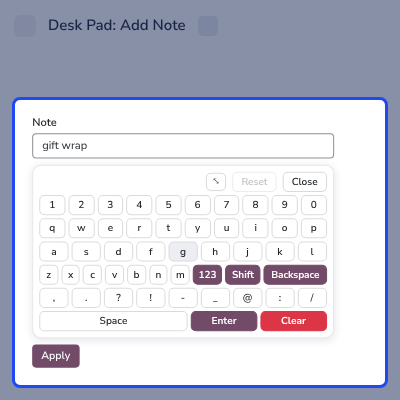
    • Write the opening note while the register is being opened.
    • Add an order note or a product note from the Note button.
    • Enter adds a new line in a note box instead of closing it.
    • Readonly and disabled fields are skipped, so the keys stay hidden.
    • Leaving the popup, or pressing Close, puts the keyboard away.
    Fill POS Popups and Order Notes

    Switch Between Letters, Numbers and Symbols

    One keyboard covers a product code, a contact name and an email address. A single key changes the layout.
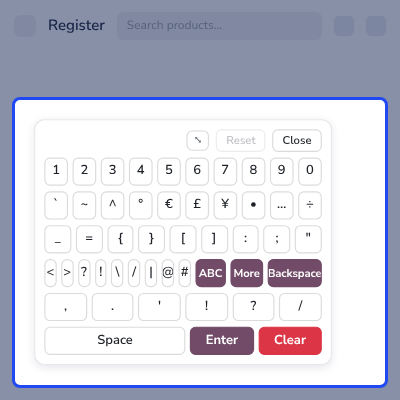
    • A number row from 1 to 0 sits above the letters on every layout.
    • Shift types one capital letter, then releases itself.
    • 123 swaps the letters for symbols, and ABC swaps them back.
    • More opens a second symbol page with °, €, £, ¥ and ÷.
    • Punctuation keys , . ? ! - _ @ : / sit beside the letters.
    Switch Between Letters, Numbers and Symbols

    Move the Keyboard or Use Compact Mode

    A till screen is crowded, and keys must not cover the part a cashier reads. So the keyboard goes where the cashier wants it.

    Staff who do keep a keyboard on the desk can map POS actions to hotkeys with our module Odoo POS Keyboard Shortcuts.
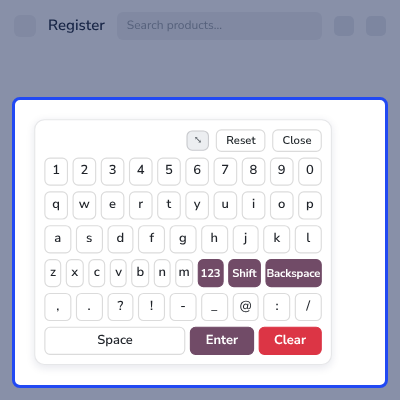
    • Drag the keyboard from any key; a 6 pixel move starts the drag.
    • Dragging never pushes the keyboard outside the POS window.
    • Compact mode shrinks the keys for a crowded POS window.
    • Reset docks the keyboard back to the bottom of the screen.
    • That spot and compact mode are kept in the browser for the next shift.
    Move the Keyboard or Use Compact Mode

    Switch the On-Screen Keyboard On Per POS Shop

    Enable On-Screen Keyboard is a POS shop setting. A chain can run the keys on one counter and leave the others as they are.

    Also, if you want more POS add-ons from one install, you can check our module Odoo POS All In One.
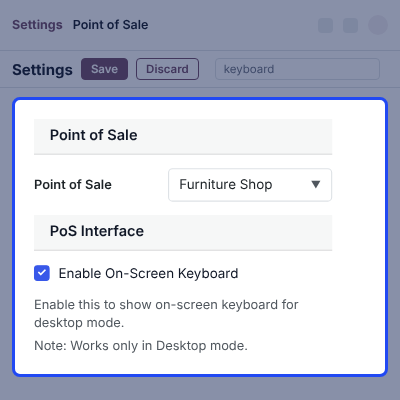
    • Open Point of Sale > Configuration > Settings.
    • Enable On-Screen Keyboard sits in the PoS Interface section.
    • Every POS shop holds the value, so one shop reads only its own.
    • Installing the module ticks the box; clearing it hides the keys.
    • Its setting note states that the keys load in desktop mode only.
    Switch the On-Screen Keyboard On Per POS Shop

    Support

    For any query or issue, please create a support ticket here http://webkul.uvdesk.com/. 

    You may also check our top-quality Odoo Apps.

    Specifications

    Product Version1.0.0
    Released5 days ago
    Last UpdatedNovember 18, 2026 (5 days ago)
    Supported Versions17.x  18.x  19.x  20.x  Odoo  16.x  

    Ratings

    We'd love to hear your thoughts! Share your feedback and help us craft an even better experience tailored just for you.

    Write a review

    Frequently Asked Questions

     What does Odoo POS On Screen Keyboard do?
    Odoo POS On Screen Keyboard draws a virtual keyboard inside the Odoo Point of Sale screen. Cashiers type with it in POS product search, on the POS customer screen, in order notes and in POS popups.
     
     Which Odoo editions does the POS keyboard support?
    The POS virtual keyboard runs on Odoo Community and on Odoo Enterprise. Its installer reads the Odoo series first and stops when the series does not match the build you downloaded.
     
     Which Odoo apps do I need before I install it?
    Only the Point of Sale app. No other dependency is added, and no Webkul base module is needed.
     
     Where do I switch the POS keyboard on or off?
    Open Point of Sale > Configuration > Settings and look in the PoS Interface section for Enable On-Screen Keyboard. That box is ticked after install, and each POS shop keeps its own value.
     
     Does the keyboard work on a tablet or a phone?
    No. Desktop POS mode only. On coarse pointer devices, and in windows under 768 pixels wide, the keys stay hidden and the device shows its own keyboard.
     
     Does the keyboard open inside POS popups?
    Yes. Every text field and note box in a POS popup opens the keys, including the opening note of a register and a note on an order line.
     
     Does the keyboard remember where I moved it?
    Yes. Its dropped spot and compact mode live in the browser, so the next session opens the keys where the last cashier left them. Reset docks them back to the bottom.
     
     Can two POS shops use different settings?
    Yes. That checkbox is stored on the POS shop, so one shop can show the keyboard while another leaves it off.
     
     Does typing with the keyboard change my POS data?
    No. The keyboard writes into the same POS fields a hardware keyboard writes into, and POS saves the order in its usual way.

    Specification

    Detailed technical features and requirements to help you understand the module’s capabilities and ensure smooth integration with your system.

    Cloud Hosting for Websites & Applications

    Power your website or application with flexible, scalable cloud infrastructure designed for performance and growth.

    Move Your Website or Application to the Cloud

    Get started with Cloudkul hosting tailored to your needs.

    Flexible Cloud Plans Start small. Scale as you grow.
    Starting at US$25*
    ✓ Hosting for websites and applications
    ✓ Resources matched to your needs
    ✓ Scalable infrastructure for growth

    Configure Your Cloud Server

    RAM Flexible
    CPU Scalable
    Storage Flexible
    Built Around Your Project's Needs

    Choose server resources based on your workload, expected traffic, and performance requirements.

    Grow at Your Own Pace

    Start with the cloud resources your project needs today and adjust your server configuration as your business grows.

    Ready to Move to the Cloud?

    Explore flexible cloud hosting plans and choose your ideal configuration.

    Explore Cloud Hosting Plans

    * Starting price is indicative. Final pricing and available server resources depend on the selected hosting configuration and requirements.

    Change Logs

    Not Available