USD
  • EUR
  • INR
  • USD
Cart
Cart 0
  • You have no items in your shopping cart.
    PrestaShop Extensions
    Cart
    Cart 0
    • You have no items in your shopping cart.
    Hire a Developer
    ×
    Contact Us!
    Send Again
    Close
    Please Login to Write Your Review
    PrestaShop Odoo Bridge Multi Language

    PrestaShop Odoo Bridge Multi Language

    x
    Free

    * Required Fields

    $99.00
    Add To Cart

    PrestaShop Odoo Bridge Multi Language syncs product and category translations between PrestaShop and Odoo, so merchants can run catalogues in native languages.


    • Sync product translations both ways between PrestaShop and Odoo.

    • Sync category translations along with products in both directions.

    • Map PrestaShop and Odoo languages so every text lands correctly.

    • Track progress with clear to-translate and translated status tags.

    • Export all PrestaShop translations to Odoo with one button click.

    • Export a single product translation from the Odoo action menu.

    • Run bulk synchronisation in Odoo to export the whole catalogue.

    • Update product names and descriptions in each customer language.

    PrestaShop Odoo Bridge Multi Language
    PrestaShop Odoo Bridge Multi Language
    $99.00
    Check How It Works

    Need Help Deciding?

    Support answers within one business day.

    Open a ticket
    $99.00
    Configure and Buy
    X
    • Description
    • Reviews
    • FAQ
    • Specifications
    • Cloud Hosting
    • Changelog

    PrestaShop Odoo Bridge Multi Language is an add-on for the base connector that synchronises product and category translations between PrestaShop and Odoo, so each language keeps its own text.

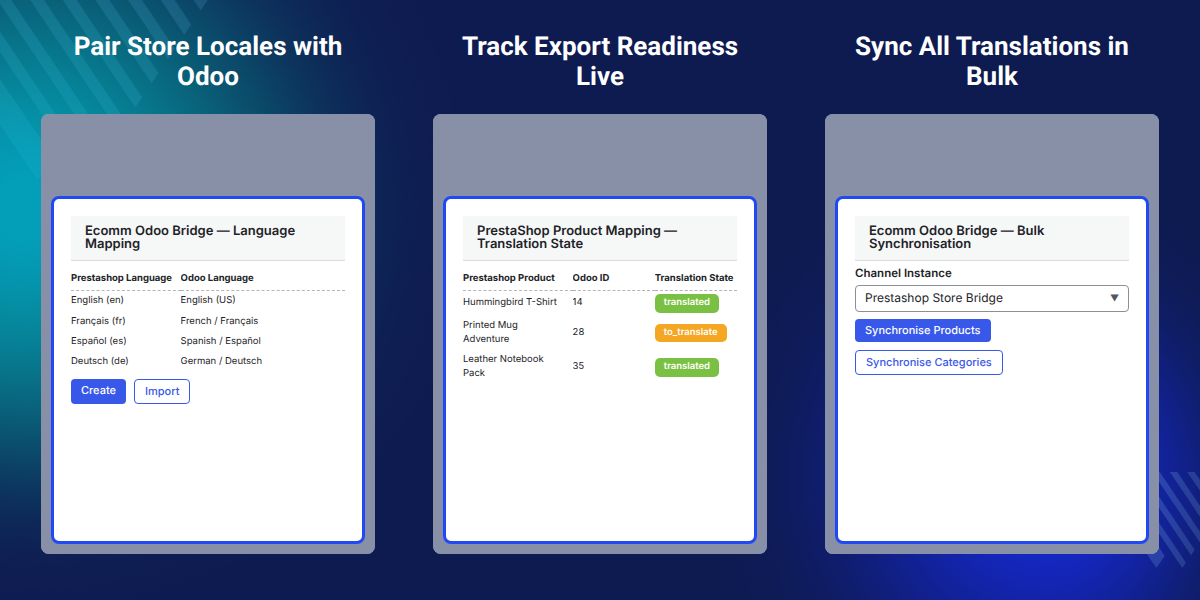
    Admin first create language mapping pairs in both systems, which tells the connector which PrestaShop language belongs to which Odoo language before any translated text is sent across.

    A translation state field is added to the Product Mapping table in PrestaShop, so catalogue teams can see at a glance which products still need to be exported to Odoo.

    Translations can be exported from PrestaShop with the Export Translation button, or from Odoo for one product through the Action menu, or for the whole catalogue through bulk synchronisation.

    Product names, descriptions and other text fields are sent in the language of your choice, which saves staff from retyping the same content in two separate back offices every time.

    Additionally, the module works only on top of the base connector, which has to be installed and configured first, and its full details are available on the Prestashop Odoo Bridge page.
    PrestaShop Odoo Bridge Multi Language

    Highlighted Features of PrestaShop Odoo Bridge Multi Language

     Two-Way Translation Sync

    Sync product translations both ways between PrestaShop and Odoo with full text accuracy.

     Dual Language Mapping

    Set up language mapping tables in PrestaShop and Odoo to match the right store locales.

     Translation State Tracking

    Use the translation state column in PrestaShop to spot products that still need an export.

     Dedicated Export Action

    Click Export Translation in PrestaShop language mapping to send pending translations to Odoo.

     Individual Product Sync

    Sync one product translation straight from the Odoo product Action menu.

     Bulk Translation Export

    Run bulk synchronisation in Odoo to export translations for the whole catalogue at once.

    Why Do We Need PrestaShop Odoo Bridge Multi Language?

    PrestaShop Odoo Bridge Multi Language helps stores that sell in several languages keep product text identical in PrestaShop and in the Odoo back office.

    The default connector syncs products in only one language, so teams have to type every translation by hand in both systems, which is slow and easy to get wrong.

    Manual entry delays new product launches and takes up staff time, and a single typo can leave one sales channel showing different text than another channel.

    This module automates the exchange, so product names, descriptions and other text fields stay the same in PrestaShop and Odoo without repeated data entry.

    Apart from this, Webkul includes three months of support with the purchase, and stores that run several sales channels can also look at the Multi Channel PrestaShop Odoo Bridge for wider coverage.

    Use Cases

    • Multilingual Catalogue Expansion

      Global merchants show product titles and descriptions in local shopper languages to win more international orders.

    • Central Translation Work in Odoo

      Merchandising teams write translations in Odoo and export fresh text straight to the PrestaShop storefront.

    • Localised Listings Written in PrestaShop

      Store writers draft localised listings in PrestaShop and push the translations to Odoo with the export button.

    • Faster Launches for Regional Stores

      Teams adding many items to several language stores export every translation in one bulk run instead of item by item.

    Language Mapping Configuration in Odoo

    Admin create language mapping pairs in Odoo to link each PrestaShop store language with a matching Odoo language, so the connector always knows where translated text belongs.
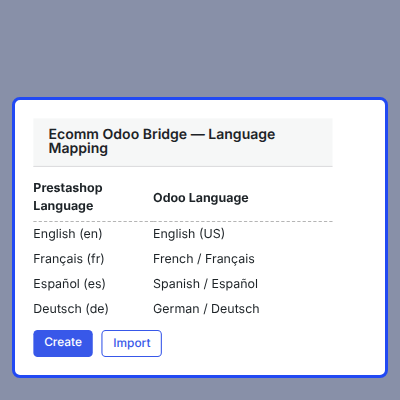
    • Go to Ecomm Odoo Bridge and open the Mapping tab.
    • Select Language Mapping to view the current language pairs.
    • Link each PrestaShop store language to its Odoo language.
    • Check the mapped languages before you start a translation sync.
    Language Mapping Configuration in Odoo

    Language Mapping Review in PrestaShop

    Store managers can open the language mapping inside the PrestaShop back office to review the linked Odoo language records, so both sides can be compared without leaving the store admin.
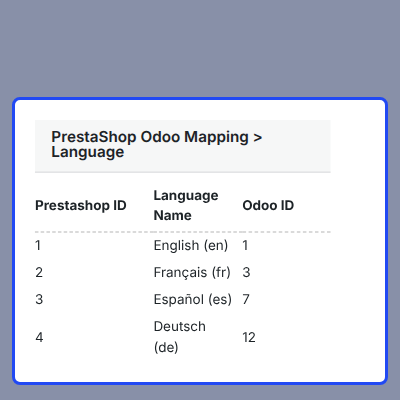
    • Open Odoo Mapping in the PrestaShop back office.
    • Select Language to see all synced language entries.
    • Compare the mapped language entries with the Odoo language records.
    • Confirm the languages are ready before exporting translations.
    Language Mapping Review in PrestaShop

    Product Translation Tracking in PrestaShop

    Catalogue teams can see which synced products still need a translation export to Odoo without opening each product, which keeps large catalogues easy to review and update on time.
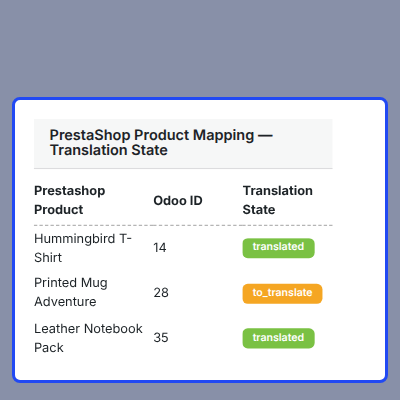
    • Open the Product Mapping table under Odoo Mapping.
    • Find the translation state field added by the module.
    • Spot products marked to-translate while translations are pending.
    • Check for the translated status after the export to Odoo.
    Product Translation Tracking in PrestaShop

    Export Product Translations from PrestaShop to Odoo

    Admin start the translation export from the PrestaShop language mapping screen with one dedicated button, so there is no need to open products one by one before sending text.
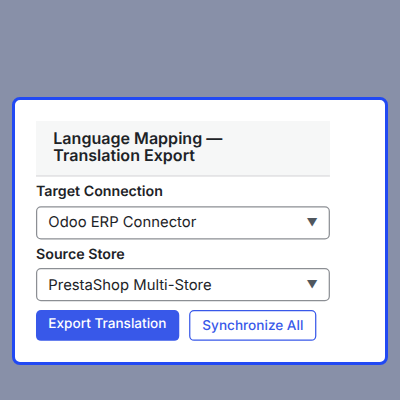
    • Open Odoo Mapping in the PrestaShop back office.
    • Click Language to open the language mapping table.
    • Click the Export Translation button to start the transfer.
    • Review the product translations updated in Odoo.
    Export Product Translations from PrestaShop to Odoo

    Individual Product Translation Export from Odoo

    Catalogue staff can export the translations of one product from the Odoo product catalogue without running a full store sync, which suits quick corrections to a single listing.
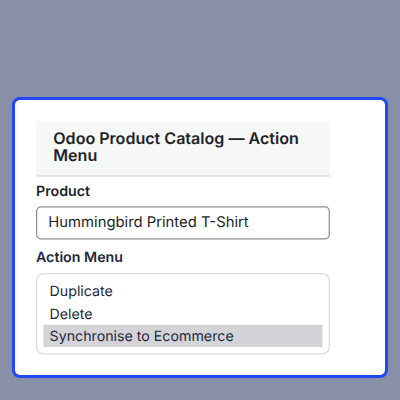
    • Open the product catalogue in Odoo.
    • Select the product whose translation you want to sync.
    • Open the Action menu at the top of the screen.
    • Click Synchronise to Ecommerce to export to PrestaShop.
    Individual Product Translation Export from Odoo

    Bulk Product Translation Synchronization in Odoo

    Store teams can run bulk synchronisation in Odoo to export translations for the whole product catalogue in a single operation, which is useful after a large batch of new products.
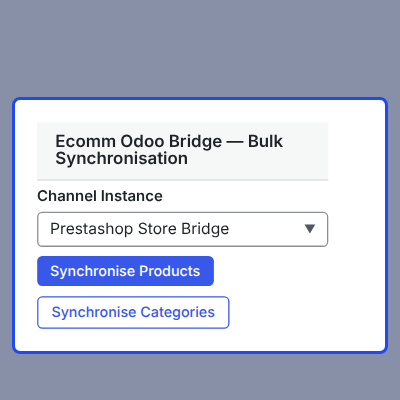
    • Open Ecomm Odoo Bridge from the main Odoo menu.
    • Go to the Bulk Synchronisation section of the connector.
    • Click Synchronise Products to start the catalogue-wide export.
    • Send translations along with standard product attributes to PrestaShop.
    Bulk Product Translation Synchronization in Odoo

    Prestashop Multi-language Support POB Support

    For any query or issue please create a support ticket here http://webkul.uvdesk.com

    You may also check our other top-quality PrestaShop Extensions.

    Specifications

    Product Version1.5
    Released12 years ago
    Last UpdatedNovember 25, 2026 (Today)
    Supported Versions14.x  17.x  18.x  19.x  PrestaShop  1.5.x.x​  1.6.x.x​  1.7.x.x​  8.x.x  Odoo  7.x  8.x  9.x  10.x  11.x  12.x  13.x  15.x  16.x  

    Ratings

    We'd love to hear your thoughts! Share your feedback and help us craft an even better experience tailored just for you.

    5.0
    1 Reviews
    based on verified customer feedback
    Write a review
    Jarno Halme
    🇫🇮 Finland

    Excellent service with proper assistance

    Posted On - March 29, 2023

    Very good customer service and reasonable costs
    Thanks

    Frequently Asked Questions

     What is PrestaShop Odoo Bridge Multi Language?
    It is an extension that syncs product and category translations both ways between PrestaShop and Odoo, so merchants can manage multilingual catalogues in native languages.
     
     Does this extension require a base connector module?
    Yes, the Prestashop Odoo Bridge connector must be installed and configured first, because this extension works only on top of it.
     
     Does it sync category translations as well as products?
    Yes, the store page states that it synchronises products and categories in their language translations from PrestaShop to Odoo and the other way round.
     
     How do admins track translation progress in PrestaShop?
    The module adds a translation state field to the Product Mapping table, which shows to-translate for pending items and translated for synced products.
     
     How are translations exported from PrestaShop to Odoo?
    Open Language under Odoo Mapping in the PrestaShop back office and click the Export Translation button to send the pending translations to Odoo.
     
     Can administrators export translations for a single product from Odoo?
    Yes, open the product record in Odoo, click the Action menu and select Synchronise to Ecommerce to export that product's translations to PrestaShop.
     
     Does this module support bulk translation export in Odoo?
    Yes, open Bulk Synchronisation in the connector menu and click Synchronise Products to export translations for the whole catalogue at once.
     
     Which Odoo versions does the store list for this module?
    The store lists Odoo 14.0 to 19.0, so check the Specifications tab on the product page for the exact PrestaShop and Odoo versions before buying.
     
     Is support included with the purchase?
    Yes, the store lists a three-month support period at no extra cost, and longer support periods can be added for an extra fee.

    Specification

    Detailed technical features and requirements to help you understand the module’s capabilities and ensure smooth integration with your system.

    Cloud Hosting for Websites & Applications

    Power your website or application with flexible, scalable cloud infrastructure designed for performance and growth.

    Move Your Website or Application to the Cloud

    Get started with Cloudkul hosting tailored to your needs.

    Flexible Cloud Plans Start small. Scale as you grow.
    Starting at US$25*
    ✓ Hosting for websites and applications
    ✓ Resources matched to your needs
    ✓ Scalable infrastructure for growth

    Configure Your Cloud Server

    RAM Flexible
    CPU Scalable
    Storage Flexible
    Built Around Your Project's Needs

    Choose server resources based on your workload, expected traffic, and performance requirements.

    Grow at Your Own Pace

    Start with the cloud resources your project needs today and adjust your server configuration as your business grows.

    Ready to Move to the Cloud?

    Explore flexible cloud hosting plans and choose your ideal configuration.

    Explore Cloud Hosting Plans

    * Starting price is indicative. Final pricing and available server resources depend on the selected hosting configuration and requirements.

    Change Logs

    Not Available