Send Again
Close
Odoo PrestaShop Connector is an integration module that links a PrestaShop store with an Odoo database. Products, customers, orders, and stock stay aligned on both sides.
Orders placed on the storefront arrive in Odoo as sale orders. Staff confirm them, raise invoices, and send shipment or cancel states back to PrestaShop from the same screen.
Stock moves in Odoo reach the storefront right away. A sale rung up in Odoo POS draws down the same quantity. The shop cannot oversell goods it no longer holds.
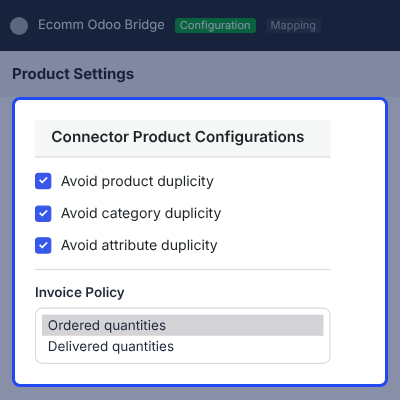
Admins set the default warehouse, the invoicing policy, and the tracking method once. Duplicate guards match incoming records on SKU and barcode, so the catalog does not fill with copies.
Two files ship with the purchase, one installed in Odoo and one in PrestaShop. Odoo Online users need Odoo.sh first, because SAAS hosting blocks third-party installs.
Additionally, if you run several PrestaShop stores on one Odoo database, then check Multi Channel Prestashop Odoo Bridge (POB).
For Odoo online(SAAS) users, You first need to have Odoo.sh tool before installing Prestashop Odoo Bridge (POB) at Odoo end because Odoo restricts third-party software installations on Odoo online(SAAS).
Build a product in either system and send it to the other one, along with its attributes, product combinations, and category tree.
An order placed on the storefront reaches Odoo as a sale order at once, without waiting for the next scheduled job to run.
Real-time inventory sync pushes every stock move from Odoo to PrestaShop, counting goods sold at the till through Odoo POS.
Pair records that already exist on both sides, so taxes, carriers, currencies, and payment methods are matched instead of duplicated.
A cron job can carry products, orders, customers, and categories in either direction at whatever interval the business runs on.
Each job writes a record showing what moved and what failed, and a failed job keeps the error message that stopped it.
PrestaShop runs a storefront well. It does not handle double-entry accounting, multi-warehouse stock, or purchase orders, so those jobs move to a second system.
Without a link between the two, somebody re-keys every order into the ERP and edits quantities twice. The mistakes surface later as oversold goods and invoices that do not match the order.
Odoo PrestaShop Connector removes that step. Orders, customers, taxes, carriers, and payment methods cross over on their own, and one system holds the stock figure everyone works from.
One practical detail decides a lot here. The Stock Based On setting picks whether the storefront reads On Hand or Forecasted quantity. That choice changes what a shopper sees while goods sit on a purchase order.
Odoo carried the name OpenERP until 2014, so an OpenERP PrestaShop connector and this module cover the same ground. Webkul has sold this Odoo bridge for PrestaShop for more than ten years.
Also, if you sell in more than one language, you can check our extension Multi language Support Prestashop Odoo Connector.
Retailers pair the two platforms for different reasons. If you serve several storefronts from one back office, you can check our extension Prestashop Multishop Extension Openerp Connector.
Invoices, vendor bills, credit notes, and tax records for storefront sales sit in one ledger, so the finance team stops rebuilding them by hand.
Warehouse staff pick and deliver storefront orders inside Odoo Inventory, then a tracking number travels back to the shopper's account.
A shop running a till on Odoo POS and a website on PrestaShop draws both channels down against a single stock figure.
A merchant who keeps master data in the ERP can push products, categories, and attribute values into a storefront that starts out empty.
When a server issue blocks an export, the order lands in the Missing Order menu, where staff review it and send it across again.
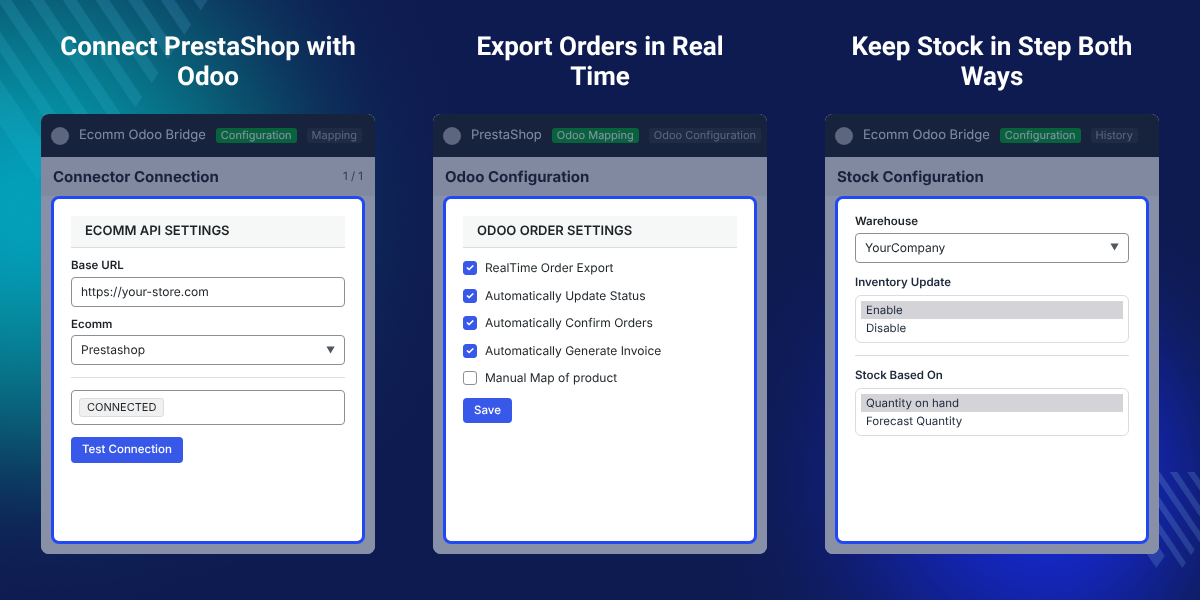
Odoo Connection Setup joins the Odoo database to the storefront. Admins enter the shop details on the Odoo side and test the link before any record moves between the two.
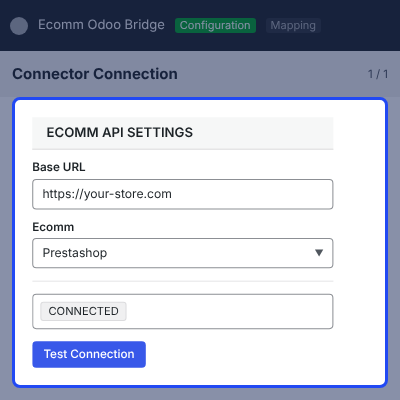
The Odoo Configuration screen sits under Odoo Mapping in the PrestaShop admin. It holds the credentials for the ERP and the rules that govern how orders leave the storefront.
Odoo order settings decide how much of the order flow runs without anyone touching it.
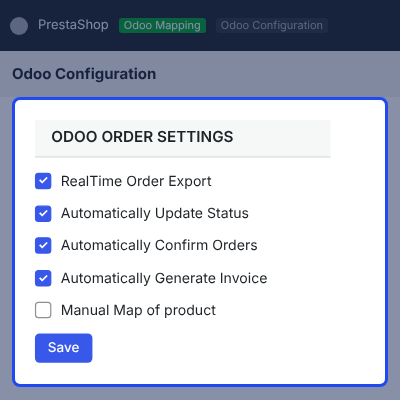
Sales, product, and inventory settings govern how imported records behave once they reach the ERP. Admins fill them in once, before the first job runs.
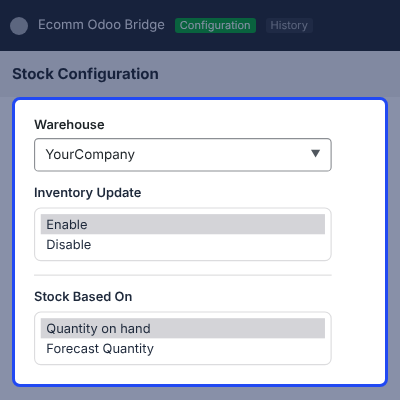
Odoo Mapping in the PrestaShop admin gives each record type its own screen. A Synchronize button on that screen imports the records and maps them to their Odoo counterparts in one action.
Export PrestaShop Products, Customers and Orders to Odoo
Additionally, if your catalog relies on PrestaShop features alongside attributes, then check Custom Attribute Odoo Bridge For Prestashop.
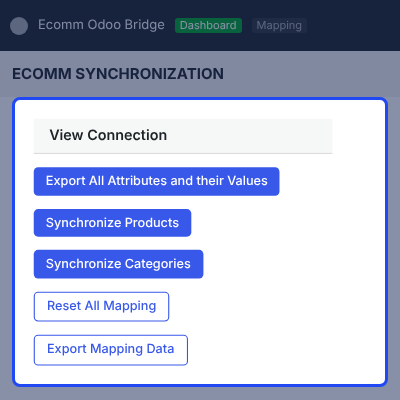
Bulk Synchronization inside the ecom Odoo Bridge module moves catalog data the other way. Admins choose the eCommerce instance and start the transfer from the ERP.
Teams can also mirror the category tree into the till with Odoo Bridge for Prestashop POS Categories.
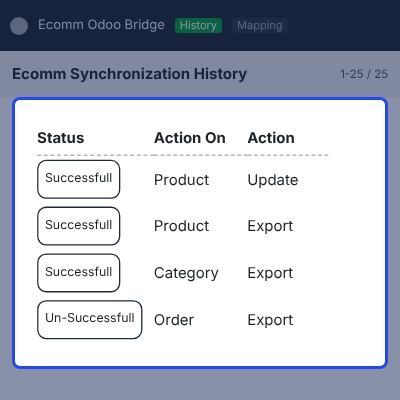
Synchronization history keeps a record of every job the module runs. Opening a record shows what moved, what failed, and the message behind the failure.
Mapping tables hold the pairs that tie each storefront record to its counterpart in the ERP.
To catch quantity gaps before a shopper does, pair the module with POB Extension : Stock Comparison.
For any query or issue, please create a support ticket here http://webkul.uvdesk.com/.
You may also check our top-quality Odoo Apps.
We recently used the Odoo software customization services and we are more than satisfied with the level of service and support provided by Webkul, the business analyst assigned to us was always very professional and responsive to solving each incident reported regarding our requirement, the communication was fluid and responses, taking into account the timezone difference, occur in a reasonable amount of time.

(Translated by Google) Integration of a connection module for our ERP and our online store. Very responsive customer service, rapid customization of features, solves operating problems quickly. I highly recommend webkul.
-
Integration of a connection module for our ERP and our online shop. Very responsive customer service, quick customization of features, and solving problems quickly. I highly recommend webkul.
(Original)
Intégration d'un module de connexion pour notre ERP et notre boutique en ligne. Service client très réactif, customisation rapide des fonctionnalités, solutionne les problème de fonctionnement rapidement. Je recommande grandement webkul.
-
Integration of a connection module for our ERP and our online shop. Very responsive customer service, quick customisation of features, solves problems quickly. I highly recommend webkul.
I'm very satisfied with Webkul services: I purchased some Odoo-Prestashop connectors with custom development and I'm pleased about the job they've done. The support team is reactive and all my early problems and a few bugs were resolved quickly.
I would recommend Webkul with no hesitation for that kind of project.

Good service with Webkul. They have helped in the configuration of the connector between ODoo and Prestashop. They were responsive when asking questions. The only downside is that they support only from EST zone which gives some trouble sometimes. Overall satisfied
Have used Webkul for 2 modules for my Prestashop. They made them very fast and they worked as I had described. Can highly recommend Webkul!
Detailed technical features and requirements to help you understand the module’s capabilities and ensure smooth integration with your system.
Detailed technical features and requirements to help you understand the module’s capabilities and ensure smooth integration with your system.
We’re partnered with top-tier, trusted providers!
Want to know more how exactly we are going to power up your eCommerce Website with Cloud to fasten up your store
* Server Configuration may vary as per application requirements.



