USD
  • EUR
  • INR
  • USD
Cart
Cart 0
  • You have no items in your shopping cart.
    PrestaShop Extensions
    Cart
    Cart 0
    • You have no items in your shopping cart.
    Hire a Developer
    ×
    Contact Us!
    Send Again
    Close
    Please Login to Write Your Review
    POB Extension : Stock Comparison

    POB Extension : Stock Comparison

    x
    Free

    * Required Fields

    $99.00
    Add To Cart

    PrestaShop Odoo Stock Comparison checks the stock in Odoo and PrestaShop, so admins can spot mismatched products and update PrestaShop stock in bulk from Odoo.


    • Compare product stock in Odoo and PrestaShop with a single click.

    • Highlight every product whose quantity does not match on both ends.

    • Apply a default filter that shows only products with a stock mismatch.

    • Compare stock for all products or for a custom range of product IDs.

    • Pick the connector instance before you run the stock comparison.

    • Update PrestaShop stock in bulk with the Synchronize Product Stock action.

    • View Odoo Quantity and Prestashop Quantity side by side for each product.

    • Start the stock check from the Compare Stock option in Ecomm Odoo Bridge.

    POB Extension : Stock Comparison
    POB Extension : Stock Comparison
    $99.00
    Check How It Works

    Need Help Deciding?

    Support answers within one business day.

    Open a ticket
    $99.00
    Configure and Buy
    X
    • Description
    • Reviews
    • FAQ
    • Customers ()
    • Specifications
    • Cloud Hosting
    • Changelog

    PrestaShop Odoo Stock Comparison is an Odoo extension that compares product stock between Odoo and PrestaShop. It extends the Prestashop Odoo Bridge (POB), sold as Odoo PrestaShop Connector.

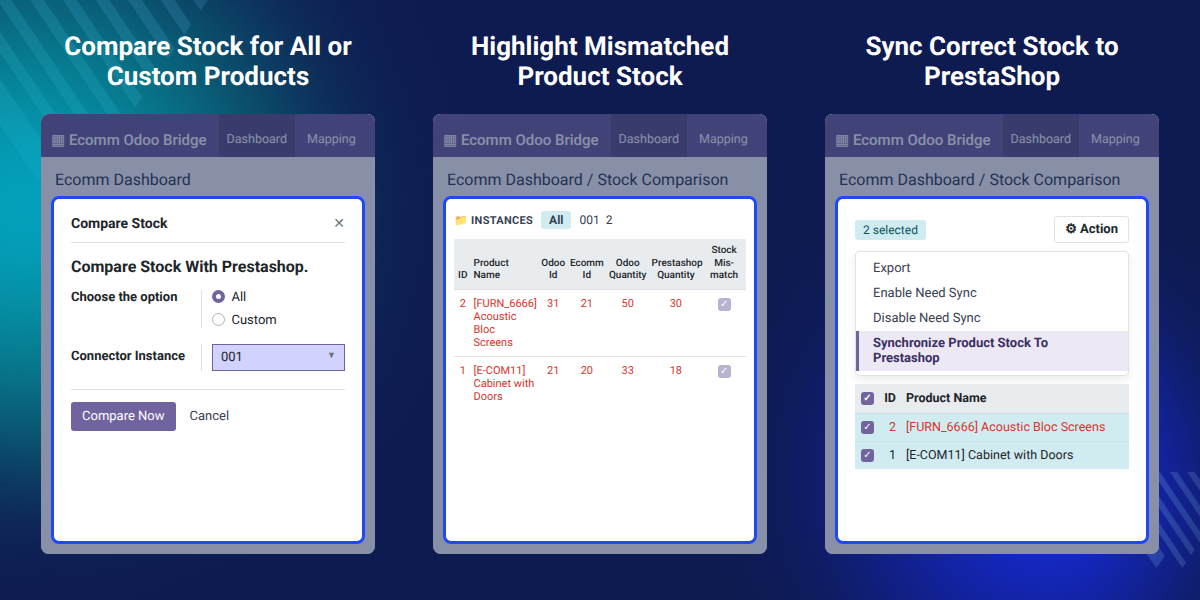
    To start, an admin opens Ecomm Odoo Bridge in Odoo, goes to Mapping, and clicks Compare Stock. A wizard then asks whether to compare all products or a custom range of product IDs.

    After the comparison runs, the Stock Comparison list shows the Odoo Quantity and the Prestashop Quantity for each mapped product. Products with a stock mismatch appear in red, and a default filter can list only those products.

    From the same list, the admin selects the mismatched products and runs Synchronize Product Stock To Prestashop from the Action menu. The stock level on the PrestaShop end is then corrected in bulk.

    This extension supports PrestaShop 1.5 to 8.x with Odoo 8 to Odoo 18. It works as a maintenance module and needs the POB base module installed first.

    Additionally, if your PrestaShop store sells in more than one language and you want that data in Odoo, then check Prestashop Multi language Support POB.
    PrestaShop Odoo Stock Comparison

    Highlighted Features of PrestaShop Odoo Stock Comparison

     One-Click Stock Check

    Compare current product quantities in Odoo and PrestaShop with one click from Ecomm Odoo Bridge.

     Stock Mismatch Highlight

    See products with different quantities on both ends in red, so the gaps stand out in the list.

     All or Custom Range

    Run the comparison for all products, or pick a custom range of product IDs for a smaller check.

     Bulk Stock Correction

    Select mismatched products and push the correct Odoo stock to PrestaShop in a single action.

    Why Do We Need PrestaShop Odoo Stock Comparison?

    PrestaShop Odoo Stock Comparison solves a common problem for stores that run the Prestashop Odoo Bridge. Stock in Odoo and stock in PrestaShop can drift apart over time.

    Without a comparison tool, the admin has to open each product in both systems and match the quantities by hand. On a large catalog, this check takes hours and still misses some products.

    When PrestaShop shows a higher quantity than Odoo holds, buyers can order items that are not in the warehouse. When it shows less, the store stops selling products it can still ship.

    This extension puts both quantities in one list and marks every mismatch in red. The admin then selects those rows and sends the correct Odoo stock to PrestaShop in one step.

    Also, if you manage more than one PrestaShop shop from the same Odoo database, you can check our extension Prestashop Multishop Extension Odoo Connector.

    Use Cases

    • Daily Inventory Audit

      Store admins can run a quick inventory check each day to confirm that Odoo and PrestaShop show the same quantities.

    • Prevent Overselling Online

      Stores can find products where PrestaShop shows a higher quantity than Odoo and correct them before buyers place orders.

    • Check After a Sync Failure

      After a failed or partial sync, admins can run a comparison to see which products still carry old quantities.

    • Review a Product ID Range

      Teams that update one product group at a time can compare only that custom range of product IDs.

    Compare Stock Menu in Ecomm Odoo Bridge

    Compare Stock is a new option under Mapping in the Ecomm Odoo Bridge app in Odoo. Admins start every stock comparison between Odoo and PrestaShop from this menu.
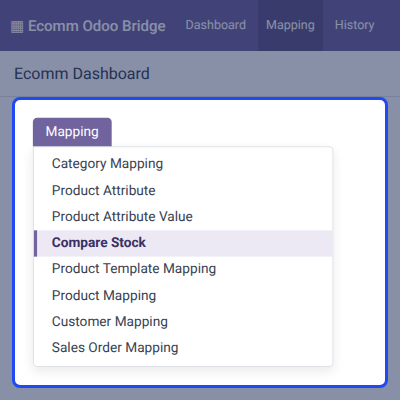
    • Open the Ecomm Odoo Bridge app from the Odoo main menu.
    • Click Mapping in the top bar to see the list of mapping options.
    • Find Compare Stock beside Category Mapping, Product Mapping, and Customer Mapping.
    • Click Compare Stock to open the Compare Stock With Prestashop wizard.
    Compare Stock Menu in Ecomm Odoo Bridge

    Compare Stock With PrestaShop for All or Custom Products

    A wizard named Compare Stock With Prestashop sets the scope of the stock check. Admins can compare every mapped product or limit the check to a range of product IDs.
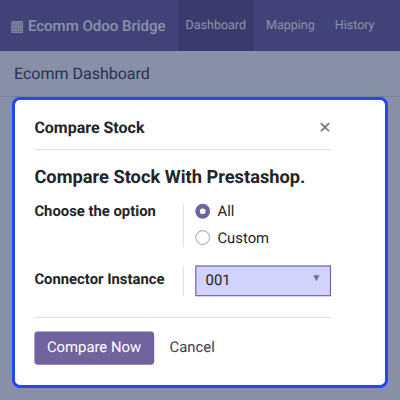
    • Choose the All option to compare stock for every mapped product.
    • Choose the Custom option to compare stock for a range of product IDs.
    • Select the Connector Instance that links Odoo with the PrestaShop store.
    • Click Compare Now to run the stock comparison for the chosen products.
    • Click Cancel to close the wizard without running any comparison.
    Compare Stock With PrestaShop for All or Custom Products

    Odoo and PrestaShop Stock Mismatch Report

    After the check, the Stock Comparison list shows the current quantity of each product in Odoo and in PrestaShop. Rows with a stock mismatch appear in red so admins can find them at a glance.
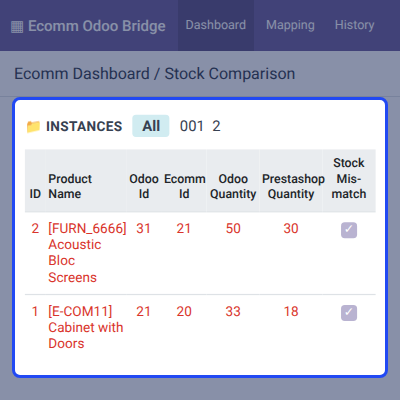
    • See the ID, Product Name, Odoo Id, and Ecomm Id of each mapped product.
    • Compare the Odoo Quantity and Prestashop Quantity columns side by side.
    • Find a ticked Stock Mis-match checkbox on every product with different stock.
    • Use the default Stock Mis-match filter to list only the mismatched products.
    • Filter the list by connector instance from the Instances panel on the left.
    Odoo and PrestaShop Stock Mismatch Report

    Bulk Stock Sync From Odoo to PrestaShop

    Synchronize Product Stock To Prestashop is the action that corrects the stock level on the PrestaShop end in bulk. It sends the Odoo quantity of each selected product to PrestaShop.
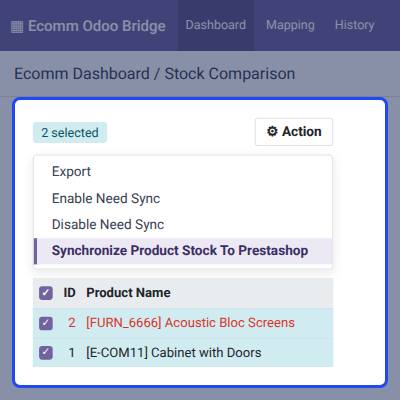
    • Select one or more mismatched products from the Stock Comparison list.
    • Use the header checkbox to select every product in the list at once.
    • Open the Action menu that appears once products are selected.
    • Click Synchronize Product Stock To Prestashop to update PrestaShop stock.
    Bulk Stock Sync From Odoo to PrestaShop

    POB Extension : Stock Comparison Support

    For any query or issue please create a support ticket here http://webkul.uvdesk.com

    You may also check our other top-quality PrestaShop Add-ons.

    Specifications

    Product Version2.0.0
    Released11 years ago
    Last UpdatedOctober 14, 2026 (13 days ago)
    Supported VersionsPrestaShop  1.5.x.x​  1.6.x.x​  1.7.x.x​  8.x.x  Odoo  8.x  9.x  10.x  11.x  12.x  13.x  14.x  15.x  16.x  17.x  18.x  

    Ratings

    We'd love to hear your thoughts! Share your feedback and help us craft an even better experience tailored just for you.

    Write a review

    Frequently Asked Questions

     What does PrestaShop Odoo Stock Comparison do?
    PrestaShop Odoo Stock Comparison compares the current stock of each product in Odoo and PrestaShop with one click. It highlights mismatched products and lets admins correct PrestaShop stock in bulk.
     
     Do I need the Prestashop Odoo Bridge to use this extension?
    Yes, the extension works only with the Prestashop Odoo Bridge (POB) base module. You must install the POB base module before you install this stock comparison extension.
     
     Where do I find the Compare Stock option in Odoo?
    Open the Ecomm Odoo Bridge app in Odoo and click Mapping in the top bar. Compare Stock appears in that list next to the other mapping options.
     
     Can I compare stock for only some products?
    Yes, choose the Custom option in the Compare Stock With Prestashop wizard to compare a range of product IDs. Choose the All option when you want to check every mapped product.
     
     How do I know which products have a stock mismatch?
    Products with a stock mismatch appear in red in the Stock Comparison list, and their Stock Mis-match checkbox is ticked. A default Stock Mis-match filter can also hide every product whose stock already matches.
     
     How do I fix the stock of mismatched products?
    Select the mismatched products in the Stock Comparison list, open the Action menu, and click Synchronize Product Stock To Prestashop. PrestaShop then receives the Odoo stock for every product you selected.
     
     Which side is updated when I synchronize the stock?
    Running Synchronize Product Stock To Prestashop updates the stock only on the PrestaShop end. Odoo stays the source of the stock quantity that is sent to PrestaShop.
     
     Which PrestaShop and Odoo versions are supported?
    PrestaShop Odoo Stock Comparison supports PrestaShop 1.5.x.x, 1.6.x.x, 1.7.x.x, and 8.x.x with Odoo 8 through Odoo 18.

    Specification

    Detailed technical features and requirements to help you understand the module’s capabilities and ensure smooth integration with your system.

    Cloud Hosting

    Detailed technical features and requirements to help you understand the module’s capabilities and ensure smooth integration with your system.

    Default Configuration Details of Server

    1 GB
    RAM
    1 Core
    Processor
    30 GB
    Hard Disk
    1 GB RAM & 1 Core Processor
    Database

    Want to know more how exactly we are going to power up your eCommerce Website with Cloud to fasten up your store

    * Server Configuration may vary as per application requirements.

    Change Logs

    Not Available


