Send Again
Close
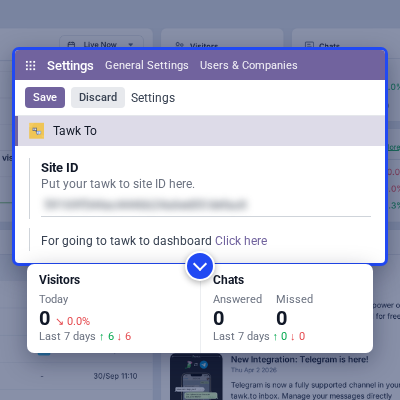
Odoo LiveChat Tawk To is an Odoo module that connects Tawk.to, a free live chat service, with Odoo. It loads your Tawk.to chat widget on Odoo pages. This module adds a Tawk To section to Odoo Settings. You paste your Tawk.to Site ID there and choose where the chat widget appears.
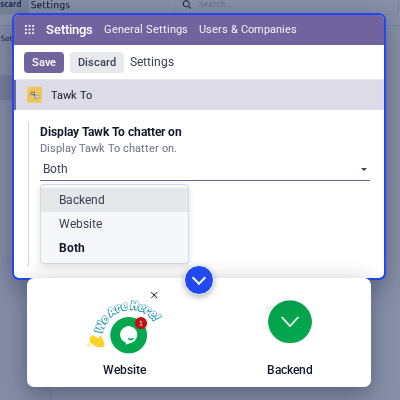
The Display Tawk To chatter on setting has three options: Backend, Website, and Both. Both is the default, so the widget shows to visitors and to your team. Conversations run through your Tawk.to account. Your agents answer from the Tawk.to dashboard or mobile app, and the chat history stays there.
It works on Odoo Community and Odoo Enterprise, on-premise and on Odoo.sh. It needs only the Odoo Website app, which installs with it. To also track what visitors do on your pages, you can check Odoo Google Tag Manager.
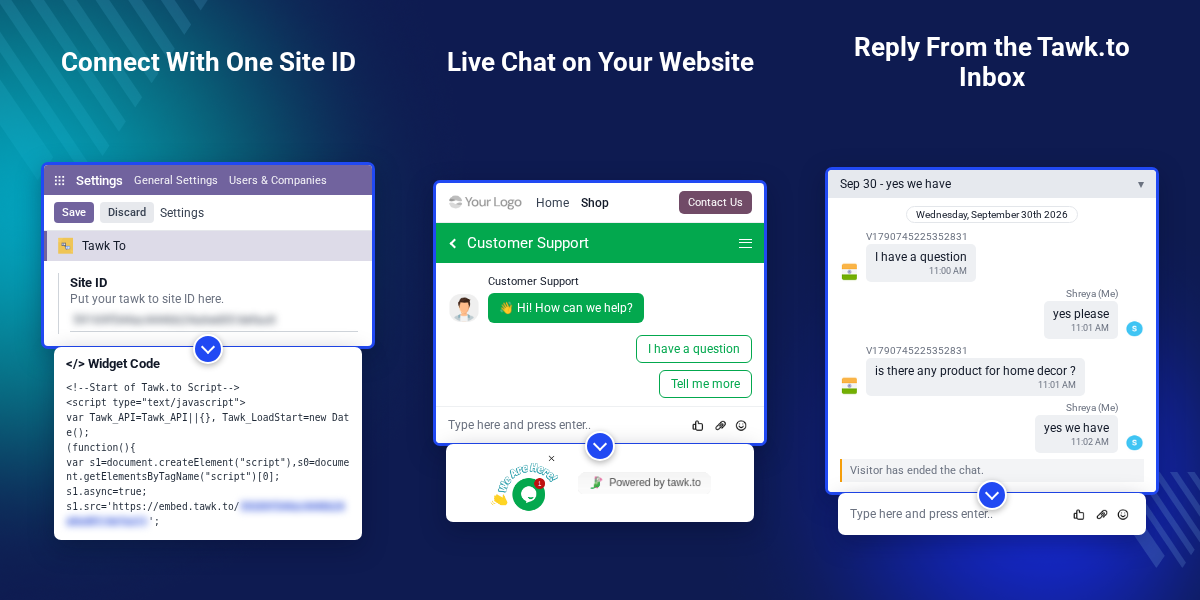
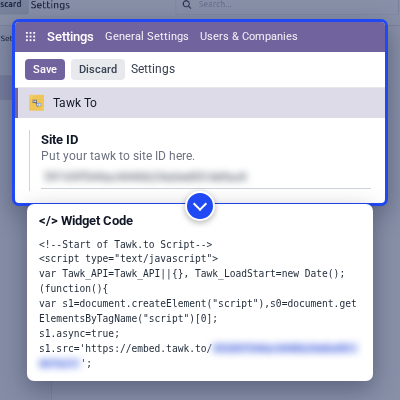
A single Site ID field in Odoo Settings links your Odoo database to your Tawk.to property and widget.
Choose whether the chat widget shows to website visitors, to users in the Odoo backend, or to both.
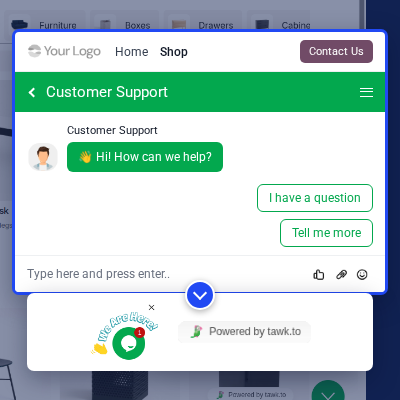
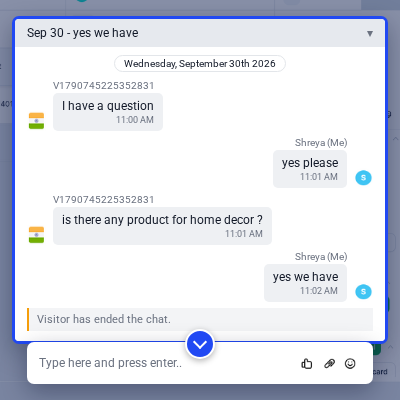
Visitors open the chat bubble and send a message, and your agents see it at once in Tawk.to.
The chat box has buttons to attach files and images and to add emojis while visitors type.
The Click here link in the Tawk To settings opens the Tawk.to dashboard in your browser.
Install the module, save your Site ID, and the widget loads on the next page you open.
Shoppers often leave a website when they cannot find an answer fast. A contact form or an email address makes them wait for a reply.
Live chat lets them ask while they are still on the page. Tawk.to gives you a free chat service, but its embed code has to be added to every Odoo page by hand.
Odoo LiveChat Tawk To adds that code for you. You enter the Site ID once, pick Backend, Website, or Both, and the widget appears on every matching page.
In practice, a visitor clicks the chat bubble, picks I have a question, and an agent replies from the Tawk.to inbox in the same minute.
Also, if you want visitors to book a time with your team after the chat, you can check our module Odoo Website Appointment Management System.
Shoppers ask about size, stock, or delivery from the shop page and get an answer before they check out.
Support agents handle visitor questions from one Tawk.to inbox and share screenshots or files in the chat.
Agencies and consultants talk to website visitors while their interest is high and turn chats into leads.
Salespersons, sellers, or other Odoo users reach your help team from the chat window inside the Odoo backend.
Store owners answer opening-hour and direction questions in chat. To show branches on a map, see Odoo Website Store Locator.
The Site ID tells Odoo which Tawk.to chat widget to load. It is the part of your Tawk.to embed code that comes after embed.tawk.to/.
The Display Tawk To chatter on setting decides who sees the chat widget. You can change it at any time from the same Settings page.
With Website or Both selected, the Tawk.to chat bubble sits in the corner of your Odoo Website pages. Visitors open it without leaving the page they are on.
With Backend or Both selected, the same chat widget loads in the Odoo backend. Users can ask for help without leaving the app they work in.
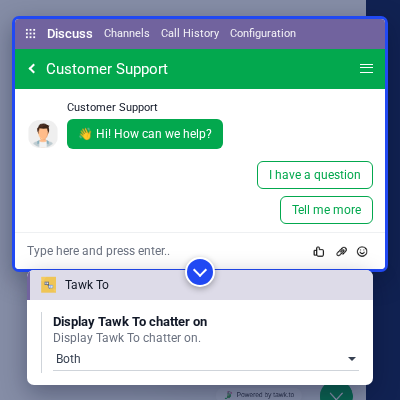
Every chat started in Odoo reaches your Tawk.to inbox. Agents read and answer it there, on the web or in the Tawk.to mobile app.
To keep leads from these chats in your CRM, you can also check Odoo Multi CRM Solution.
The Tawk To settings page ends with a direct link to Tawk.to. Admins reach the dashboard without typing its address.
For any query or issue, please create a support ticket here http://webkul.uvdesk.com/.
You may also check our top-quality Odoo Apps.
Detailed technical features and requirements to help you understand the module’s capabilities and ensure smooth integration with your system.
Detailed technical features and requirements to help you understand the module’s capabilities and ensure smooth integration with your system.
We’re partnered with top-tier, trusted providers!
Want to know more how exactly we are going to power up your eCommerce Website with Cloud to fasten up your store
* Server Configuration may vary as per application requirements.