USD
  • EUR
  • INR
  • USD
Cart
Cart 0
  • You have no items in your shopping cart.
    Odoo Apps Extensions
    Cart
    Cart 0
    • You have no items in your shopping cart.
    Hire a Developer
    ×
    Contact Us!
    Send Again
    Close
    Please Login to Write Your Review
    Odoo Stock Picking Cancel

    Odoo Stock Picking Cancel

    x
    Free

    * Required Fields

    $45.00
    Add To Cart

    Odoo Stock Picking Cancel lets authorized users cancel stock pickings in the Done stage with a predefined reason and a detailed explanation.


    • Cancel stock pickings that are already in the Done stage.

    • Cancel the related stock moves and stock quants along with the picking.

    • Add a new user group, Cancelled Done Picking, to control access.

    • Allow done picking cancellation only for the users you select.

    • Create predefined reasons for cancelling a stock picking.

    • Ask for a reason and a short explanation before each cancellation.

    • Send a picking cancellation email notification to the followers.

    • Show the cancelled picking in the Cancelled state in Odoo Inventory.


    Odoo Stock Picking Cancel
    Odoo Stock Picking Cancel
    $45.00
    Check How It Works

    Need Help Deciding?

    Support answers within one business day.

    Open a ticket
    $45.00
    Configure and Buy
    X
    • Description
    • Reviews
    • FAQ
    • Customers ()
    • Specifications
    • Cloud Hosting
    • Changelog

    Odoo Stock Picking Cancel is an Odoo app that cancels stock pickings even after they reach the Done stage.

    A user opens a done picking, clicks Cancel, picks a reason, adds details, and clicks Cancel Now.

    Next, the picking moves to the Cancelled state, and the module cancels its stock moves and stock quants.

    Admins decide who can do this. Only users with Allow Done Pickings Cancellation ticked see the option.

    Admins also keep a list of picking cancel reasons, and followers get an email for each cancellation.

    Additionally, if you want customers to cancel orders from their website account, then check Odoo Website Order Cancel.
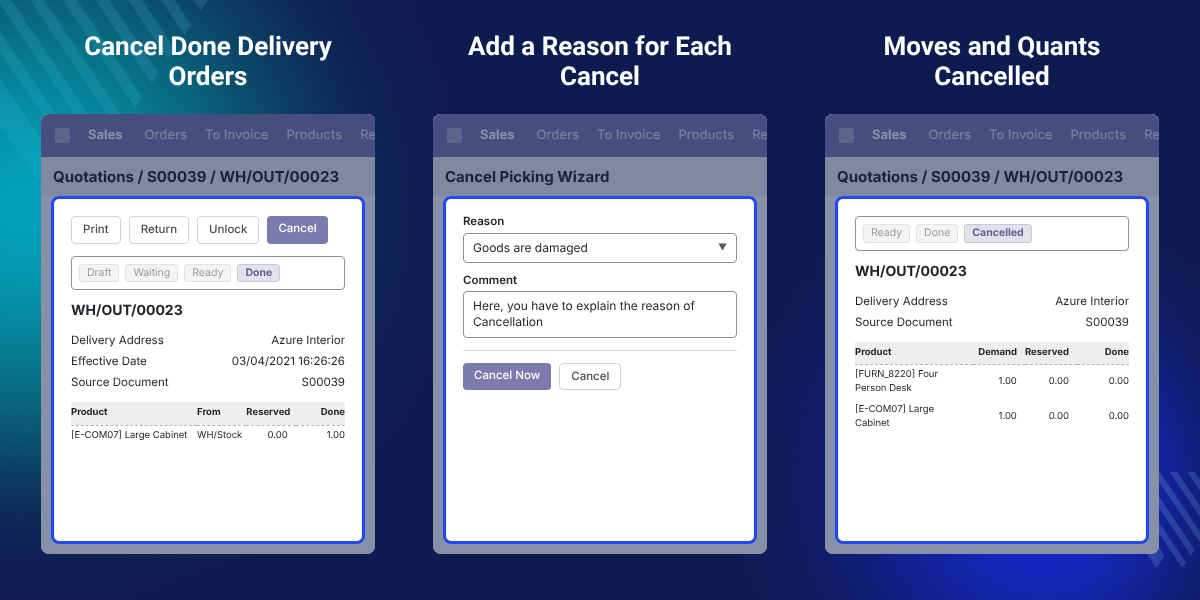
    Odoo Stock Picking Cancel

    Highlighted Features of Odoo Stock Picking Cancel

     Cancel Done Pickings

    Cancel a stock picking even after validation, when it sits in the Done stage.

     Cancel Moves and Quants

    Cancel the stock moves and stock quants linked to the picking in the same step.

     User Access Group

    A new group, Cancelled Done Picking, limits this action to the users you allow.

     Predefined Cancel Reasons

    Create a list of picking cancel reasons that users pick from while cancelling.

     Detailed Cancellation Reason

    Add a written explanation with the selected reason before you confirm the cancellation.

     Follower Email Notification

    Send a picking cancellation email to the followers of the picking.

    Why Do We Need Odoo Stock Picking Cancel?

    Odoo Stock Picking Cancel solves a common gap in Odoo Inventory. After you validate a picking, the default flow does not let you cancel it.

    Yet many situations need it. A user may validate the wrong delivery, or a customer may cancel after the picking is done.

    Without a cancel option, the team must fix stock by hand and nobody records why the change was made.

    This module lets a trusted user cancel a done picking and its stock moves and quants in one action.

    Each cancellation needs a predefined reason and a written note, and the followers get an email about it.

    In practice, it takes a few clicks: open the done delivery, click Cancel, choose a reason, add details, and click Cancel Now.

    Also, if you want faster picking and stock operations with a scanner, you can check our module Odoo Inventory Barcode Scanning.

    To track stock levels and transfers on one screen, you can use Odoo Advance Inventory Dashboard.

    And if you want to show product stock per warehouse, you can check Odoo Stock Per Warehouse.

    Done Picking Cancel Use Cases for Odoo Inventory

    • Delivery Validated by Mistake

      A warehouse user validates the wrong delivery order. A manager cancels the validated delivery order and states why.

    • Wrong Quantity Delivered

      Staff complete a picking with the wrong quantity. Your team cancels it and records the reason before redoing the work.

    • Order Cancelled After Dispatch

      A customer cancels after staff mark the delivery done. Your store cancels the picking instead of leaving it open.

    • Controlled Cancellation Rights

      Only senior staff get the right to cancel done pickings, so regular users cannot undo validated work.

    • Clear Record for Followers

      Sales and warehouse followers get an email for each cancelled picking, so they know what changed.

    Allow Done Pickings Cancellation for Selected Users

    Admins choose which users can cancel done pickings. This setting sits on the user form in Odoo Settings.

    This keeps the action with trusted staff and protects validated stock operations from casual changes.
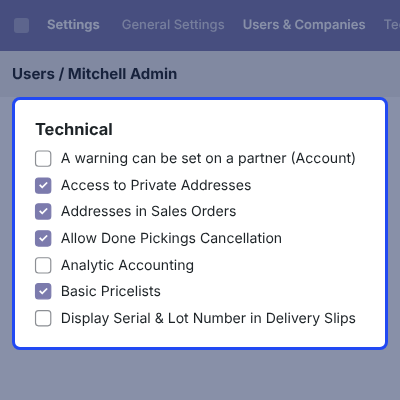
    • Go to Settings > Users & Companies > Users.
    • Open the user who needs access.
    • Tick Allow Done Pickings Cancellation and save the user.
    • This option adds the user to the Cancelled Done Picking group.
    • Users without this access cannot cancel a done picking.
    Allow Done Pickings Cancellation for Selected Users

    Cancel a Validated Delivery Order in Odoo

    A delivery order in the Done state shows a Cancel button to users with access. This is how you cancel a done picking.
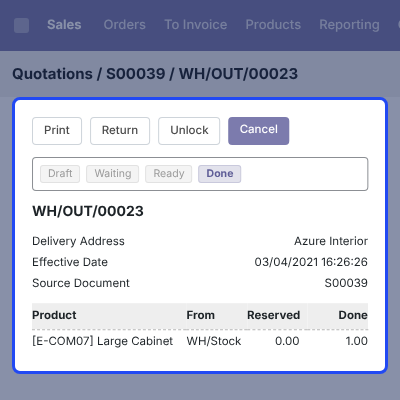
    • Create and confirm a sale order in Odoo Sales.
    • Click the Delivery button on the order.
    • Click Validate to move the delivery order to Done.
    • Click Cancel on the done delivery order.
    • A cancel reason window opens before anything changes.
    Cancel a Validated Delivery Order in Odoo

    Select a Cancellation Reason and Add Details

    Every cancellation asks for a reason. A user picks one from the predefined list and writes a short explanation.

    Your team can see why someone cancelled a done picking, along with the fact that it happened.
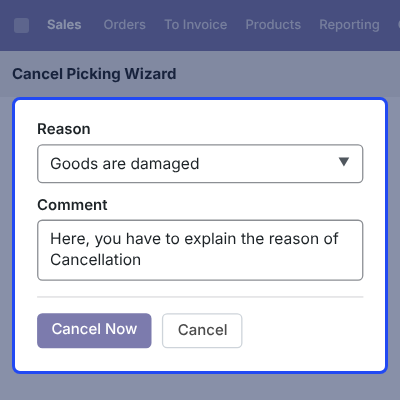
    • Cancel Picking Wizard opens with Reason and Comment fields.
    • Select a predefined cancellation reason in the Reason field.
    • Write the details of the cancellation in the Comment field.
    • Click Cancel Now to confirm.
    Select a Cancellation Reason and Add Details

    Picking Cancellation Email to Followers

    When a user cancels a done picking, the module sends a cancellation email notification to the followers of the picking.
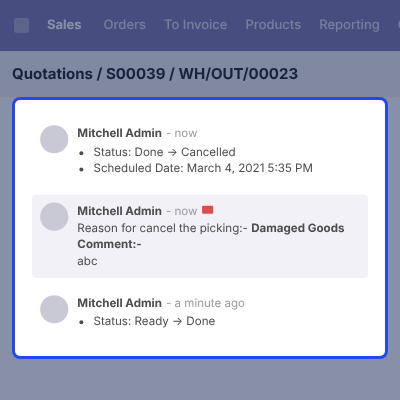
    • Email goes out right after the user clicks Cancel Now.
    • Followers of the picking receive the message.
    • Chatter of the picking logs the reason and the comment.
    • Sales and warehouse teams learn about the change at once.
    • Nobody has to write a separate follow-up message.
    Picking Cancellation Email to Followers

    Cancelled Picking with Stock Moves and Quants

    After confirmation, the delivery order shows the Cancelled state. This module cancels the related stock moves and stock quants too.
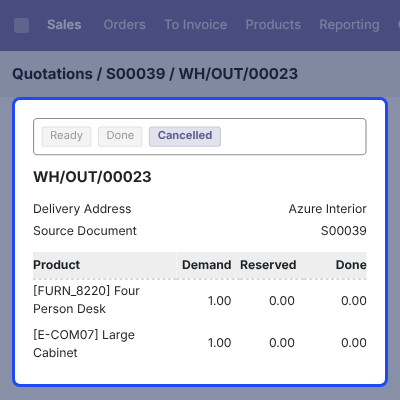
    • Picking status changes from Done to Cancelled.
    • Cancels the stock moves of the picking.
    • Cancels the stock quants linked to the picking.
    • Cancelled picking stays in Odoo for reference.
    Cancelled Picking with Stock Moves and Quants

    Manage Picking Cancel Reasons

    Admins create the reasons users choose from. This list lives in the Inventory configuration menu.
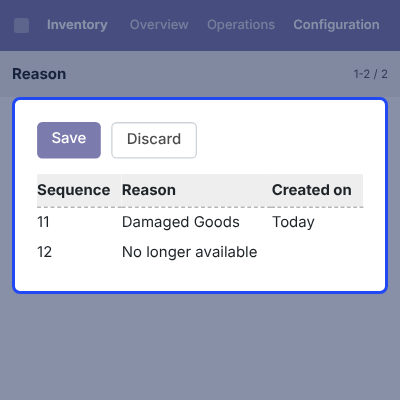
    • Go to Inventory > Configuration > Picking Cancel Reasons.
    • Click New to create a cancellation reason.
    • Enter the reason and save it.
    • Saved reasons appear in the cancel window.
    Manage Picking Cancel Reasons

    Complete Odoo Stock Picking Cancel Feature List

    Picking Cancellation

    • Cancel stock pickings that are already validated and in the Done stage
    • Cancel the related stock moves and stock quants with the picking
    • Cancel a validated delivery order from the Cancel button on the form
    • Move the cancelled picking to the Cancelled state
    • Keep the cancelled picking in Odoo for later reference

    Access Control

    • Add a new user group named Cancelled Done Picking
    • Give access per user with the Allow Done Pickings Cancellation option
    • Manage access from Settings > Users & Companies > Users
    • Keep done pickings safe from users without access

    Cancellation Reasons

    • Create predefined picking cancel reasons from Inventory > Configuration
    • Select a predefined reason in the cancel window
    • Add a detailed explanation for every cancellation
    • Confirm the action with the Cancel Now button

    Notifications

    • Send a picking cancellation email notification to the followers
    • Inform sales and warehouse followers without a manual message

    Odoo Stock Picking Cancel Support -

    For any query or issue please create a support ticket here http://webkul.uvdesk.com

    You may also check our other top-quality Odoo Plugins.

    Specifications

    Product Version1.0.0
    Released8 years ago
    Last UpdatedOctober 9, 2026 (8 days ago)
    Supported Versions8.x  9.x  10.x  11.x  12.x  13.x  14.x  15.x  16.x  17.x  18.x  19.x  20.x  

    Ratings

    We'd love to hear your thoughts! Share your feedback and help us craft an even better experience tailored just for you.

    Write a review

    Frequently Asked Questions

     What does Odoo Stock Picking Cancel do?
    Odoo Stock Picking Cancel lets authorized users cancel stock pickings in the Done stage. It also cancels the related stock moves and stock quants.
     
     Can I cancel a delivery order that is already validated?
    Yes. Open the done delivery order, click Cancel, select a reason, add details, and click Cancel Now. The order moves to the Cancelled state.
     
     Does the module cancel stock moves and stock quants too?
    Yes. When a user cancels a done picking, the module also cancels its stock moves and stock quants.
     
     Who can cancel a done picking?
    Only users in the Cancelled Done Picking group. An admin adds a user by ticking Allow Done Pickings Cancellation on the user form.
     
     How do I create picking cancel reasons?
    Go to Inventory > Configuration > Picking Cancel Reasons, create a reason, and save it. It then appears in the cancel window.
     
     Is a reason required to cancel a done picking?
    Yes. A user selects a predefined cancellation reason and adds a detailed explanation before clicking Cancel Now.
     
     Who gets notified when a picking is cancelled?
    Followers of the picking. This module sends them a picking cancellation email notification.
     
     Which Odoo versions are supported?
    This module is available for Odoo 8.x to Odoo 20.x. Pick your version on the product page before purchase.

    Specification

    Detailed technical features and requirements to help you understand the module’s capabilities and ensure smooth integration with your system.

    Cloud Hosting

    Detailed technical features and requirements to help you understand the module’s capabilities and ensure smooth integration with your system.

    Default Configuration Details of Server

    1 GB
    RAM
    1 Core
    Processor
    30 GB
    Hard Disk
    1 GB RAM & 1 Core Processor
    Database

    Want to know more how exactly we are going to power up your eCommerce Website with Cloud to fasten up your store

    * Server Configuration may vary as per application requirements.

    Change Logs

    Not Available


