USD
  • EUR
  • INR
  • USD
Cart
Cart 0
  • You have no items in your shopping cart.
    WooCommerce Extensions
    Cart
    Cart 0
    • You have no items in your shopping cart.
    Hire a Developer
    ×
    Contact Us!
    Send Again
    Close
    Please Login to Write Your Review
    WooCommerce Salesforce Connector

    WooCommerce Salesforce Connector

    x
    Free

    * Required Fields

    $499.00
    Add To Cart
    30 Days Money Back Guarantee*
    Only One Time Payment

    WooCommerce Salesforce Connector connects store data to Salesforce CRM. Sync products, categories, customers, and orders with manual or automatic controls.


    • Sync WooCommerce products and categories with Salesforce records.

    • Send customer accounts and contacts from WooCommerce to Salesforce.

    • Create Salesforce orders or opportunities from WooCommerce orders.

    • Choose manual exports or enable automatic synchronization by entity.

    • Map WooCommerce fields to Salesforce account, product, and order fields.

    • Match existing records to reduce duplicate Salesforce entries.

    • Map order statuses to Salesforce order statuses or opportunity stages.

    • View sync status, Salesforce IDs, and errors in WordPress admin.

    WooCommerce Salesforce Connector
    WooCommerce Salesforce Connector
    $499.00
    Check How It Works

    Need Help Deciding?

    Support answers within one business day.

    Open a ticket
    $499.00
    Configure and Buy
    30 Days Money Back Guarantee*
    Only One Time Payment
    X
    • Description
    • Reviews
    • FAQ
    • Specifications
    • Cloud Hosting
    • Changelog

    WooCommerce Salesforce Connector is a WordPress plugin that connects WooCommerce store records with Salesforce CRM. Store teams can sync catalog, customer, and order data.

    Admins connect a CRM org, choose what to sync, and configure each entity in WordPress. The plugin shows connection and license status on one screen.

    Products and categories can be exported to CRM. Customer records can become CRM accounts and contacts, while orders can create orders or deals.

    Separate controls cover auto product, category, user, and order sync. Admins can also export selected records from the matching sync list.

    Field mapping and matching criteria help align records. The standard product flow covers simple products; product variation sync requires paid customization.

    For email campaigns based on store data, see Salesforce Marketing Cloud Connector for Wordpress WooCommerce.
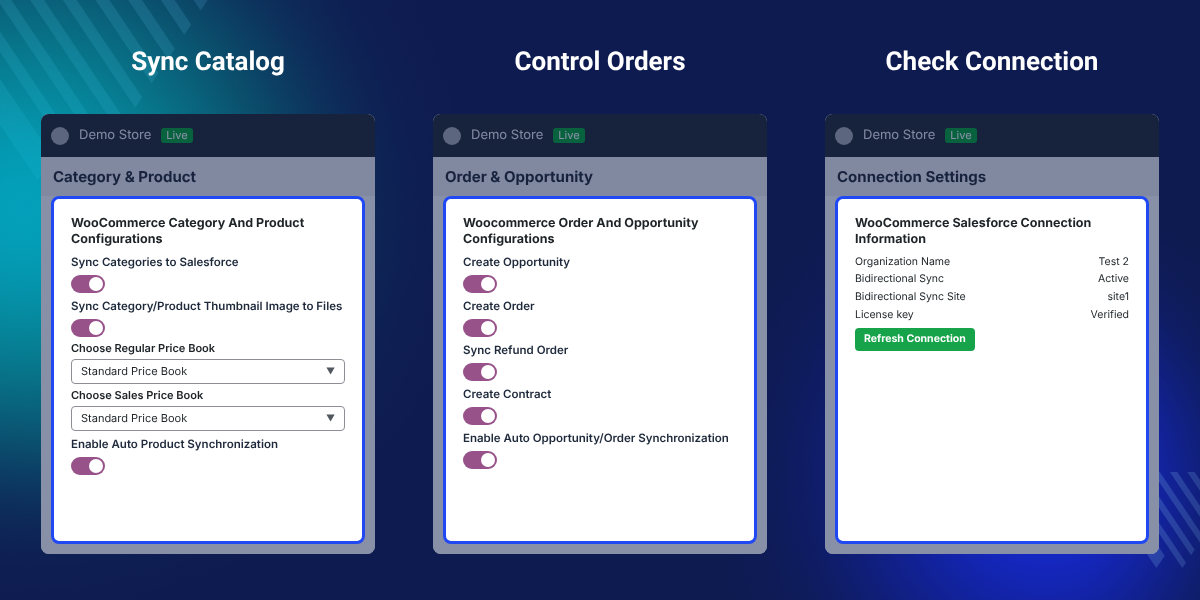
    WooCommerce Salesforce Connector

    Highlighted Features

     Connected CRM

    See the linked CRM org, connected user, license state, and bidirectional sync status on the main connection screen in WordPress admin.

     Catalog Sync

    Export simple products and categories, then review their CRM IDs and the time each record was synced.

     Customer Sync

    Send store users to CRM account and contact records, with a separate choice for guest orders.

     Order Sync

    Create CRM sales records from store orders and choose whether orders, deals, or both are used.

     Automatic Controls

    Switch auto sync on for products, categories, users, and orders with separate controls for each record group.

     Field Mapping

    Align store fields with CRM product, account, contact, order, and deal fields in the admin.

     Record Matching

    Set matching criteria for account, contact, and product records so existing CRM entries can be found.

     Sync Review

    Filter synced, unsynced, and error records in WordPress before exporting selected items or opening their CRM links.

    Why Do We Need WooCommerce Salesforce Connector?

    WooCommerce Salesforce Connector connects WooCommerce store data with Salesforce CRM, reducing manual data entry by linking catalog and checkout records with accounts, contacts, and deals.

    Manual transfer can leave CRM records behind the store. A changed product, a new buyer, or an order may need another round of entry.

    This plugin lets admins select auto sync for supported entities and use export lists when they need manual control. Matching criteria help prevent duplicate records.

    On the Synchronize Products screen, an admin can filter unsynced items, select rows, and choose Export Selected Product before checking the CRM ID.

    For teams managing contacts inside WooCommerce itself, see Woocommerce Customer Relationship Management (CRM).

    Use Cases

    • Sales Team Handoff

      A sales team can see store buyer and order records in CRM after the chosen sync runs.

    • Catalog Updates

      A merchant can send selected simple products and categories to CRM, then review linked IDs.

    • Order Follow Up

      An admin can create CRM orders or deals and map the store order status to the CRM state.

    • Multiple Store Records

      A team using bidirectional setup can identify the store site linked to a CRM record.

    Salesforce Connection Settings

    Connection Settings shows the linked CRM org and the plugin status in WordPress admin. Confirm the connection before mapping fields or starting an export.

    Find more CRM tools in the Salesforce Extensions catalog.
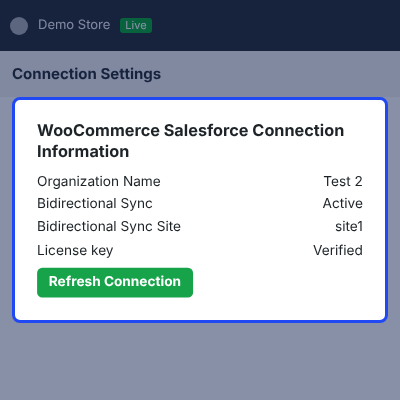
    • View the Organization Id, Organization Name, and Connected User.
    • Check whether Bidirectional Sync is Active and which site is linked.
    • Check the license verification state.
    • Use Refresh Connection when the Salesforce link needs checking.
    • Find Reset All Mapping and Delete Logs in the same tab.
    Salesforce Connection Settings

    Category and Product Sync Settings

    Category & Product settings control catalog export to CRM, image handling, and price books. Admins can configure auto category and product sync separately.
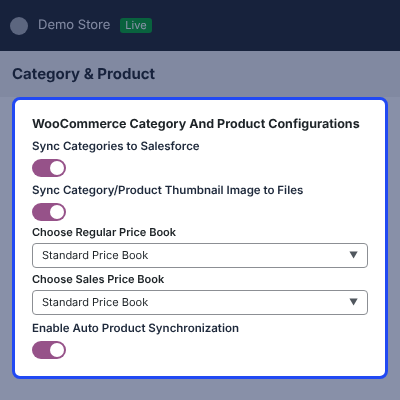
    • Turn Sync Categories to Salesforce on or off.
    • Choose whether category and product thumbnail images sync to Files.
    • Select Regular Price Book and Sales Price Book.
    • Set the Default For Order price book.
    • Control Update Product and automatic product or category sync.
    Category and Product Sync Settings

    Account and Contact Sync Settings

    Account & Contact settings decide how store users appear in CRM. They also set a guest account for orders without a registered user.
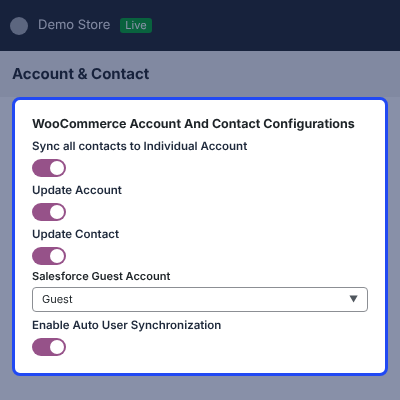
    • Choose whether contacts sync to individual accounts.
    • Control Update Account and Update Contact.
    • Select a Salesforce Guest Account.
    • Turn Enable Auto User Synchronization on or off.
    Account and Contact Sync Settings

    Order and Opportunity Sync Settings

    Order & Opportunity settings control which CRM sales records are created from store purchases. The tab also includes refund and auto sync controls.
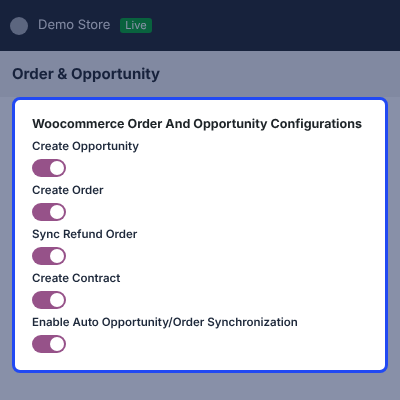
    • Switch Create Opportunity and Create Order independently.
    • Set Add Contact Role and Create Contract.
    • Enable Sync Refund Order when Salesforce reduction orders are configured.
    • Turn Enable Auto Opportunity/Order Synchronization on or off.
    • Map refunded WooCommerce orders to Activated Salesforce orders for refund sync.
    Order and Opportunity Sync Settings

    Salesforce Field and Status Mapping

    Field mapping pairs store fields with CRM fields for products, users, and orders. Order mapping also has separate Order and Opportunity tabs.
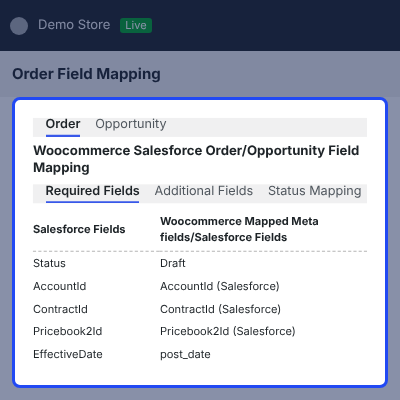
    • Map product ID and Product Name to Salesforce product fields.
    • Map user first_name and last_name to Salesforce contact fields.
    • Review required and additional fields for each object.
    • Map WooCommerce order status to Salesforce order status.
    • Map opportunity stages where opportunity creation is used.
    Salesforce Field and Status Mapping

    Manual Sync and Record Review

    The Synchronize lists let admins export records and check their CRM links. Each list shows synced, unsynced, and error filters.

    For a separate accounting workflow, see QuickBooks Connector for WooCommerce.
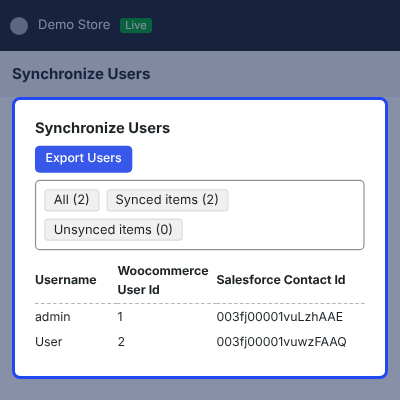
    • Open separate lists for categories, products, users, and orders.
    • Use Export Selected Product or equivalent bulk actions for chosen records.
    • Review Salesforce ID and Synced At after a successful sync.
    • Use error filters to find records that need attention.
    • Open a Salesforce record directly from its linked ID.
    Manual Sync and Record Review

    Complete WooCommerce Salesforce Connector Feature List

    Connection and Setup

    • Connect a Salesforce organization from the WordPress admin.
    • View organization details, connection state, and license verification.
    • Refresh the connection and review the linked bidirectional site.
    • Reset mapping or clear logs from the connection tab.

    Catalog and Customer Data

    • Sync simple products and categories to Salesforce.
    • Choose price books for regular and sales prices.
    • Send category and product thumbnails to Salesforce Files.
    • Sync users as Salesforce accounts and contacts.
    • Choose an account for guest orders.

    Orders and Opportunities

    • Create Salesforce sales records from WooCommerce orders.
    • Set contact roles, contracts, and refund sync options.
    • Map store order statuses to Salesforce statuses and stages.
    • Enable or disable automatic order and opportunity sync.

    Mapping and Monitoring

    • Map required and additional fields for products, users, and orders.
    • Set matching criteria for account, contact, and product records.
    • Filter sync lists by all, synced, unsynced, or error records.
    • Review Salesforce IDs and sync times on record lists.
    • Export selected records with bulk actions.

    Support

    For help with setup or synchronization, create a ticket at Webkul Support.

    Browse related WooCommerce Extensions.

    Specifications

    Product Version4.4
    Released10 years ago
    Last UpdatedNovember 19, 2026 (5 days ago)
    Supported VersionsWordPress  6.x.x  WooCommerce  

    Ratings

    We'd love to hear your thoughts! Share your feedback and help us craft an even better experience tailored just for you.

    5.0
    93 Reviews
    based on verified customer feedback
    Write a review
    T. Kelley

    Excellent Plugin and support

    Posted On - September 7, 2023

    They were always on time and communicated estimated timelines well."

    Brad Bacon

    Sumit Kumar was very helpful in the support and install.

    Posted On - January 27, 2022

    Sumit Kumar was very helpful in the support and install.

    CT Admin
    🇺🇸 United States

    Very patient and always willing to help

    Posted On - January 27, 2022

    "Abhishek was all the time willing to help to solve my doubts, gave me straight directions on what to do and was really helpful

    "

    John McClure
    🇺🇸 United States

    Great support !

    Posted On - January 19, 2022

    Abhishek Shukla was very helpful in working through our technical issues and helping me understand the details of how the plugin works. Very patient!

    Jess Loseke

    Product Support

    Posted On - December 14, 2021

    After implementing the standard managed package for this plugin we realized we needed some custom work for the plugin to work the way we needed. Sumit helped facilitate the work and then helped walk us through the process so our WooCommerce orders were appearing exactly like we needed in Salesforce.

    Load More Reviews

    Frequently Asked Questions

     What does WooCommerce Salesforce Connector sync?
    It syncs WooCommerce products, categories, users, and orders with Salesforce. The enabled settings determine which records move automatically.
     
     Can I sync records manually?
    Yes. The category, product, user, and order lists provide export actions, including bulk actions for selected records.
     
     Does it support product variations?
    The standard connector syncs simple products. Product variation synchronization requires paid customization.
     
     Can orders become Salesforce opportunities?
    Yes. The Order & Opportunity settings can create Salesforce orders and opportunities, and status mapping aligns their states.
     
     How are customers represented in Salesforce?
    WooCommerce users can sync as Salesforce accounts and contacts. Account & Contact settings include individual account and guest account options.
     
     Can I prevent duplicate Salesforce records?
    Advanced Settings provides matching criteria for accounts, contacts, and products. Match the relevant fields before synchronization.
     
     Can I see failed or pending records?
    Yes. Synchronize lists include synced, unsynced, and error filters, plus Salesforce IDs and sync times for linked records.
     
     What is needed for bidirectional sync?
    The guide describes Salesforce Named Credentials, WooCommerce REST API keys, a site entry, and a WooCommerce Site Synced To field on relevant Salesforce objects.
     

    Specification

    Detailed technical features and requirements to help you understand the module’s capabilities and ensure smooth integration with your system.

    Cloud Hosting for Websites & Applications

    Power your website or application with flexible, scalable cloud infrastructure designed for performance and growth.

    Move Your Website or Application to the Cloud

    Get started with Cloudkul hosting tailored to your needs.

    Flexible Cloud Plans Start small. Scale as you grow.
    Starting at US$25*
    ✓ Hosting for websites and applications
    ✓ Resources matched to your needs
    ✓ Scalable infrastructure for growth

    Configure Your Cloud Server

    RAM Flexible
    CPU Scalable
    Storage Flexible
    Built Around Your Project's Needs

    Choose server resources based on your workload, expected traffic, and performance requirements.

    Grow at Your Own Pace

    Start with the cloud resources your project needs today and adjust your server configuration as your business grows.

    Ready to Move to the Cloud?

    Explore flexible cloud hosting plans and choose your ideal configuration.

    Explore Cloud Hosting Plans

    * Starting price is indicative. Final pricing and available server resources depend on the selected hosting configuration and requirements.

    Change Logs

    Not Available