


- Description
- Reviews
- FAQ
- Specifications
- Cloud Hosting
- Changelog
ERPNext Website Product Image Search lets a shopper find products from a photo. It adds a camera button to the ERPNext Webshop search bar, right next to the normal text search.
A shopper often knows what a product looks like but not what it is called. With search by image, they upload a photo and see the closest matches from the ERPNext Webshop catalog.
The admin creates an Image Search Configuration and clicks Store Embeddings. The app turns the photo of each published Website Item into image embeddings with a ResNet50 model.
During a visual product search, the app compares the shopper's photo with the stored image embeddings. It drops matches below the Score Threshold and lists the best match first.
Before the image search runs, the shopper sees a preview and can edit the photo. They can zoom, crop, rotate or upload a new picture so the search by image focuses on the product.
Store teams can cover the whole catalog or only selected Website Items. When a Website Item changes, its image embeddings turn Stale, so the team knows to store them again.
ERPNext Website Product Image Search works with ERPNext and the ERPNext Webshop app on version 16. The server also needs the torch, torchvision and Pillow Python packages.
Store owners can pair ERPNext Website Product Image Search with ERPNext Website Product Multi Videos to show products in motion, and with ERPNext Website Product FAQ to answer buyer questions on each Website Item page.
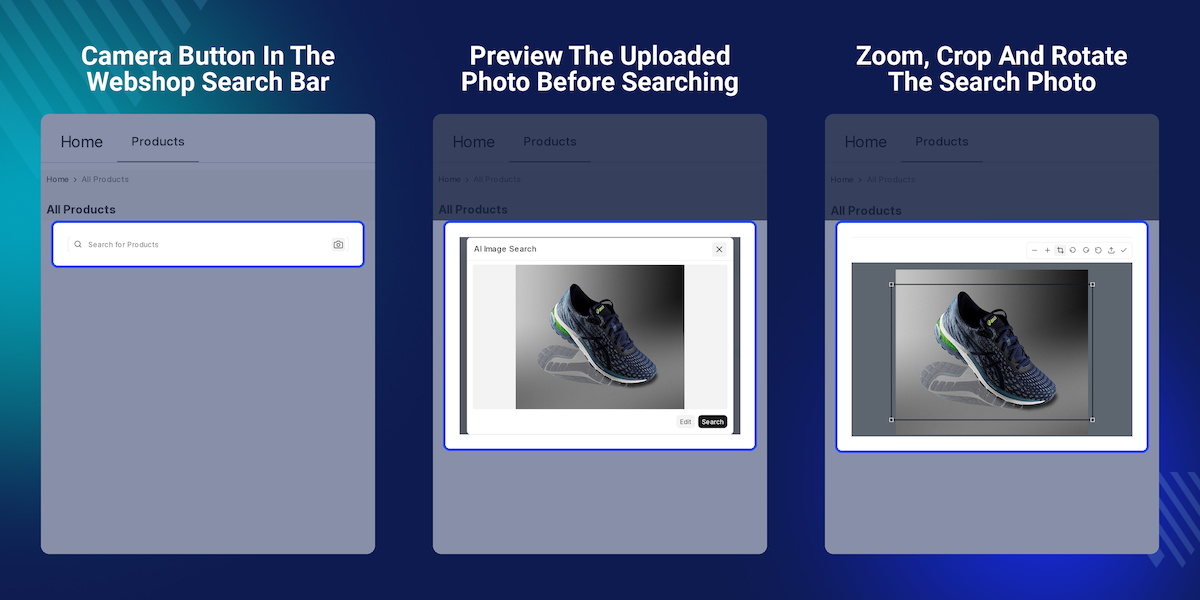
Highlighted Features of ERPNext Website Product Image Search
Camera Button In Search Bar
ERPNext Website Product Image Search places a camera button inside the Webshop product search box.
Upload By Click Or Drag
Shoppers click the upload area or drop a photo onto it to start a search.
Photo Preview Before Search
The uploaded photo shows in a large preview with Edit and Search buttons.
Built In Photo Editor
Zoom, crop, rotate, reset or replace the photo so the product fills the frame.
Score Threshold Control
Hide weak matches by setting the lowest similarity score, from 0 to 1.
Maximum Suggestions Limit
Choose the most similar products the results panel can show for one search.
All Or Selected Products
Cover the whole published catalog, or only the Website Items listed in a table.
Automatic Stale Tracking
Editing a Website Item marks its embeddings Stale, and deleting it removes them.
Why Do We Need ERPNext Website Product Image Search?
A shopper sees a jacket on the street and wants one like it. A default ERPNext Webshop store offers a text box and no search by image, so the shopper has to guess the product name.
Without image search, text works only when the shopper's words match the Website Item name. A query for a blue trainer may miss a product listed as Running Shoes, and the sale is lost.
ERPNext Website Product Image Search lets the shopper upload the photo instead. The app compares it with stored image embeddings and shows the closest products under the search box.
Store teams keep control too. They choose which Website Items join the visual product search, how strict a match must be, and how many results a shopper sees.
On a 24-item test catalog, a search by image with a photo of running shoes returned Running Shoes first and Casual Sneakers second, right from the ERPNext Webshop search bar.
Use Cases
-
Fashion Look Alike Search
A shopper saves a photo of a denim jacket from social media. On an apparel store running ERPNext Website Product Image Search, they upload it and see the closest jackets with prices.
-
Spare Part Without A Name
A buyer needs a charger like their old one but cannot read the model name. They photograph it, crop out the cable, and find a matching charger in the Webshop.
-
New Footwear Range Only
A store team wants image search only for a new footwear range. They pick Selected Products, add those Website Items, and store embeddings for just that range.
-
Catalog Refresh Before A Sale
A merchandiser updates product photos for twenty items. The configuration shows Stale, so the team clicks Store Embeddings again before the weekend sale starts.
Camera Button In The ERPNext Webshop Search Bar
ERPNext Website Product Image Search adds a camera button inside the ERPNext Webshop product search box. Shoppers start a search by image from the same place they type a query.
The button appears while an enabled Image Search Configuration has Stored or Stale status. Until then, the ERPNext Webshop shows its normal text search on its own.
Key Features:
- Camera button inside the Search for Products box.
- Attaches to the Webshop product search inputs, including All Products.
- Text search keeps working as before.
- Guest shoppers can search without logging in.
- Shows once image search is enabled and embeddings are stored.
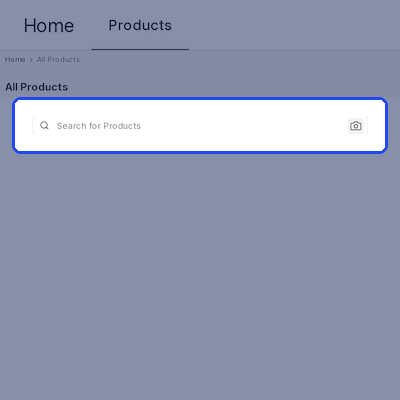
Photo Upload And Preview
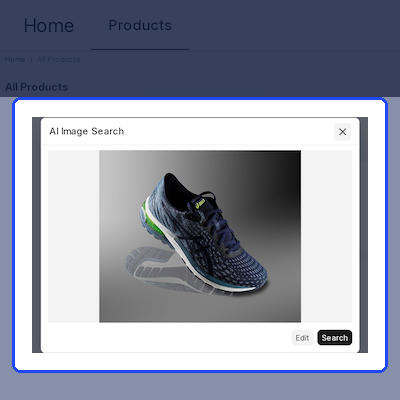
Clicking the camera opens the AI Image Search window. A shopper clicks Click to upload image or drags a photo onto it, and ERPNext Website Product Image Search shows a large preview.
The preview has two buttons. Search sends the photo for a visual product search of every Website Item in scope, and Edit opens the photo editor first.
Key Features:
- Click to upload or drag and drop a photo.
- Accepts any image file type.
- Large preview before the search runs.
- Edit and Search buttons under the preview.
- Close with the close button, the backdrop or the Escape key.
Built-In Photo Editor
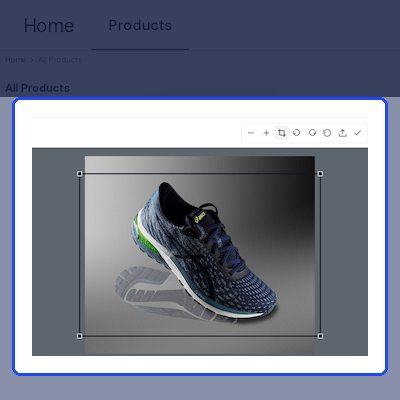
A photo often shows more than the product. The editor in ERPNext Website Product Image Search lets a shopper zoom, rotate and crop so the image search looks at the right thing.
The toolbar holds Zoom out, Zoom in, Crop, Rotate left, Rotate right, Reset, Upload image and Save. Saving returns to the preview, ready for search by image across the ERPNext Webshop.
Key Features:
- Zoom between 70% and 180%.
- Rotate left or right in 90 degree steps.
- Drag the crop box or its four corner handles.
- Reset undoes every change.
- Upload image swaps in a new photo.
 /div>
Similar Product Results
ERPNext Website Product Image Search shows results in a panel under the search box. Each match carries the product image, name and price, and links to its Website Item page.
The best image search match comes first. Prices come from the price list set in Webshop Settings. If no product clears the threshold, the ERPNext Webshop shows No similar products found.
Key Features:
- Product image, name and price for each result.
- Best match listed first.
- Click a result to open the product page.
- A spinner shows Finding similar products while searching.
- A clear message when no product matches.
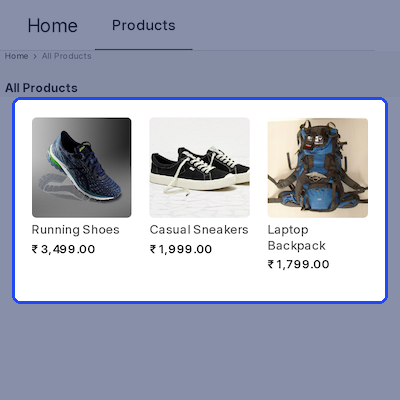
Image Search Configuration In The Desk
The admin sets up ERPNext Website Product Image Search from Image Search Configuration, under the Image Search section of the Website workspace. Each record holds one search setup.
For visual product search, Maximum Suggestions caps the results of each search by image, and Score Threshold sets the lowest cosine similarity, from 0 to 1.
Key Features:
- Configuration Name and an Enabled check box.
- Status of Draft, Stored, Stale or Failed.
- Maximum Suggestions, 12 by default.
- Score Threshold, 0.2 by default.
- Open to the Website Manager and System Manager roles.
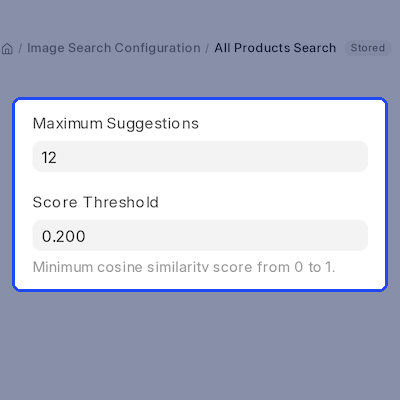
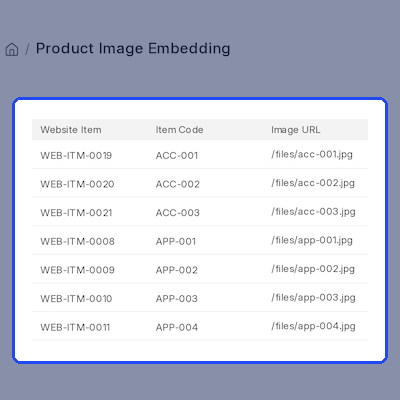
Image Embeddings For All Or Selected Products
Store Embeddings reads the photo of each published Website Item and saves its image embeddings. ERPNext Website Product Image Search uses the website image, then the thumbnail, then the Item image.
Select Product chooses which items join image search: All Products or Selected Products. With Selected Products, the admin lists Website Items in a table, which cannot be left empty.
Clear Embeddings removes the stored image embeddings and sets the status back to Draft. A photo that fails gets a Failed row with a note, so the team can fix that Website Item.
Key Features:
- Store Embeddings for all published products.
- Selected Products table with one Website Item per row.
- Image order: website image, thumbnail, then Item image.
- Failed rows keep the error in a Note field.
- Clear Embeddings resets the configuration to Draft.
Support
For any query or issue, please create a support ticket here: CREATE A TICKET HERE
You may also check our other top-quality ErpNext Modules.
Specifications
Frequently Asked Questions
Specification
Detailed technical features and requirements to help you understand the module’s capabilities and ensure smooth integration with your system.
Cloud Hosting for Websites & Applications
Power your website or application with flexible, scalable cloud infrastructure designed for performance and growth.
Move Your Website or Application to the Cloud
Get started with Cloudkul hosting tailored to your needs.
Configure Your Cloud Server
Choose server resources based on your workload, expected traffic, and performance requirements.
Start with the cloud resources your project needs today and adjust your server configuration as your business grows.
Explore flexible cloud hosting plans and choose your ideal configuration.
* Starting price is indicative. Final pricing and available server resources depend on the selected hosting configuration and requirements.
