- Description
- Reviews
- FAQ
- Customers ()
- Specifications
- Cloud Hosting
- Changelog
ERPNext Website Product Multi Videos adds flexible video handling to ERPNext product pages. Store admins can connect several videos with one Website Item and manage every entry separately.
A saved Video record can be selected when suitable content already exists. Admins can also add a new video by entering a supported YouTube or Vimeo URL.
Every assigned video can have its own display location. It may appear in the product gallery, the description section, or both areas.
Admins can also decide the viewing order and active state of each video. Website-specific captions and thumbnails can be added without changing the linked Video record.
For playback, this module provides Inline and Popup modes. Description videos can also appear in a stacked list or a carousel row.
ERPNext admins can manage limits, autoplay, lazy loading, captions, thumbnails, layouts, and provider access from the module settings.
Stores that need extra product information can use ERPNext Website Product FAQ. For brand-focused product pages, ERPNext Website Product Brand can be used alongside this module.
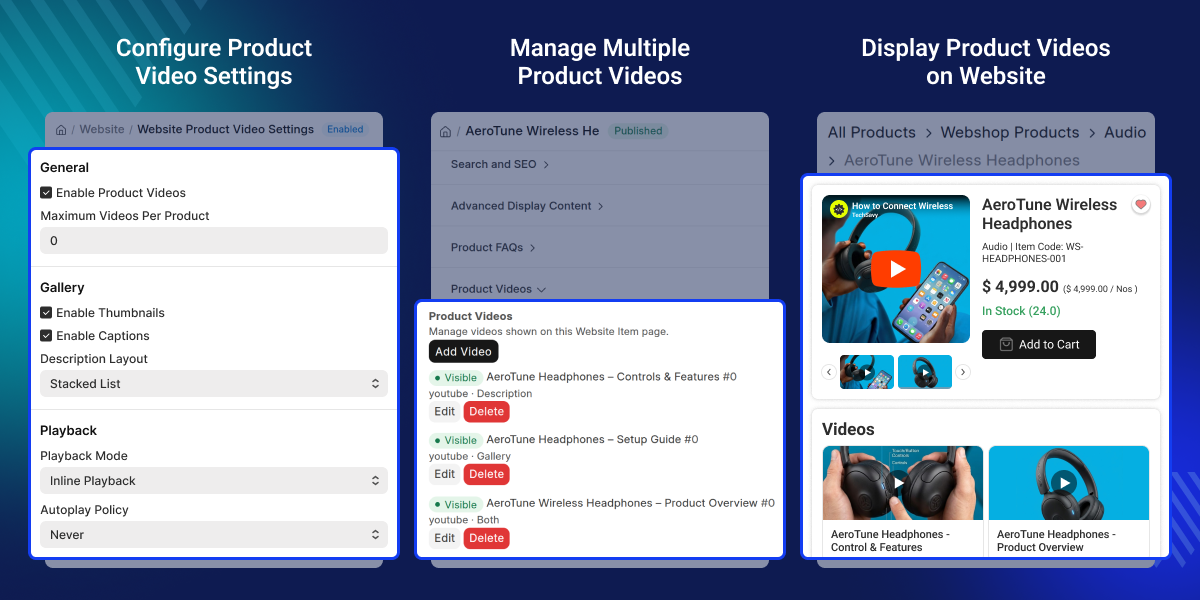
Highlighted Features of ERPNext Website Product Multi Videos
Multiple Videos Per Product
Connect several videos with one ERPNext Website Item and manage each assigned entry separately.
Flexible Video Location
Place an ERPNext product video in the gallery, description section, or both areas of the page.
YouTube and Vimeo Support
Use videos from YouTube and Vimeo and control which provider is available for product content.
Ordered Video Display
Set the viewing sequence for product videos so customers see them in the intended order.
Custom Captions and Thumbnails
Give every product video its own website caption and thumbnail without editing the source Video record.
Playback Mode Control
Choose Inline or Popup playback according to how videos should open on ERPNext product pages.
Active Video Limit
Define how many videos can stay active for one ERPNext website product at a time.
Central Video Configuration
Set layout, playback, loading, captions, thumbnails, and provider rules from one ERPNext settings screen.
Why Do We Need ERPNext Website Product Multi Videos?
Product images are useful for showing appearance, but they may not explain setup, operation, movement, or real product use clearly.
Videos provide that extra context. ERPNext stores can use them for demonstrations, installation steps, feature tours, and usage instructions.
When several videos are linked to one product, their placement and sequence also need proper control. Admins must decide which videos remain active and where they appear.
ERPNext Website Product Multi Videos gives admins a clear way to organize this content. Each video can follow its own website display settings.
ERPNext admins can also define common rules for all product videos. This helps maintain consistent layouts, playback, provider access, and video limits across the store.
Use Cases
Product Demonstration Videos
ERPNext stores can show setup, operation, features, and product use through video when static images do not provide enough detail.
Videos Inside Product Gallery
Product videos can appear beside ERPNext product images, helping customers view useful visual content from the main gallery.
Detailed Product Guides
Longer walkthroughs can be placed in the description section when an ERPNext product needs more detailed visual guidance.
Manage Multiple Videos for ERPNext Products
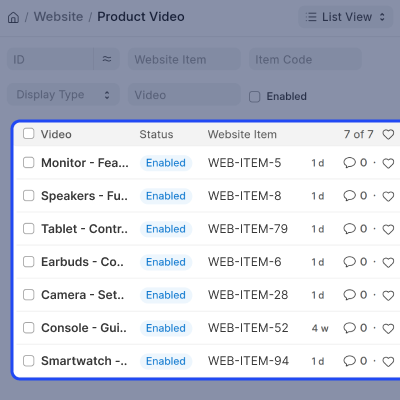
OERPNext Website Product Multi Videos allows several videos to be linked with one Website Item. Each video remains an individual product-level entry.
Admins can update one video without affecting the others. They can enable, disable, edit, or remove individual entries whenever required.
- Link several videos with one ERPNext Website Item.
- Manage the status of each product video separately.
- Edit individual video assignments when details change.
- Remove video entries that are no longer needed.
- Handle all linked videos from the related Website Item.
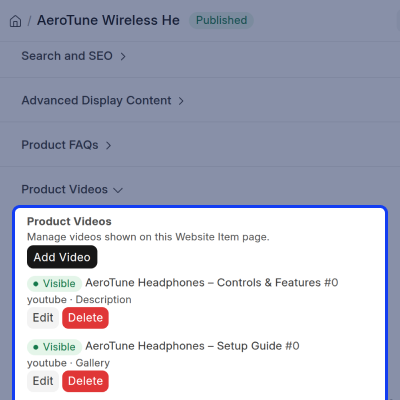
Link Existing or New Product Videos
ERPNext admins can choose a saved Video record while adding content to a Website Item. New video content can also be created during the same process.
This gives admins the option to reuse available records or add a new provider URL when suitable video content is not already stored.
- Choose an existing Video from ERPNext records.
- Add a new Video during product assignment.
- Enter a supported URL for new video content.
- Connect the selected Video with a Website Item.
- Check video information before making it active.
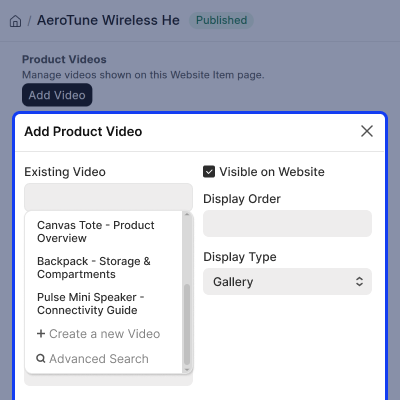
Control Product Video Placement
Each assigned video has its own Display Type in ERPNext. Admins can choose Gallery, Description, or Both for every video entry.
This makes it possible to keep short videos near product images while placing longer demonstrations inside the description section.
- Place videos inside the main product gallery.
- Show detailed videos in the description section.
- Select Both to use the two display areas.
- Choose a separate location for every video.
- Update placement when product content changes.
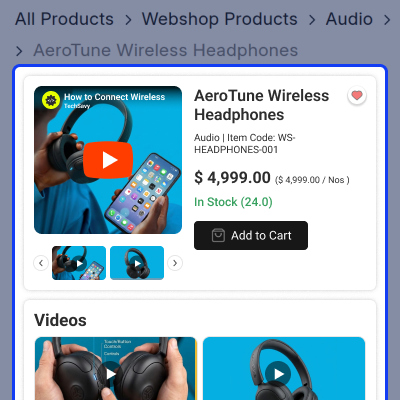
Set Video Order and Visibility
ERPNext admins can use Display Order to control the sequence of product videos. They can also manage the active state of every video separately.
A disabled entry remains connected with the product. It can be activated again later without creating a fresh video assignment.
- Give every product video a Display Order value.
- Arrange several videos in the preferred sequence.
- Keep selected videos active on the website.
- Disable videos without removing their assignments.
- Use a different sequence for each product.
Add Website Captions and Thumbnails
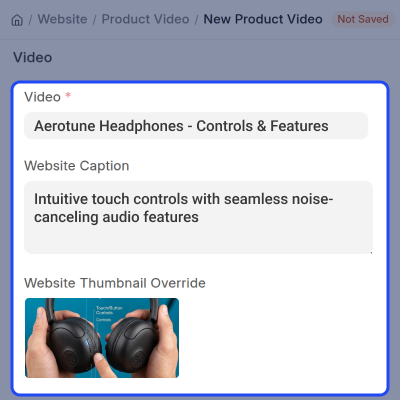
ERPNext admins can assign a separate website caption and thumbnail to each product video. These details control its presentation on the website.
The original linked Video record stays unchanged. This allows the same video to use presentation details suited to a specific product.
- Add a separate website caption to each video.
- Keep the source ERPNext Video record unchanged.
- Apply a custom thumbnail to the product entry.
- Use source details when no override is provided.
- Control presentation for each video independently.
Configure Product Video Settings and Playback
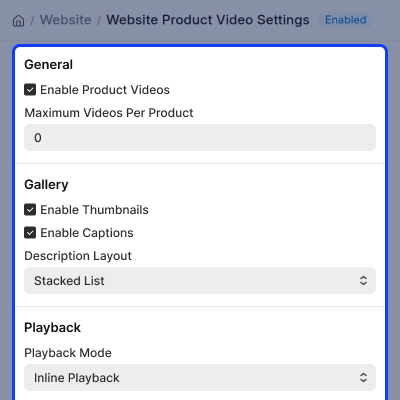
ERPNext Website Product Multi Videos includes common controls for website video behavior. Admins can configure these options from the module settings.
The available controls cover video limits, layouts, captions, thumbnails, playback, autoplay, lazy loading, and supported video providers.
- Turn ERPNext product video support on or off.
- Define the active video limit for each product.
- Choose stacked or carousel description layouts.
- Select Inline or Popup playback with autoplay rules.
- Manage captions, thumbnails, and lazy loading.
- Permit or restrict YouTube and Vimeo providers.
Support
For any query or issue, please create a support ticket here CREATE A TICKET HERE
You may also check our other top-quality ErpNext Modules.
Specifications
FAQs
Specification
Detailed technical features and requirements to help you understand the module’s capabilities and ensure smooth integration with your system.
Cloud Hosting
Detailed technical features and requirements to help you understand the module’s capabilities and ensure smooth integration with your system.
Move to Cloud Today
We’re partnered with top-tier, trusted providers!



Default Configuration Details of Server
RAM 1 Core
Processor 30 GB
Hard Disk
Database
Want to know more how exactly we are going to power up your eCommerce Website with Cloud to fasten up your store
* Server Configuration may vary as per application requirements.
