- Description
- Reviews
- FAQ
- Customers ()
- Specifications
- Cloud Hosting
- Changelog
ERPNext Frequently Bought Together Products adds a frequently bought together block to the Webshop product page. It shows the main item next to the add-ons that people often buy with it.
The store team picks the add-ons for each Website Item by hand. A camera can list a bag, a pair of headphones and a phone, in the exact order the team wants on the product page.
Each row on the Website Item carries a quantity. When a plate set sells in fours, the row says four, and that is what lands in the cart when the shopper keeps it.
On the product page, every item shows its picture, quantity and price, with a live total for the set. A shopper can untick any add-on, and the total updates before anything goes to the cart.
One click on Add Selected to Cart puts the main item and each ticked add-on in the Webshop cart. Before it does, the app checks that each item is published and, if stock is tracked, in stock.
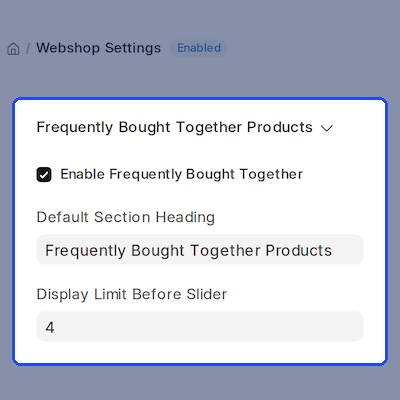
Store-wide control sits in Webshop Settings, where the admin turns the frequently bought together block on or off and sets the default heading and the display limit before the slider starts.
The app needs the Webshop app on ERPNext. Stores that want a richer product page can add ERPNext Website Product Multi Videos and ERPNext Website Product FAQ next to the frequently bought together block.
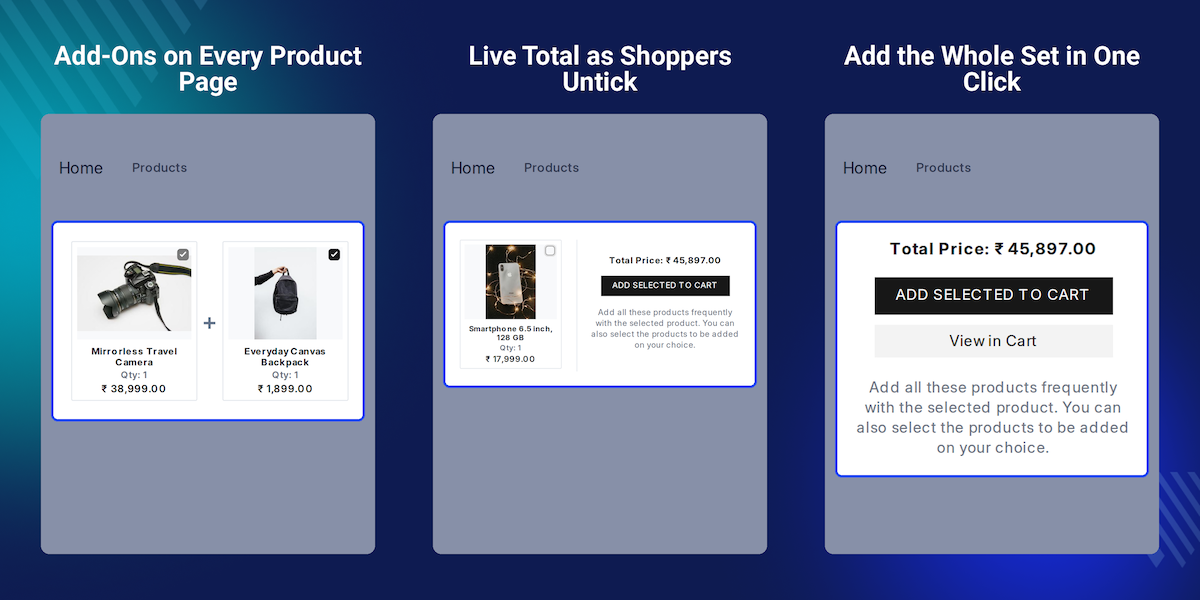
Highlighted Features of ERPNext Frequently Bought Together Products
Hand-Picked Add-Ons
The store team chooses each add-on on the Website Item, so ERPNext Frequently Bought Together Products shows only items that truly belong together.
Set Order on the Page
Add-ons appear on the product page in the same order as the rows in the Products table.
Quantity per Add-On
Each row has its own quantity, and the cart receives exactly that number.
Live Total Price
The block adds up the main item and every ticked add-on, and the total changes as a shopper ticks or unticks.
One-Click Add to Cart
Add Selected to Cart puts the whole chosen set in the Webshop cart, then shows a View in Cart button.
Store Default and Page Heading
Webshop Settings holds the default heading, and any Website Item can replace it with its own.
Slider for Long Lists
When the add-ons pass the display limit, the block turns into a slider with dots so the page stays tidy.
Per-Product Switch
An admin can hide the block on one product page and keep its rows for later.
Why Do We Need ERPNext Frequently Bought Together Products?
A shopper buys a camera on the Webshop and leaves. A week later they come back for a bag and a spare charger. Each trip to the product page is a fresh search, and some never come back.
The default Webshop product page shows one item and its own Add to Cart button. There is no place on the Website Item to say which items belong with it, or how many of each a buyer needs. So the store team adds a link by hand in the Website Item text, or hopes the shopper finds the add-on. Either way the shopper builds the set one item at a time and adds each to the cart alone.
ERPNext Frequently Bought Together Products puts the full set on the product page. The shopper sees the add-ons, the quantities and the total, and sends the whole set to the cart in one step.
The store gains a larger order from the same visit. Because the team picks each frequently bought together row on the Website Item, every suggestion makes sense to the person reading it.
Store teams running an ERPNext Webshop see it often: the add-on a shopper forgets is the one they need the same day, like a case for a new phone on the product page.
Use Cases
-
Camera Kit for Travel
An electronics store bundles a bag, headphones, and a phone with a travel camera, letting buyers customize the kit before checkout.
-
Table Set Sold in Fours
A homeware shop sells a coffee mug with two cups and four plates. Each row has its own quantity, so the cart gets the right count without the shopper typing it.
-
Seasonal Add-Ons Paused
A gift shop hides the block on one product after a promotion ends. The rows stay saved, so the team turns it back on next season in one click.
-
Large Accessory Range
A phone store links eight accessories to one model. The block turns into a slider past the display limit, so the product page stays short.
Store-Wide Control from Webshop Settings
ERPNext Frequently Bought Together Products adds a Frequently Bought Together Products section to Webshop Settings. The admin ticks Enable Frequently Bought Together to show the block on every product page.
This part of Webshop Settings also holds the Default Section Heading and the Display Limit Before Slider. The app fills these on install, so every product page shows a clear heading and a limit of four from day one.
- Enable Frequently Bought Together turns the block on or off store-wide
- Default Section Heading sets the title on every product page
- Display Limit Before Slider sets when the slider starts
- The app sets the defaults on install, with a limit of four
- Saving the settings refreshes the block on the Webshop
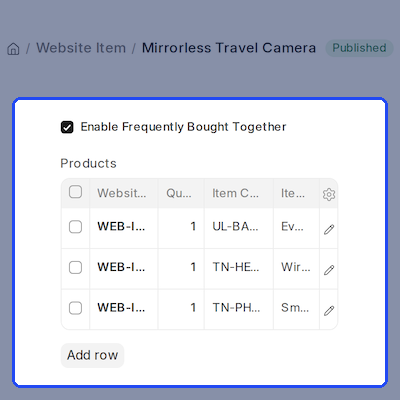
Add-On Products on Each Website Item
Each Website Item gets a Frequently Bought Together Products section with a Products table. The store team adds one row per add-on and picks a published Website Item in each row.
ERPNext Frequently Bought Together Products fills in the Item Code, Item Name and Description from the chosen Website Item. The row order is the order the shopper sees on the product page.
Each row has a Quantity that defaults to one and cannot be negative. That quantity shows under the add-on on the product page and is the amount that goes to the cart.
- One Products table row per add-on on the Website Item
- Item Code, Item Name and Description fill in on their own
- Row order sets the order on the product page
- Quantity per row, one by default, never below zero
- Only published add-ons appear on the Webshop
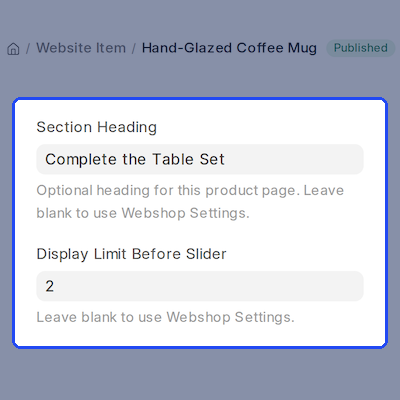
Page Heading, Display Limit and On/Off per Product
A Website Item can override the store defaults. Its Section Heading replaces the default title on that product page only, and a blank field falls back to Webshop Settings.
Its Display Limit Before Slider does the same for the slider. The Enable Frequently Bought Together tick hides the block on that page, and ERPNext Frequently Bought Together Products keeps the rows saved.
- Section Heading replaces the store title on one product page
- A blank heading uses the Webshop Settings default
- Display Limit Before Slider can differ per Website Item
- Untick Enable Frequently Bought Together to hide one block
- Rows stay saved while the block is hidden
Product Page Block with a Live Total
ERPNext Frequently Bought Together Products shows the main item first, then each add-on joined by a plus sign. Every card has a picture, a title, the quantity and the price on the product page.
Each frequently bought together add-on has a tick box, ticked by default. The main item stays ticked. As a shopper changes the ticks, the Total Price updates on the spot, before anything goes to the cart.
Prices follow the Webshop price rules. When Webshop Settings hides prices from guests, a guest sees the frequently bought together items without prices or a total.
- Main item plus each add-on, joined by plus signs
- Picture, title, quantity and price on every card
- Add-on titles link to their own product page
- Total Price updates as ticks change
- Prices follow the Webshop show and hide rules
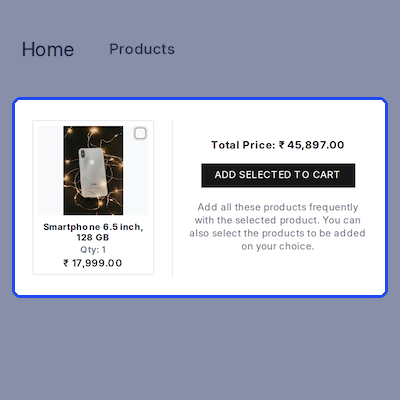
Add Selected to Cart in One Click
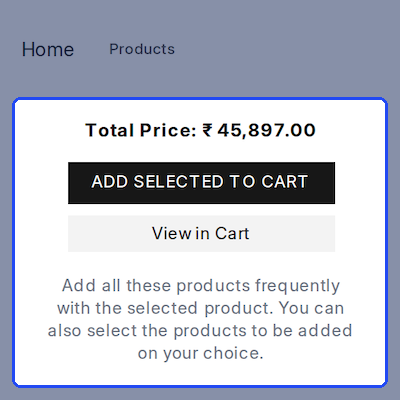
The Add Selected to Cart button sends the main item and each ticked add-on to the Webshop cart, each at its row quantity. A message confirms it and a View in Cart button appears.
When checkout is off in Webshop Settings, ERPNext Frequently Bought Together Products labels the buttons Add Selected to Quote and View in Quote, so the cart works as a quote request.
- One click adds the main item and every ticked add-on
- Each add-on goes to the cart at its row quantity
- A confirmation message and View in Cart button appear
- The cart count in the header updates right away
- Buttons read Add Selected to Quote when checkout is off
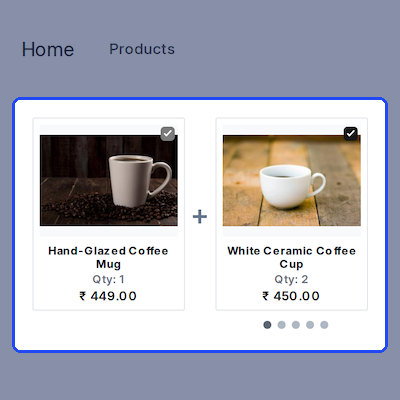
Slider for Larger Add-On Sets
When a Website Item has more add-ons than its display limit, ERPNext Frequently Bought Together Products shows them in a slider. Dots under the row track where the shopper is.
This keeps a long accessory range from stretching the product page. A shopper scrolls sideways through the frequently bought together items, and the total still counts every ticked one.
- Slider starts once add-ons pass the display limit
- Dots show the shopper's place in the row
- Limit comes from the Website Item or Webshop Settings
- Total Price still counts every ticked add-on
- Short lists stay as a plain row
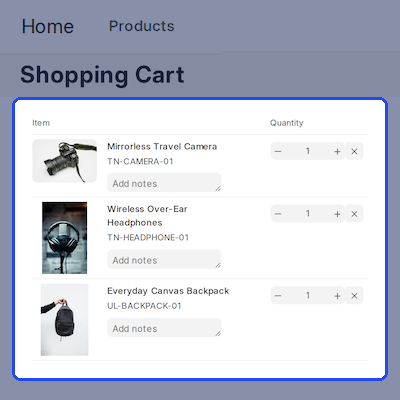
Checks Before Items Reach the Cart
ERPNext Frequently Bought Together Products checks each item before it adds anything to the cart. Every item must exist and be published on the Webshop, and the cart must be enabled.
Only add-ons set up on that Website Item can go to the cart. When stock is tracked, an item out of stock stops the add, and a message names how many are in stock if the quantity is too high.
- The Webshop cart must be enabled
- Every item must exist and be published
- Only add-ons listed on that Website Item are accepted
- Out-of-stock items stop the add with a clear message
- Stock checks follow the Webshop Settings stock rule
Support
For any query or issue, please create a support ticket here: CREATE A TICKET HERE
You may also check our other top-quality ErpNext Modules
Specifications
FAQ
Specification
Detailed technical features and requirements to help you understand the module’s capabilities and ensure smooth integration with your system.
Cloud Hosting
Detailed technical features and requirements to help you understand the module’s capabilities and ensure smooth integration with your system.
Move to Cloud Today
We’re partnered with top-tier, trusted providers!



Default Configuration Details of Server
RAM 1 Core
Processor 30 GB
Hard Disk
Database
Want to know more how exactly we are going to power up your eCommerce Website with Cloud to fasten up your store
* Server Configuration may vary as per application requirements.
