- Description
- Reviews
- FAQ
- Customers ()
- Specifications
- Cloud Hosting
- Changelog
ERPNext Website Advance Product Sorting gives store admins full control over the product sort order on each Webshop category page. Admins arrange products visually instead of editing ranking numbers one Website Item at a time.
Each sort order lives in a Webshop Product Sorting record linked to one Item Group. The record opens from the Webshop workspace sidebar, right below Website Item, so the category page setup sits beside the products it orders.
The Sync Products button loads every published Website Item in the chosen Item Group into the Products table. Items tagged to the group through Website Item Groups, and child groups set to include descendants, come in too.
Admins drag rows into the required product sorting and click Save. The category page then lists products in that exact sort order, and the listing cache is cleared so shoppers see the change on their next visit.
Products not yet placed in the table appear after the arranged ones on the category page, ordered by their Website Item ranking. Running Sync Products again adds new items at the end and drops items that are no longer published.
Saving also rewrites each Website Item ranking to follow the saved sort order. Clearing the Enabled box returns that category page to ranking-based product sorting without deleting the arrangement in the record.
Stores that use ERPNext Website Advance Product Sorting to feature key items can enrich those products with ERPNext Website Product Multi Videos, showing several videos for the products that now lead each category page.
Shoppers who open a product from a sorted category page can get quick answers through ERPNext Website Product FAQ, which shows common questions for the Website Item they are viewing.
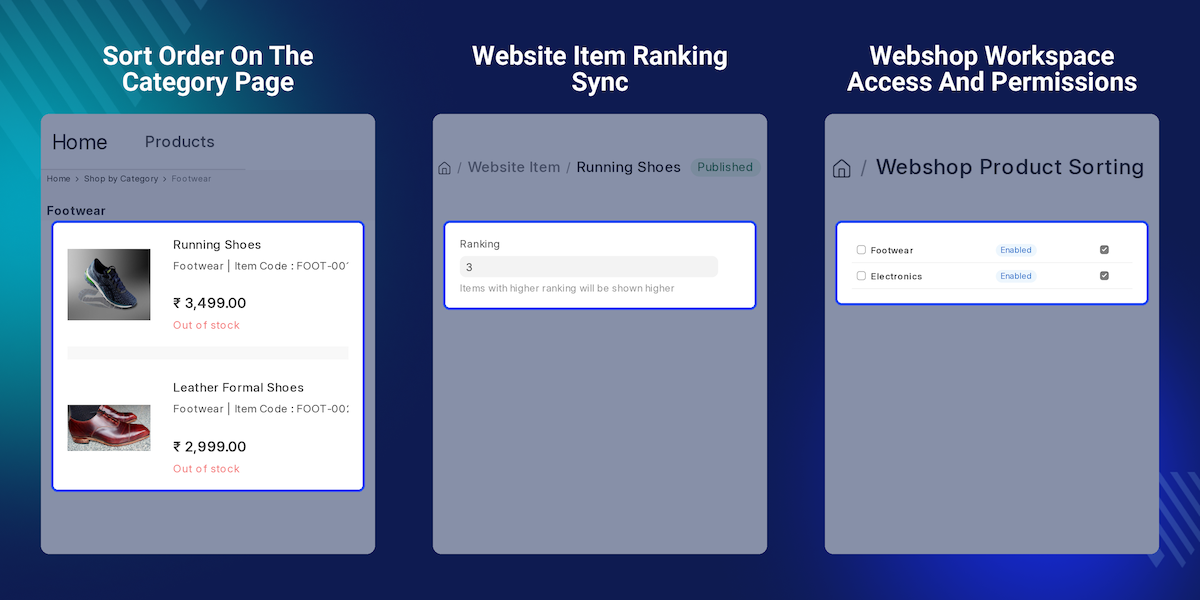
Highlighted Features of ERPNext Website Advance Product Sorting
Category-Wise Sort Order
Keep one sort order per Item Group, so every category page shows products in the order the store wants.
One-Click Product Sync
Sync Products loads every published Website Item of the category, including child groups that include descendants.
Drag And Drop Arrangement
ERPNext Website Advance Product Sorting lets admins move rows in the Products table instead of typing ranking values.
Instant Website Update
Saving clears the product listing cache, so the category page shows the new order on the next visit.
Ranking Kept In Step
Each Website Item ranking is rewritten to follow the saved order, with the top row ranked highest.
Per-Category Switch
The Enabled box turns custom product sorting on or off for one category without losing the arrangement.
Duplicate Row Check
The record will not save when the same Website Item appears twice in the Products table.
Role-Based Access
Only the System Manager and Website Manager roles can create, edit or delete product sorting records.
Why Do We Need ERPNext Website Advance Product Sorting?
In a standard Webshop, the category page lists products by the ranking value on each Website Item. To move one product to the top, an admin opens several items and edits numbers until the sort order looks right.
That ranking is a single number on each Website Item, with no view of the whole category. Admins cannot see the full product sorting of a category page before shoppers do, so mistakes show up live.
The effort grows with the catalogue. A store with dozens of products per Item Group spends real time on every seasonal change, and one wrong number can push a best seller far down the category page.
ERPNext Website Advance Product Sorting replaces that guesswork with one table per Item Group. Admins sync the products, drag them into place and save, and the category page follows that sort order straight away.
In practice, the usual slip is forgetting newly published products. ERPNext Website Advance Product Sorting still lists them after the arranged items, and one Sync Products run adds each new Website Item to the table.
ERPNext Website Advance Product Sorting Use Cases
-
Seasonal Category Picks
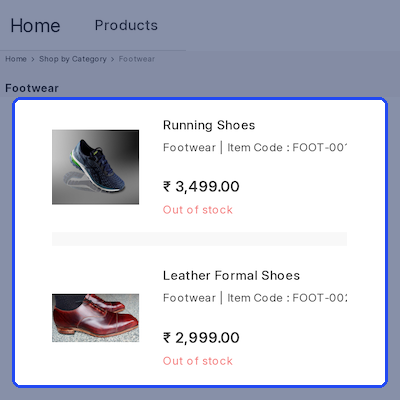
A footwear store moves running shoes to the top of its Footwear category page before marathon season, then puts formal shoes first for the wedding months.
-
New Arrival Launch
An electronics shop publishes a new headphone model, runs Sync Products and drags it to the first row so shoppers see the launch before older stock.
-
Clearance Push
A home goods retailer places overstocked cookware sets at the top of the Home & Kitchen category to sell through them before the new range arrives.
-
Merchandiser Handover
A merchandiser with the Website Manager role uses ERPNext Website Advance Product Sorting to rearrange every category page without needing System Manager access.
Category-Wise Product Sort Order
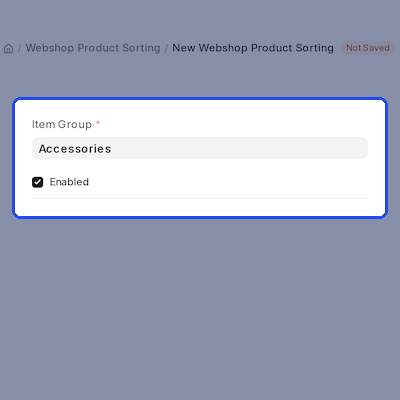
ERPNext Website Advance Product Sorting adds a Webshop Product Sorting record for each Item Group. The record is named after its Item Group, so every category page has exactly one sort order to manage.
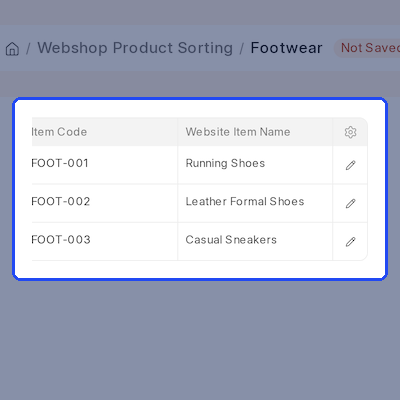
Admins pick the Item Group, keep the Enabled box ticked and save. The Product Order section then holds the Products table, which lists each Website Item with its item code and name.
- One Webshop Product Sorting record per Item Group.
- The Item Group field is required and unique.
- Records are named after their Item Group for easy search.
- The Enabled box is ticked by default on new records.
- A hint after choosing the group reminds admins to save and sync.
Sync Published Products Into The List
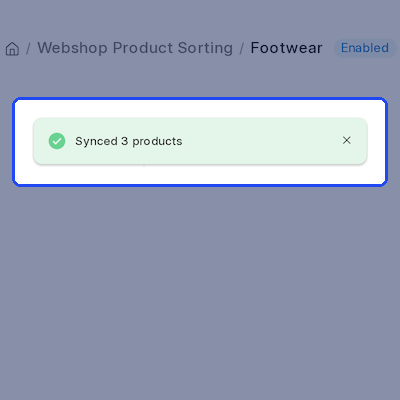
With ERPNext Website Advance Product Sorting, admins do not add products one row at a time. The Sync Products button collects every published Website Item of the Item Group and fills the Products table.
Sync keeps the rows already arranged in their current sort order and adds new products at the end. Any Website Item that is no longer published leaves the list, and a message confirms how many products were synced.
- Collects only published Website Items of the Item Group.
- Includes items linked through Website Item Groups.
- Covers child groups when the Item Group includes descendants.
- Keeps existing rows in place and appends new products.
- Saves a new record automatically before the first sync.
Drag And Drop Product Arrangement
ERPNext Website Advance Product Sorting turns the product sorting task into a drag and drop list. Admins move a row up or down the Products table and click Save to store the new sort order.
Rows can also be added by hand with Add row. The Website Item picker shows only items from the record's Item Group, so a product from another category cannot slip into the list.
- Reorder products by dragging rows in the Products table.
- The row number sets the position on the category page.
- The Website Item picker is limited to the chosen Item Group.
- A repeated Website Item stops the record from saving.
- Item code and name fill in after each sync for clarity.
Sort Order On The Category Page
ERPNext Website Advance Product Sorting applies the saved sort order wherever Webshop lists products for one Item Group. That covers the category page itself and a product filter set to a single group.
Products that are not in the table appear after the arranged ones, ordered by their Website Item ranking. The product listing cache is cleared on every save, so the category page updates straight away.
- The saved order drives the Item Group category page.
- A single Item Group filter on product listings uses it too.
- Unlisted products follow the arranged ones by ranking.
- Listing caches clear when a sorting record is saved or deleted.
- Caches also clear when a Website Item is updated or deleted.
Website Item Ranking Sync
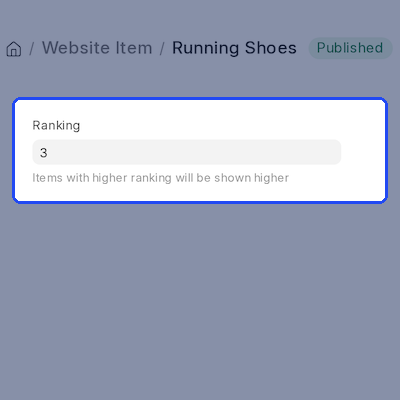
Each time an enabled record is saved, ERPNext Website Advance Product Sorting rewrites the ranking of every listed Website Item. The top row gets the highest ranking and the last row gets a ranking of one.
This keeps the standard ranking in step with the visual sort order. When an admin clears the Enabled box, the category page falls back to ranking-based product sorting and the arrangement stays in the record.
- Rankings are written on every save of an enabled record.
- The first row receives the highest ranking value.
- Ranking updates do not change the Website Item modified date.
- Disabled records leave category pages on ranking order.
- The arranged list is kept for when sorting is enabled again.
Webshop Workspace Access And Permissions
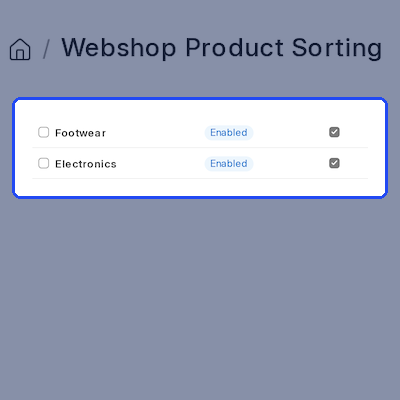
ERPNext Website Advance Product Sorting places a Webshop Product Sorting link in the Webshop workspace sidebar, right after Website Item. Admins reach every category page sort order from the area they already use.
Access follows standard ERPNext roles. System Manager and Website Manager users can create, edit, delete and export product sorting records, while other users do not see the Item Group sort order screens.
- A sidebar link to Webshop Product Sorting in the Webshop workspace.
- The link sits directly after Website Item in the sidebar.
- Installation adds the link to the Webshop workspace as well.
- Full access for the System Manager and Website Manager roles.
- Requires the Webshop app on the same ERPNext site.
Complete ERPNext Website Advance Product Sorting Feature List
Category Sort Order Setup
- Set a separate product sort order for every Webshop Item Group
- Load all published Website Items of a category with Sync Products
- Drag and drop rows to arrange products on the category page
Category Page Display
- Show the saved sort order on the website as soon as you save
- Place new or unsorted products after the arranged ones
- Turn sorting on or off for each category with the Enabled box
Ranking & Administration
- Update each Website Item ranking to match the saved sort order
- Open ERPNext Website Advance Product Sorting from the Webshop sidebar
Support
For any query or issue, please create a support ticket here: CREATE A TICKET HERE
You may also check our other top-quality ErpNext Modules
Specifications
Frequently Asked Questions
Specification
Detailed technical features and requirements to help you understand the module’s capabilities and ensure smooth integration with your system.
Cloud Hosting
Detailed technical features and requirements to help you understand the module’s capabilities and ensure smooth integration with your system.
Move to Cloud Today
We’re partnered with top-tier, trusted providers!



Default Configuration Details of Server
RAM 1 Core
Processor 30 GB
Hard Disk
Database
Want to know more how exactly we are going to power up your eCommerce Website with Cloud to fasten up your store
* Server Configuration may vary as per application requirements.
