- Description
- Reviews
- FAQ
- Customers ()
- Specifications
- Cloud Hosting
- Changelog
ERPNext Website Auction adds timed product auctions to an ERPNext Webshop store. Instead of setting a fixed price and hoping it is right, the store lets shoppers bid and the market sets the final price.
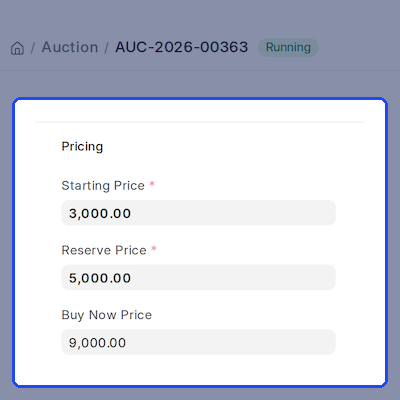
The store team creates an Auction in Desk for any published Website Item, then sets a start time, an end time, a starting price, an optional reserve price and an optional Buy Now price for the online auction.
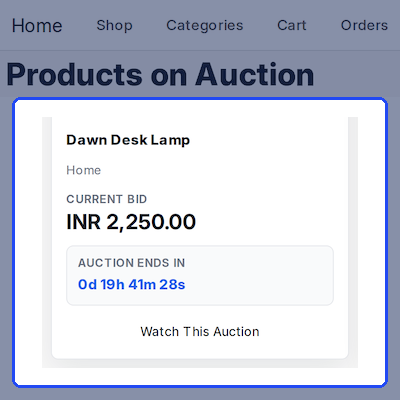
Shoppers open the Products on Auction page from the Webshop menu. They filter by category, sort by ending soonest, lowest bid or newest, and follow a live countdown on every online auction card.
On the auction page a signed-in shopper places a simple bid or sets an auto bid with a maximum amount. The page shows the next valid bid, recent bids and a Buy Now button, and updates live as other bids arrive.
When the auction ends, ERPNext Website Auction picks the highest bidder as winner if the reserve price is met. The winner adds the item to the Webshop cart at the winning bid and checks out through the normal order flow.
Admins manage everything from the Auction workspace in Desk. It holds the Auction Dashboard, Auction Settings, bid and subscriber records, and bid increment rules for every online auction in the Webshop.
Shoppers who want an item before an online auction starts can be offered it early with ERPNext Website Pre Order, which works alongside ERPNext Website Auction on the same Webshop store.
Bidders often ask about condition or delivery before they join an online auction. ERPNext Website Product FAQ answers those questions on the Webshop product page, so shoppers bid with confidence.
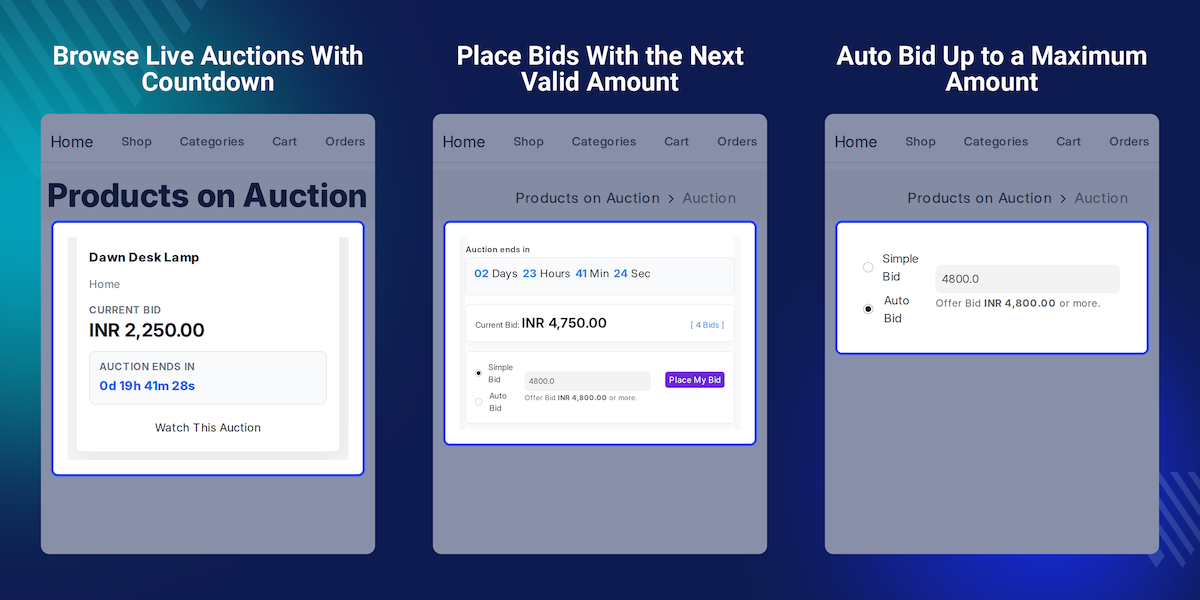
Highlighted Features of ERPNext Website Auction
Timed Product Auctions
ERPNext Website Auction runs each auction between a set start and end time, and moves it through its stages on its own.
Live Bidding Page
Current bid, countdown and recent bids refresh in real time, without the shopper reloading the page.
Auto Bid With Maximum Amount
Shoppers set a maximum amount once and the system bids for them in the smallest valid steps.
Reserve Price Protection
If bidding ends below the reserve price, the auction is cancelled and no sale is made.
Buy Now With Checkout Timer
A shopper can end the wait and buy at a fixed price, with the item held for a set number of minutes.
Anti-Sniping Time Extension
A bid placed close to the end pushes the end time forward, so every bidder gets a fair chance to respond.
Watch-List and Email Alerts
Shoppers watch auctions and get emails when an auction starts, when they are outbid and when it is closing soon.
Auction Dashboard
Admins see live, upcoming, draft, completed and cancelled auctions, bid trends and top engagement in one view.
Why Do We Need ERPNext Website Auction?
Some products have no clear price. Rare stock, used equipment and limited items sell for less than they are worth at a fixed Webshop price, and staff end up collecting offers by email instead of running an online auction.
The standard ERPNext Webshop sells at a list price only. It has no bidding, no reserve price, no countdown and no way to pick a winner, so a store cannot run an online auction without outside tools.
Manual auctions also break down fast. Staff must track who bid what, tell outbid shoppers, stop late bids and hold a Buy Now buyer, and one missed step on a reserve price means a disputed sale.
ERPNext Website Auction closes that gap inside ERPNext. Bids, auto bid, Buy Now, reserve price checks, winner selection and checkout at the winning price all run on the same Webshop store.
In practice, most disputes come from the last minute of an auction and from winners who never pay. ERPNext Website Auction extends the end time on late bids and holds Buy Now items only for a set checkout time.
ERPNext Website Auction Use Cases
-
Selling Used Machinery
A dealer lists a used generator with a reserve price. Buyers bid for a week, and if bids stay below the reserve, the dealer keeps it.
-
Limited Edition Drops
A brand releases fifty signed prints as separate auctions. Collectors set auto bids overnight, and each winner pays at checkout in the Webshop cart.
-
Clearing Returned Stock
An electronics store auctions open-box laptops with a low starting price and a Buy Now price, so a keen buyer can skip the wait.
-
Charity Fundraiser
A school runs a weekend auction of donated items. Parents watch items, get outbid emails and raise their bids before the countdown ends.
Create and Schedule Auctions in ERPNext Website Auction
Admins create an online auction in Desk and pick a published Website Item. The item name, item group and description fill in on their own, and the auction gets its times, starting price and reserve price.
An online auction stays in Draft until it is published. Once published it is Confirmed, then turns Running at the start time, so the Webshop shows it as upcoming before bidding opens.
- Only published Website Items can be selected for an auction.
- Set a starting price, reserve price and Buy Now price per auction.
- Status moves through Draft, Confirmed, Running, Extended and Completed.
- End time must be after start time, and prices are checked on save.
- A View on Website button opens the auction page from Desk.
- Complete or Close buttons end a running auction before its end time.
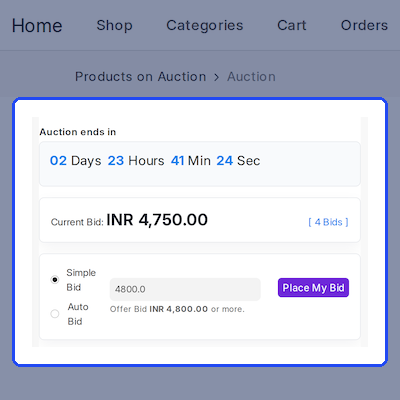
Live Bidding on the Webshop
Each online auction in ERPNext Website Auction has its own page with the item image, status, countdown, current bid and the next valid bid amount. Shoppers must be signed in to place a bid.
Bids update live for everyone watching the page. The highest bidder cannot bid against themselves, and a bid or auto bid below the next valid amount is refused, so the Webshop keeps every bid clean.
- Offer Bid shows the minimum amount the shopper must enter.
- Recent Bids lists bidder names, amounts and times on the page.
- Auction Details shows starting price, reserve status and increment.
- My Activity shows the shopper's highest bid, last bid and status.
- Countdown labels change for upcoming, running and extended auctions.
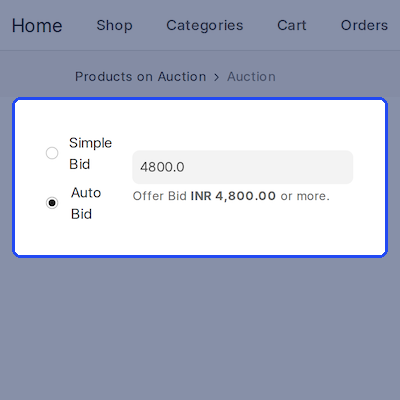
Auto Bid With a Maximum Amount
A shopper who cannot watch the countdown sets an auto bid with a maximum amount. ERPNext Website Auction places the lowest valid bid for them and raises it each time another bidder goes higher.
When two shoppers both use auto bid, the higher maximum wins and an equal maximum goes to the earlier auto bid. Admins can switch auto bid off for any single online auction.
- Auto bid maximum must be at least the next valid bid.
- Bids rise only by the increment step, never straight to the maximum.
- A shopper's own auto bids are labelled for them in Recent Bids.
- Allow Auto Bid is on by default and set per auction.
- Auto bid can only be set while an auction is running.
Bid Increment Rules
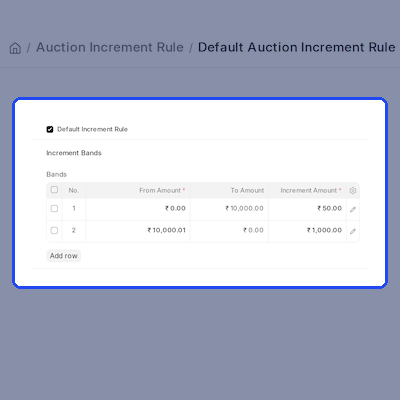
Bid steps in ERPNext Website Auction come from an Auction Increment Rule. Each rule holds price bands, and each band sets how much the next bid or auto bid must rise within that price range.
A default rule is created on install, with a step of 500 up to 10,000 and 1,000 above it. Any online auction without its own rule uses the default, so every Webshop bid step is predictable.
- Add bands with a From Amount, To Amount and Increment Amount.
- Bands cannot overlap and the increment must be greater than zero.
- Only one rule can be marked as the Default Increment Rule.
- Pick a different increment rule on any single auction.
- The next valid bid is the current bid plus the band increment.
Reserve Price, Winner and Checkout
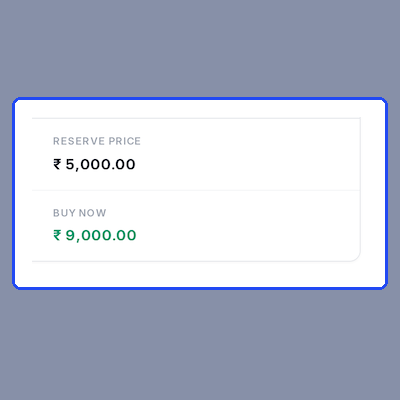
The reserve price is the lowest amount the seller will accept. ERPNext Website Auction marks Reserve Met once a bid reaches it, and shoppers see a Met badge in the Auction Details view.
When time runs out, the highest bidder wins if the reserve price is met. If it is not, the online auction is cancelled with no winner, and bidders and watchers get a Reserve Not Met email.
The winner then sees Add Winning Item to Cart. The item enters the Webshop cart at the winning bid with quantity fixed at one, and each online auction can be ordered only once.
- Reserve price cannot be lower than the starting price.
- Auctions without a reserve price complete with the top bid.
- Winner names can be shown publicly or kept hidden from shoppers.
- Only the winning bidder can check out a completed auction.
- Pricing rules and discounts are cleared on the auction cart line.
- The Sales Order is linked back to the Auction record.
Anti-Sniping Time Extension
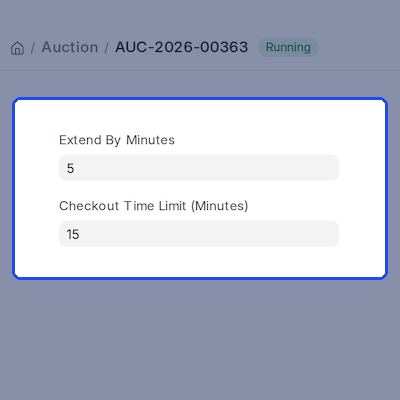
Last-second bids leave other bidders no time to respond. ERPNext Website Auction adds Extend By Minutes to each online auction, so a late bid pushes the end time forward by that many minutes.
A bid counts as late when it lands inside the Closing Soon Threshold set in Auction Settings. The online auction then shows as Extended with a new countdown on the Webshop page.
- Extend By Minutes is set on each auction record.
- Closing Soon Threshold Minutes defaults to 60 in Auction Settings.
- Every late bid can extend the end time again.
- Extended status and countdown update live for all shoppers.
- Leave Extend By Minutes at zero to keep a fixed end time.
Buy Now With a Checkout Time Limit
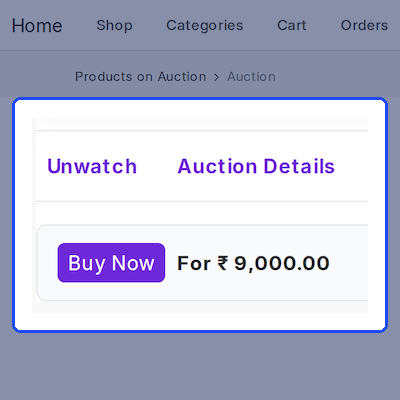
A Buy Now price lets a shopper end the wait and buy at a fixed amount. ERPNext Website Auction adds the item to the Webshop cart at that price and holds the auction as Pending Checkout.
If the order is not placed within the Checkout Time Limit, the online auction resumes and earlier bids are restored. When the Webshop Sales Order is submitted, the auction completes and links that order.
- Buy Now price must be higher than the reserve or starting price.
- Checkout Time Limit defaults to 15 minutes per auction.
- Buy Now turns off once the current bid reaches the Buy Now price.
- The auction end time moves forward by the checkout time limit.
- A countdown shows shoppers when the checkout hold expires.
Watch-List and Email Notifications
Shoppers click Watch This Auction on the listing page or Subscribe Watch-list on the auction page. ERPNext Website Auction then keeps them informed by email as the online auction moves on.
Six Email Templates are created on install. Admins set notification defaults in Auction Settings and can turn off any alert, such as Buy Now or reserve price results, for one online auction.
- Auction Started emails go to watchers and past bidders on the item.
- Auction Outbid emails go to the shopper who lost the top spot.
- Auction Closing Soon emails go to watchers and bidders.
- Winner, Non Winner and Reserve Not Met emails close each auction.
- Email subjects and messages can be edited in Email Template.
My Auction Page for Shoppers
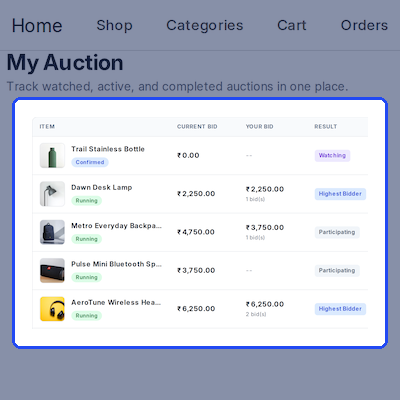
Signed-in shoppers open My Auction from the website menu. ERPNext Website Auction lists every online auction they bid on, watched, won or reserved for Buy Now checkout, in one table.
Summary cards count total, active, won and watching auctions. Each row shows the current bid, the shopper's own bid and a result such as Won or Outbid, with a link back to the Webshop online auction page.
- Results include Won, Highest Bidder, Outbid, Watching and Upcoming.
- Checkout Pending shows while a Buy Now order is waiting.
- Row details show start time, last bid time, sold bid and total bids.
- Winner name and end time appear in the Ends / Winner column.
- Guests are sent to the login page before they can view it.
Auction Dashboard and Auction Settings
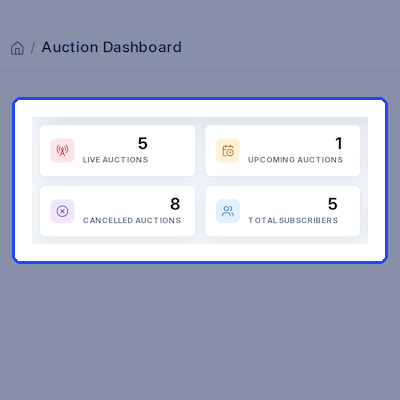
The Auction Dashboard in ERPNext Website Auction counts live, upcoming, draft, completed and cancelled auctions, plus total subscribers and active bidders for each online auction in a chosen date range.
Auction Settings controls how the online auction pages look and behave, from switching auctions on or off to how many bids and completed auctions the Webshop shows.
- Date range of 7, 15 or 30 days, or a custom From and To Date.
- Status chart and engagement trend for bids, subscribers and auctions.
- Top Engagement ranks auctions by bids and subscriptions.
- Set Bid Records Display Limit and Completed Auctions Display Limit.
- Show or hide the bid count and the winner name on the website.
- Dashboard and auction Desk pages open for System and Website Managers.
Support
For any query or issue, please create a support ticket here: CREATE A TICKET HERE
You may also check our other top-quality ErpNext Modules.
Specifications
Frequently Asked Questions
Specification
Detailed technical features and requirements to help you understand the module’s capabilities and ensure smooth integration with your system.
Cloud Hosting
Detailed technical features and requirements to help you understand the module’s capabilities and ensure smooth integration with your system.
Move to Cloud Today
We’re partnered with top-tier, trusted providers!



Default Configuration Details of Server
RAM 1 Core
Processor 30 GB
Hard Disk
Database
Want to know more how exactly we are going to power up your eCommerce Website with Cloud to fasten up your store
* Server Configuration may vary as per application requirements.
