- Description
- Reviews
- FAQ
- Customers ()
- Specifications
- Cloud Hosting
- Changelog
ERPNext Website CyberSource Payment Acquirer adds CyberSource as a card payment gateway for your ERPNext Webshop. Customers pay for their orders on the secure CyberSource hosted checkout page.
Card details are typed on the CyberSource hosted checkout, not on your website. Your site only prepares a signed request, sends the customer to CyberSource, and reads back the signed result. When a customer clicks Pay on an order in the portal, a Select Payment Method popup lists each payment gateway set up for the company. It shows the amount and marks the default card payment option.
Once CyberSource accepts a card payment, the linked Payment Request is marked as paid. Declined, failed and cancelled payments send the customer to the failed page and store the CyberSource reason. Setup happens in CyberSource Settings, found under Accounting in the Payments sidebar. Enter the CyberSource Profile ID, Access Key and Secret Key, then pick the state, endpoint, transaction type and currencies for each card payment.
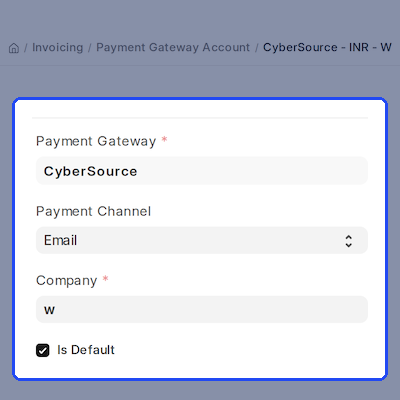
Installing the app creates the CyberSource payment gateway and a matching Mode of Payment for you. It needs ERPNext, Payments and ERPNext Webshop installed, and a site served over HTTPS. ERPNext Website CyberSource Payment Acquirer checks for a valid billing email and address before the hosted checkout opens. Store customers can keep their addresses current with ERPNext Website Customer Address Book.
Stores on ERPNext Webshop that take orders before stock arrives can also look at ERPNext Website Pre Order, next to CyberSource card payment at checkout.
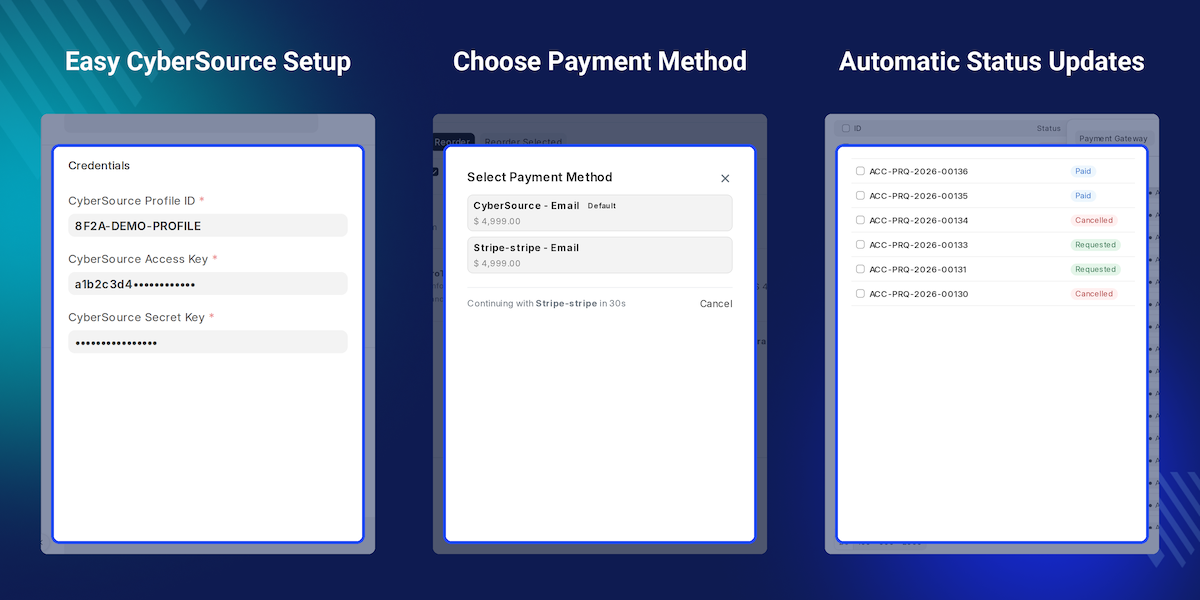
Highlighted Features of ERPNext Website CyberSource Payment Acquirer
Test Mode and Live Endpoints
Run in Test Mode on the sandbox, then go live on the Live or Live India endpoint.
Hosted Card Checkout
ERPNext Website CyberSource Payment Acquirer sends buyers to the CyberSource hosted page, so card data never touches your site.
Payment Method Selector
A popup lists each payment gateway for the company with the amount and a Default badge.
Auto-Select Countdown
The popup picks the default gateway after a set number of seconds, or waits when set to 0.
Signed and Verified Payments
Every request is signed and every CyberSource response is checked before any order status changes.
Automatic Payment Status
Accepted payments mark the Payment Request as paid, and failed ones store the CyberSource reason.
Masked Transaction Logs
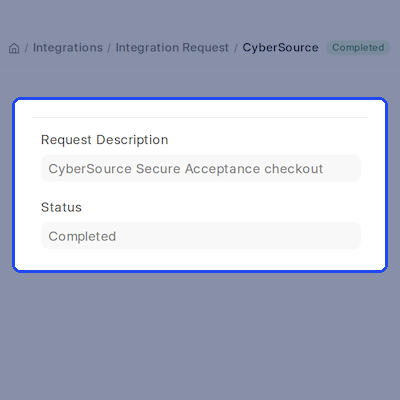
Each payment is kept as an Integration Request, with card numbers, keys and signatures masked in logs.
Why Do We Need ERPNext Website CyberSource Payment Acquirer?
Many stores already hold a CyberSource merchant account. Without a card payment gateway link, staff must send payment links by hand and then match each card payment to a Payment Request.
ERPNext Webshop can create a Payment Request, but it has no CyberSource payment gateway of its own. There is no signed hosted checkout and no way to read the card result back into ERPNext. Manual steps grow with every order. A card payment that was declined, cancelled or held for review is easy to miss, and a Payment Request can stay unpaid in ERPNext Webshop long after the customer paid.
ERPNext Website CyberSource Payment Acquirer closes this gap. It sends customers to the CyberSource hosted checkout and updates the Payment Request as soon as the signed response comes back. In practice, most failed first card payments come from a site on plain HTTP or a missing billing address. The CyberSource payment gateway checks both first and shows the customer a clear message.
Use Cases
Authorize Before Charging
A store that confirms stock before charging sets the transaction type to authorization, so the card is only authorized when the customer checks out.
Card Payments on Webshop Orders
A retailer with a CyberSource merchant account installs ERPNext Website CyberSource Payment Acquirer so portal customers can open an order, click Pay and settle it by card.
Sandbox Testing Before Launch
An implementation team runs Test Mode against the CyberSource test endpoint with test credentials, then switches the state to Enabled on go-live day.
Stores With More Than One Gateway
A company with CyberSource and a bank transfer gateway lets customers choose in the popup, while the countdown moves undecided buyers to the default.
CyberSource Hosted Checkout
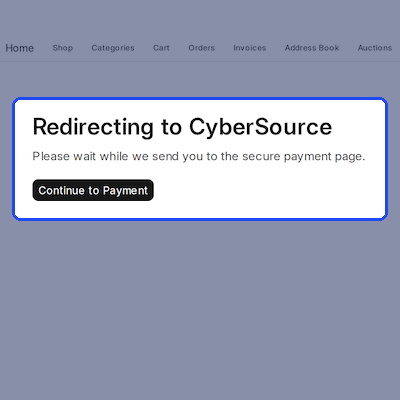
ERPNext Website CyberSource Payment Acquirer sends the customer to the CyberSource hosted checkout page to pay by card. A short Redirecting to CyberSource page posts the signed request and moves on by itself.
Because the card is entered on CyberSource, your ERPNext Webshop never holds card numbers or security codes. The hosted checkout returns the customer to your site once the card payment is done.
Key Features:
- Card details are typed on the CyberSource page only.
- The redirect page submits the payment form once, on its own.
- A Continue to Payment button is shown as a fallback.
- Amounts are rounded to two decimals before they are sent.
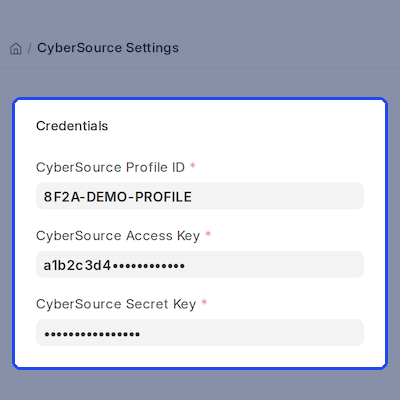
CyberSource Settings and Environments
CyberSource Settings holds all setup for ERPNext Website CyberSource Payment Acquirer. Set the State to Disabled, Enabled or Test Mode, and pick the Test, Live or Live India endpoint.
Test Mode always sends the hosted checkout to the sandbox endpoint, and switching to Enabled moves a Test endpoint to Live. The CyberSource Settings form asks for the Profile ID, Access Key and Secret Key unless the state is Disabled.
Key Features:
- Three states: Disabled, Enabled and Test Mode.
- Test, Live and Live India endpoints, plus a Custom Endpoint URL.
- Secret Key is stored in a password field.
- Found under Accounting in the Payments sidebar.
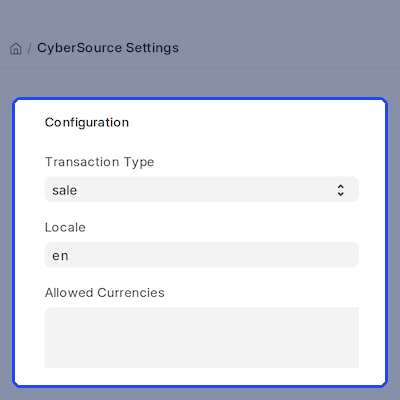
Transaction Type, Locale and Currencies
ERPNext Website CyberSource Payment Acquirer lets you choose how each card payment is taken. Set the transaction type to sale to charge at once, or to authorization to only authorize the card.
Set the checkout locale for the CyberSource hosted checkout page, and list allowed currencies such as USD, INR or AED. A payment in any other currency asks the customer to choose another payment method.
Key Features:
- Sale or authorization transaction type.
- Locale for the hosted checkout, English by default.
- Optional comma-separated currency allow-list.
- Blank currency list lets CyberSource decide.
Payment Method Selector Popup
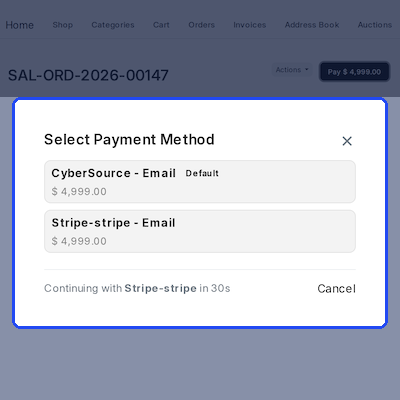
With ERPNext Website CyberSource Payment Acquirer, the Pay button on a portal order opens a Select Payment Method popup. It lists every payment gateway account of the company with a payment account set.
Each option shows the payment gateway name, the channel and the amount due, and the default carries a badge. Gateways in the order currency are listed first, so the right card payment choice sits on top.
Key Features:
- Lists each payment gateway account of the company.
- Shows the amount due and a Default badge.
- Currency-matched gateways appear first.
- Closes with the close button, the backdrop or the Escape key.
- Falls back to the standard pay link when no option applies.
Auto-Select Default Gateway
ERPNext Website CyberSource Payment Acquirer can move a customer on when they do not choose. The popup shows Continuing with the default payment gateway and counts down the seconds.
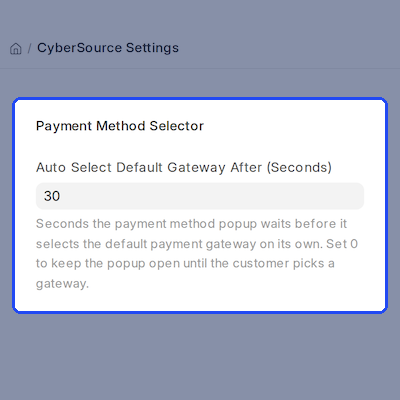
Set the seconds in CyberSource Settings, with 30 as the default, or set 0 to keep the popup open. The countdown stops when the customer picks a payment gateway, clicks Cancel or closes the popup.
Key Features:
- Countdown set in Auto Select Default Gateway After (Seconds).
- 30 seconds by default, 0 turns the timer off.
- Cancel link stops the countdown and keeps the popup open.
- Picks the flagged default, or the first usable gateway.
Signed Requests and Verified Responses
ERPNext Website CyberSource Payment Acquirer signs each checkout request with your Secret Key. It sends the amount, currency, reference and billing details as signed fields to the hosted checkout.
Every response from CyberSource is checked against its signature before it is trusted. Both the customer return and the server notification are verified, so a changed card payment result is rejected.
Key Features:
- Each request is signed with the Secret Key.
- Signature is checked on the return and the notification.
- Billing email, name and address are sent with the request.
- US state names are sent as two-letter codes.
Payment Request Status Updates
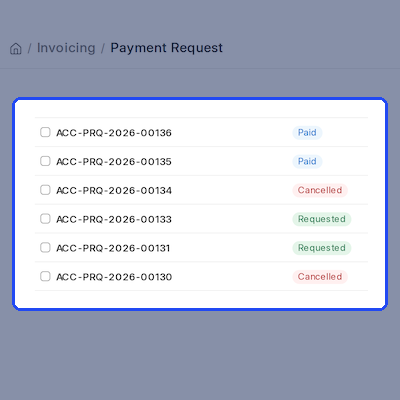
ERPNext Website CyberSource Payment Acquirer maps each CyberSource decision to a status. ACCEPT completes the payment, REVIEW marks it authorized, CANCEL cancels it, and DECLINE, ERROR or REJECT fail it.
A completed card payment marks the Payment Request as paid and sends the customer to the success page. Repeated notifications do not settle an order twice, and failure reasons are saved on the Payment Request.
Key Features:
- Payment Request set to paid on an accepted payment.
- Customers land on the payment success or failed page.
- Reason code, message and invalid fields are saved on failure.
- Repeat notifications never settle an order twice.
Disabled State and Gateway Routing
Set the state to Disabled and ERPNext Website CyberSource Payment Acquirer stays installed but inactive. The CyberSource payment gateway leaves the popup closed, and the portal uses the standard ERPNext pay link.
A Payment Request aimed at CyberSource is moved to another payment gateway account of the company, preferring one in the same currency. While active, a matching payment gateway account is picked when none is given.
Key Features:
- Turn CyberSource off without uninstalling.
- Payment Requests move to another configured gateway.
- Same-currency and default gateways are preferred.
- Currency-matched gateway picked while CyberSource is active.
Support
For any query or issue, please create a support ticket here: CREATE A TICKET HERE
You may also check our other top-quality ErpNext Modules.
Specifications
FAQs
Specification
Detailed technical features and requirements to help you understand the module’s capabilities and ensure smooth integration with your system.
Cloud Hosting
Detailed technical features and requirements to help you understand the module’s capabilities and ensure smooth integration with your system.
Move to Cloud Today
We’re partnered with top-tier, trusted providers!



Default Configuration Details of Server
RAM 1 Core
Processor 30 GB
Hard Disk
Database
Want to know more how exactly we are going to power up your eCommerce Website with Cloud to fasten up your store
* Server Configuration may vary as per application requirements.
