- Description
- Reviews
- FAQ
- Specifications
- Cloud Hosting
- Changelog
ERPNext Website Display Packaging Options adds a pack size choice to the product page of an ERPNext Webshop store. A shopper picks the package they want, and that packaging option goes to the cart with it. Each package is a row on the Website Item. The store team sets the UOM, a shopper facing label, an optional badge, an image and a short note, then marks the one packaging option that should load first.
On the product page every packaging option renders as a card or as a radio list. Picking one updates the price at once, showing the rate for that pack size beside the rate for a single stock UOM. Prices are read from Item Price using the UOM conversion factor already set on the Item. Nothing is priced twice, so a change to the price list reaches every packaging option on the next page load.
Add to cart carries the selection through. The Webshop cart line holds the chosen UOM and its conversion factor, so the quantity, the rate and the stock movement all match the package the shopper picked. Shop and category listings show the default pack size for every product, with its price and badge, so a shopper compares packaging options before opening a single Website Item.
Product pages that need more than a pack size choice can pair ERPNext Website Display Packaging Options with ERPNext Website Product Multi Videos, which adds videos beside the packaging option list.
Stores that sell in bulk often take orders before stock lands. ERPNext Website Pre Order works alongside the packaging option list, so a large pack size can be pre ordered from the same Webshop cart.
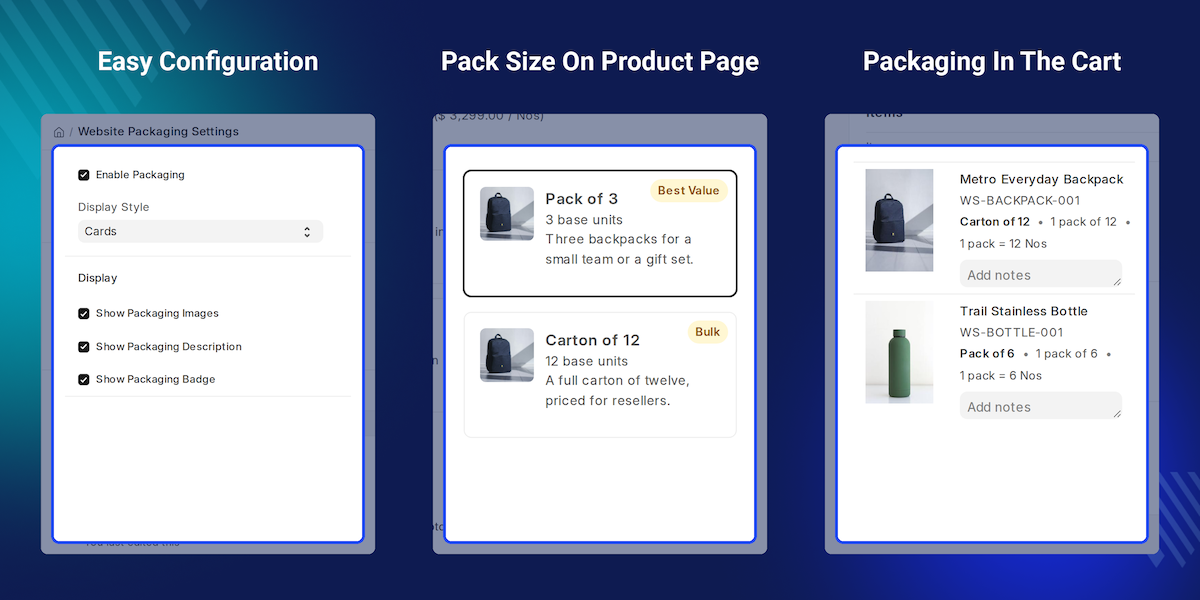
Highlighted Features
Pack Size On Every Product
ERPNext Website Display Packaging Options puts the package choice on the product page, right under the price.
Cards Or Radio List
One setting switches the packaging option list between a two column card layout and a compact radio list.
Live Package Pricing
Picking a package updates the shown price at once, with the rate per base unit printed beside it.
Item Price And UOM Driven
Rates come from Item Price and the UOM conversion factor on the Item, so nothing is priced twice.
Cart Keeps The Package
The Webshop cart line stores the chosen UOM, its label and its conversion factor against the quotation row.
Badges, Images And Notes
Each packaging option can carry a badge, an image and a short note to help the shopper choose.
Default Pack On Listings
Shop and list pages show the default pack size and price for each product before it is opened.
Carried To Sales Orders
The packaging label, UOM and conversion factor stay on the Quotation Item and the Sales Order Item.
Why Do We Need ERPNext Website Display Packaging Options?
A coffee roaster sells the same beans in a 250 gram bag, a one kilo bag and a five kilo sack. The default Webshop product page shows one price and one UOM, so the pack size is left to the description.
ERPNext already holds the answer. Each Item can carry UOM conversion rows and an Item Price per UOM, but the Webshop product page never offers that choice to the shopper. So the store splits one product into three Website Item records, or asks the shopper to work out the pack size from a note. Both routes cost catalogue work and both cost orders.
ERPNext Website Display Packaging Options closes that gap. One packaging option table on the Website Item turns the pack sizes the Item already has into a visible choice on the product page. Pricing is the part that goes wrong in practice. Rates are read from Item Price with the UOM conversion factor, so a bulk pack size is never charged at the single unit rate in the Webshop cart.
Use Cases
Coffee Roaster Bulk Bags
A roaster lists one bean and three packages. A cafe owner opens the product page, picks the five kilo sack over the 250 gram bag, and the Webshop cart prices the sack correctly.
Chemical Supplier Drum Sizes
A supplier sells solvent by the litre, the 20 litre can and the 200 litre drum. ERPNext Website Display Packaging Options shows all three, with a badge on the size most buyers take.
Stationery Wholesaler Cartons
A school buys pens by the carton, not the piece. The buyer selects the carton packaging option, and the Sales Order records one carton with its conversion factor to pieces.
Grocery Store Multipacks
A grocer offers a single bottle and a six pack of the same juice. The listing card shows the six pack as the default pack size, and the shopper can switch on the product page.
Packaging Options On The Website Item
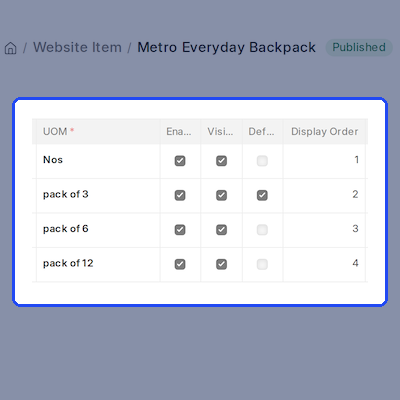
ERPNext Website Display Packaging Options adds a Packaging Options table to every Website Item, just below the offers section. Each row is one package the shopper will see.
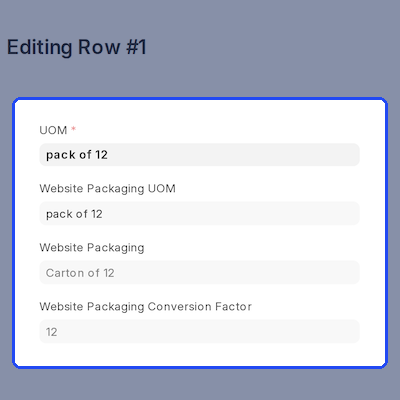
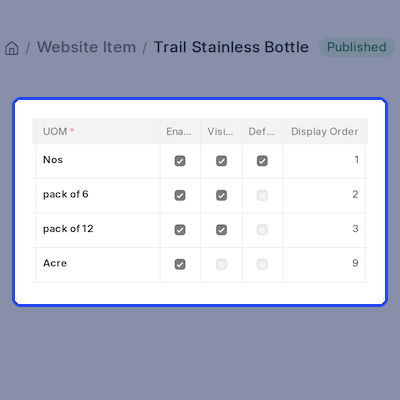
A row holds the UOM, a shopper facing label, a badge, an image, a short note and a display order. The store team controls what each packaging option looks like without touching the Item master.
- A Packaging Options table on every Website Item.
- UOM, label, badge, image and short note per row.
- Display order controls the order on the product page.
- Enabled and Visible on Website switches per packaging option.
- One row marked Default loads first for the shopper.
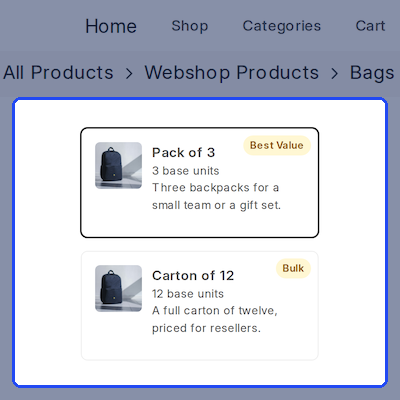
Pack Size Selector On The Product Page
On a published Website Item the packaging option list renders under the price, as a two column card grid or as a compact radio list. The shopper picks a pack size before adding anything to the cart.
Each card can show the package image, the badge and the short note, so the choice reads clearly. ERPNext Website Display Packaging Options also prints the base units behind every packaging option.
- Selector sits under the product price on the product page.
- Cards layout or Radio List layout from one setting.
- Image, badge and short note shown per package.
- Base unit count printed under each pack size.
- The default package is pre selected on page load.
- The selector reloads when a variant attribute changes.
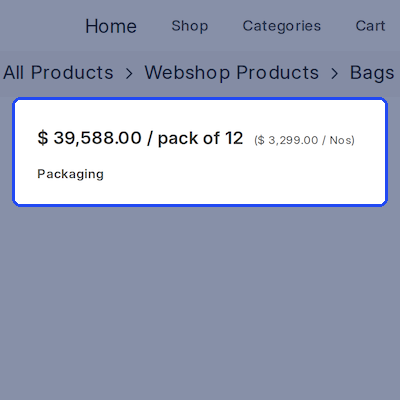
Live Package Pricing From Item Price
Picking a packaging option updates the displayed price at once. ERPNext Website Display Packaging Options reads Item Price for the selected UOM and shows both the package rate and the rate per stock UOM.
When no price exists for that UOM, the stock UOM price is used with the conversion factor from the Item. A variant falls back to its template, so a pack size always shows a price the shopper can trust.
- Package price and per base unit price shown together.
- Rates read from Item Price for the selected UOM.
- Stock UOM price used with the conversion factor as a fallback.
- Item variants fall back to the template price.
- Price list currency and UOM dependency rules respected.
Add To Cart With The Chosen Package
Add to cart carries the selection. ERPNext Website Display Packaging Options writes the chosen UOM and its conversion factor onto the Webshop cart line, so the quantity means packages and not base units.
The cart row also picks up the website warehouse set on the Website Item. Changing the quantity keeps the packaging option, and setting it to zero removes the line as the standard Webshop cart does.
- Chosen UOM and conversion factor saved on the cart line.
- Quantity is counted in packages, not base units.
- Website warehouse from the Website Item is applied.
- Cart count and totals update after every change.
- Zero quantity removes the row like the standard cart.
Default Pack Size On Shop And Listing Pages
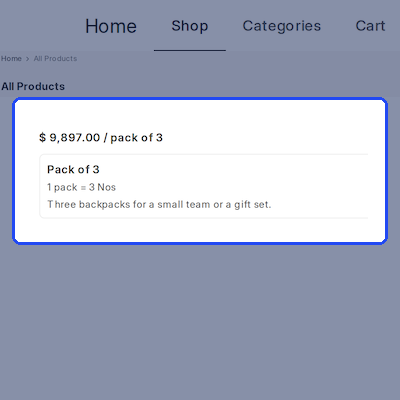
Shop, category and search listings get a small packaging summary under each product card. ERPNext Website Display Packaging Options shows the default pack size, its price, its badge and its short note.
The card price is replaced with the package price, and a line reads how many base units one pack holds. A shopper compares pack sizes across products before opening a single Website Item.
- Default package shown on grid and list product cards.
- Card price replaced with the package price.
- A line shows how many base units one pack holds.
- Badge and short note repeated on the listing card.
- Summary links straight through to the product page.
- New cards get a summary as more products load.
Packaging Details In The Cart
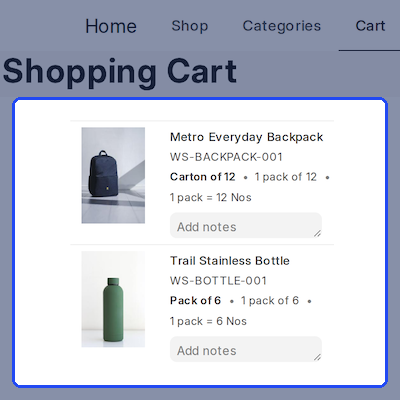
Shoppers forget what a line means by the time they reach checkout. ERPNext Website Display Packaging Options prints the packaging option under every cart row, so the basket is readable at a glance.
Each row shows the pack label, the quantity with its UOM and the base units one pack holds. The detail refreshes whenever the Webshop cart changes, so an edited quantity never leaves a stale line.
- Pack label printed under each cart row.
- Quantity shown with the packaging UOM.
- Base units per pack shown on the row.
- Detail refreshes when the cart is edited.
- Rows without a package are left untouched.
Website Packaging Settings
Website Packaging Settings is the single control panel for ERPNext Website Display Packaging Options. It sits in the ERPNext Website workspace and in the Website sidebar, under a Packaging Options section.
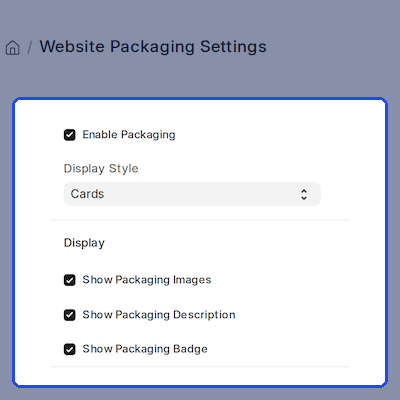
One switch in Website Packaging Settings turns the packaging option display on or off across the store. Three more decide whether package images, short notes and badges appear on the product page.
- Enable Packaging turns the whole display on or off.
- Display Style switches between Cards and Radio List.
- Show Packaging Images toggles the package image.
- Show Packaging Description toggles the short note.
- Show Packaging Badge toggles the badge.
- Linked from the Website workspace and sidebar.
Checks That Keep Packaging Clean
Bad packaging data shows up on the storefront, so ERPNext Website Display Packaging Options checks every Website Item on save. A UOM can appear once, and only one packaging option can be the default.
A packaging UOM must already exist in the Item UOM conversion table, which keeps pricing and stock correct. Rows that are disabled, hidden from the website or missing a conversion factor are skipped.
- Duplicate packaging UOM rows are blocked on save.
- Only one packaging option can be marked Default.
- The UOM must exist in the Item UOM conversion table.
- Disabled and website hidden rows never reach the shopper.
- A list with no Default falls back to the first visible row.
Support
For any query or issue, please create a support ticket here: CREATE A TICKET HERE
You may also check our other top-quality ErpNext Modules.
Specifications
FAQs
ERPNext Website Display Packaging Options lets a Webshop shopper pick a pack size on the product page and sends that packaging option to the cart.
Each published Website Item gets a Packaging Options table under the offers section. Every row is one package, with its own UOM, label, badge and image.
The app needs ERPNext and the Webshop app on the same site, because packaging prices come from Item Price and the cart is the standard Webshop cart.
The price is read from Item Price for the chosen UOM. If no row exists, the stock UOM price is used with the UOM conversion factor from the Item.
Yes. Display Style in Website Packaging Settings switches the list between a two column card grid and a compact radio list for the whole store.
The first visible row in display order becomes the default, so the product page and the listing cards always have a pack size to show first.
Yes. The packaging label, the UOM and the conversion factor are stored on the Quotation Item and carried to the Sales Order Item as read only fields.
No. Saving a Website Item with the same packaging UOM twice is blocked, and only one packaging option in the list can be marked as the Default.
Each product card shows the default pack size, its price, its badge and its note. The card price is replaced by the price of that default package.
Yes. Clearing Enable Packaging in Website Packaging Settings hides every packaging option, and the standard Webshop product page returns at once.
Yes. Each cart row prints the pack label, the quantity with its UOM, and the base units one pack holds, so the basket reads clearly at checkout.
Specification
Detailed technical features and requirements to help you understand the module’s capabilities and ensure smooth integration with your system.
Cloud Hosting for Websites & Applications
Power your website or application with flexible, scalable cloud infrastructure designed for performance and growth.
Move Your Website or Application to the Cloud
Get started with Cloudkul hosting tailored to your needs.
Configure Your Cloud Server
Choose server resources based on your workload, expected traffic, and performance requirements.
Start with the cloud resources your project needs today and adjust your server configuration as your business grows.
Explore flexible cloud hosting plans and choose your ideal configuration.
* Starting price is indicative. Final pricing and available server resources depend on the selected hosting configuration and requirements.
