- Description
- Reviews
- FAQ
- Customers ()
- Specifications
- Cloud Hosting
- Changelog
ERPNext Website File Upload lets customers upload files from the website cart before they place an order. The uploaded files stay linked to the checkout session. After checkout, this module adds them to the Sales Order automatically.
Many businesses need customer files before they can start an order. These files may include artwork, images, documents, drawings, or other reference files. ERPNext does not provide this option during website checkout by default.
Customers can upload one or more files without leaving the cart page. They can review their uploads before completing the order. This keeps the checkout process simple and clear.
Once the order is created, this module attaches every uploaded file to the related Sales Order. The sales team can open the order and access all customer files from one place.
The admin can control how file uploads work. They can set the file size limit, choose allowed file types, define the maximum upload quantity, or enable and disable the upload option whenever needed.
This module stores every uploaded file as a private Frappe File record. It also removes expired temporary files and cleans abandoned uploads automatically. This keeps customer data secure and storage organized.
ERPNext Website File Upload is useful for businesses that sell custom products, print services, manufacturing jobs, or document-based services. It collects customer files during checkout and keeps them linked to the Sales Order.
Businesses can also improve product pages with ERPNext Website Product FAQ. It lets them add product-specific questions and answers to help customers before they place an order.
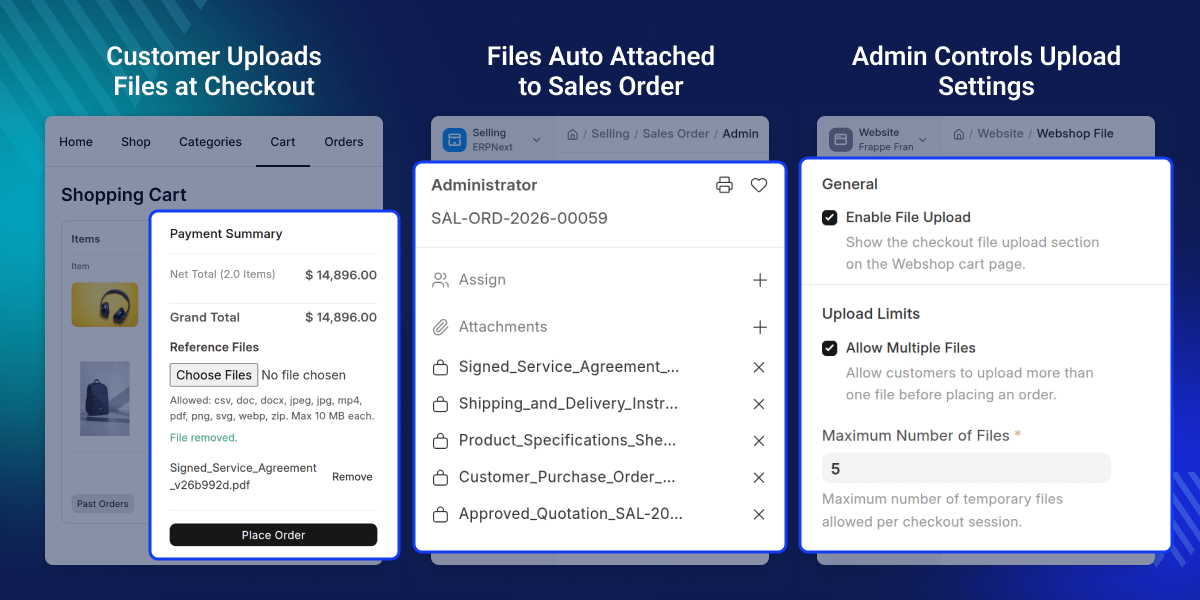
Highlighted Features
Checkout File Upload
ERPNext Website File Upload adds a file upload option to the website cart page. Customers can upload the required files before placing an order.
Automatic Sales Order Attachment
This module adds every uploaded file to the related Sales Order after checkout. This keeps customer files linked to the correct order.
Private File Storage
This module stores uploaded files as private Frappe File records. Only users with the required permissions can access these files.
File Upload Settings
The admin can set the upload limit, file size, allowed file types, and upload status from one place.
Temporary File Management
This module stores uploaded files before the Sales Order is created. The files remain available until the order is placed or the expiry time is reached.
Automatic File Cleanup
Expired temporary files and abandoned uploads are deleted automatically. This helps keep storage clean and organized.
Dashboard Integration
This module adds a File Upload Settings section to the ERPNext Website dashboard. The admin can manage all upload settings from this page.
File Validation and Security
ERPNext Website File Upload checks the file size, file type, and upload quantity before accepting a file. Every uploaded file is stored as a private record.
Why Do We Need This Module?
Many businesses need files before they can start an order. Customers may need to upload logos, artwork, design files, ID proofs, measurements, or other documents. ERPNext does not provide this option during website checkout by default.
Without ERPNext Website File Upload, customers must send files through email or another platform after placing an order. This takes extra time and makes it harder to match files with the correct Sales Order.
ERPNext Website File Upload lets customers upload all required files during checkout. The uploaded files stay linked to the checkout session and move to the Sales Order after the order is created.
The admin has full control over file uploads. They can choose the allowed file types, set the file size limit, define the upload quantity, and set the expiry time for temporary files.
This module stores files as private records, validates every upload, and removes expired temporary files automatically. This keeps customer data secure, reduces manual work, and keeps file storage.
Stores with a large product catalog can also use ERPNext Website Product Brand to display and manage product brands on the ERPNext website.
Use Cases
Custom Printing and Personalized Products
Customers can upload logos, artwork, images, or design files during checkout. ERPNext Website File Upload adds these files to the Sales Order, so the team can start work without waiting for emails.
Manufacturing and Custom Production
Customers can upload CAD files, technical drawings, product specifications, or reference documents before placing an order. This gives the production team all the required files in one place.
Document-Based Services
Businesses that need ID proofs, certificates, signed forms, or other documents can collect them during checkout. The uploaded files remain linked to the Sales Order for easy access.
B2B Product Orders
Wholesale buyers can attach purchase documents, product specifications, or supporting files while placing bulk orders through the website.
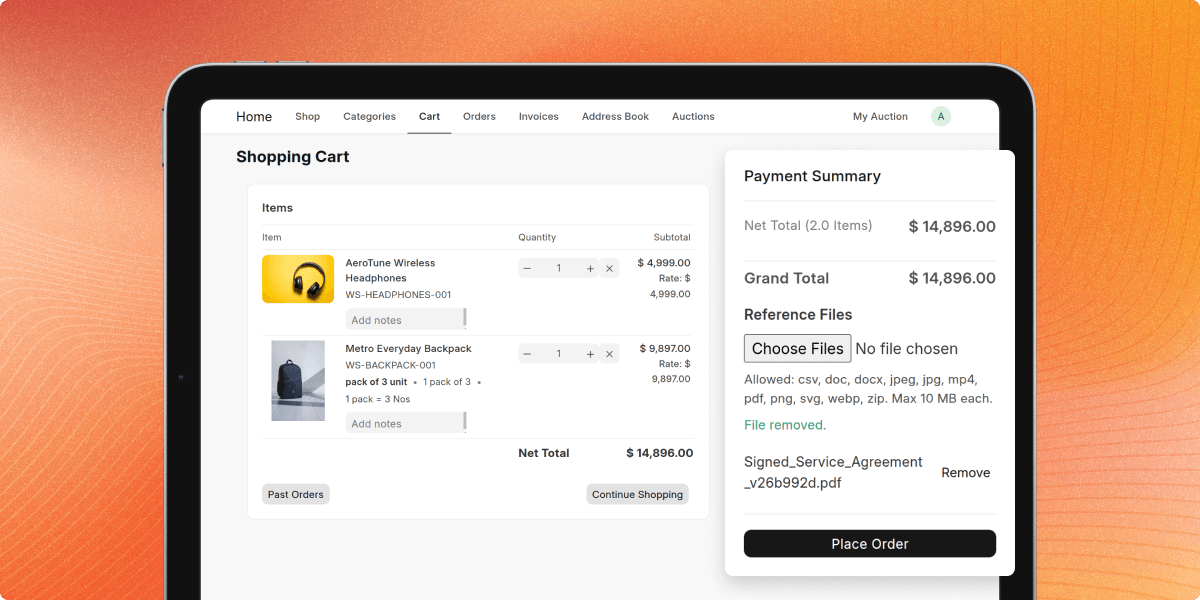
Checkout File Upload
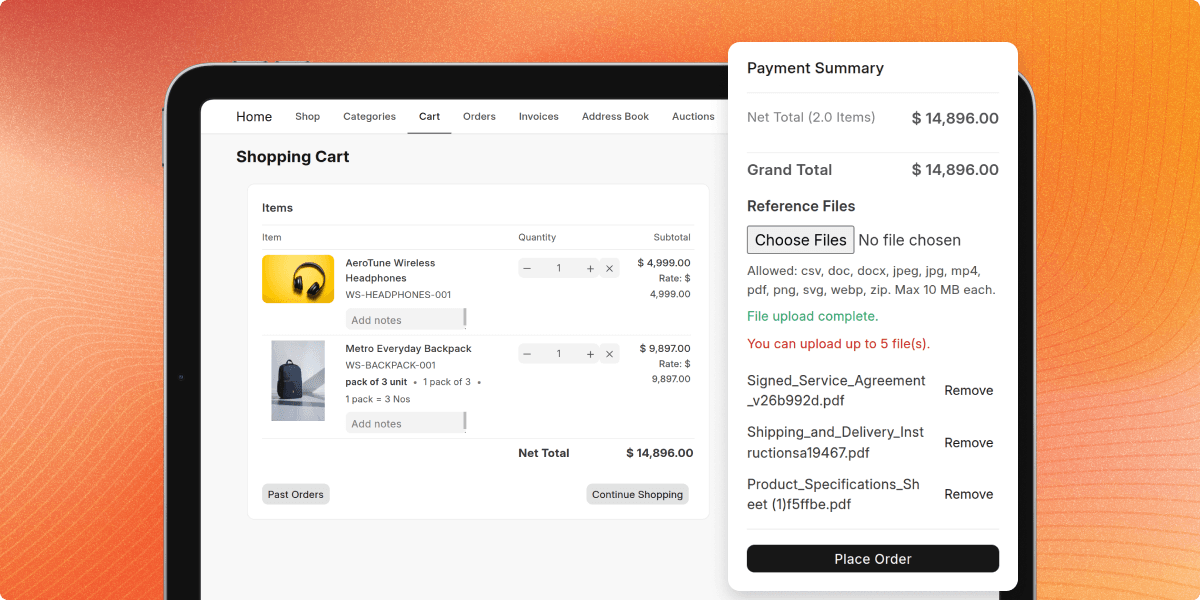
ERPNext Website File Upload adds a file upload option to the website cart page. Customers can upload one or more files before placing an order. The uploaded files remain linked to the checkout session until the order is complete. This allows businesses to collect all required files during checkout. Customers do not need to send files later through email or another platform.
- Upload files from the website cart page.
- Add multiple files during one checkout.
- Keep files linked to the checkout session.
- Review uploaded files before placing orders.
- Collect customer files during website checkout.
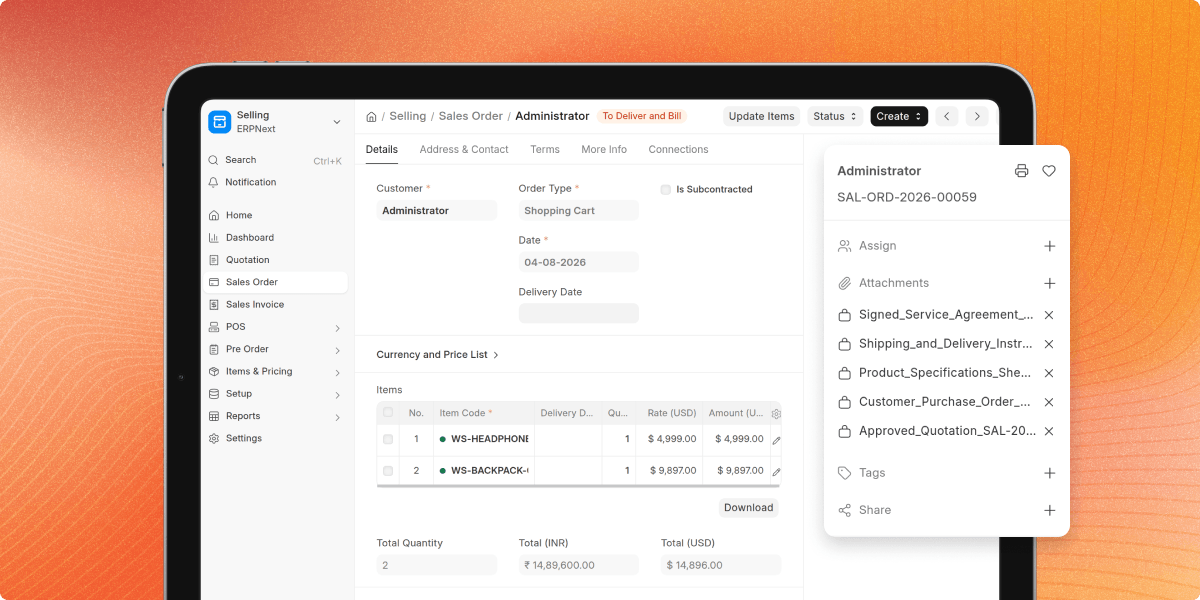
Automatic Sales Order Attachment
After checkout, ERPNext Website File Upload attaches every uploaded file to the related Sales Order. The files are available as soon as the order is created. This keeps customer files with the correct order and makes them easy for the sales team to access.
- Add uploaded files to the Sales Order.
- Link every file with the correct order.
- View uploaded files from the Sales Order.
- Keep customer files with every order.
- Reduce manual file handling after checkout.
File Upload Settings
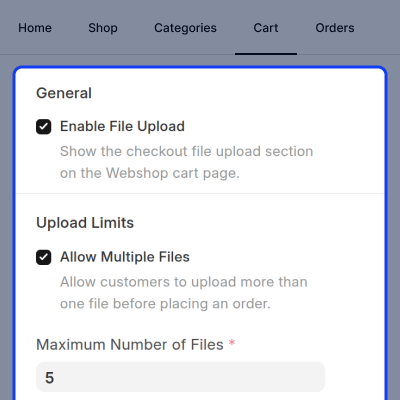
This module gives the admin full control over file uploads. They can enable or disable uploads, set the upload limit, define the maximum file size, choose allowed file types, and configure the expiry time for temporary files. These settings help businesses follow their own upload rules and prevent unsupported files from being uploaded.
- Enable or disable website file uploads.
- Set the maximum number of uploaded files.
- Set the maximum file size for uploads.
- Allow only selected file types.
- Set the expiry time for uploads.
Private File Storage
ERPNext Website File Upload stores all uploaded files as private Frappe File records. Only users with the required permissions can view or access these files. This keeps customer files secure and stores them using the standard ERPNext file system.
- Store uploaded files as private records.
- Keep customer files safe and secure.
- View files from the ERPNext Desk.
- Use the standard Frappe File system.
- Allow access to authorized users only.
Temporary File Management
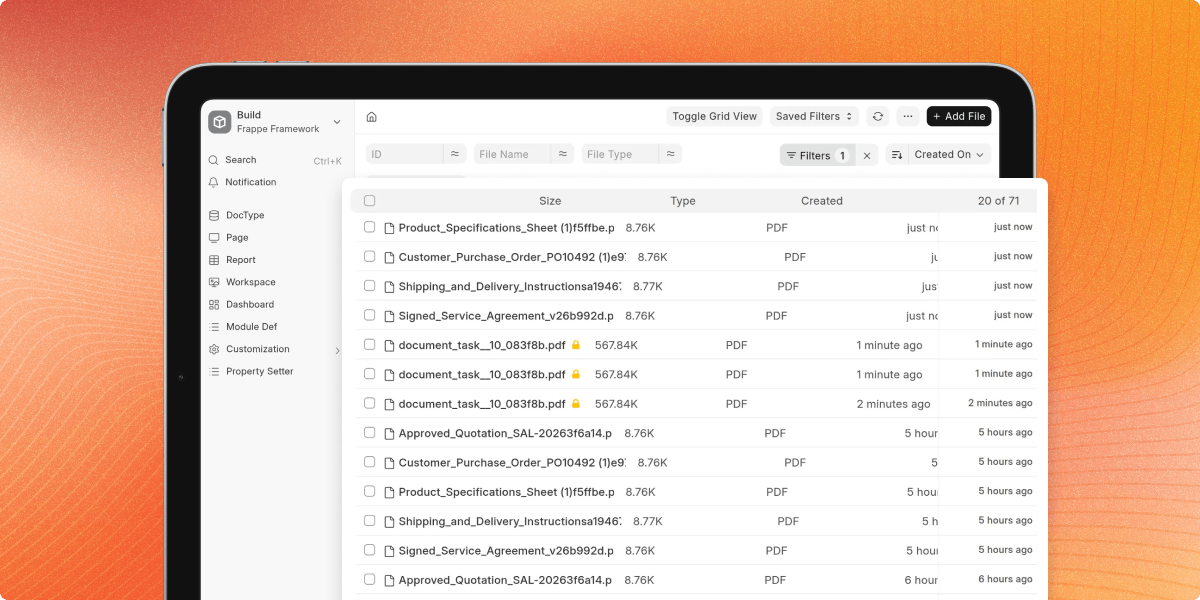
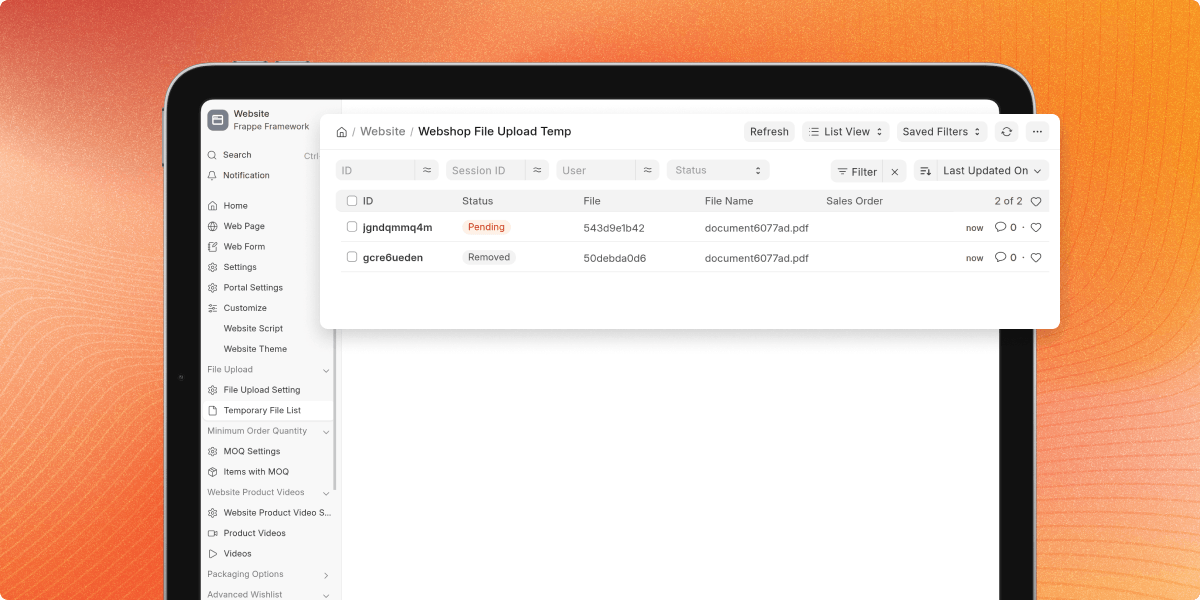
ERPNext Website File Upload stores uploaded files in a temporary record before the Sales Order is created. The files stay linked to the customer's checkout session until the order is completed or the expiry time is reached and deletes abandoned uploads automatically. This prevents file loss during checkout and keeps the uploaded files ready for the Sales Order.
- Save files before the order is created.
- Keep files linked to the checkout session.
- Delete expired temporary files automatically.
- Reduce manual cleanup of old files.
- Manage temporary uploads with ease.
File Validation and Security
ERPNext Website File Upload checks every file before it is uploaded. This module validates the file size, file type, and upload quantity based on the settings defined by the admin. All accepted files are stored as private Frappe File records. This protects customer data and allows only valid files to be uploaded.
- Check the file size before upload.
- Check the allowed file type.
- Check the upload limit before saving.
- Store files as private records.
- Protect customer files during upload.
Support
For any query or issue, please create a support ticket here CREATE A TICKET HERE
You may also check our other top-quality ErpNext Modules.
Specifications
FAQs
Specification
Detailed technical features and requirements to help you understand the module’s capabilities and ensure smooth integration with your system.
Cloud Hosting
Detailed technical features and requirements to help you understand the module’s capabilities and ensure smooth integration with your system.
Move to Cloud Today
We’re partnered with top-tier, trusted providers!



Default Configuration Details of Server
RAM 1 Core
Processor 30 GB
Hard Disk
Database
Want to know more how exactly we are going to power up your eCommerce Website with Cloud to fasten up your store
* Server Configuration may vary as per application requirements.
