- Description
- Reviews
- FAQ
- Customers ()
- Specifications
- Cloud Hosting
- Changelog
ERPNext Website Minimum Order Quantity module helps businesses set the lowest quantity a customer can order for a website product.
Admins can use Item-wise MOQ when products need different limits. Each item can have its own minimum value, and MOQ can be turned on or off per item.
This module also has MOQ Settings for a Default MOQ Quantity. This value is used when MOQ is active for an item, but no separate quantity is set.
Cart Validation checks the quantity when a customer adds or updates a product. Checkout Validation checks the full cart again before order submission.
ERPNext Website Minimum Order Quantity module can also check Sales Orders and Quotations. This keeps the same product quantity rules across the website and backend sales.
Admins can choose inline, toast, or popup errors. They can also write custom messages with item code, item name, entered quantity, and required MOQ.
Stores that need product-specific answers can use ERPNext Website Product FAQ. Businesses that collect order files can use ERPNext Website File Upload.
Highlighted Features of ERPNext Website Minimum Order Quantity
Item-wise MOQ
Set a separate minimum quantity for each product and enable or disable MOQ for selected ERPNext items.
Default MOQ Quantity
Set one default minimum in MOQ Settings for products that have MOQ enabled but no item-level value.
Cart Validation
Check the entered product quantity when customers add items or make changes in the website cart.
Checkout Validation
Check all cart items before Place Order or Request Quotation and stop quantities below the set limit.
Backend MOQ Checks
ERPNext Website Minimum Order Quantity module can validate item quantities in Sales Orders and Quotations.
Flexible MOQ Messages
Show errors as inline text, toast alerts, or popup messages and write custom text for quantity rules.
Why Do We Need ERPNext Website Minimum Order Quantity module?
ERPNext Website Minimum Order Quantity module is useful when a product must be sold in a fixed minimum quantity.
Some products are sold in packs, batches, cartons, or larger units. Allowing very small orders may not suit the sales process.
Without Website MOQ, customers may enter a quantity below the allowed limit. Staff may then need to find and correct such orders by hand.
This module checks quantities while customers shop. It also runs another check before the order or quotation is submitted.
The same MOQ rules can apply to Sales Orders and Quotations. This helps keep website and backend orders under the same quantity policy.
MOQ Settings also support Item-wise MOQ, a Default MOQ Quantity, auto-adjustment, and custom error messages.
ERPNext Website Minimum Order Quantity module gives businesses a simple way to control minimum quantities and reduce manual order checks.
Use Cases
Wholesale Sales
Set a minimum quantity for wholesale products so buyers order enough units before they move to checkout.
Pack-Based Products
Use Website MOQ for items sold in packs, cartons, batches, or other fixed groups that need a minimum order size.
B2B Orders
ERPNext Website Minimum Order Quantity module helps B2B stores apply product minimums before customers submit website orders.
Low-Value Products
Set a minimum quantity for low-value items when processing very small orders is not practical for the business.
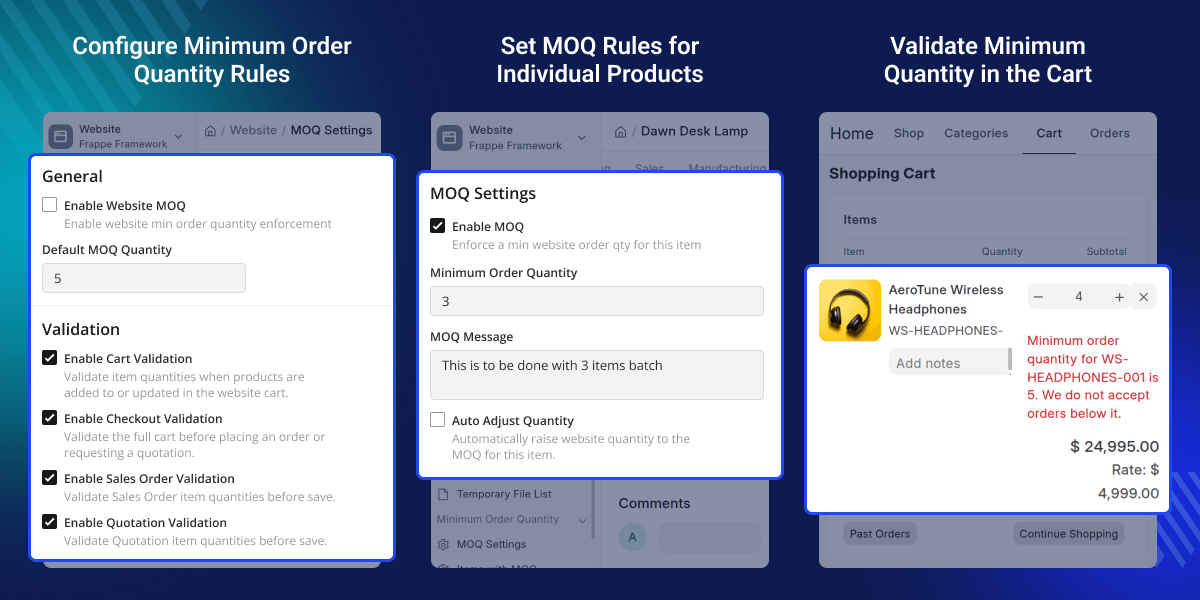
Configure Website MOQ Settings
ERPNext Website Minimum Order Quantity module gives admins one place to control the main quantity rules.
Admins can set the default quantity and choose where the system should check MOQ during the sales flow.
- Enable Website MOQ from the main settings
- Set the Default MOQ Quantity for products
- Turn website Cart Validation on or off
- Enable Checkout Validation before submission
- Apply MOQ checks to Sales Orders and Quotations
- Allow product variants to use separate MOQ rules
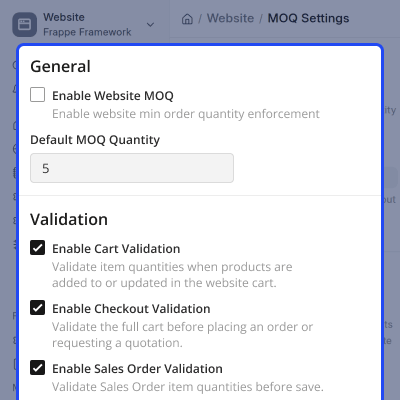
Set MOQ Messages and Display Mode
ERPNext Website Minimum Order Quantity module lets admins define the error text and choose how customers see it.
The message can explain the quantity rule, while the selected display mode controls where the error appears.
- Write a custom MOQ validation message
- Add supported values inside the message
- Show errors as an inline website message
- Display errors through a toast notification
- Present quantity errors inside a popup
- Select the error style from MOQ Settings
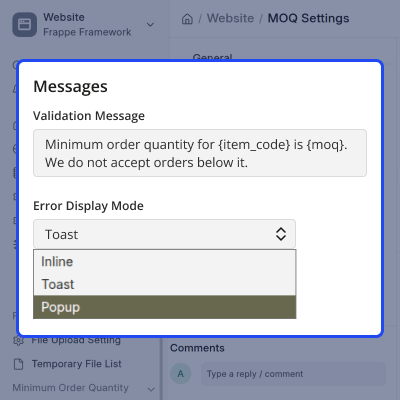
Manage MOQ in Bulk
ERPNext Website Minimum Order Quantity module provides bulk actions from the ERPNext item list.
Admins can enable or disable MOQ for all products at once instead of changing every item separately.
- Open MOQ actions from the ERPNext item list
- Review products available for MOQ control
- Enable MOQ for all items in one step
- Disable MOQ for all items when needed
- Use the same menu for both bulk actions
- Confirm the action before applying the change
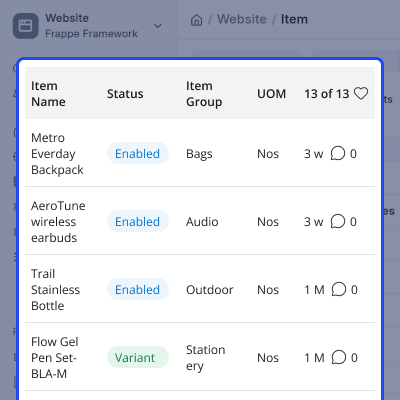
Set Item-wise MOQ
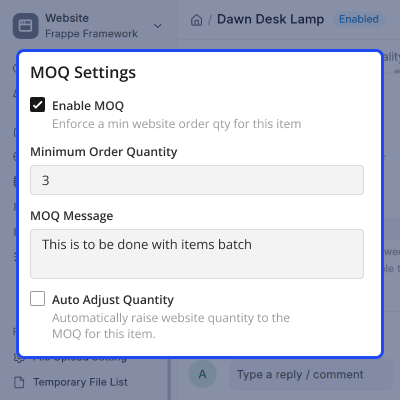
ERPNext Website Minimum Order Quantity module lets admins create a separate rule for an individual product.
This is useful when a product needs a different minimum from the value set in the main MOQ Settings.
- Enable MOQ for one selected ERPNext item
- Enter a separate Minimum Order Quantity
- Add a custom message for that product
- Use supported values inside the message
- Turn Auto Adjust Quantity on or off
- Keep the item rule separate from the default
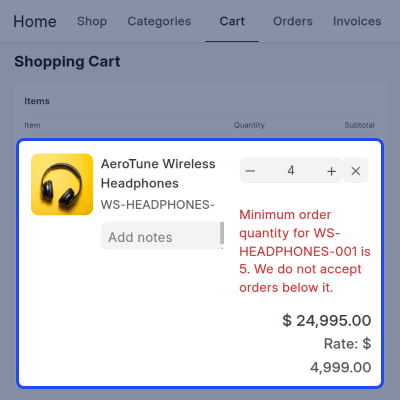
Validate MOQ in the Website Cart
ERPNext Website Minimum Order Quantity module checks the entered quantity when customers manage products in the cart.
If the value is below the product minimum, this module shows an error so the customer can correct the quantity.
- Check MOQ when a cart quantity changes
- Compare the entered value with the item MOQ
- Identify the affected item in the message
- Warn shoppers when the quantity is too low
- Stop invalid values from moving ahead
- Guide customers to the required quantity
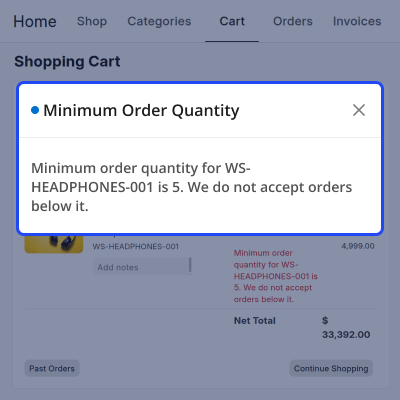
Show MOQ Validation Popup
ERPNext Website Minimum Order Quantity module can show a popup when a customer enters a value below the product minimum.
The popup states the required MOQ and identifies the affected product before the customer continues with the order.
- Open a clear Minimum Order Quantity popup
- Identify the product with an invalid quantity
- Show the minimum quantity needed to order
- Explain why the entered value is not allowed
- Alert shoppers before the next order step
- Keep the error message clear and direct
Support
For any query or issue, please create a support ticket here CREATE A TICKET HERE
You may also check our other top-quality ErpNext Modules.
Specifications
FAQs
Specification
Detailed technical features and requirements to help you understand the module’s capabilities and ensure smooth integration with your system.
Cloud Hosting
Detailed technical features and requirements to help you understand the module’s capabilities and ensure smooth integration with your system.
Move to Cloud Today
We’re partnered with top-tier, trusted providers!



Default Configuration Details of Server
RAM 1 Core
Processor 30 GB
Hard Disk
Database
Want to know more how exactly we are going to power up your eCommerce Website with Cloud to fasten up your store
* Server Configuration may vary as per application requirements.
