- Description
- Reviews
- FAQ
- Customers ()
- Specifications
- Cloud Hosting
- Changelog
ERPNext Website PayPal Express Checkout lets your Webshop customers pay with PayPal from the cart page. PayPal Smart Buttons sit beside Place Order, and the buyer approves the payment in a PayPal window.
Most shoppers already trust PayPal and prefer it to typing card details into a new store. The PayPal Smart Buttons offer a PayPal button and a Debit or Credit Card button, so Webshop checkout feels familiar.
Setup needs the ERPNext and Webshop apps and a PayPal REST app. Open PayPal Express Checkout Settings in the Payments workspace, enter the Client ID and Client Secret, and choose Test or Live. Webshop checkout then offers PayPal.
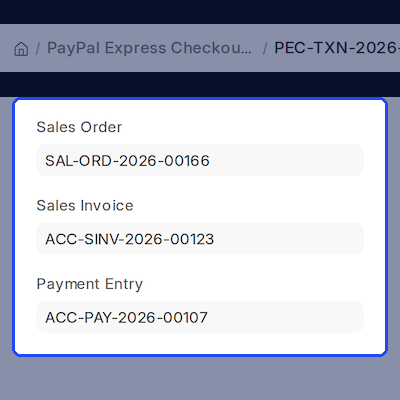
Once PayPal captures the money, the app creates the Sales Order, a submitted Sales Invoice and a Payment Entry. Your accounts team no longer matches PayPal payments to Webshop orders by hand.
Every attempt is saved as a PayPal Express Checkout Transaction with the PayPal Order ID, Capture ID, status and the linked Sales Invoice. Finance follows a payment from the Webshop to the ledger on one form.
Before capture, ERPNext Website PayPal Express Checkout compares the PayPal order amount and currency with the cart. If the cart changed or the amounts differ, no Payment Entry is posted for that payment.
Refunds stay inside ERPNext too. Open the PayPal Express Checkout Transaction, choose the items and quantities, and the app refunds through PayPal and creates the return Sales Invoice and refund Payment Entry.
Stores that sell ahead of stock can add ERPNext Website Pre Order, and ERPNext Website Customer Address Book lets buyers pick a saved address before the PayPal Smart Buttons at Webshop checkout.
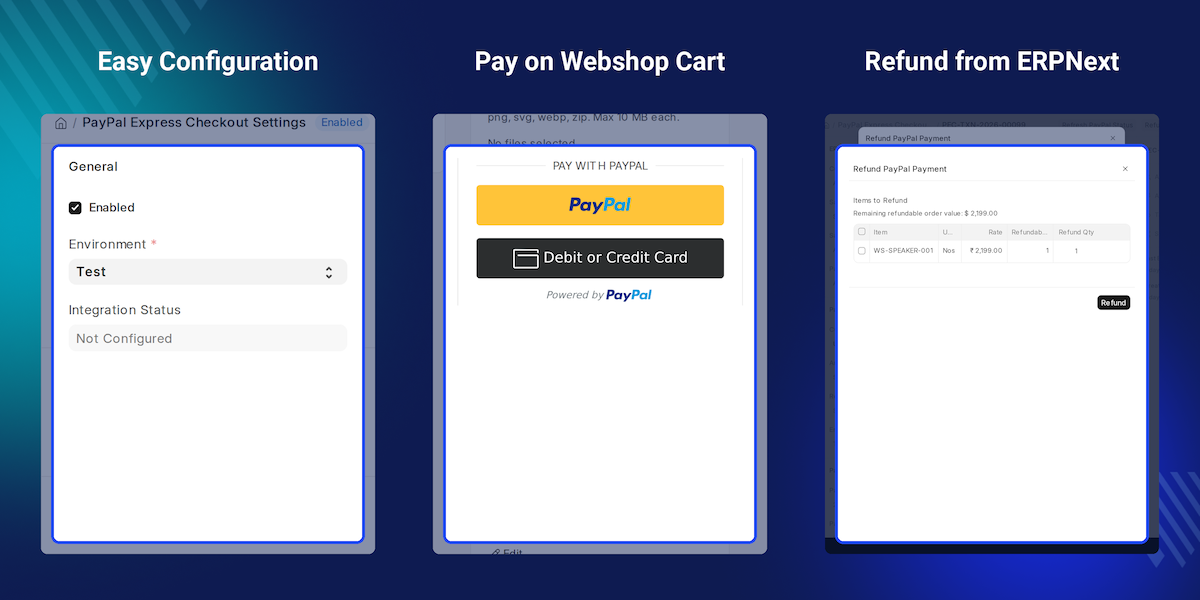
Highlighted Features of ERPNext Website PayPal Express Checkout
PayPal Buttons On The Cart
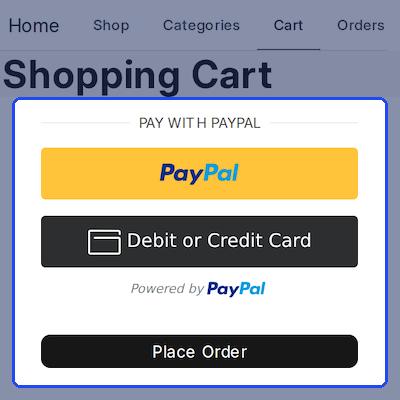
ERPNext Website PayPal Express Checkout places PayPal Smart Buttons on the Webshop cart, above the Place Order button.
Debit Or Credit Card Button
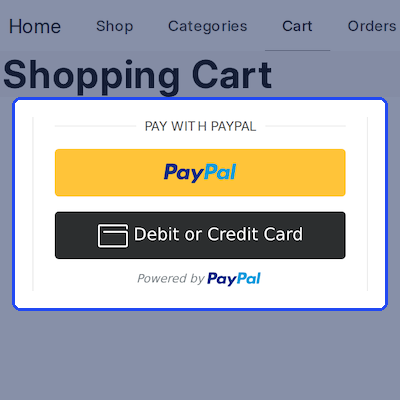
Buyers who prefer a card get a Debit or Credit Card button under the PayPal button, in the same PayPal window.
Buy From The Product Page
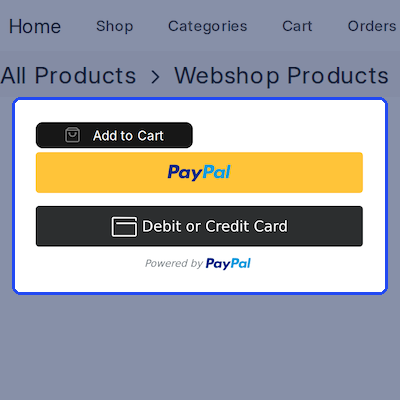
Turn on Enable Direct Checkout and a signed-in customer can pay for one product without opening the cart.
Order Created After Payment
For cart checkout the Sales Order is created only after PayPal captures the money, so unpaid attempts leave no order behind.
Invoice And Payment Entry Included
A submitted Sales Invoice and a Payment Entry are posted to a PayPal Express Checkout account for each payment.
Amount And Currency Checks
The app compares the PayPal order with the ERPNext amount and currency, and stops if the cart changed.
Full Transaction Trail
Every attempt keeps its PayPal IDs, status, timestamps and a masked copy of the last PayPal response.
Item Wise Refunds
Refund selected items and quantities from the transaction form, and both ERPNext return documents are created.
Test And Live Modes
Try the full flow with Test mode and a connection check, then switch Environment to Live.
Style The Smart Buttons
Pick the Color, Shape and Label so the PayPal Smart Buttons match your storefront.
Why Do We Need ERPNext Website PayPal Express Checkout?
A shopper reaches Webshop checkout wanting to pay with PayPal. If the page offers no PayPal Smart Buttons, that shopper must trust a card form on a store they may not know.
Accepting PayPal another way pushes the work to the finance team. Someone checks the PayPal account, finds the order, then creates the Sales Invoice and Payment Entry by hand.
ERPNext Website PayPal Express Checkout puts the PayPal Smart Buttons on the cart and does the paperwork once PayPal confirms the payment. The PayPal Express Checkout Transaction keeps the evidence for each one.
Store teams can connect PayPal Express Checkout Settings in Test mode first. They check one full payment, Sales Invoice and refund, then move Webshop checkout to Live with confidence.
Use Cases
-
Finance Clerk At Month End
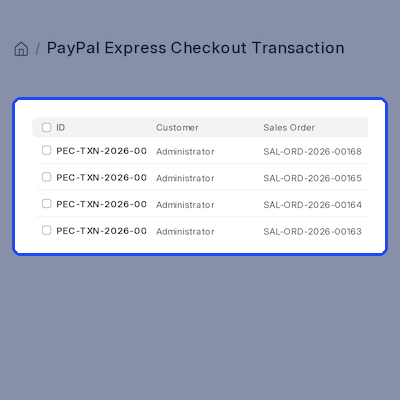
A clerk opens the PayPal Express Checkout Transaction list and finds each Completed payment with its Sales Invoice and Payment Entry already linked.
-
Repeat Buyer Using Direct Checkout
A signed-in customer reads a product page and pays with the PayPal button at once, because ERPNext Website PayPal Express Checkout has Direct Checkout switched on.
-
Support Agent Refunding One Item
A buyer returns one of three items. The agent opens the transaction, clicks Refund, enters one unit for that item and PayPal returns that amount.
PayPal Smart Buttons On The Webshop Cart
ERPNext Website PayPal Express Checkout shows PayPal Smart Buttons on the cart page, under a Pay with PayPal divider, next to the standard Place Order button. The buyer approves the payment in the PayPal window.
Status messages appear under the PayPal Smart Buttons while the order starts and completes. A cancelled payment shows a clear message, and Webshop checkout stays open so the buyer can try again.
- PayPal Smart Buttons are drawn on the Webshop cart page.
- Starting and completing messages appear under the buttons.
- A cancelled payment is saved as Cancelled and the cart stays intact.
- Customer name, email and complete addresses are passed to PayPal.
- Unavailable currencies or missing setup show a short notice.
PayPal And Card Payment Options
ERPNext Website PayPal Express Checkout can show a PayPal button and a Debit or Credit Card button in the PayPal Smart Buttons block. The buyer chooses how to pay, and the choice is saved as the Funding Source.
The cart currency is checked before the buttons load. ERPNext Website PayPal Express Checkout supports 25 PayPal currencies, takes the currency from the Webshop price list and falls back to Default Currency in PayPal Express Checkout Settings.
- Funding Source records how each buyer paid.
- 25 PayPal currencies are supported on the Webshop checkout.
- Unsupported currencies show a notice instead of the buttons.
- Locale sets the language of the PayPal window.
- Default Currency in the settings is the fallback currency.
Direct Checkout From The Product Page
With Enable Direct Checkout on, ERPNext Website PayPal Express Checkout adds PayPal Smart Buttons below the Add to Cart area of a product page. A signed-in customer can pay for that item without opening the cart.
The app builds a Quotation from the chosen item, copies the saved cart addresses and checks the item before PayPal opens. Webshop checkout rules still decide stock, and the Sales Invoice follows payment.
- Enable Direct Checkout is a single switch in the settings.
- The button uses the quantity chosen on the product page.
- Only published Website Items can be bought this way.
- Customers must be signed in and have a saved address.
- Out-of-stock items stop checkout unless the Webshop allows them.
Automatic Sales Order, Sales Invoice And Payment Entry
After PayPal captures the money, ERPNext Website PayPal Express Checkout creates the Sales Order from the cart, then a submitted Sales Invoice, then a Payment Entry. The buyer lands on the order page.
Payments post to a PayPal Express Checkout account, created for each company and currency. Switch off Auto Create Sales Invoice and the Payment Entry is made against the Sales Order.
- A Payment Gateway and a Mode of Payment named PayPal Express Checkout are added.
- A bank account for each company and currency is created on first use.
- The Payment Entry holds the PayPal Capture ID as its reference number.
- Auto Create Sales Invoice is on by default and can be switched off.
- Complete ERPNext Payment retries the documents from the transaction form.
Payment Checks Before And After Capture
Before capturing, ERPNext Website PayPal Express Checkout asks PayPal for the order and confirms its status, amount and currency against the PayPal Express Checkout Transaction. A cart that changed after the PayPal window opened is refused.
The capture response is checked the same way. A mismatch stops the process, so ERPNext Website PayPal Express Checkout never posts a Payment Entry for an amount the customer did not agree to pay.
- The PayPal order must be Approved or Completed before capture.
- Amount and currency must match the ERPNext document.
- A changed cart or direct checkout item stops the payment.
- Captured or completed orders are not captured a second time.
- Cancelled, Failed and Refunded transactions cannot be captured.
PayPal Express Checkout Transaction Records
ERPNext Website PayPal Express Checkout saves every attempt as a PayPal Express Checkout Transaction, named PEC-TXN followed by the year and a running number. Company, Customer, Sales Invoice and Payment Entry links sit on one form.
The PayPal Express Checkout Transaction form lists the PayPal Order ID, Payer ID, Capture ID, funding source and timestamps. The Sales Invoice link sits beside the last PayPal response, with the access token and secret masked.
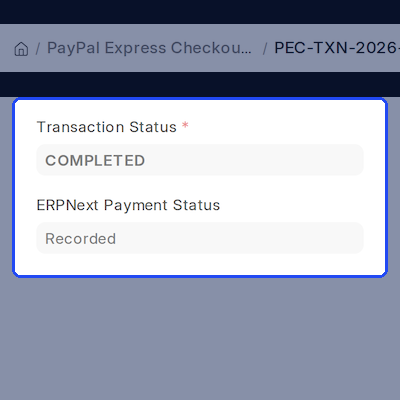
- Status moves from Initiated through Captured to Completed.
- ERPNext Payment Status shows Pending, Recorded, Skipped or Failed.
- A Failure Reason explains any step that did not finish.
- Refresh PayPal Status asks PayPal for the latest state.
- Accounts Users can read the records, and Accounts Managers can update them.
Item Wise PayPal Refunds
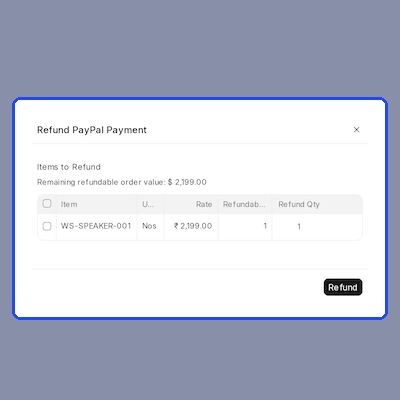
The Refund button on a captured PayPal Express Checkout Transaction opens a dialog that lists every refundable item on the Sales Invoice with its rate and the quantity still available to return.
Choose the items and quantities. ERPNext Website PayPal Express Checkout builds the return Sales Invoice first, sends the refund to PayPal, then posts the refund Payment Entry and adds a row to the Refunds table.
- Partial refunds track a Refunded Amount and a Partially Refunded status.
- A refund cannot exceed the quantity or the amount still refundable.
- A submitted Sales Invoice in the transaction currency is required.
- Each refund row stores the PayPal Refund ID and both return documents.
- A saved Failure Reason flags a refund whose ERPNext documents need manual creation.
PayPal Express Checkout Settings
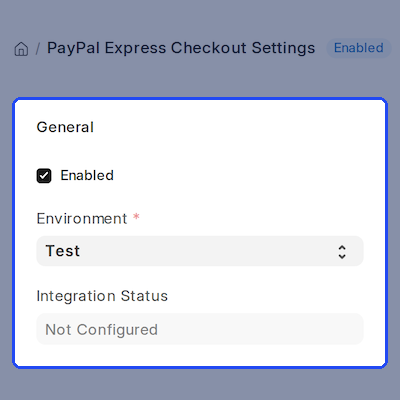
PayPal Express Checkout Settings lives in the Payments workspace sidebar, next to the transaction list. ERPNext Website PayPal Express Checkout needs the Client ID and Client Secret before Enabled can be saved.
Test PayPal Connection asks PayPal for an access token and sets Integration Status to Connected or Connection Failed. System Managers and Website Managers can change PayPal Express Checkout Settings, including the PayPal Smart Buttons style.
- Environment switches between PayPal Test and Live.
- The Client Secret is stored as a password field.
- Default Currency is optional and the Webshop currency is used when blank.
- Locale sets the language of the PayPal window.
- Color, Shape and Label style the PayPal Smart Buttons.
- Enable Direct Checkout and Auto Create Sales Invoice are plain checkboxes.
Support
For any query or issue, please create a support ticket here: CREATE A TICKET HERE
You may also check our other top-quality ErpNext Modules
Specifications
Frequently Asked Questions
Specification
Detailed technical features and requirements to help you understand the module’s capabilities and ensure smooth integration with your system.
Cloud Hosting
Detailed technical features and requirements to help you understand the module’s capabilities and ensure smooth integration with your system.
Move to Cloud Today
We’re partnered with top-tier, trusted providers!



Default Configuration Details of Server
RAM 1 Core
Processor 30 GB
Hard Disk
Database
Want to know more how exactly we are going to power up your eCommerce Website with Cloud to fasten up your store
* Server Configuration may vary as per application requirements.
