Send Again
Close
Odoo LinkedIn CRM Connector is an Odoo module that connects a Chrome extension with Odoo CRM. Salespeople open a LinkedIn profile, click Create Lead, and the profile details land in the Odoo pipeline as a lead.
The extension reads only what the profile page already shows in the browser. It needs no LinkedIn API key, no OAuth app, and no paid scraping service. A short form lets the user check each value first.
Each lead is a standard Odoo lead. The module fills the usual lead fields, such as contact name, company, phone, website, city, country, and notes. It adds no custom fields to the lead form.
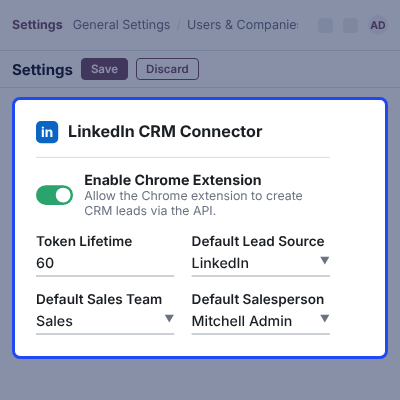
Admins control the connector from Settings > CRM. They can switch the extension on or off, set the token lifetime, and choose a default lead source, sales team, and salesperson for new leads.
The module runs on Odoo Community and Odoo Enterprise and depends only on the Odoo CRM app. The Chrome extension ships inside the module folder and loads in Google Chrome as an unpacked extension.
Additionally, if you also keep deals in another CRM tool, you can check our Odoo Multi CRM Solution module.
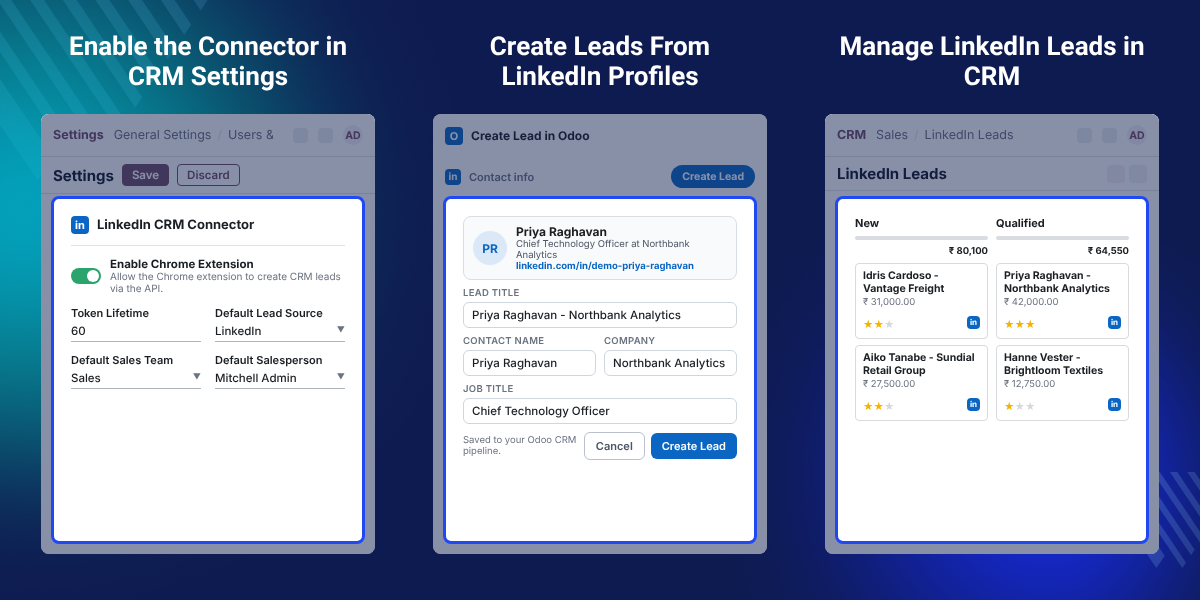
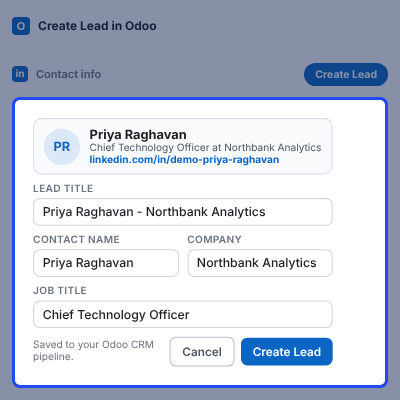
Click Create Lead on a LinkedIn profile and a prefilled form opens. Save it and the lead appears in Odoo CRM.
Check every extracted value and add notes before the lead is saved.
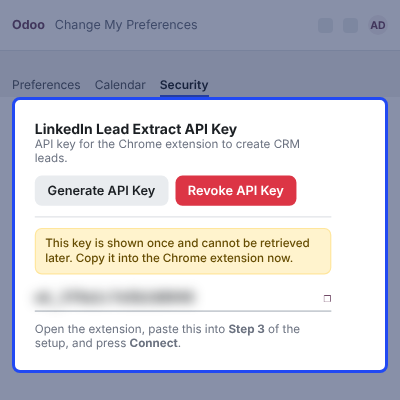
Odoo stores only the hash of each API key. The extension swaps the key for a short-lived token that expires on its own.
Admins tick or clear Enable Chrome Extension in CRM Settings to open or close the connector for every user.
Set a default lead source, sales team, and salesperson once. Every extracted lead arrives already assigned.
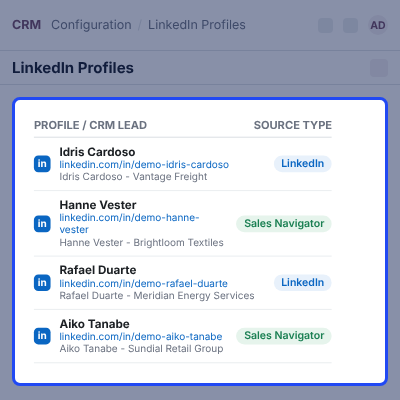
Each lead keeps its LinkedIn profile URL, shown in a LinkedIn Source smart button and in the LinkedIn Profiles list.
Sales teams find prospects on LinkedIn, then copy the name, title, company, and contact details into Odoo by hand. Each lead takes several steps across two tabs.
Odoo CRM stores leads well, but it has no way to read a LinkedIn profile page. For B2B lead generation, that gap is costly. Copying is slow, and typing errors creep into emails, phone numbers, and company names.
This module closes that gap. The Chrome extension reads the visible profile, shows the values in a form, and sends them to Odoo, where the lead is created with the defaults your admin has set.
One practical detail: the API key is generated from Preferences > Security in the Odoo user menu and is shown only once. Odoo keeps just the hash, so a lost key means generating a new one.
Also, if your team creates purchase quotes from the same leads, you can check our module Odoo Purchase Quotation from CRM.
Sales reps browse LinkedIn, capture each good prospect as a lead, and the Odoo pipeline fills without copy and paste. See more Odoo CRM Apps.
After an event, the team finds attendees on LinkedIn and adds them to CRM with one default source for later reports.
Business development staff pass promising contacts into a shared sales team, which gets them as assigned leads. To sync contacts with HubSpot as well, see Odoo Multi CRM HubSpot Solution.
Analysts working in Sales Navigator pages can create leads with the same form and tag the source type for later review. If those leads also live in Salesforce, check Odoo Salesforce Integration.
The connector has its own block in the CRM settings. Admins switch it on and choose how new leads are assigned.
Every user gets a personal API key for the extension. Admins and sales managers keep control of who may hold one.
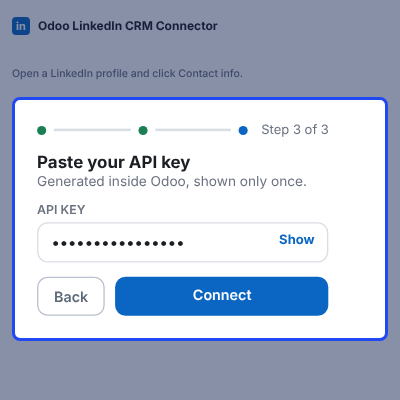
A three-step popup connects the extension to your Odoo server. Each step checks itself before the next one opens.
A Create Lead button sits in the Contact info panel of a LinkedIn profile. It opens a form filled from the profile.
The user fixes any value, adds notes, and saves the lead to the Odoo CRM pipeline.
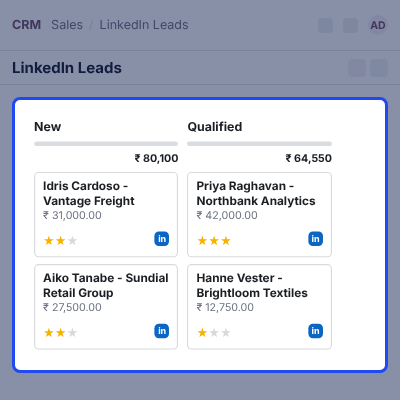
Extracted leads show up in their own menu, in kanban, list, and form views. They also work with the usual CRM tools.
Every captured profile is saved as a small record that points to its lead. The list shows where each lead came from.
For any query or issue, please create a support ticket here http://webkul.uvdesk.com/.
You may also check our top-quality Odoo Apps.
Detailed technical features and requirements to help you understand the module’s capabilities and ensure smooth integration with your system.
Detailed technical features and requirements to help you understand the module’s capabilities and ensure smooth integration with your system.
We’re partnered with top-tier, trusted providers!
Want to know more how exactly we are going to power up your eCommerce Website with Cloud to fasten up your store
* Server Configuration may vary as per application requirements.