USD
  • EUR
  • INR
  • USD
Cart
Cart 0
  • You have no items in your shopping cart.
    Akeneo Extensions
    Cart
    Cart 0
    • You have no items in your shopping cart.
    Hire a Developer
    ×
    Contact Us!
    Send Again
    Close
    Please Login to Write Your Review
    Pimcore AI Tagging Connector

    Pimcore AI Tagging Connector

    x
    Free

    * Required Fields

    $499.00
    Add To Cart
    Annual Billing

    Pimcore AI Tagging Connector module uses AI to tag Pimcore assets with native tags, confidence scores, model details, and controlled tagging runs.


    • Tag images, PDFs, Word files, and text assets with AI.

    • Apply AI results as native Pimcore tags. Support Gemini, OpenAI, Anthropic, Mistral, and Groq.

    • Check AI capability for each selected model. Manage multiple encrypted AI credentials securely.

    • Run tagging from the menu or asset tree context menu.

    • Track live progress, failures, retries, and run history.

    • Set confidence, tag limits, language, timeout, and retries.

    • Remove AI tags with persistent provenance tracking.

    • Enable automatic tagging on upload or file replacement.

    Pimcore AI Tagging Connector
    Pimcore AI Tagging Connector
    $499.00
    Check How It Works
    $499.00
    Configure and Buy
    Annual Billing
    X
    • Description
    • Reviews
    • FAQ
    • Customers ()
    • Specifications
    • Cloud Hosting
    • Changelog

    Pimcore AI Tagging Connector helps teams create descriptive tags for Pimcore assets with AI. The generated tags are saved as native Pimcore tags for DAM search, filters, and smart collections.

    The connector supports images, PDFs, Word documents, and plain-text assets. Images use thumbnails, while document text can be extracted without requiring server-side PDF tooling.

    Scanned PDFs can be sent as files to a model that supports PDF reading. Page and file-size limits help control billed PDF processing when scanned documents are analyzed.

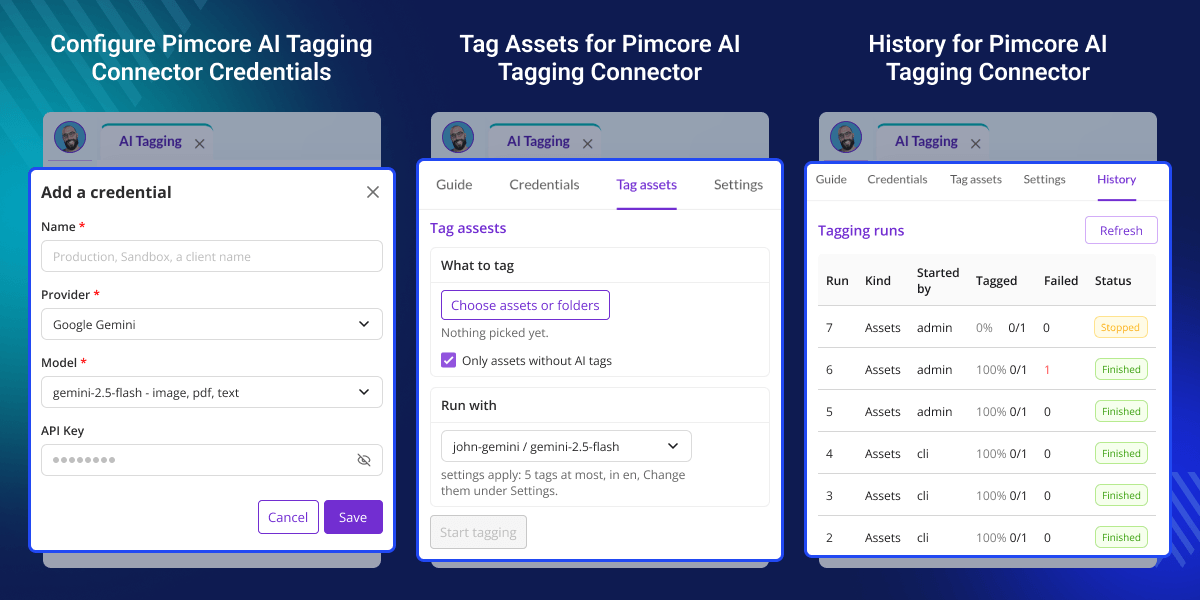
    Use Gemini, OpenAI, Anthropic, Mistral, or Groq with model-level capability checks. Multiple named credentials can be stored securely, while each tagging run can use its own selected credential.

    Start a run from the AI Tagging screen or the asset tree. Select folders and individual assets together, watch live progress, stop a run, or retry only the assets that failed.

    Apart from this, to sync Pimcore products, categories, and variants with commercetools, check out Pimcore Commercetools Connector.
    Pimcore Product Enrichment Agent

    Key Features for Pimcore AI Tagging Connector

     Native Pimcore AI Tags

    Generate descriptive tags and apply them directly as native Pimcore tags. AI tags can then work with existing DAM search, filters, and smart collections.

     Multi-Asset AI Tagging

    Tag images, PDFs, Word documents, and plain-text assets in the same workflow. Unsupported video, audio, and archive files are not processed.

     Model-Level Capability Checks

    The connector checks capabilities for the selected model before creating a job. Text-only models cannot receive assets that require unsupported image or PDF processing.

     Multiple AI Providers

    Connect Gemini, OpenAI, Anthropic, Mistral, or Groq through the provider layer. You can use several models without changing the core tagging workflow.

     Live Tagging Runs

    Start a run from the AI Tagging screen or an asset tree context menu. Each run opens its own view so you can watch progress from the start.

     AI Tag Review on Assets

    The AI Tags tab shows generated tags with confidence, provider, and model details. You can remove individual tags or remove all AI tags from an asset.

     Automatic Asset Tagging

    Enable automatic tagging when an asset is uploaded or its file is replaced. These options stay disabled until you turn them on in settings.

     Secure AI Credentials

    Create several named credentials and enable or disable them independently. Keys are verified before saving and stored in encrypted form.

    Why do we need Pimcore AI Tagging Connector module?

    Large digital asset libraries can contain thousands of images and documents. Adding useful tags by hand takes time and can lead to uneven naming across teams.

    Default Pimcore tagging does not provide an AI workflow for reading asset content and suggesting descriptive tags at scale. Manual tagging also makes repeated catalog work harder.

    The connector adds controlled AI tagging while keeping tags inside Pimcore's native tag system. Teams can set confidence limits, tag counts, language, and merge rules.

    In practical DAM workflows, automatic and batch tagging can reduce repetitive work while giving teams control over what AI-generated tags are added or removed.

    Additionally, if you need to connect Pimcore with Shopify, you can explore Pimcore Connector for Shopify. It lets you sync products, categories, variants, and images through a two-way sync.

    Use Cases

    • Product Image Tagging

      Tag large product image libraries with descriptive terms that can support asset search, filtering, and collection management.

    • Document Asset Tagging

      Use extracted content from PDFs and Word documents to create useful tags without manually reviewing every document.

    • Scanned PDF Tagging

      Send supported scanned PDFs to a PDF-capable model when text extraction is not available. Page and file-size limits help control usage.

    • DAM Search Improvement

      Apply native Pimcore tags to make large digital asset libraries easier to search, filter, and organize.

    • Bulk Asset Classification

      Select folders and individual assets together and process them in one controlled AI tagging run.

    • Automatic Upload Tagging

      Tag newly uploaded assets automatically when the feature is enabled, reducing manual work for frequently updated asset libraries.

    • Re-Tagging Failed Assets

      Retry only assets from a previous run that failed. This avoids repeating successful tagging work across the full selected scope.

    • Multi-Provider AI Workflows

      Choose suitable models from supported providers and check model capabilities before processing assets that need specific input types.

    AI Asset Tagging Runs

    Create and monitor AI tagging jobs from one workflow. Select folders and individual assets together, then track progress as the connector processes each asset.
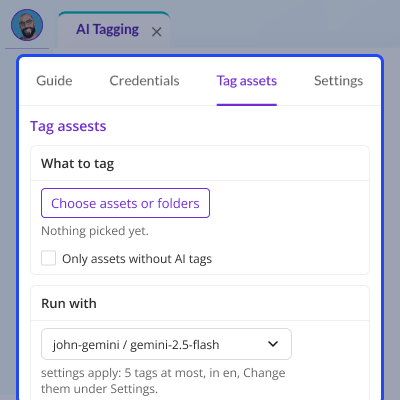
    • Select folders and individual assets in one tagging run
    • Start tagging from the AI Tagging menu
    • Start tagging from the asset tree context menu
    • Open a dedicated view for each tagging run
    • Process only assets without existing AI tags
    • View live progress and tagging stage counts
    • Stop an active tagging batch when needed
    • Retry only failed assets from a completed run
    AI Asset Tagging Runs

    AI Tagging Rules and Settings

    Control how AI-generated tags are created and applied to Pimcore assets. Configure tag limits, confidence levels, language, retries, and supported asset types.
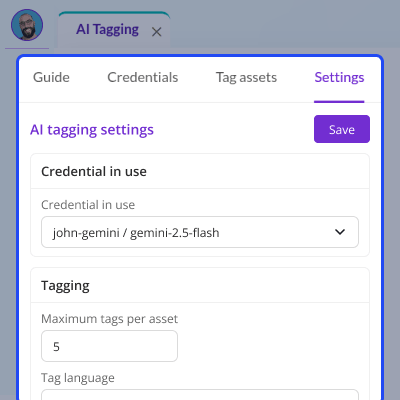
    • Choose merge or replace mode for existing AI tags
    • Set the maximum number of tags per asset
    • Set the minimum confidence threshold for tags
    • Select the language used for generated tags
    • Configure request timeout settings
    • Set the number of retry attempts
    • Choose asset types for automatic AI tagging
    • Configure the parent tag for generated AI tags.
    AI Tagging Rules and Settings

    AI Tagging Guide and Run History

    Manage AI tagging tools from one menu in Pimcore. The Guide explains supported assets, tag storage, run costs, and common messages for easier administration.
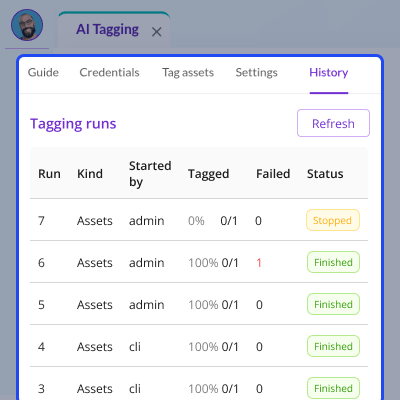
    • Open all AI tagging tools from one menu
    • Review supported asset types and formats
    • Check where generated AI tags are stored
    • Understand tagging run costs before processing assets
    • Review common tagging run messages
    • View the installed connector version
    • Check previous AI tagging runs
    • Manage AI credentials and tagging settings
    AI Tagging Guide and Run History

    Support

    For any query or issue, please create a support ticket here http://webkul.uvdesk.com/

    You may also check our quality Magento 2 Extensions.

    Specifications

    Product Version1.0.0
    Released17 days ago
    CategoryAkeneoPimcore
    Last UpdatedSeptember 2, 2026 (17 days ago)
    Supported VersionsPimcore  12.x  

    Ratings

    We'd love to hear your thoughts! Share your feedback and help us craft an even better experience tailored just for you.

    Write a review

    FAQs

     What is Pimcore AI Tagging Connector?
    It uses AI to create descriptive tags for Pimcore assets and saves them as native Pimcore tags for DAM search, filters, and smart collections.
     
     Which Pimcore assets can be tagged?
    It supports images, PDFs, Word documents, and plain-text assets. Videos, audio files, and archives are not processed for AI tagging in the connector.
     
     Which AI providers are supported?
    The connector supports Gemini, OpenAI, Anthropic, Mistral, and Groq, with model capability checked before each tagging job starts to avoid invalid requests.
     
     Can I use different credentials for different runs?
    Yes, we can save several named credentials, enable or disable them, and select a credential for each run without changing the active one used elsewhere.
     
     Are API keys stored securely?
    Yes, keys are verified with the provider before saving, encrypted at rest, and excluded from API responses, logs, and tagging run records for better security.
     
     Can scanned PDFs be tagged?
    Yes, scanned PDFs can be sent as files to a PDF-capable model, but page and file-size limits apply because PDF analysis is billed by page and file size.
     
     Can I avoid processing assets that already have AI tags?
    Yes, a run can target only assets with no AI tags, helping avoid repeat work and unnecessary AI usage on assets that already have AI-generated tags.
     
     Can I remove an AI tag permanently?
    Yes, removing an AI tag also removes its provenance record, so the same tag does not return on the next tagging run for that asset automatically.
     
     Can AI tagging start automatically?
    Yes, automatic tagging can run on upload or file replacement, but both options remain off until you enable them in the connector settings.
     
     Can I stop and retry a tagging run?
    Yes, we can stop a running batch and retry only the assets whose previous attempts failed instead of running the full selected scope again.
     
     How does the connector handle failed assets?
    Failures are grouped by cause, while assets a model cannot read are collapsed into one line. Detailed per-attempt records can be shown when needed.
     
     Can I control AI tagging output?
    Yes, settings let you choose merge mode, maximum tags, confidence threshold, tag language, timeout, retries, and asset types for automatic tagging runs.

    Specification

    Detailed technical features and requirements to help you understand the module’s capabilities and ensure smooth integration with your system.

    Cloud Hosting

    Detailed technical features and requirements to help you understand the module’s capabilities and ensure smooth integration with your system.

    Default Configuration Details of Server

    1 GB
    RAM
    1 Core
    Processor
    30 GB
    Hard Disk
    1 GB RAM & 1 Core Processor
    Database

    Want to know more how exactly we are going to power up your eCommerce Website with Cloud to fasten up your store

    * Server Configuration may vary as per application requirements.

    Change Logs

    • - Feature Add (+)
    • - Feature Remove (-)
    • - Bug Fixed (!)
    • - Modification (*)
    Version 1.0.0
    • +Tag Pimcore assets through an AI provider and apply the result as native Pimcore tags.
    • +Images, PDFs, Word documents and plain-text assets. PDFs are readable without server tooling.
    • +Scanned PDFs, which carry no text, are sent as the file itself to a model that reads PDFs, capped by page count and file size because that is billed per page.
    • +Gemini, OpenAI, Anthropic, Mistral and Groq, with capability checked per model rather than per provider.
    • +Several named credentials, one active at a time, each independently enabled or disabled.
    • +Keys are verified against the provider before they are saved and are stored encrypted.
    • +One AI Tagging menu entry whose tabs hold the guide, starting a run, the history of runs, credentials and settings.
    • +Folders and individual assets can be picked together, optionally limited to assets with no AI tags yet, and the credential for that run chosen without changing the active one.
    • +Automatic tagging on upload and when an asset's file is replaced, off until switched on.
    • +An AI Tags tab on the asset showing each AI tag's confidence and the model that produced it, with removal that survives the next run.
    • +AI tagging in the asset tree's context menu, for a folder or a single asset. Both it and the Tagging screen open the run's own view, so a run is watchable from the moment it starts.
    • +A run reports itself by cause rather than by asset: failures grouped by what went wrong, assets a model cannot read collapsed into one line, and per-attempt records available behind a toggle.
    • +A refusal about the account — a rejected key, an exhausted quota — ends the run once instead of being retried against every remaining asset.
    • +Live progress, Stop, and retry of only the assets that failed. Settings for merge mode, maximum tags, confidence threshold, tag language, timeout and retries.
    • +A Guide tab explaining what can be tagged, where tags land, what a run costs, and what the messages mean — with the installed version shown alongside.
    • +One-command install and uninstall, both idempotent.


