USD
  • EUR
  • INR
  • USD
Cart
Cart 0
  • You have no items in your shopping cart.
    WooCommerce Extensions
    Cart
    Cart 0
    • You have no items in your shopping cart.
    Hire a Developer
    ×
    Contact Us!
    Send Again
    Close
    Please Login to Write Your Review
    WooCommerce Canva Connector

    WooCommerce Canva Connector

    x

    * Required Fields

    $99.00
    Add To Cart
    30 Days Money Back Guarantee*
    Only One Time Payment

    WooCommerce Canva Connector lets you design and edit product images in Canva, then save them directly to WooCommerce as featured images.


    • Design WooCommerce product images directly inside Canva.

    • Add a Canva design button to WooCommerce product edit pages.

    • Load existing product images into the Canva editor. * Match Canva canvas dimensions to product image sizes.

    • Search WooCommerce products by name or SKU in Canva.

    • Save Canva designs directly to the WordPress Media Library.

    • Set exported Canva designs as product featured images.

    • Manage Canva App ID and client details from WordPress.

    • Use a native Canva sidebar for WooCommerce product search.

    • Connect Canva with WooCommerce through a simple setup process.

    WooCommerce Canva Connector
    WooCommerce Canva Connector
    $99.00
    Check How It Works
    $99.00
    Configure and Buy
    30 Days Money Back Guarantee*
    Only One Time Payment
    X
    • Description
    • Reviews
    • FAQ
    • Customers ()
    • Specifications
    • Cloud Hosting
    • Changelog

    WooCommerce Canva Connector connects your WooCommerce store with Canva for faster product image design. Create or edit product visuals in Canva and save them to WooCommerce.

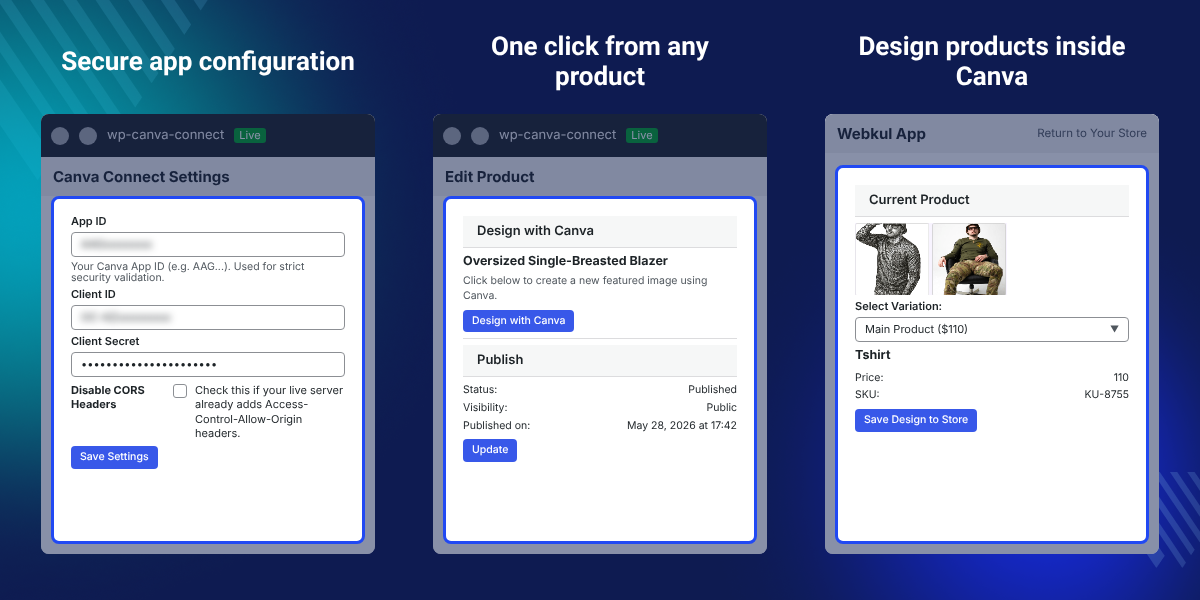
    The plugin adds a **Design with Canva** option to WooCommerce product edit pages. Store admins can open Canva from the product page without downloading images or switching between separate editing tools.

    When a product already has an image, the Canva app can load it into the editor. This gives you a ready starting point for creating a new product visual or editing an existing one.

    The plugin also matches the Canva canvas to the product image dimensions. It can use the original image size or your theme's default image settings to help keep the design properly sized.

    Inside the Canva editor, a WooCommerce sidebar lets you search the store catalog by product name or SKU. You can find the product you need without leaving the Canva workflow.

    After editing, the design can be saved to WooCommerce. The exported image is added to the WordPress Media Library and set as the product's featured image automatically.

    This setup is useful for store managers, digital marketers, and agencies that regularly update product images. It removes repeated downloads, local file handling, and manual WordPress uploads.

    Apart from this, if you require to connect your Magento 2 store with Canva, then you can check Magento 2 Canva Connector.
    WooCommerce Canva Connector

    Highlighted Features of WooCommerce Canva Connector

     Design with Canva From Product Pages

    Open Canva directly from a WooCommerce product edit page using the dedicated design option.

     Product Image Editing in Canva

    Load the current product image into Canva and use it as the base for a new design or edit.

     Automatic Canvas Dimension Matching

    The plugin uses image dimensions or theme settings to create a Canva canvas suited to the product image.

     WooCommerce Product Search

    Search the WooCommerce catalog inside the Canva app using product names or SKUs.

     Direct Save to WordPress

    Send the completed Canva design to WooCommerce without manually downloading and uploading the image.

     Featured Image Assignment

    The saved Canva design is added to the WordPress Media Library and assigned as the product's featured image.

     Canva WooCommerce Sidebar

    Use a WooCommerce-focused sidebar inside Canva to search and work with store products.

     Centralized Canva Settings

    Enter and manage the Canva App ID, Client ID, and Client Secret from the WordPress settings area.

    Why Do We Need WooCommerce Canva Connector?

    Managing product images through the default WooCommerce workflow can involve several manual steps. You may need to download an image, edit it in another tool, save the file, and upload it again.

    This process takes extra time when product images need frequent changes for promotions, catalog updates, or seasonal campaigns.

    WooCommerce does not provide a built-in Canva design workflow for editing product images from the product edit page. This means store teams need separate tools and manual file handling.

    The plugin connects WooCommerce with Canva so the design and upload steps can happen in one workflow. A completed design can be sent back to WordPress and used as the featured image.

    For stores with frequent catalog image updates, this can reduce repeated file handling and make image changes easier to manage. A practical workflow is simple: open the product, design the image in Canva, save it to WooCommerce, and continue managing the product from WordPress.

    Use Cases for WooCommerce Canva Connector

    • Product Catalog Updates

      Update product visuals from the WooCommerce product page without downloading images to a local device.

    • Promotional Product Graphics

      Create new product visuals in Canva when running sales, promotions, or other marketing campaigns.

    • Agency Store Management

      Agencies managing WooCommerce catalogs can use the Canva workflow to handle repeated product image updates.

    • Seasonal Product Updates

      Refresh product images for seasonal collections while keeping the design process connected to the store.

    Design Product Images Directly From WooCommerce

    WooCommerce Canva Connector adds a dedicated Design with Canva option to product edit pages. This gives store admins a direct path from product management to image design.

    The workflow is useful when a product image needs changes but the source file is not stored locally. The current product image can be opened in Canva and edited there.
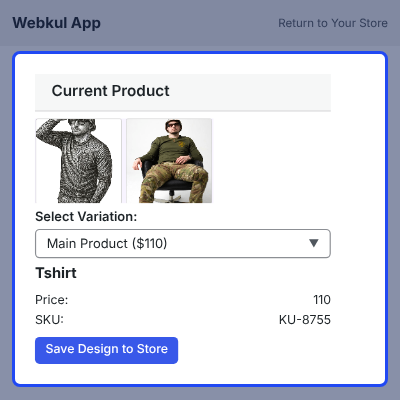
    • Add a Canva design option to WooCommerce product edit pages
    • Open Canva from the selected WooCommerce product
    • Load the existing product image into the editor
    • Create a new design from the product context
    • Save the finished image back to WooCommerce
    Design Product Images Directly From WooCommerce

    Search WooCommerce Products Inside Canva

    The Canva app includes a WooCommerce sidebar that lets you search the product catalog from inside the editor. This is useful when working with a large number of products.

    Search by product name or SKU to find the required item. The app also keeps the selected product context when the design process starts from WooCommerce.
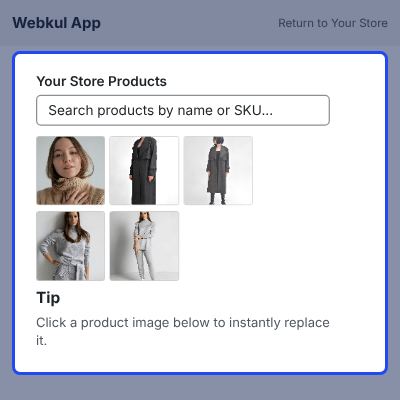
    • Search products by name
    • Search products by SKU
    • Browse the WooCommerce catalog from Canva
    • Use a WooCommerce sidebar inside the Canva editor
    • Load the selected product's existing image
    • Work with the product context from WordPress
    Search WooCommerce Products Inside Canva

    Save Canva Designs to the WordPress Media Library

    After a design is ready, the plugin sends the image back to WordPress. The exported design is added to the native WordPress Media Library.

    The saved image is then attached to the WooCommerce product as its featured image, removing the need for a separate upload step.
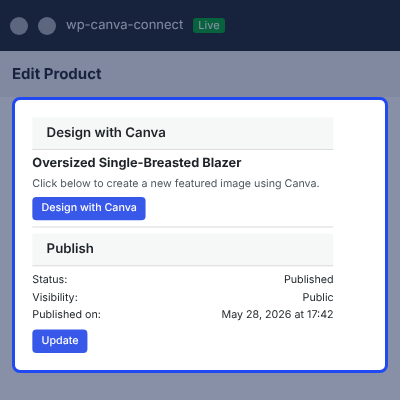
    • Export completed designs from Canva
    • Send designs back to the WooCommerce store
    • Add exported images to the WordPress Media Library
    • Attach the saved image to the selected product
    • Set the design as the product featured image
    • Reduce manual image upload steps
    Save Canva Designs to the WordPress Media Library

    Manage Canva Connection Settings in WordPress

    The plugin provides a centralized settings area for connecting your Canva app with WooCommerce. Store admins can add the credentials needed for the Canva integration.

    The setup starts by creating a Canva app in the Canva Developer Portal. The required app details can then be added to the WordPress settings.
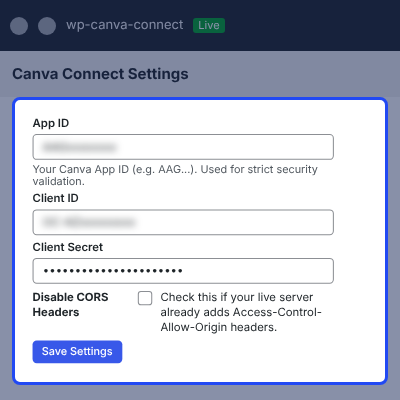
    • Create a Canva app in the Canva Developer Portal
    • Open Canva Connect Settings in WordPress
    • Add the Canva App ID
    • Add the Client ID
    • Add the Client Secret
    • Start designing from WooCommerce product pages
    Manage Canva Connection Settings in WordPress

    Simple Canva and WooCommerce Workflow

    The plugin keeps the main design workflow connected to your product catalog. You can move from a WooCommerce product to Canva, edit the image, and save the result back to WordPress.

    This helps teams avoid repeated downloads, external editing steps, and manual media uploads during regular catalog work.
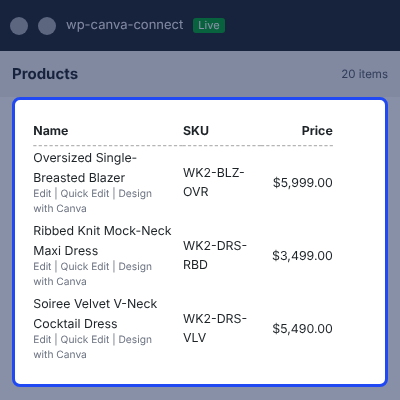
    • Open a WooCommerce product
    • Click Design with Canva
    • Edit the image in Canva
    • Save the finished design to WooCommerce
    • Find the image in the WordPress Media Library
    • Use it as the product's featured image
    Simple Canva and WooCommerce Workflow

    Support

    For any query or issue, please create a support ticket here http://webkul.uvdesk.com/

    You may also check our top-quality WooCommerce Plugins.

    Specifications

    Product Version1.0.0
    Released6 days ago
    CategoryWooCommerce
    Last UpdatedAugust 27, 2026 (6 days ago)
    Supported VersionsWordPress  6.x.x  7.x.x  WooCommerce  9.x.x  10.x.x  

    Ratings

    We'd love to hear your thoughts! Share your feedback and help us craft an even better experience tailored just for you.

    Write a review

    Frequently Asked Questions

     What does WooCommerce Canva Connector do?
    WooCommerce Canva Connector links WooCommerce with Canva so store admins can create or edit product images in Canva and save the finished design directly to WordPress.
     
     Can I design a product image from WooCommerce?
    Yes. The plugin adds a Design with Canva option to WooCommerce product edit pages. You can open Canva from the selected product and start designing there.
     
     Can the plugin load an existing product image?
    Yes. When a product already has an image, the Canva app can load that image into the editor. You can then use it as the base for your design.
     
     Does the plugin match Canva canvas dimensions automatically?
    Yes. The plugin reads the original product image dimensions or uses your theme's default image settings to create a suitably sized Canva canvas for the design.
     
     Can I search WooCommerce products inside Canva?
    Yes. The Canva app includes a WooCommerce sidebar where you can search your product catalog by product name or SKU without leaving the Canva editor.
     
     Where is the Canva design saved after editing?
    After you save the design, the exported image is sent to WordPress and added to the Media Library. It is then assigned to the product as its featured image.
     
     Do I need to download the Canva image before uploading it?
    No. The plugin sends the completed Canva design back to WordPress directly. This removes the need to download the file and upload it manually.
     
     How do I connect Canva with my WooCommerce store?
    First, create a Canva app in the Canva Developer Portal. Then add its App ID, Client ID, and Client Secret in the Canva Connect Settings in WordPress.
     
     Who can use WooCommerce Canva Connector?
    The plugin is suited to WooCommerce store managers, digital marketers, and agencies that regularly create or update product catalog images using Canva.
     
     Can I edit product images without leaving the WooCommerce workflow?
    Yes. You can open Canva from the WooCommerce product page, edit the image, and save the finished design back to WordPress without separate image editing and upload steps.

    Specification

    Detailed technical features and requirements to help you understand the module’s capabilities and ensure smooth integration with your system.

    Cloud Hosting

    Detailed technical features and requirements to help you understand the module’s capabilities and ensure smooth integration with your system.

    Default Configuration Details of Server

    1 GB
    RAM
    1 Core
    Processor
    30 GB
    Hard Disk
    1 GB RAM & 1 Core Processor
    Database

    Want to know more how exactly we are going to power up your eCommerce Website with Cloud to fasten up your store

    * Server Configuration may vary as per application requirements.

    Change Logs

    • - Feature Add (+)
    • - Feature remove (-)
    • - Bug Fixed (!)
    • - Modification (*)
    Version 1.0.0
    • + Intial Release


