Send Again
Close
WooCommerce POS Globalpay Terminal Payment connects Globalpay terminals with WooCommerce POS. It lets you take secure card payments at checkout.
This plugin adds Globalpay as a payment method, and users can pay with supported cards. Cashiers can complete orders from the same checkout screen.
It uses JWT authentication, HTTPS, and API validation to keep payment requests safe. This helps protect payment data during each payment.
This plugin works with WooCommerce HPOS and Blocks, making it easy to use with modern WooCommerce stores. It is a good choice for shops, supermarkets, and other retail businesses.
Also, to accept secure payments, commissions, refunds, multiple cards, different currencies, and 3D Secure support, use WooCommerce Marketplace Square Payment Gateway.
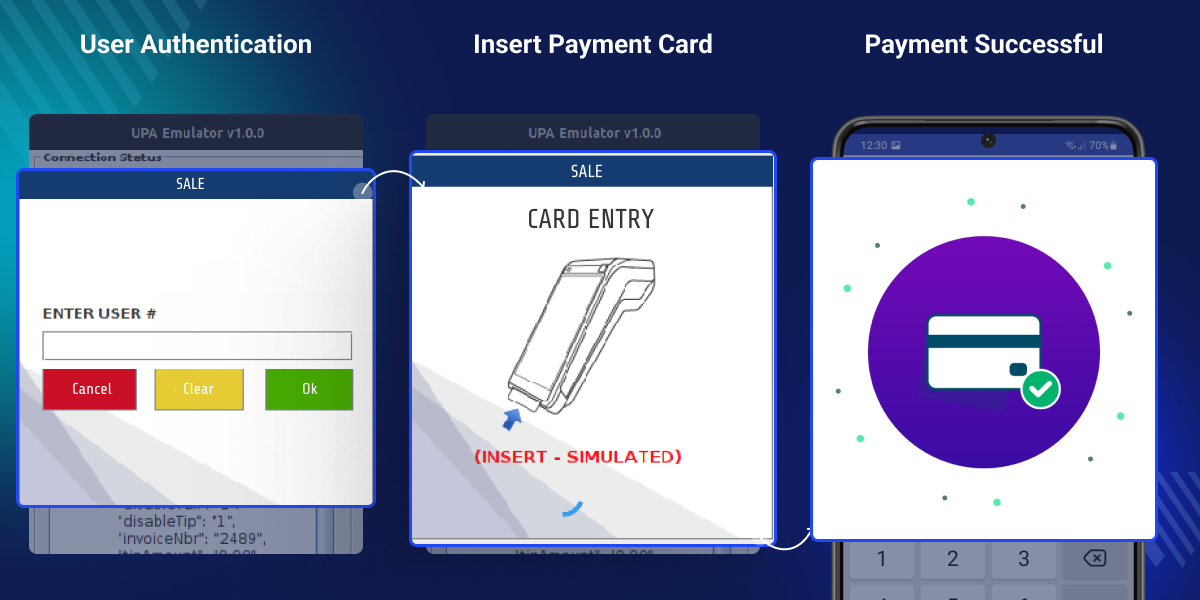
Connects the point of sale system and payment terminal for fast payment communication.
Keeps payment requests safe with JWT authentication and API checks.
Set merchant details, payment titles, and test or live mode from the admin panel.
Updates order status and saves payment details after each payment.
Shows payment results and clear error messages right away.
Works with WooCommerce HPOS and Blocks for modern WooCommerce stores.
WooCommerce POS Globalpay Terminal Payment connects Globalpay terminals with point of sale for fast and secure card payments.
WooCommerce Point of Sale does not support direct card terminal payments by default, so cashiers may need to switch between systems.
This plugin lets cashiers take card payments and complete orders from one screen. It reduces manual work, speeds up checkout, and helps process card payments without leaving WooCommerce POS.
Apart from this, to accept secure debit card, credit card, and BPAY payments with refund support, check out WooCommerce Ezidebit Payment Gateway.
Accept debit and credit card payments through Globalpay terminals at the checkout.
Take customer card payments quickly at checkout and keep payment and order status up to date.
Accept card payments through Globalpay terminals for dine in and takeaway orders.
Use the same payment setup across all store locations for a consistent checkout process.
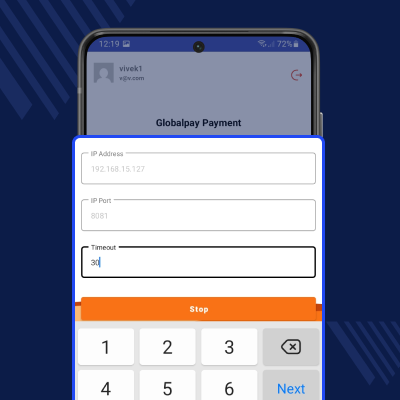
WooCommerce POS Globalpay shows the Device Connected screen when the Globalpay terminal is connected to the point of sale. It lets you check the connection, manage terminal settings, and keep card payments running.
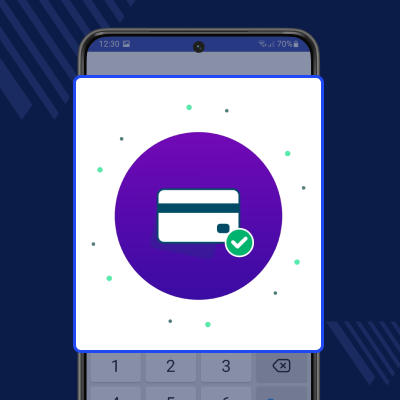
Globalpay Terminal Payment Approved screen confirms that the card payment is successful, allowing cashiers to verify the payment and complete the order.
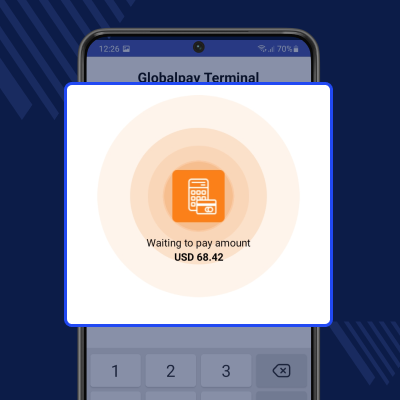
WooCommerce POS Payment Gateway Waiting for Payment screen shows the payment amount and current payment status.
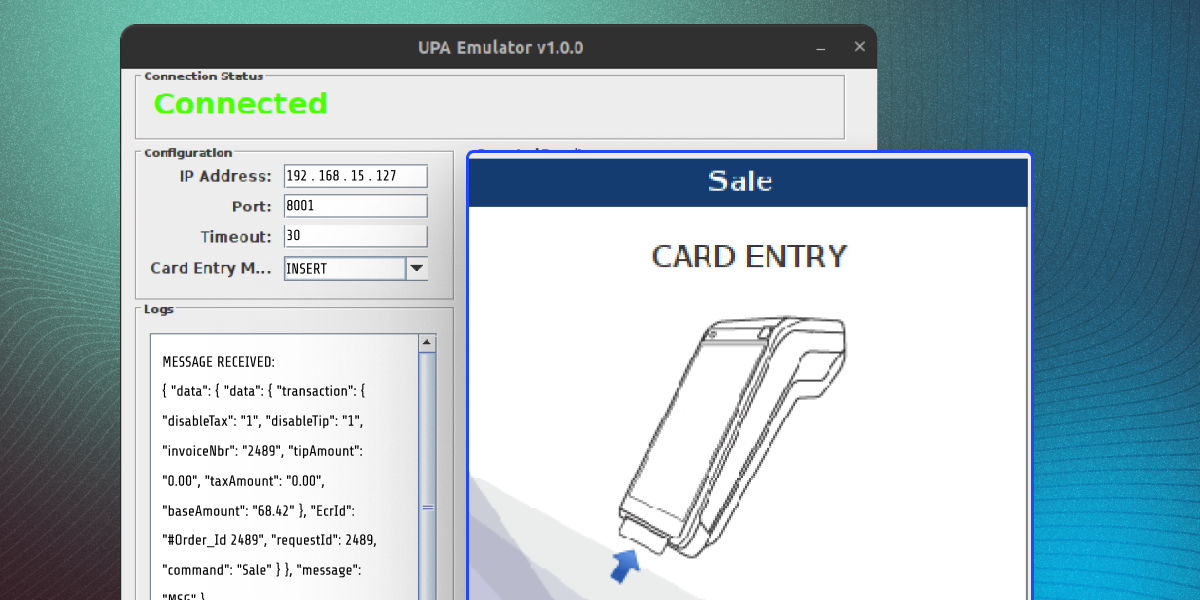
WooCommerce POS Card Payment Card Entry screen asks customers to tap, insert, or swipe their card. It also lets cashiers track the payment status until the transaction is complete.
For any query or issue please create a support ticket here http://webkul.uvdesk.com. You may also check our other top-quality WooCommerce Plugins.
Payment Approved screen appears only after a successful payment, while failed or declined payments display a different payment status screen.
Yes, once the payment is approved, the cashier can complete the order without needing additional payment confirmation steps.
Yes, clear payment confirmation helps cashiers avoid completing unpaid orders and reduces manual payment verification during busy checkout periods.
Yes, payment approval is visible during checkout, allowing both the cashier and customer to confirm the transaction was completed successfully.
Yes, approved payment details are saved with the order, helping maintain accurate payment and order records.
If the connection is lost before payment approval, the payment is not confirmed, and the cashier should reconnect the terminal and verify the payment.
Detailed technical features and requirements to help you understand the module’s capabilities and ensure smooth integration with your system.
Detailed technical features and requirements to help you understand the module’s capabilities and ensure smooth integration with your system.
We’re partnered with top-tier, trusted providers!
Want to know more how exactly we are going to power up your eCommerce Website with Cloud to fasten up your store
* Server Configuration may vary as per application requirements.



