USD
  • EUR
  • INR
  • USD
Cart
Cart 0
  • You have no items in your shopping cart.
    Odoo Apps Extensions
    Cart
    Cart 0
    • You have no items in your shopping cart.
    Hire a Developer
    ×
    Contact Us!
    Send Again
    Close
    Please Login to Write Your Review
    Odoo WooCommerce Connector

    Odoo WooCommerce Connector

    x
    Free

    * Required Fields

    $220.00
    Add To Cart
    Only One Time Payment

    Odoo WooCommerce Connector links one or more WooCommerce stores with Odoo. Admins can import products, categories, customers, and orders into a single Odoo instance.


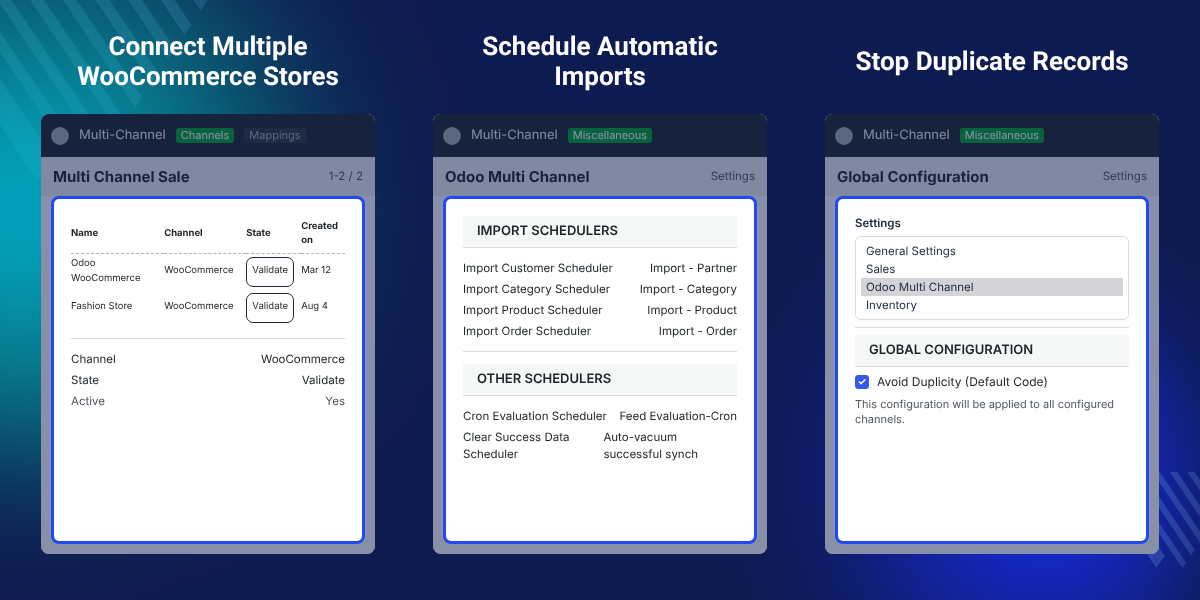
    • Connect up to 3 WooCommerce stores with one Odoo instance.

    • Import WooCommerce products with categories, attributes, and values.

    • Import customers along with their billing and shipping addresses.

    • Import orders with taxes, delivery methods, payment methods, and currency.

    • Sync order status, shipment, invoice, and cancel state to WooCommerce.

    • Fetch new products and orders in real time using WooCommerce webhooks.

    • Read WooCommerce API credentials automatically during instance setup.

    • Export Odoo products and categories in bulk or one at a time.

    • Map WooCommerce order statuses to Odoo statuses in a status table.

    • Track sync counts on a dashboard with a donut chart and line graph.

    Odoo WooCommerce Connector
    Odoo WooCommerce Connector
    $220.00
    Only One Time Payment
    X
    • Description
    • Reviews
    • FAQ
    • Customers ()
    • Specifications
    • Cloud Hosting
    • Changelog

    Odoo WooCommerce Connector is an Odoo module that connects one or more WooCommerce stores with a single Odoo instance. Products, categories, customers, and orders move into Odoo from each connected store.

    Store admins link a channel using the Consumer Key and Consumer Secret generated in WooCommerce. A Test Connection button confirms the API link before any data is pulled.

    Imported orders arrive with taxes, delivery methods, payment methods, and currency already attached. Sales, stock, and accounting then run from Odoo records instead of the store admin.

    As an Odoo multichannel connector, the module gives every channel its own API record limit, auto stock update, and duplicate handling settings. Cron schedulers cover customers, categories, products, and orders separately.

    Odoo 14 to Odoo 19 are supported, and the WooCommerce Python library is installed on the server first. Webhooks handle real-time product and order fetches without waiting for a cron run.

    Additionally, this module runs on the shared multichannel framework, so install Odoo Multi Channel Sale before you set up a channel.

    Note: You can connect up to 3 stores with single Odoo Instance For Free. If you want to connect more than three stores with your Odoo instance then you can contact our support team at [email protected].
    Odoo WooCommerce Connector

    Prerequisites for using Odoo Multichannel Woocommerce Connector Module

    Below is the list of things you would need before installing Odoo Multichannel Woocommerce Connector:

    • Odoo Multichannel Woocommerce Connector is a dependent module on Odoo Multi-Channel Sale Module, which is the framework module to provide the structure to integrate Woocommerce with Odoo. The base module needs to be installed first for Odoo Multichannel Woocommerce Connector to work.

    Highlighted Features of Odoo WooCommerce Connector

     Two-Way Data Sync

    Move products, categories, customers, and orders from WooCommerce into Odoo, and send catalog data back.

     Scheduled Cron Imports

    Separate cron schedulers run imports for customers, categories, products, and orders on their own timing.

     Webhook Real-Time Updates

    WooCommerce webhooks send new products and orders to Odoo as soon as they are created in the store.

     Automatic API Setup

    The channel form reads WooCommerce API credentials during setup, so no key or secret is typed by hand.

     Order Status Mapping

    A status table pairs each WooCommerce order status with the matching Odoo status for shipment and invoice.

     Dynamic Odoo Dashboard

    A donut chart, a line graph, and clickable data cards show what each connected WooCommerce store has synced.

    Why Do We Need Odoo WooCommerce Connector?

    Odoo does not read a WooCommerce store on its own. Order records, customer data, and stock counts stay inside WordPress, away from the system that runs the rest of the business.

    Without a WooCommerce Odoo integration, teams copy orders by hand or export a CSV file every day. Each pass adds delay, and stock counts drift between the website and the warehouse.

    Odoo Integration for WooCommerce closes that gap. A channel record holds the store URL and the API keys, and imports run on demand or on a cron schedule.

    Setup takes one screen in practice: paste the Consumer Key and Consumer Secret from WooCommerce Settings > Advanced > REST API, then press Test Connection before the first import.

    Also, if you sell on Shopify next to WooCommerce, you can check our module Odoo Multichannel Shopify Connector.

    Odoo Integration Use Cases for WooCommerce Stores

    These situations come from stores that take sales in WooCommerce and run operations in Odoo. Sellers who also list third-party products can check WooCommerce Multi Vendor Marketplace.

    • Run Multiple WooCommerce Stores

      One Odoo instance holds the catalog and orders of up to three connected WooCommerce stores.

    • Centralize Stock in Odoo

      Warehouse teams hold stock in Odoo, and auto stock updates push the counts to WooCommerce.

    • Invoice and Account in Odoo

      Finance raises invoices against imported orders, with taxes and currency kept on the record.

    • Ship Orders from Odoo

      Delivery teams validate shipments in Odoo, and the shipped state returns to the store order.

    • Launch Catalog from Odoo

      Product teams build items in Odoo, then export the templates and categories to WooCommerce.

    • Audit Every Sync Run

      Support staff open sync history to see which import or export run created a given record.

    WooCommerce Channel Configuration in Odoo

    Channel configuration holds the link between Odoo and one WooCommerce store. The form carries the channel name, the channel type, the store URL, and the REST API credentials.

    Each store gets its own channel record, so a business running three sites keeps that data separate inside one Odoo database. The same framework also connects other carts, such as Multi Channel Prestashop Odoo Bridge.
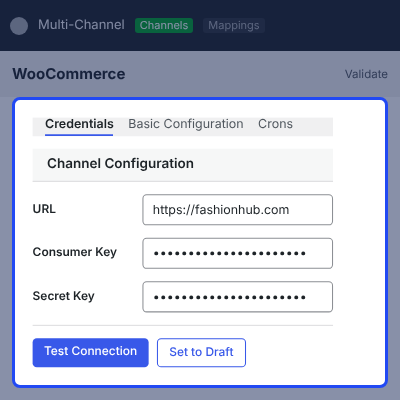
    • Enter the channel name and select WooCommerce as the channel type.
    • Add the store URL of the WordPress site running WooCommerce.
    • Paste the Consumer Key and Consumer Secret from the WooCommerce REST API screen.
    • Let the channel form fetch the API credentials during setup instead of typing them.
    • Press Test Connection and wait for the success message before the first import.
    • Set the API record limit so a large catalog reads in controlled batches.
    WooCommerce Channel Configuration in Odoo

    Import WooCommerce Products into Odoo

    Quick Import pulls WooCommerce records into Odoo from the connector dashboard. Admins pick the channel, the object type, and how much of the store to read.

    The same objects also run on a cron schedule, so a store with daily catalog changes stays current without a manual pass.
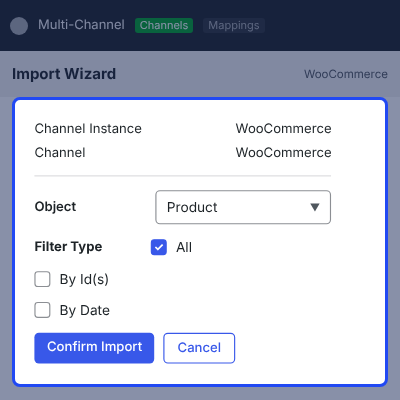
    • Select the object to import: Product, Category, Customer, Order, or Shipping Method.
    • Choose a filter type of All, By ID, or By Date to narrow the import.
    • Import products together with their categories, attributes, and attribute values.
    • Import customers with their billing and shipping addresses attached.
    • Turn on Avoid Duplicity so the same product is not created twice.
    • Run separate cron schedulers for customers, categories, products, and orders.
    Import WooCommerce Products into Odoo

    Sync WooCommerce Orders to Odoo with Order Status Mapping

    Imported orders reach Odoo with the customer, taxes, delivery method, payment method, and currency attached to the sales order.

    Order status mapping pairs a WooCommerce status with an Odoo status, so an invoice or a delivery in Odoo moves the store order to the right state.
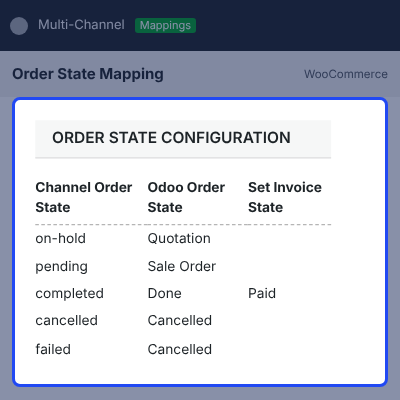
    • Import orders in bulk or on a cron schedule from each connected store.
    • Fill the status table with matching WooCommerce and Odoo order statuses.
    • Send cancel, shipment, and invoice states back to the WooCommerce order.
    • Keep the delivery method and payment method recorded on the Odoo sales order.
    • Open sync history to review the result of every order import.
    Sync WooCommerce Orders to Odoo with Order Status Mapping

    WooCommerce Real-Time Sync with Webhooks

    Webhooks let WooCommerce push a new product or order to Odoo the moment it is created, rather than at the next cron run.

    Stores with steady order flow use webhooks to keep the Odoo database current through the working day.
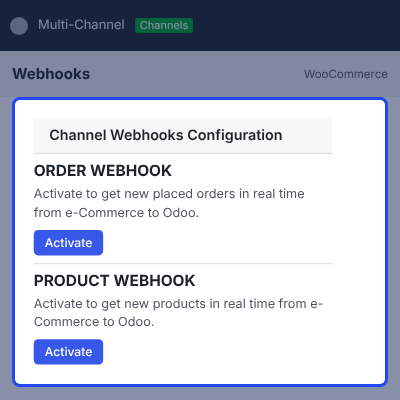
    • Fetch newly created WooCommerce products into Odoo as they are added.
    • Fetch newly placed WooCommerce orders into Odoo without a scheduled run.
    • Send order status, shipment, invoice, and cancel updates from Odoo to the store.
    • Push inventory changes from Odoo to the connected WooCommerce site.
    • Ask the support team for the free patch that adds real-time order sync into Odoo.
    WooCommerce Real-Time Sync with Webhooks

    Export Products and Categories to WooCommerce

    Quick Export sends Odoo records out to a connected store. Admins pick the channel ID and the object, then run the export from the same panel.

    Teams that build products in Odoo publish them this way. If your product data sits in a PIM, you can check Odoo Akeneo Connector.
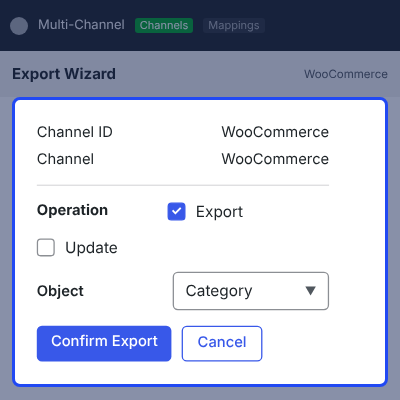
    • Export product templates from Odoo to the selected WooCommerce channel.
    • Export product categories in bulk or one record at a time.
    • Pick the channel ID first so the right store receives the data.
    • Open Mappings to confirm the WooCommerce ID an exported record received.
    • Read the result message that appears when the export run finishes.
    Export Products and Categories to WooCommerce

     A Well Designed Dynamic Dashboard

    • Now, easily analyze and track the data from one place!
    • Introduced a dynamic dashboard where you can analyze the data easily with the help of representative graphs.
    • You can synchronize the data of WooCommerce directly from the dashboard.
    • It has a well-designed Donut Chart and Line Graph to analyze the data. The dashboard also offers Clickable tabs and data cards.
    A Well Designed Dynamic Dashboard

     Easily connect the Woocommerce with Odoo

    Personalized Order from Odoo backend
    • You can easily set up Odoo Connections with Woocommerce.
    • Generate the API credentials from Woocommerce and then add it on the Odoo end.
    • It helps you to manage your Woocommerce data in Odoo for hassle free backend management.

    Complete Odoo WooCommerce Connector Feature List

    Data Import from WooCommerce

    • Import Product, Category, Customer, Order, and Shipping Method objects from any connected channel
    • Filter an import by All, By ID, or By Date to read only the records you need
    • Bring products in with their categories, attributes, and attribute values in one run
    • Bring customers in with billing and shipping addresses already linked
    • Bring orders in with taxes, delivery method, payment method, and currency on the sales order

    Export from Odoo to WooCommerce

    • Export product templates and product categories to a selected WooCommerce channel
    • Run an export in bulk or on individually selected records
    • Confirm each exported record and its WooCommerce ID from the Mappings screen
    • Read the on-screen result message returned at the end of an export run

    Scheduling and Centralized Inventory Management

    • Run cron schedulers for customers, categories, products, and orders on separate intervals
    • Use WooCommerce webhooks to fetch new products and orders in real time
    • Enable Auto Stock so Odoo inventory changes reach the connected store
    • Set an API record limit per channel to keep large reads within server capacity
    • Toggle Avoid Duplicity in Global Config to block repeat records by product code

    Order and Status Management

    • Map every WooCommerce order status to an Odoo status in the status table
    • Return cancel, shipment, and invoice states from Odoo to the store order
    • Keep customer, address, tax, and currency data on the imported sales order
    • Handle orders from several stores inside one Odoo sales pipeline

    Dashboard, Mapping and History

    • Track Order, Product, Category, and Customer volumes on a line graph
    • Compare Order and Product data on a donut chart per connected instance
    • Open mappings, feeds, and sync history from clickable data cards
    • Create Category, Attribute, and Value mappings manually or let cron update them
    • Clear logs that synced cleanly with the Auto-Vacuum Scheduler

    Setup and Compatibility

    • Works on Odoo 14, 15, 16, 17, 18, and 19
    • Runs on the Odoo Multi Channel Sale framework, installed before this module
    • Connect up to 3 WooCommerce stores with one Odoo instance by default
    • Fetch API credentials automatically during channel setup instead of pasting them
    • Verify the store link with Test Connection before any data moves

    Dedicated Support for Odoo Multichannel Woocommerce Connector Module

    Webkul's dedicated support provides you with the customizations and troubleshooting solutions for your Odoo Multichannel Woocommerce Connector and its extensions.

    For any query or issue please CREATE A TICKET HERE

    You may also check our other top-quality Odoo Plugins.

    Specifications

    Product Version2.4.0
    Released9 years ago
    Last UpdatedSeptember 1, 2026 (Today)
    Supported VersionsOdoo  8.x  9.x  10.x  11.x  12.x  13.x  14.x  15.x  16.x  17.x  18.x  19.x  

    Ratings

    We'd love to hear your thoughts! Share your feedback and help us craft an even better experience tailored just for you.

    5.0
    1 Reviews
    based on verified customer feedback
    Write a review
    Xabier Kenneth Scott Bilbao
    🇨🇱 Chile

    Excellent service with proper assistance

    Posted On - March 3, 2023

    I have been working with Webkul for a few years, and it's been a wonderful and professional experience.

    Frequently Asked Questions

     How does Odoo WooCommerce Connector work?
    Odoo WooCommerce Connector creates a channel record that holds a store URL and its REST API credentials. Products, categories, customers, and orders are then imported into Odoo on demand, on a cron schedule, or through webhooks.
     
     How many WooCommerce stores can I connect to one Odoo instance?
    Up to 3 stores can be connected to a single Odoo instance by default. To connect more than three, contact the Webkul support team for additional channels.
     
     Does the module need any other Odoo module to work?
    Yes. The Odoo Multi Channel Sale module is the base framework and must be installed first. The WooCommerce Python library also has to be present on the Odoo server.
     
     Can I import only new items without creating duplicate records?
    Turn on the Avoid Duplicity setting in Global Config. It uses the product code to stop the same product from being created more than once.
     
     What happens when an order status in WooCommerce does not match Odoo?
    Use the order status mapping table. It pairs a store status such as Processing or Completed with the Odoo status that should apply, so both systems report the same stage.
     
     Why is my scheduled cron job not synchronizing any data?
    Check that the cron job is active and set to a valid interval. Then confirm the channel is still connected with working API credentials by running Test Connection.
     
     Which Odoo versions does the connector support?
    Odoo 14, 15, 16, 17, 18, and 19 are supported. The WooCommerce Python library version differs by Odoo release, so install the one listed in the user guide.
     
     How do I clean up old synchronization logs?
    Enable the Auto-Vacuum Scheduler in the global configuration. It removes logs for records that synced cleanly after the time you set.

    Specification

    Detailed technical features and requirements to help you understand the module’s capabilities and ensure smooth integration with your system.

    Cloud Hosting

    Detailed technical features and requirements to help you understand the module’s capabilities and ensure smooth integration with your system.

    Default Configuration Details of Server

    1 GB
    RAM
    1 Core
    Processor
    30 GB
    Hard Disk
    1 GB RAM & 1 Core Processor
    Database

    Want to know more how exactly we are going to power up your eCommerce Website with Cloud to fasten up your store

    * Server Configuration may vary as per application requirements.

    Change Logs

    Not Available


