USD
  • EUR
  • INR
  • USD
Cart
Cart 0
  • You have no items in your shopping cart.
    Odoo Apps Extensions
    Cart
    Cart 0
    • You have no items in your shopping cart.
    Hire a Developer
    ×
    Contact Us!
    Send Again
    Close
    Please Login to Write Your Review
    OpenERP CRM Stock Management

    OpenERP CRM Stock Management

    x
    Free

    * Required Fields

    $59.00
    Add To Cart

    OpenERP CRM Stock Management adds product lines to CRM leads and emails the customer and manager when the lead products are in stock.


    • Add product lines with expected quantities to every CRM lead.

    • Set the Stock lead type to track product stock for a lead.

    • Email the customer when the lead products are available in stock.

    • Send the manager an email with the customer, products, and quantities.

    • Convert the lead into an opportunity once every product line is available.

    • Compute the expected revenue of a lead from its product lines.

    • Turn the opportunity into a quotation with the same product lines.

    • Check lead stock on a schedule with the CRM Lead Stock scheduler.

    OpenERP CRM Stock Management
    OpenERP CRM Stock Management
    $59.00
    Check How It Works

    Need Help Deciding?

    Support answers within one business day.

    Open a ticket
    $59.00
    Configure and Buy
    X
    • Description
    • Reviews
    • FAQ
    • Customers ()
    • Specifications
    • Cloud Hosting
    • Changelog

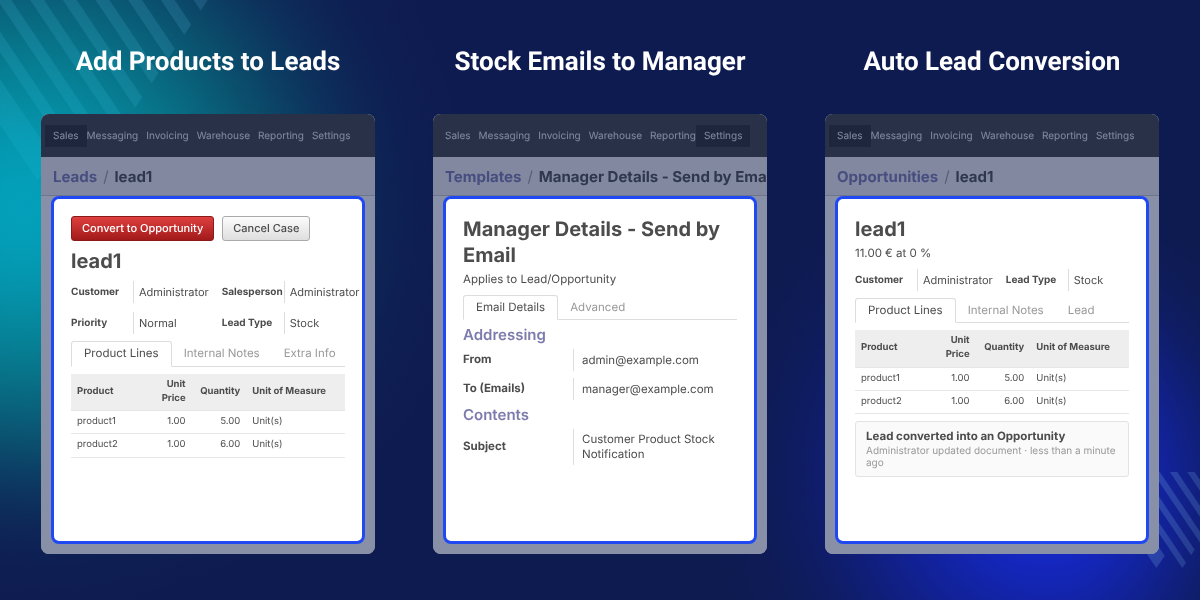
    OpenERP CRM Stock Management is an OpenERP CRM extension that tracks product stock for customer leads. Sales users add the products a customer needs, with quantities, to a Product Lines tab on the lead.

    Set the lead type to Stock, and the module compares each expected quantity with the stock in OpenERP. When a product is available, an email goes out to the customer and to the manager.

    Once every product line is in stock, the lead turns into an opportunity by itself. Its expected revenue comes from the unit price and quantity of each product line.

    Two email templates control the messages: Manager Details and Customer Details. A scheduled action named Schedule for CRM Lead Stock runs the stock check at the interval you set.

    The module works with OpenERP 6.x and 7.x and depends on the OpenERP CRM module. You install it only on the OpenERP side, from the crm_lead_stock addon directory.

    Additionally, if you want to move lead records to claims or helpdesk tickets, then check OpenERP CRM LCHD Conversion.
    OpenERP CRM Stock Management

    Highlighted Features of OpenERP CRM Stock Management

     Product Lines in Leads

    Add products, unit prices, and expected quantities to a lead from the Product Lines tab.

     Stock Lead Type

    Mark a lead with the Stock lead type so the module checks its product stock.

     Stock Availability Emails

    Email the customer and the manager as soon as the expected quantity of a product is in stock.

     Automatic Opportunity Conversion

    Move the lead to Opportunities without manual work once all of its products are available.

     Lead Revenue Computation

    Get the expected revenue of the opportunity from the price and quantity of each product line.

     Scheduled Stock Checks

    Run the stock check through an OpenERP scheduled action at the interval you choose.

    Why Do We Need OpenERP CRM Stock Management?

    Default OpenERP CRM records a lead, but it has no place for the products and quantities a customer asks for. It also cannot tell the sales team when those products come back into stock.

    Without it, sales users check stock by hand for each lead and write to the customer themselves. Requests get missed, and leads wait longer than needed before becoming opportunities.

    This module keeps the product lines on the lead and checks stock on a schedule. It emails the customer and the manager and converts the lead as soon as every product is available.

    In practice, the setup takes two steps: set the From and To (Emails) addresses in the Manager Details template, then set the From address in the Customer Details template.

    Also, if you want customers on your website to get an email when a product is back in stock, you can check our extension Odoo Website Stock Notify.

    OpenERP CRM Stock Management Use Cases

    • Requests for Out-of-Stock Items

      Record what a customer wants as a Stock lead when the items are not yet available.

    • Sales Follow-up After Restock

      Let the manager know which customer is waiting, and for which quantities, when stock arrives.

    • Quoting Once Stock Arrives

      Send a quotation built from the lead products as soon as the opportunity is ready.

    • Customer Demand Tracking per Lead

      Keep a clear record of the products and quantities each customer asked for.

    Manager Stock Notification Email Template

    The Manager Details - Send by Email template sends stock details to the manager. It lists the customer, the products, and their quantities when stock is available.

    For alerts when a product quantity falls below a set level, check Odoo Low Stock Notification for Product.
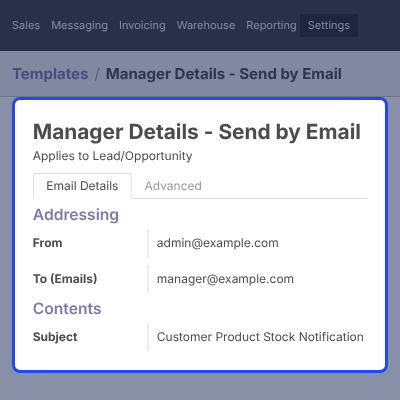
    • Open the template from Settings > Technical > Email > Templates.
    • The template applies to Lead/Opportunity records.
    • Set the From email address for the notification.
    • Enter the manager address in To (Emails).
    • Uses the subject Customer Product Stock Notification.
    Manager Stock Notification Email Template

    Customer Stock Notification Email Template

    The Customer Details - Send by Email template tells the customer that the requested items are now available. The email names the products and their quantities.
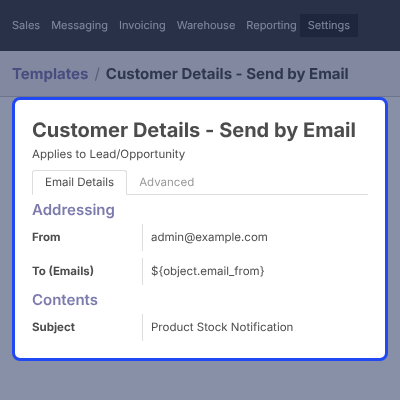
    • Open the template from the same Templates list.
    • The template applies to Lead/Opportunity records.
    • Set the From email address for customer emails.
    • To (Emails) uses the lead email through ${object.email_from}.
    • Uses the subject Product Stock Notification.
    Customer Stock Notification Email Template

    Product Lines in CRM Leads

    After install, the lead form gets a Product Lines tab and a Lead Type field. Sales users add the products a customer needs and select Stock as the lead type.
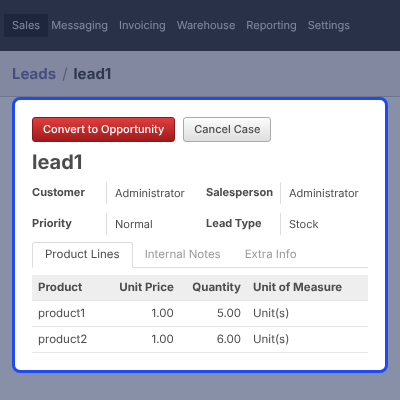
    • Create a new lead for the customer from Sales > Leads.
    • Select Stock in the Lead Type field.
    • Add products in the Product Lines tab.
    • Enter Unit Price, Quantity, and Unit of Measure for each line.
    • The expected quantity is compared with product stock in OpenERP.
    Product Lines in CRM Leads

    Automatic Lead to Opportunity Conversion

    When the expected quantity of every product line is in stock, the lead converts into an opportunity. The opportunity keeps the same product lines and lead type.
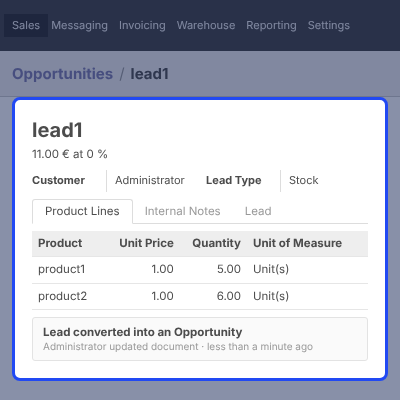
    • Find the converted lead under Sales > Opportunities.
    • Expected revenue is computed from the product lines.
    • The chatter logs Lead converted into an Opportunity.
    • Product Lines and the Stock lead type stay on the record.
    • With partial stock, only the email is sent and the lead stays open.
    Automatic Lead to Opportunity Conversion

    Convert Opportunity to Quotation

    Open the converted opportunity and click Convert to Quotation. The Make Quotation window creates the quotation for the customer.

    If you also want to create purchase orders from CRM leads, check Odoo Purchase Quotation from CRM.
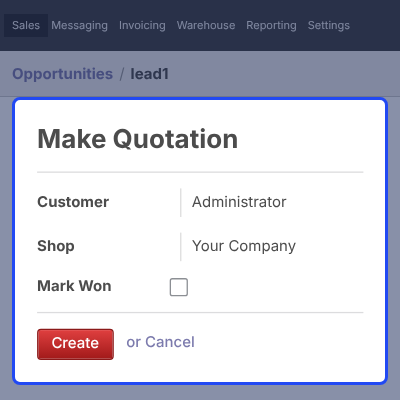
    • Click Convert to Quotation on the opportunity.
    • Select the Customer in the Make Quotation window.
    • Select the Shop for the quotation.
    • Tick Mark Won to close the opportunity as won.
    • Click Create to make the quotation.
    Convert Opportunity to Quotation

    Quotation with Lead Product Lines

    The new quotation carries the same product lines as the opportunity. Sales users do not need to enter the products or quantities again.
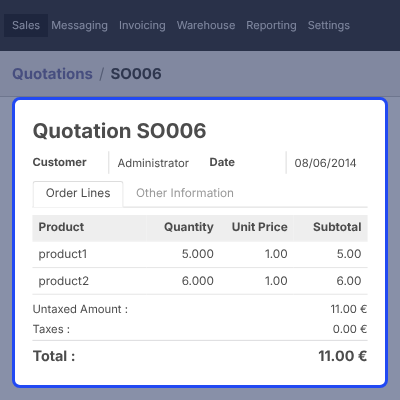
    • Order Lines copy each product and quantity from the lead.
    • Unit Price and Subtotal come from the product lines.
    • The quotation shows the Untaxed Amount, Taxes, and Total.
    • Send the quotation with Send by Email, or Print it.
    Quotation with Lead Product Lines

    CRM Lead Stock Scheduler

    The Schedule for CRM Lead Stock action runs the stock check for Stock leads. Set how often it runs to match how fast your stock changes.
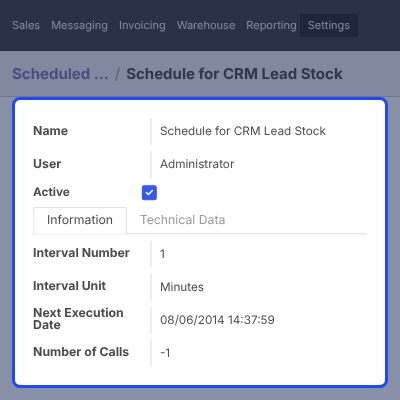
    • Open it from Settings > Scheduler > Scheduled Actions.
    • Set the Interval Number and Interval Unit.
    • Set the Next Execution Date for the next run.
    • Set the Number of Calls and the User who runs the action.
    • Keep the Active box ticked to run the check.
    CRM Lead Stock Scheduler

    Complete OpenERP CRM Stock Management Feature List

    Lead Product Management

    • Add a Product Lines tab to lead and opportunity forms
    • Enter product, unit price, quantity, and unit of measure on each line
    • Add a Lead Type field with a Stock option to the lead form
    • Keep the product lines when the lead becomes an opportunity

    Stock Notifications

    • Email the customer when the expected quantity of a product is in stock
    • Email the manager with the customer, products, and quantity details
    • Edit the Manager Details and Customer Details email templates
    • Send emails for available products even when other products are still short

    Sales Pipeline Automation

    • Convert the lead into an opportunity when the full expected quantity is available
    • Compute expected revenue from the product lines
    • Create a quotation with the same product lines through Convert to Quotation

    Configuration and Compatibility

    • Run stock checks through the Schedule for CRM Lead Stock action
    • Set the interval, next run date, and number of calls for the scheduler
    • Install on the OpenERP side only, from the crm_lead_stock directory
    • Works with OpenERP 6.x and 7.x and needs the OpenERP CRM module

    OpenERP CRM Stock Management Support -

    For any query or issue please create a support ticket here http://webkul.com/ticket

    Specifications

    Product Version1.0
    Released12 years ago
    CategoryOdoo Apps, CRM, 
    Last UpdatedSeptember 25, 2026 (1 month ago)
    Supported VersionsOdoo  6.x  7.x  

    Ratings

    We'd love to hear your thoughts! Share your feedback and help us craft an even better experience tailored just for you.

    Write a review

    Frequently Asked Questions

     What does OpenERP CRM Stock Management do?
    OpenERP CRM Stock Management adds product lines to CRM leads and checks their stock. When products are available, it emails the customer and the manager and converts the lead into an opportunity.
     
     Which OpenERP versions does the module support?
    The module supports OpenERP 6.x and 7.x.
     
     Does it need the OpenERP CRM module?
    Yes. The module depends on the OpenERP CRM module, so install CRM first.
     
     Who receives the stock availability email?
    Both the customer and the manager get an email. The customer email goes to the lead email address, and the manager email goes to the address set in the Manager Details template.
     
     What happens if only some lead products are in stock?
    The customer and manager get an email for the products whose expected quantity is available. The lead converts into an opportunity only when every product line is in stock.
     
     How often does the module check stock for leads?
    The check runs through the Schedule for CRM Lead Stock scheduled action. The admin sets how often it runs with the Interval Number and Interval Unit fields.
     
     Can I change the stock notification email content?
    Yes. The Manager Details - Send by Email and Customer Details - Send by Email templates are standard OpenERP email templates that the admin can edit.

    Specification

    Detailed technical features and requirements to help you understand the module’s capabilities and ensure smooth integration with your system.

    Cloud Hosting

    Detailed technical features and requirements to help you understand the module’s capabilities and ensure smooth integration with your system.

    Default Configuration Details of Server

    1 GB
    RAM
    1 Core
    Processor
    30 GB
    Hard Disk
    1 GB RAM & 1 Core Processor
    Database

    Want to know more how exactly we are going to power up your eCommerce Website with Cloud to fasten up your store

    * Server Configuration may vary as per application requirements.

    Change Logs

    Not Available