Send Again
Close
WooCommerce POS Avalara Tax helps stores add Avalara tax in Point of Sale. This plugin uses the outlet address to apply tax. Store owners can add the Avalara Account ID and License Key in WooCommerce settings. WooCommerce POS Tax Calculation plugin supports Sandbox and Production mode.
The tax amount depends on the outlet address. Different outlet locations can use different tax rules. POS Automatic Cart Tax Update plugin updates tax when cart products change. Tax values also change after discounts or coupons are used.
A separate Avalara Tax setting is available in Point of Sale settings. This setting stays enabled by default. When enabled, Avalara tax works in Point of Sale. Tax applies automatically during checkout.When disabled, WooCommerce taxes start working in POS.
WooCommerce taxes work only if tax rules are added in WooCommerce. If no rules are added, taxes will not appear. Tax details appear in the cart, order summary, invoice, and bill summary. This plugin also supports custom products.
Note:To use this module, you need to install WooCommerce Point of Sale and Avalara AvaTax for WooCommerce in your WooCommerce store.
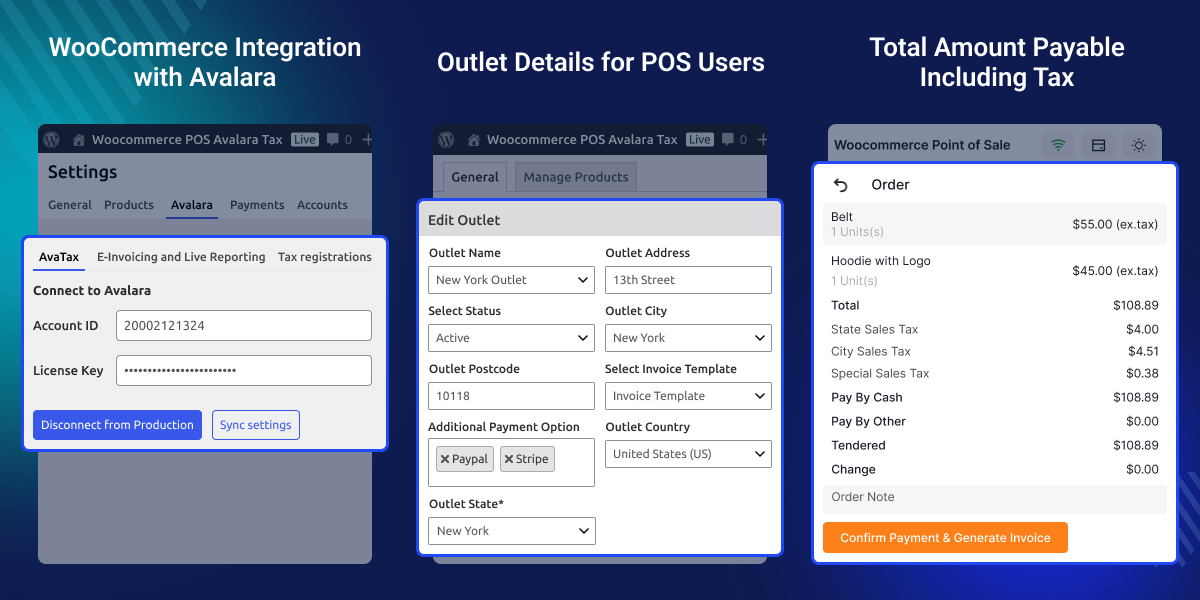
This plugin calculates tax using the outlet address.
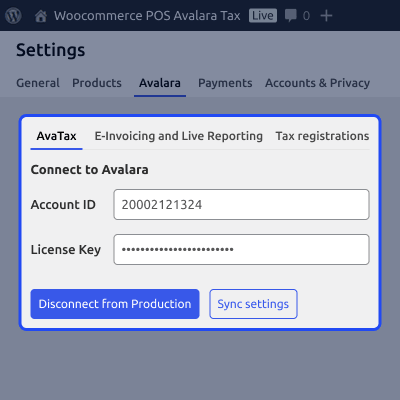
Users can connect Avalara in Sandbox or Production mode.
Taxes update automatically when cart products change.
Sales tax and other taxes appear separately in POS.
Custom products also support Avalara tax calculation.
Tax values update after discounts are applied.
Users can enable or disable Avalara tax in POS settings.
This plugin can switch back to WooCommerce tax flow.
WooCommerce POS Outlet Based Tax does not support Avalara tax by default. Many stores need tax calculation in POS. Manual tax work takes time and can cause billing mistakes. Different store locations may also use different tax rules.
This plugin adds Avalara tax to WooCommerce Point of Sale. Taxes apply automatically based on the outlet address. Users can switch between Avalara tax and WooCommerce tax when needed. Retail stores and supermarkets can save time with automatic tax calculation.
You can also check our WooCommerce Marketplace Avalara Tax Integration plugin for automated tax calculation and tax management within your marketplace.
This plugin updates taxes automatically when cart details change. This helps store staff create bills quickly.
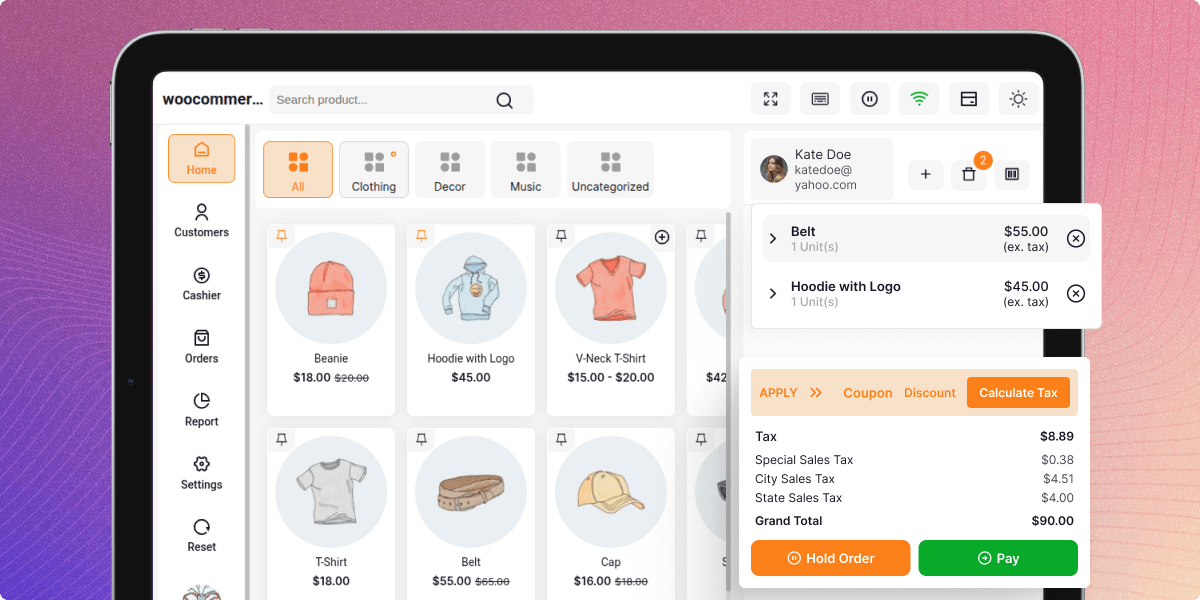
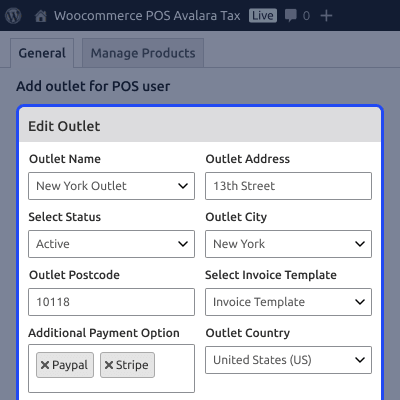
This plugin calculates taxes using the configured outlet address in WooCommerce POS. This helps stores apply local tax rules during checkout.
This plugin supports both Sandbox and Production environments. Users can manage Avalara settings from WooCommerce settings.
This plugin starts using WooCommerce taxes when Avalara tax is disabled. This helps stores continue billing with WooCommerce tax rules.
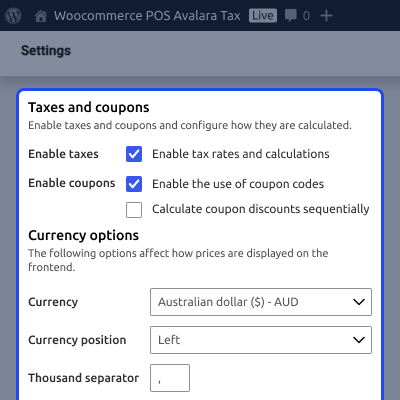
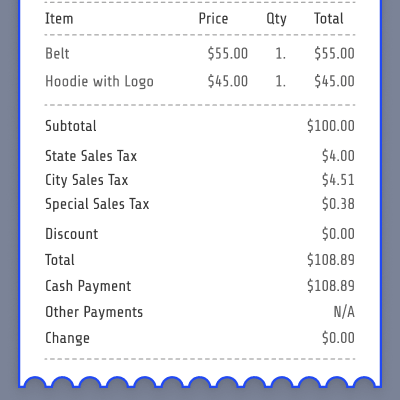
This plugin shows all tax details in the cart and order sections. Customers and staff can view tax amounts easily.
For any query or issue please create a support ticket here http://webkul.uvdesk.com. You may also check our other top-quality CS-Cart Add-ons.
Detailed technical features and requirements to help you understand the module’s capabilities and ensure smooth integration with your system.
Detailed technical features and requirements to help you understand the module’s capabilities and ensure smooth integration with your system.
We’re partnered with top-tier, trusted providers!
Want to know more how exactly we are going to power up your eCommerce Website with Cloud to fasten up your store
* Server Configuration may vary as per application requirements.