USD
  • EUR
  • INR
  • USD
Cart
Cart 0
  • You have no items in your shopping cart.
    PrestaShop Extensions
    Cart
    Cart 0
    • You have no items in your shopping cart.
    Hire a Developer
    ×
    Contact Us!
    Send Again
    Close
    Please Login to Write Your Review
    POB Extension Stock Handling

    POB Extension Stock Handling

    x
    Free

    * Required Fields

    $99.00
    Add To Cart

    Odoo PrestaShop Connector Stock Handling tracks failed real-time stock updates from Odoo to PrestaShop and lets admins re-run them manually.


    • Track failed real-time stock updates from Odoo to PrestaShop.

    • See products that failed to sync in red, along with their quantities.

    • Re-run a failed stock update manually for one or many products.

    • Keep product quantities the same in Odoo and PrestaShop.

    • Choose to sync On-hand quantity or Forecast quantity.

    • Update stock for all products at once with Bulk Synchronisation.

    • Recover from a PrestaShop server or connection failure.

    POB Extension Stock Handling
    POB Extension Stock Handling
    $99.00
    Check How It Works

    Need Help Deciding?

    Support answers within one business day.

    Open a ticket
    $99.00
    Configure and Buy
    X
    • Description
    • Reviews
    • FAQ
    • Customers ()
    • Specifications
    • Cloud Hosting
    • Changelog

    Odoo PrestaShop Connector Stock Handling is an Odoo add-on for stores that run the Odoo PrestaShop Connector (POB) base module.

    It keeps product stock the same in Odoo and PrestaShop when stock is updated or purchase orders are created in Odoo.

    If the PrestaShop server is down or the connection fails, the update never reaches the store. The module shows each failed stock synchronization.

    A new POB: Stock Handling menu under Mapping lists every failed update. Admins select the products and re-run the stock update.

    A setting under the connector connection lets admins sync stock by On-hand quantity or Forecast quantity.

    Also, if you want to connect your PrestaShop store with Odoo for products, orders, and customers, then check Odoo PrestaShop Connector.
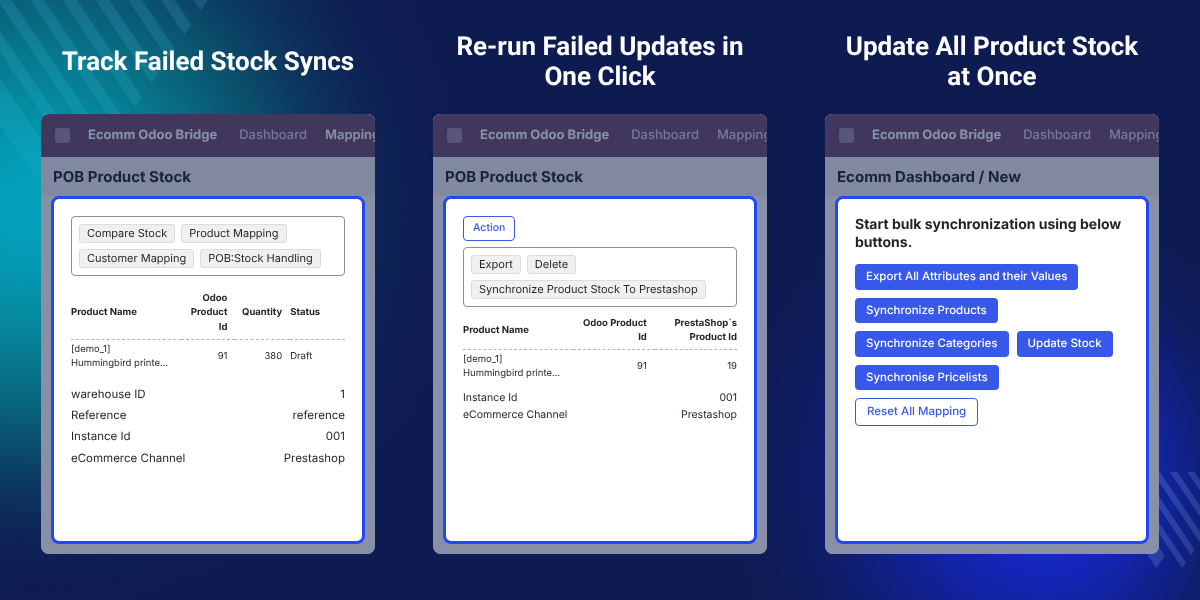
    Odoo PrestaShop Connector Stock Handling

    Highlighted Features of Odoo PrestaShop Connector Stock Handling

     Failed Update Tracking

    Lists every real-time stock update from Odoo to PrestaShop that failed, with the product quantity.

     Manual Stock Re-sync

    Select one or many failed products and run Synchronize Product Stock to update PrestaShop.

     Stock Quantity Choice

    Sync stock based on On-hand quantity or Forecast quantity from the connector settings.

     Bulk Stock Update

    Click Update Stock under Bulk Synchronisation to match PrestaShop stock with current Odoo stock.

    Why Do We Need Odoo PrestaShop Connector Stock Handling?

    Odoo PrestaShop Connector Stock Handling exists because a real-time stock update from Odoo can fail, and nothing shows which ones.

    When the PrestaShop server is down or the connection breaks, the update is lost. Stock in Odoo and PrestaShop then differ.

    Without a list, a team must compare product stock by hand to find the gap. This takes time and some products are missed.

    Here, failed updates show in one list, in red, with quantities. Admins re-run them from the same screen.

    Admins open Mapping > POB: Stock Handling and find every failed product in one place.

    Also, if you want to find stock mismatches between Odoo and PrestaShop for any reason, you can check our extension POB Extension : Stock Comparison.

    Also, if you want to sell on more than one channel from Odoo, then check Multi Channel Prestashop Odoo Bridge (POB).

    Also, if your PrestaShop store runs in more than one language, you can check our extension Multi language Support Prestashop Odoo Connector.

    Odoo PrestaShop Stock Sync Use Cases

    • PrestaShop Server Downtime

      The store server goes down while Odoo sends stock. Admins re-run the failed updates once the server is back.

    • Broken Connection Recovery

      The connection between Odoo and PrestaShop fails. The store team finds the affected products and updates their stock.

    • Stock and Purchase Order Changes

      Stock changes or purchase orders in Odoo should reach PrestaShop. Failed ones are listed, so none stay out of sync.

    • Full Catalogue Stock Refresh

      The team wants every product to show current Odoo stock. They run Update Stock once from Bulk Synchronisation.

    Failed Stock Sync List in Odoo

    After installation, a POB: Stock Handling menu appears under Mapping in Ecomm Odoo Bridge. It lists products whose stock sync to PrestaShop failed.

    Admins see which products need attention without checking each product mapping.
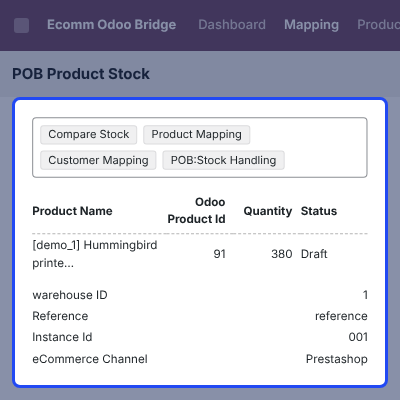
    • Open Mapping > POB: Stock Handling to see the POB Product Stock list.
    • Failed products show in red with their quantities.
    • Each row shows the Product Name, Odoo Product Id, Quantity, warehouse ID, Reference, Instance Id, eCommerce Channel, and Status.
    • Search, Filters, Group By, and Favorites help find a product in the list.
    Failed Stock Sync List in Odoo

    Re-run Failed Stock Updates to PrestaShop

    Admins can send a failed stock update again from the POB Product Stock list. PrestaShop is then updated.

    Use it after the PrestaShop server or the connection is working again.
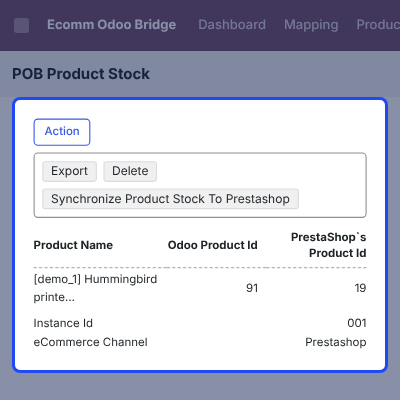
    • Select one product or several products in the list.
    • Click Action in the list view.
    • Choose Synchronize Product Stock To Prestashop.
    • Export and Delete are also available in the same Action menu.
    Re-run Failed Stock Updates to PrestaShop

    Stock Based On Quantity Setting

    Admins choose which quantity the connector syncs to PrestaShop. The setting is on the Other Default Settings tab of the Connector Connection.

    Stores that count incoming goods can pick Forecast quantity. Others can keep On-hand quantity.
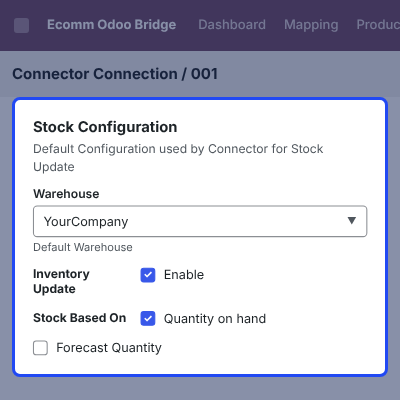
    • Open the Other Default Settings tab and go to Stock Configuration.
    • Select the default Warehouse.
    • Set Inventory Update to Enable or Disable.
    • Under Stock Based On, select Quantity on hand or Forecast Quantity.
    Stock Based On Quantity Setting

    Bulk Stock Update from Odoo

    Admins can update the stock of all products in PrestaShop in one click. PrestaShop stock then matches the current Odoo stock.

    It is useful when many updates failed or when the store needs a full refresh.
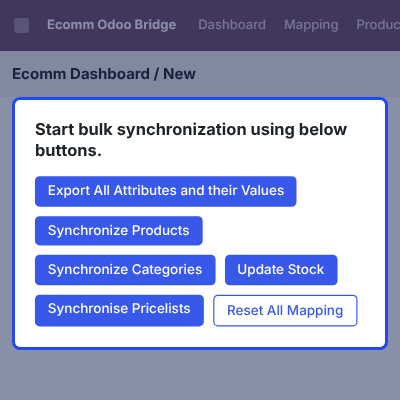
    • Open Ecomm Odoo Bridge and go to Bulk Synchronisation.
    • Click Update Stock next to Update Products Stock.
    • The same screen also has Export All Attributes and their Values, Synchronize Products, Synchronize Categories, Synchronise Pricelists, and Reset All Mapping.
    Bulk Stock Update from Odoo

    Complete Odoo PrestaShop Connector Stock Handling Feature List

    Failed Sync Tracking

    • Track real-time stock updates from Odoo to PrestaShop that failed because the PrestaShop server was down or the connection broke
    • View failed products in a POB Product Stock list under the Mapping menu
    • See failed products in red with their quantities
    • Keep product quantities the same in Odoo and PrestaShop

    Manual Re-sync

    • Select one product or several products from the list
    • Run Synchronize Product Stock To Prestashop from the Action menu
    • Update PrestaShop for failed real-time updates

    Stock Configuration

    • Sync stock based on On-hand quantity or Forecast quantity
    • Select the default Warehouse and enable or disable Inventory Update

    Bulk Synchronisation

    • Update stock for all products at once with the Update Stock button
    • Match PrestaShop stock with current Odoo stock from Ecomm Odoo Bridge

    Installation & Compatibility

    • Works with the Odoo PrestaShop Connector (POB) base module
    • Install on Odoo from Apps after placing the module in the addons folder and updating the Apps list

    POB Extension Stock Handling SUPPORT -

    For any query or issue please create a support ticket here http://webkul.com/ticket

    You may also check our other top-quality PrestaShop Add-ons.

    Specifications

    Product Version1.0
    Released11 years ago
    Last UpdatedOctober 14, 2026 (17 days ago)
    Supported VersionsPrestaShop  1.5.x.x​  1.6.x.x​  1.7.x.x​  Odoo  7.x  8.x  10.x  11.x  12.x  13.x  14.x  

    Ratings

    We'd love to hear your thoughts! Share your feedback and help us craft an even better experience tailored just for you.

    Write a review

    Frequently Asked Questions

     How does Odoo PrestaShop Connector Stock Handling work?
    It tracks real-time stock updates from Odoo to PrestaShop that failed. Admins see them in a list and re-run each update manually.
     
     Which base module does it need?
    It is for stores that use the Odoo PrestaShop Connector (POB) base module.
     
     What happens if the PrestaShop server is down?
    The real-time stock update fails, and the module lists it. Admins can re-run the update once the server works again.
     
     Where do I find the failed stock updates?
    After installation, a POB: Stock Handling tab appears under the Mapping menu. It lists the failed products in red with their quantities.
     
     How do I re-run a failed stock update?
    Select one or more products in the list, click Action, and choose Synchronize Product Stock. The stock is then updated in PrestaShop.
     
     Is the failed update retried automatically?
    No. The module lets admins re-run the failed update manually.
     
     Can I choose which quantity is synced?
    Yes. In the configuration settings, choose to sync based on On-hand quantity or Forecast quantity.
     
     How do I update stock for all products at once?
    Open Ecomm Odoo Bridge, go to Bulk Synchronisation, and click Update Stock. PrestaShop stock then matches current Odoo stock.
     
     Can I export or delete records from the failed list?
    Yes. The Action menu in the POB Product Stock list has Export and Delete next to Synchronize Product Stock To Prestashop. A download button also sits at the top left of the list.
     
     How do I install the module?
    Place the module in the Odoo addons folder and turn on developer mode. In Apps, click Update Apps List, search for POB Stock Handling, and click Install.

    Specification

    Detailed technical features and requirements to help you understand the module’s capabilities and ensure smooth integration with your system.

    Cloud Hosting

    Detailed technical features and requirements to help you understand the module’s capabilities and ensure smooth integration with your system.

    Default Configuration Details of Server

    1 GB
    RAM
    1 Core
    Processor
    30 GB
    Hard Disk
    1 GB RAM & 1 Core Processor
    Database

    Want to know more how exactly we are going to power up your eCommerce Website with Cloud to fasten up your store

    * Server Configuration may vary as per application requirements.

    Change Logs

    Not Available