WooCommerce ERP Plugin manages warehouses, inventory, purchasing, RFQs, stock transfers, and order fulfilment from one ERP dashboard.
- Manage unlimited warehouses and physical stock locations
- Track stock through Zone, Aisle, Rack, Shelf, and Bin levels
- Reserve stock for an order before warehouse staff start picking
- Process picking, packing, and shipping from the ERP dashboard
- Create supplier RFQs and convert approved quotes into purchase orders
- Receive purchased stock directly into selected warehouse bins
- Transfer inventory between warehouses with approval and dispatch records
- Give Warehouse Manager, Warehouse Staff, and Supplier roles separate access
- Track every stock movement in a filterable activity log
- Store WooCommerce order data with High-Performance Order Storage
- Description
- Reviews
- FAQ
- Customers ()
- Specifications
- Cloud Hosting
- Changelog
WooCommerce ERP Plugin is a WooCommerce extension for warehouse, inventory, purchasing, and order fulfilment work. Its back office is dedicated to the ERP, with a separate dashboard and sidebar.
Stock lives in named bin locations rather than a single store total. Each warehouse breaks down into Zone, Aisle, Rack, Shelf, and Bin. A picker reads the exact bin a product sits in.
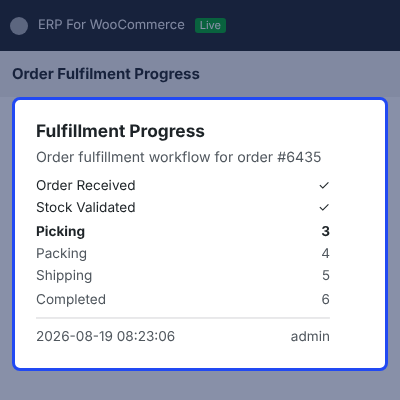
Orders move through a fixed sequence: Order Received, Stock Validated, Picking, Packing, Shipping, and Completed. Staff validate stock, reserve units, then pick and pack from the reserved bins.
Buying happens in the same back office. Teams raise a request for quotation, set payment terms, and approve the supplier response. An approved quote becomes a purchase order, and the goods land in a chosen bin.
Roles divide the access. Warehouse Manager, Warehouse Staff, and Supplier accounts each see their own modules. You can tie a staff account to one warehouse.
Additionally, if you want warehouse staff to pick and receive stock from a handheld device, then check WooCommerce WMS Mobile App.
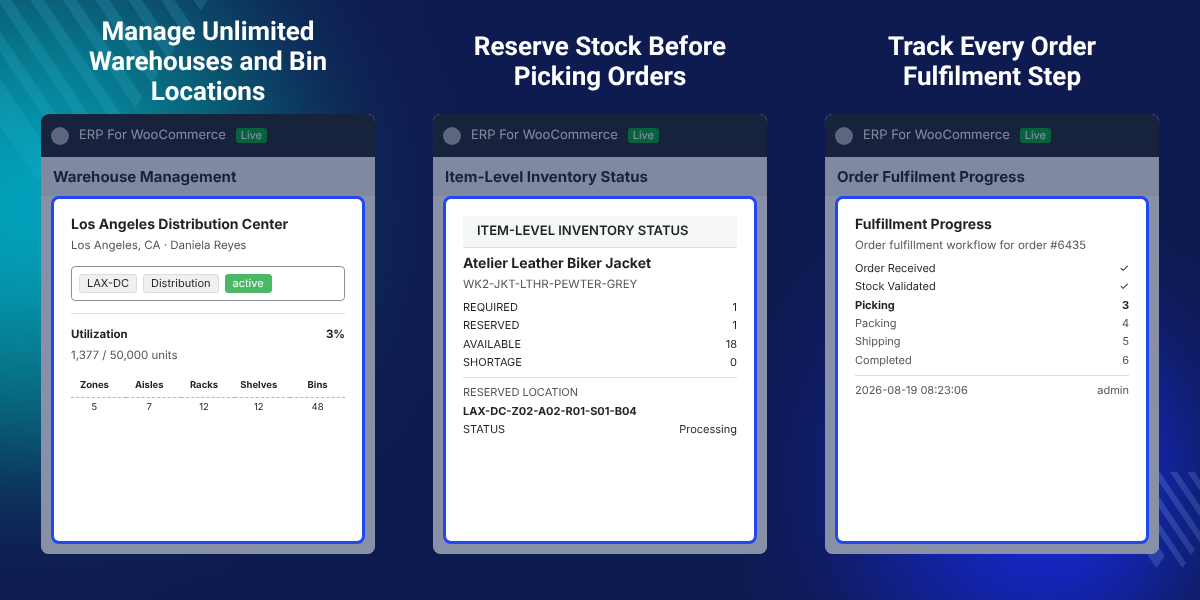
Highlighted Features of WooCommerce ERP Plugin
Interactive ERP Dashboard
Read stock totals, fulfilment pipeline counts, procurement status, and warehouse utilisation from one screen.
Multi-Warehouse Inventory
Create unlimited warehouses, assign a manager to each, and set a unit capacity per facility.
Five-Level Stock Locations
Store inventory by Zone, Aisle, Rack, Shelf, and Bin, and read the fill level of every location.
Order Fulfilment Workflow
Move orders through validation, reservation, picking, packing, and shipping with item-level tracking.
Purchasing and RFQs
Raise supplier quotations, approve responses, create purchase orders, and receive goods into bins.
Role-Based ERP Access
Assign Warehouse Manager, Warehouse Staff, and Supplier roles with Read, Write, and Delete rights.
Why Do We Need WooCommerce ERP Plugin?
WooCommerce records one stock number per product. That number does not say which shelf holds the stock, or which warehouse. Nor does it show how much an open order already claims.
Warehouse teams fill that gap with spreadsheets. Pickers walk the floor hunting for a product. Two orders claim the same unit. Purchasing runs over email with no record of the quote.
WooCommerce ERP Plugin brings that work into the store. Bins hold the stock by name, and a stock reservation ties units to one order. That hold clears when the picker takes the unit.
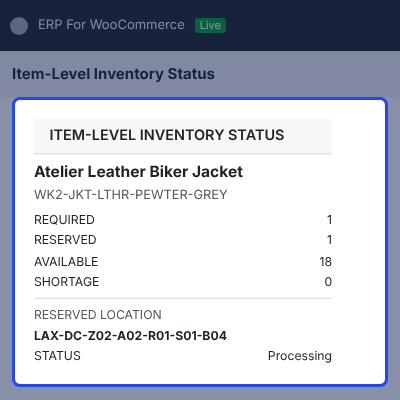
A reserved line names its source on the order screen as warehouse and bin together, in the form LAX-DC-Z02-A02-R01-S01-B04. Pickers read the location off the order instead of asking someone.
To extend WooCommerce warehouse management to a physical counter as well, check our plugin WooCommerce Point of Sale Inventory.
WooCommerce ERP Use Cases for Warehouse Teams
-
Multi-Warehouse Retail Stores
Run distribution, fulfilment, and storage sites side by side. Each keeps its own manager, capacity, and bin layout.
-
High-Volume Order Fulfilment
Hold stock against each order at validation, so two orders never claim the same unit during a busy day.
-
Supplier Purchasing
Send quotation requests to several suppliers, compare what comes back, and raise a purchase order from the approved one.
-
Warehouse Stock Rebalancing
Move products from an overstocked site to one running short. Dispatched and received units land on the transfer record.
-
Structured Warehouse Storage
Build a bin layout for a new site in one pass. Print the location codes for its shelves and racks.
-
Staff-Based Warehouse Operations
Limit each staff account to its own warehouse, so a picker in one city cannot alter stock in another.
Multi-Warehouse Inventory Management
Warehouse Management shows every facility as a card. Its code, type, city, assigned manager, and current fill level sit on that card.
Every facility opens into a Location Explorer. Explorer walks down the hierarchy one level at a time, from zones to individual bins.
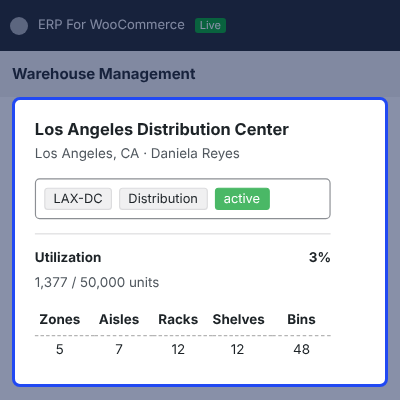
- Create unlimited warehouses and set a status of active or inactive.
- Set Total Capacity in units, and leave it at 0 for no limit.
- Assign one manager per warehouse, with managers already assigned elsewhere hidden from the list.
- Give each zone a purpose such as Receiving, Storage, Picking, Packing, or Shipping.
- Read utilisation as a percentage against the capacity you set.
- Build bin layouts in bulk with the Layout Builder, and print location codes for shelf labels.

WooCommerce Order Fulfilment Workflow
Every WooCommerce order gains an Inventory Fulfillment panel. That panel checks each line against warehouse stock before picking starts.
The panel lists required, reserved, and available units per item. Any shortage appears there too, beside the exact bin holding a reserved unit.
- Validate one line at a time, or use Validate All across the order.
- Reserve stock with Validate & Reserve All to lock the units to that order.
- Read the reserved location as a warehouse and bin pair on each line.
- Compare warehouse availability against the WooCommerce catalogue figure per item.
- Follow the order through Order Received, Stock Validated, Picking, Packing, Shipping, and Completed.
- Filter the order list by Awaiting Validation, Awaiting Stock, Ready to Fulfill, In Fulfillment, or Completed.
For courier labels and tracking after the packing step, check Shiprocket Shipping Plugin for WooCommerce.
Products and Inventory Control
The Products screen separates what a store owns from what it can still sell. WooCommerce inventory management splits into three columns: total stock, reserved units, and available units.
- Search products by name, SKU, or barcode.
- Filter the catalogue by product category.
- Read cost price and selling price side by side per SKU.
- See the average fill level of the bins holding each product.
- Check reserved units before promising stock to a new order.
- Set a product status of active or inactive from the same list.
To print bulk barcode labels for those products, check our plugin WooCommerce POS Multiple Quantity Barcode.
Purchasing and RFQ Management
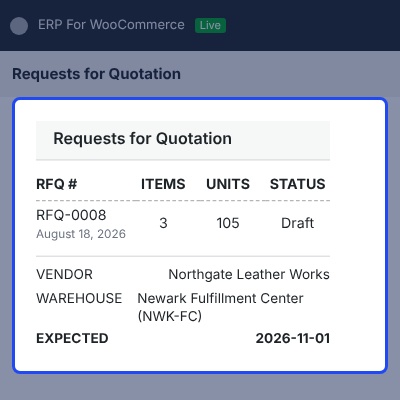
Purchasing starts with a request for quotation. The RFQ form captures the vendor, the receiving warehouse, the commercial terms, and the quoted products.
An approved RFQ becomes a purchase order. Goods arriving against it land in the warehouse bin you choose.
- Pick a vendor and the warehouse the goods should arrive at.
- Set Expected Arrival and Quotation Valid Until dates.
- Choose a payment term such as 15 Days, 30 Days, or 2/7 Net 30.
- Set a payment type of Bank Transfer, Cash on Delivery, or Other.
- Add billing and shipping addresses, internal notes, vendor notes, and attachments.
- Track each RFQ through Draft, Sent to Vendor, Vendor Response Received, and Approved.
- Receive supplier deliveries in part, leaving the purchase order Partially Received.
Additionally, if you want automatic procurement raised when a product runs low, then check WooCommerce Purchase Order Plugin.
For stores sourcing stock from overseas suppliers, you can also check WooCommerce AliExpress Dropship.
ERP Users and Access Control
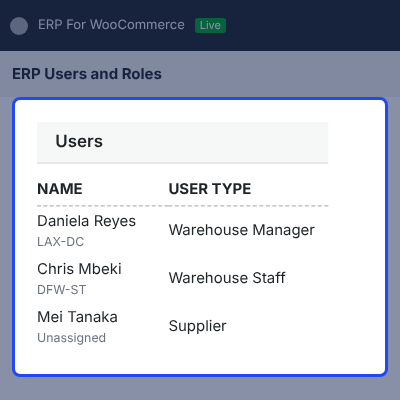
ERP accounts sit apart from WordPress users. Every account carries a user type, a home warehouse, contact details, and an active or inactive status.
- Create Warehouse Manager and Warehouse Staff accounts for internal teams.
- Create Supplier accounts with company name and business contact details.
- Set Read, Write, or Delete rights per ERP module.
- Assign a staff account to one specific warehouse.
- Filter the user list by user type, warehouse, or status.
- Deactivate an account without deleting its history.
Where those suppliers also sell through your store, check our plugin B2B Marketplace for WooCommerce.
Stock Activity and Audit Logs
The Activity Log records every stock movement as a dated line. Every line names the product, the bin it hit, the change in units, and the person responsible.
Alongside that sits the reason for the movement. A pick for an order reads differently from a transfer receipt.
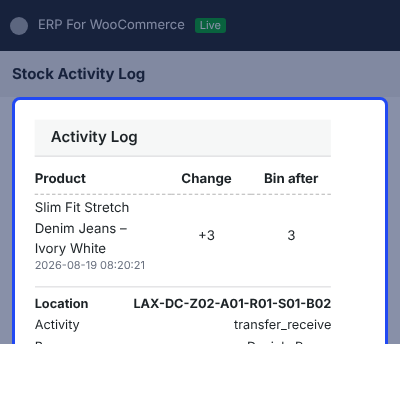
- Read the bin code and warehouse name behind every movement.
- See the change in units and the resulting bin quantity.
- Identify the activity type, such as a pick for an order or a transfer receipt.
- Trace a movement back to the order or transfer that caused it.
- See which ERP user carried out each action.
- Review stock movement across the last seven days from the dashboard.

Complete WooCommerce ERP Plugin Feature List
Warehouse and Location Management
- Create unlimited warehouses with a code, type, city, status, and assigned manager
- Set a unit capacity per warehouse, or leave it at 0 for no limit
- Build five location levels — Zone, Aisle, Rack, Shelf, and Bin
- Generate bin layouts in bulk with the Layout Builder and set location prefixes
- Read live utilisation per warehouse and fill level per bin
- Print QR location codes for physical shelf and rack labels
Inventory and Stock Control
- Split every product into total stock, reserved units, and available units
- Assign stock to named bin locations and move reserved stock between them
- Compare warehouse quantities against the WooCommerce catalogue figure
- Search the catalogue by product name, SKU, or barcode
- Flag low stock and out of stock products as Stock at Risk
Order Fulfilment
- Run orders through Order Received, Stock Validated, Picking, Packing, Shipping, and Completed
- Validate and reserve stock per line item or across the whole order at once
- Show the reserved warehouse and bin on each order line
- Filter orders by Awaiting Validation, Awaiting Stock, Ready to Fulfill, In Fulfillment, and Completed
- Flag shortages before picking starts and identify orders that have stopped moving
Purchasing and Supplier Management
- Raise RFQs with vendor, warehouse, products, terms, notes, and file attachments
- Choose payment terms including 15 Days, 30 Days, 2/7 Net 30, and End of Following Month
- Set payment types of Bank Transfer, Cash on Delivery, or Other
- Track RFQ status through Draft, Sent to Vendor, Vendor Response Received, and Approved
- Convert an approved RFQ into a purchase order and receive goods into a chosen bin
- Record partial deliveries and leave a purchase order Partially Received
Internal Transfers
- Create transfer requests between a requesting and a supplying warehouse
- Set priority as Low, Normal, High, or Urgent, with request and dispatch dates
- Approve full or partial quantities and record the reason for any change
- Track dispatch details and record damaged or missing stock on arrival
- Follow transfers through Draft, Sent, Validated, Dispatched, Received, Completed, Cancelled, and On Hold
Roles, Access and Audit
- Assign Warehouse Manager, Warehouse Staff, and Supplier roles
- Grant Read, Write, or Delete rights per ERP module
- Limit a staff account to a single assigned warehouse
- Record every stock movement with bin, quantity change, reason, and ERP user
- Send automated email alerts for order updates, fulfilment tasks, and transfers
WooCommerce ERP Plugin Setup and Compatibility
- Requires WordPress 6.0 or higher and WooCommerce 6.0 or higher
- Supports PHP 7.4 or higher
- Requires WooCommerce High-Performance Order Storage, also called Custom Order Tables
- Adds a dedicated ERP dashboard separate from the WooCommerce admin
- Creates the ERP roles and adds WooCommerce fulfilment order statuses during setup
Support
For any query or issue, please create a support ticket here http://webkul.uvdesk.com/.
You may also check our top-quality WooCommerce Plugins.
Specifications
Frequently Asked Questions
Specification
Detailed technical features and requirements to help you understand the module’s capabilities and ensure smooth integration with your system.
Cloud Hosting
Detailed technical features and requirements to help you understand the module’s capabilities and ensure smooth integration with your system.
Move to Cloud Today
We’re partnered with top-tier, trusted providers!
Default Configuration Details of Server
RAM 1 Core
Processor 30 GB
Hard Disk
Database
Want to know more how exactly we are going to power up your eCommerce Website with Cloud to fasten up your store
* Server Configuration may vary as per application requirements.
Change Logs
- - Feature Add (+)
- - Feature remove (-)
- - Bug Fixed (!)
- - Modification (*)
- + Intial Release


