USD
  • EUR
  • INR
  • USD
Cart
Cart 0
  • You have no items in your shopping cart.
    Odoo Apps Extensions
    Cart
    Cart 0
    • You have no items in your shopping cart.
    Hire a Developer
    ×
    Contact Us!
    Send Again
    Close
    Please Login to Write Your Review
    Odoo Inter Company Transfer

    Odoo Inter Company Transfer

    x
    Free

    * Required Fields

    $99.00
    Add To Cart

    Odoo Inter Company Transfer links sister companies in one Odoo database. A buyer's purchase order drives the seller's sale order, delivery, and bill.


    • Create a draft sale order for the selling company when a PO is confirmed.

    • Copy product, quantity, unit of measure, and unit price to every sale order line.

    • Validate the seller delivery and the buyer receipt in one step on SO confirmation.

    • Post the vendor bill automatically once the seller posts its invoice.

    • Map each buyer and seller company pair with its vendor and customer contacts.

    • Turn Auto Delivery Validation and Auto Vendor Bill Creation on or off per pair.

    • Track each transfer with a colour-coded Inter-Company Status on the purchase order.

    • Open the linked order from the Inter-Co SO and Inter-Co PO smart buttons.

    • Block transfers of products restricted to one company with a clear error.

    • Monitor Pending POs, Completed Transfers, Total Volume, and Active Configurations.

    Odoo Inter Company Transfer
    Odoo Inter Company Transfer
    $99.00
    Check How It Works

    Need Help Deciding?

    Support answers within one business day.

    Open a ticket
    $99.00
    Configure and Buy
    X
    • Description
    • Reviews
    • FAQ
    • Customers ()
    • Specifications
    • Cloud Hosting
    • Changelog

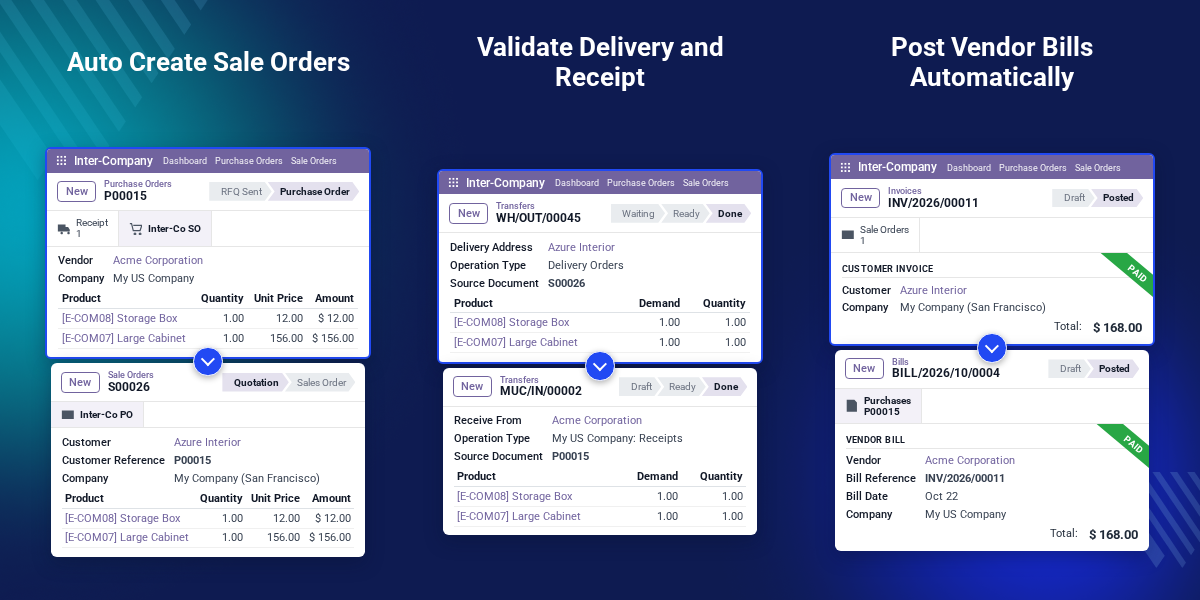
    Odoo Inter Company Transfer is an Odoo module that automates purchase and sales between companies in the same Odoo database. Group companies stop keying the same order twice.

    The buyer company confirms a purchase order to the vendor mapped for a sister company. Odoo then raises a draft sale order for the seller with the same lines and the PO number as its reference.

    When the seller confirms that sale order, the delivery order and the buyer's receipt are validated together. Posting the seller's customer invoice then creates and posts the vendor bill for the buyer. Each company pair has one record under Inter-Company > Configurations. It holds the source company, destination company, vendor, customer, and two automation switches.

    It runs on Odoo Community. It needs the Purchase, Sales, Inventory, and Invoicing apps, which install with it, and works only with products shared across companies. To control which menus and records each company's users can open, you can also check Odoo Access Control Management.
    Odoo Inter Company Transfer

    Highlighted Features of Odoo Inter Company Transfer

     Automatic Sale Orders

    A confirmed purchase order to a mapped vendor opens a draft sale order at the selling company with all its lines.

     One-Step Stock Moves

    Confirming the inter-company sale order validates the seller's delivery and the buyer's receipt for the full quantity.

     Auto-Posted Vendor Bills

    A posted seller invoice posts a matching vendor bill on the buyer's purchase order, with the invoice number as reference.

     Shared Products Only

    A purchase order stops with an error naming the product when any line holds a product restricted to one company.

     Linked Both Ways

    Smart buttons and an Inter-Company tab connect each purchase order with its sale order in the other company.

     Clickable KPI Dashboard

    Four KPI cards show pending, completed, and configured transfers, and each card opens the records behind it.

    Why Do We Need Odoo Inter Company Transfer?

    Group companies buy from each other all the time. One branch orders stock and a sister company ships it, so the same deal must be recorded on both sides.

    By hand, staff create the purchase order, then retype it as a sale order in the other company. They validate two transfers and enter the bill again, and figures drift apart.

    Odoo Inter Company Transfer reads the company pair and builds each next document for you. Both sides always share the same lines, prices, and references.

    In practice, the vendor bill takes the customer invoice number, such as INV/2026/00011, as its Bill Reference. Accountants match the two companies' entries without a lookup sheet.

    Also, if you want to study stock levels across the warehouses these transfers move, you can check our module Odoo Advance Inventory Dashboard.

    Odoo Inter Company Transfer Use Cases

    •  Central Warehouse Supply

      A distribution company ships stock to its regional branches, and each branch order becomes a sale order at the hub.

    •  Manufacturer and Sales Entity

      A sales company buys finished goods from the group's production company, with the bill posted as soon as the invoice is.

    •  Multi-Country Subsidiaries

      Subsidiaries in separate legal entities trade through one Odoo database and keep each company's books in step.

    •  Retail Chains With Store Companies

      Each store company reorders from the head office, and delivery and receipt close in one step. To ship lines from different warehouses, see Odoo Warehouse on Order Line.

    •  Group Finance Reconciliation

      Group accountants match each vendor bill to its customer invoice by reference before the month-end close.

    Map Buyer and Seller Companies

    An inter-company configuration tells Odoo which two companies trade with each other. It also names the contacts each company uses for the other one.
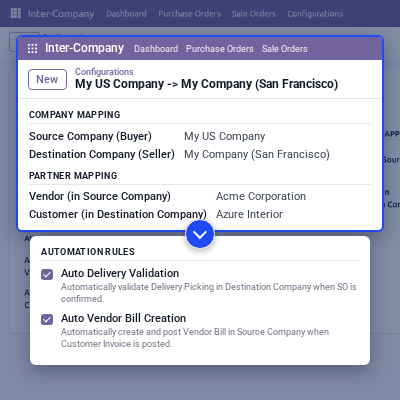
    • Create a record from Inter-Company > Configurations.
    • Set the Source Company (Buyer) and the Destination Company (Seller).
    • Pick the Vendor (in Source Company) and the Customer (in Destination Company).
    • Switch on Auto Delivery Validation and Auto Vendor Bill Creation, both on by default.
    • Odoo names the record after the pair, such as My US Company -> My Company (San Francisco).
    • Same-company pairs and a second record for the same pair are rejected on save.
    Map Buyer and Seller Companies

    Create Sale Orders From Purchase Orders

    Confirming a purchase order to the mapped vendor creates the matching sale order for the seller. That order stays in draft so the seller can review it first.
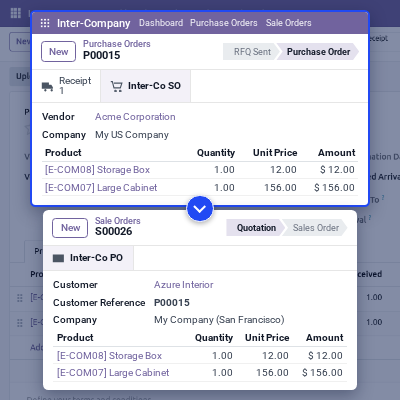
    • Copy product, quantity, unit of measure, and unit price for every order line.
    • Use the mapped customer and the PO number as the Customer Reference.
    • Skip section and note lines so only product lines move across.
    • Never create a second sale order for a purchase order that already has one.
    • Stop confirmation when a product on the order belongs to one company only.
    Create Sale Orders From Purchase Orders

    Validate Delivery and Receipt Together

    With Auto Delivery Validation on, confirming the inter-company sale order closes both stock transfers. The seller's delivery and the buyer's receipt move to Done together.

    Turn the switch off when the warehouse should validate by hand. For faster manual picking, you can also use Odoo Inventory Barcode Scanning.
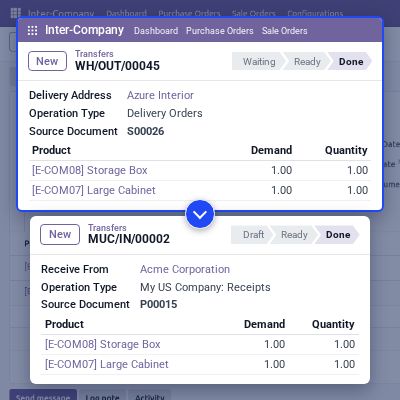
    • Validate the seller's delivery order for the full ordered quantity.
    • Validate the receipt on the purchase order in the buyer company in the same step.
    • Move the Inter-Company Status from SO Confirmed to Delivered.
    • Keep partial quantities for manual validation when the switch is off.
    Validate Delivery and Receipt Together

    Post Vendor Bills From Customer Invoices

    Once the seller posts its invoice, the buyer company gets a vendor bill. The bill is posted at once, so both ledgers carry the same amount.
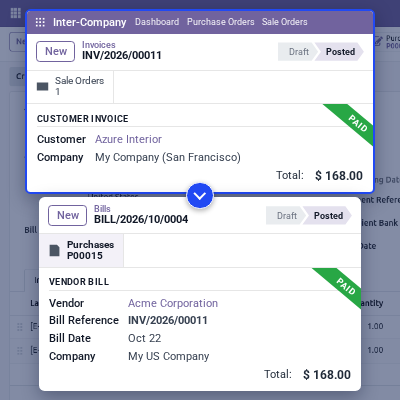
    • Create the bill from the buyer's purchase order with its billed lines.
    • Set the Bill Reference to the seller's invoice number.
    • Use today's date as the bill date and post the bill automatically.
    • Mark the purchase order's Inter-Company Status as Done.
    • Control the step per company pair with Auto Vendor Bill Creation.
    Post Vendor Bills From Customer Invoices

    Track Inter-Company Transfer Status

    Every purchase order shows how far its transfer has gone. The Inter-Company tab and a smart button take users to the document in the other company.
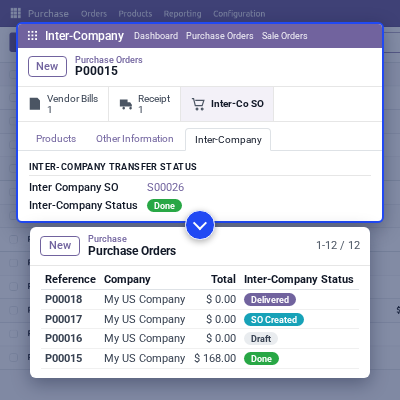
    • Follow the status through Draft, SO Created, SO Confirmed, Delivered, and Done.
    • Read the colour-coded status badge on the purchase order and in the Purchase list.
    • Open the sale order from the Inter-Co SO smart button on the purchase order.
    • Open the purchase order from the Inter-Co PO smart button on the sale order.
    • List linked orders under Inter-Company > Purchase Orders and Sale Orders.
    Track Inter-Company Transfer Status

    Inter-Company Transfer KPI Dashboard

    The Inter-Company dashboard shows the transfer workload on one screen. Each KPI card opens the purchase orders or configurations that make up its number.

    For deeper reports across companies, you can also send this data to Odoo Power BI Connector.
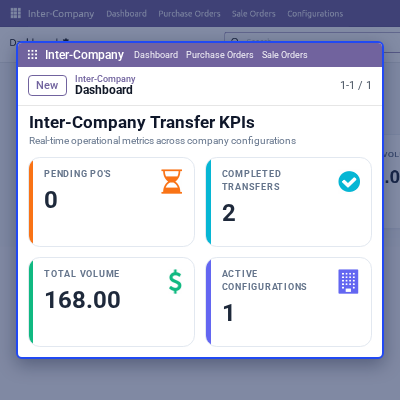
    • Count Pending POs in RFQ or RFQ Sent state for mapped vendors.
    • Count Completed Transfers whose status has reached Done.
    • Sum the Total Volume of completed inter-company purchase orders.
    • Count the Active Configurations set up between companies.
    Inter-Company Transfer KPI Dashboard

    Support

    For any query or issue, please create a support ticket here http://webkul.uvdesk.com/. 

    You may also check our top-quality Odoo Apps.

    Specifications

    Product Version1.0.0
    Released8 days ago
    CategoryOdoo Apps, Sales, 
    Last UpdatedOctober 28, 2026 (7 days ago)
    Supported Versions19.x  

    Ratings

    We'd love to hear your thoughts! Share your feedback and help us craft an even better experience tailored just for you.

    Write a review

    Frequently Asked Questions

     What does Odoo Inter Company Transfer do?
    Odoo Inter Company Transfer creates a sale order for the selling company when the buying company confirms a purchase order. It can also validate the delivery and receipt and post the vendor bill automatically.
     
     Which Odoo edition does the inter company module support?
    The inter company module supports Odoo Community. It runs on-premise and on Odoo.sh, but not on Odoo Online, which blocks third-party modules.
     
     Which Odoo apps does the module need?
    The module needs Purchase, Sales, Inventory, and Invoicing. Odoo installs these apps along with the module.
     
     Is the seller's sale order confirmed automatically?
    No. The sale order is created as a draft so the seller company can review it. Delivery validation runs when the seller confirms it.
     
     Can products restricted to one company be transferred?
    No. Every product on an inter-company purchase order must be shared, with no company set. Otherwise, confirmation stops with an error that names the product.
     
     Can automatic delivery validation or vendor bill creation be turned off?
    Yes. Each company pair has an Auto Delivery Validation switch and an Auto Vendor Bill Creation switch. Both are on by default.
     
     Does automatic validation support partial deliveries?
    No. With Auto Delivery Validation on, the delivery and the receipt are validated for the full ordered quantity. Turn the switch off to validate partial quantities by hand.
     
     Can one company buy from several sister companies?
    Yes. Create one configuration for each buyer and seller pair. The same company cannot sit on both sides, and the same pair cannot be added twice.
     
     How do I find the sale order created from a purchase order?
    Click the Inter-Co SO smart button on the purchase order, or open its Inter-Company tab. The sale order also lists the PO number as its Customer Reference.
     
     Who can change inter-company configurations?
    Users in the Manager and Admin groups can create and edit configurations. The User group can only read them.

    Specification

    Detailed technical features and requirements to help you understand the module’s capabilities and ensure smooth integration with your system.

    Cloud Hosting

    Detailed technical features and requirements to help you understand the module’s capabilities and ensure smooth integration with your system.

    Default Configuration Details of Server

    1 GB
    RAM
    1 Core
    Processor
    30 GB
    Hard Disk
    1 GB RAM & 1 Core Processor
    Database

    Want to know more how exactly we are going to power up your eCommerce Website with Cloud to fasten up your store

    * Server Configuration may vary as per application requirements.

    Change Logs

    Not Available