- Description
- Reviews
- FAQ
- Customers ()
- Specifications
- Cloud Hosting
- Changelog
Google Two-Factor Authentication (2FA) for Krayin CRM is an extension that adds a second sign-in step to the Krayin CRM admin panel.
Staff type their password, then a six-digit TOTP code from an authenticator app. Enrolment happens inside the login flow.
The module issues eight single-use recovery codes. One of them signs a user in when the phone is lost or flat.
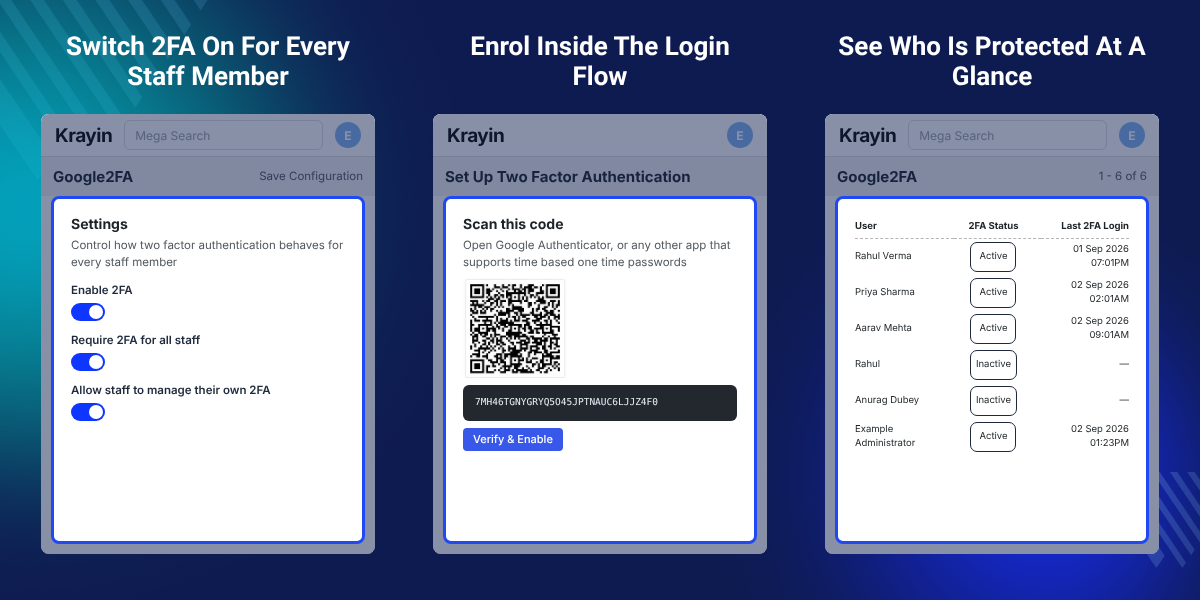
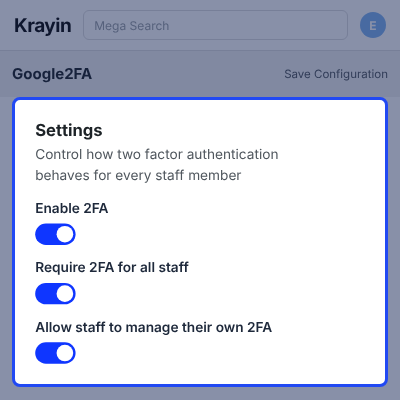
Three switches sit under Configuration > Security > Google2FA: enable it, require it for all staff, or allow self-service.
A Google2FA menu lists every user with their email, 2FA status and last 2FA login.
Additionally, if you want to run several CRM tenants on one install with their own domains and roles, then check Krayin CRM Multi Tenant SaaS.
Highlighted Features of Google Two-Factor Authentication (2FA) for Krayin CRM
TOTP Login Codes
Every admin sign-in asks for the code the authenticator app shows right now. The code rotates on a timer, so a captured one dies within the minute.
In Login Enrolment
Setup opens straight after the password step. Nobody hunts for a settings page, and a new hire finishes pairing on their first sign-in.
Eight Recovery Codes
Each account collects eight single-use backup codes at enrolment. Copy all and Download as .txt put the set into a password manager in one click.
Protected Password Change
An enrolled user adds a valid second factor before Krayin CRM stores a new admin password. Name and avatar edits stay untouched.
Optional Or Mandatory
Offer setup with a skip link while the team warms up, then switch on 2FA enforcement and require enrolment across the whole CRM.
Admin Status Grid
A read-only grid names who is protected. Each row carries the user, their email, their 2FA status and their last 2FA login.
Why Do We Need Google Two-Factor Authentication (2FA) for Krayin CRM?
Google Two-Factor Authentication (2FA) for Krayin CRM is needed because a standard admin panel rests on a password alone.
One stolen or reused password lets a stranger read every lead, contact and quote the CRM holds.
Passwords leak in ways a CRM team cannot control. Staff reuse them across tools, or hand them to a phishing page.
A code that lives on the user phone closes the gap. An attacker holding the password still cannot reach the panel.
Admin login security here costs steps, not minutes. Scan the QR code, type one code, then save the eight recovery codes shown once.
Also, if you want to assign follow-up work with deadlines and comments inside the CRM, you can check our extension Krayin Task Manager.
Krayin CRM 2FA Use Cases
-
Remote Sales Teams
Reps sign in from home networks and airport wifi. A code on the phone makes a captured password useless to whoever picked it up.
-
Contractor And Agency Access
Short-term staff get CRM logins and hand them back weeks later. The status grid shows which of those accounts carry a second factor today.
-
Regulated Customer Data
Teams holding health, finance or legal records answer to a written security policy. A second factor satisfies its login clause.
-
Phased Security Rollout
Start in optional mode so early adopters enrol first. Watch the status grid fill up, then turn on 2FA enforcement for the rest of the team.
-
Call And Chat Operations
Support desks running tools such as Krayin CRM VoIP guard the same admin logins those tools sit behind.
-
Connected Back Office Systems
Installs that sync records with an ERP through Krayin CRM Odoo Connector protect the panel holding both sides.
Google2FA Configuration Settings
Google2FA Configuration Settings sit under Configuration > Security > Google2FA. Three switches control how it behaves for every staff member.
The same screen turns the feature off, and the module keeps every setup. A fresh install from the Krayin CRM Starter Pack can start with it on.
- Enable 2FA turns the whole feature on or off for the admin panel.
- Require 2FA for all staff removes the skip link and makes enrolment mandatory.
- Allow staff to manage their own 2FA lets users reissue their recovery codes.
- Save Configuration applies the change and confirms with a success message.
- The Google2FA sidebar menu appears only while the feature is enabled.
Two Factor Setup at Admin Login
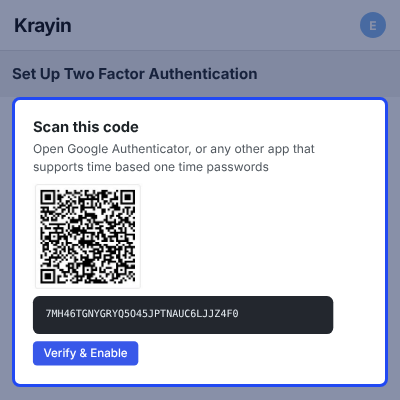
The Set Up Two Factor Authentication screen opens once Krayin CRM accepts the password. Nobody hunts for a separate settings page.
The screen offers two enrolment paths side by side, so a phone camera that will not focus never turns into a dead end for the user.
- Scan the QR code with Google Authenticator, Microsoft Authenticator, Authy or 1Password.
- Use the Cannot scan the code? setup key to add the account by hand.
- Enter one six-digit code in the Authentication Code field to prove the pairing works.
- Click Verify & Enable to activate the second factor on the account.
- Choose Skip for now when enforcement is off and enrol later instead.
Recovery Codes for Locked Out Users
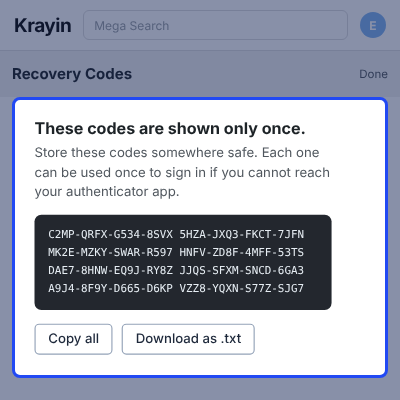
Recovery Codes give a user a way back into an account whose phone is lost or wiped. The module issues eight when enrolment finishes.
The screen says plainly that these codes appear only once. A user can replace the set later, but nobody can read the old one back out of Krayin CRM.
- The module generates eight single-use codes and lists them on one screen.
- Copy all puts the full set on the clipboard for a password manager.
- Download as .txt saves the set as a file before the user leaves the screen.
- Each code signs a user in once, then retires itself.
- The module ignores spacing and letter case when a user types a code.
Two Factor Verification at Sign In
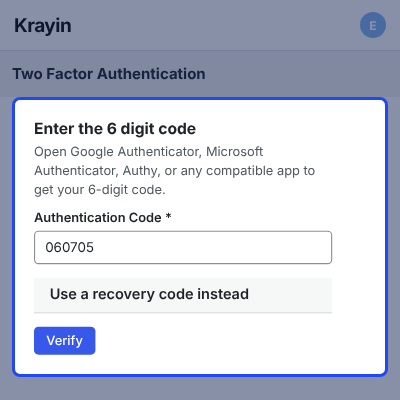
Two Factor Verification at Sign In is the screen an enrolled user meets after the password step. It asks for the code the app shows now.
On-screen text names the supported apps, so a new staff member knows where the digits come from and which app to open first.
- Type the six-digit code into the Authentication Code field and click Verify.
- Pick Use a recovery code instead when the authenticator app is out of reach.
- The module refuses a wrong code and rejects one that has already expired.
- A code the user has just spent cannot work twice in the same time window.
- Back to sign in returns to the login form without finishing the attempt.
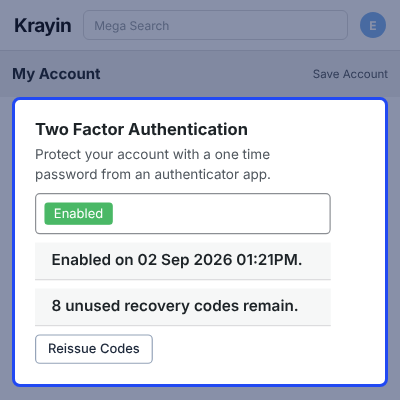
2FA Status on the My Account Page
My Account carries a Two Factor Authentication panel. It reports whether protection runs, when it started, and how many codes remain.
The Reissue recovery codes section sits on the same page. Installs using Krayin Inventory Transfer Extension can point warehouse staff here.
- An Enabled badge marks an account that has finished enrolment.
- The panel names the enrolment date and time for the account.
- A running count warns when unused recovery codes are running low.
- Reissue Codes needs the current password plus a valid second factor.
- Reissuing retires the previous set instantly.
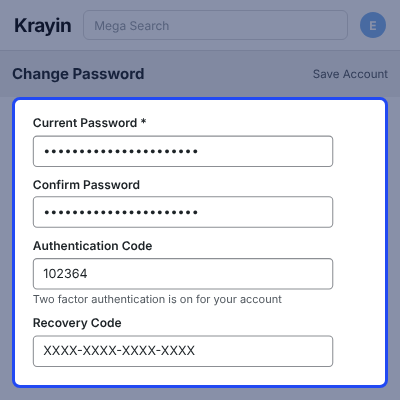
Password Change Verification
Changing an admin password is a common step in an account takeover. Krayin CRM 2FA guards that action with the same second factor.
The module gates only the password change. A user editing a name or uploading an avatar saves the form with no code request at all.
- Change Password asks for Current Password, Password and Confirm Password.
- An enrolled user also fills the Authentication Code or Recovery Code field.
- Save Account stores the new password only after the second factor passes.
- Everyday profile edits save without any code request.
- Forgot Password and Password Reset keep their stock Krayin CRM behaviour.
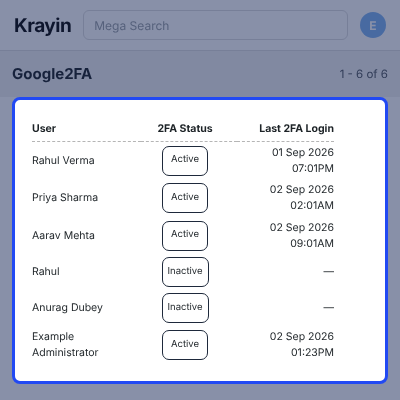
Google2FA Admin Status Grid
The Google2FA Admin Status Grid answers one question: who is protected right now. It lists every CRM user in a read-only table.
Search, Filter and Per Page sit above the table. Teams adding channels such as Krayin CRM WhatsApp Integration keep the list auditable.
- User shows the staff member name with their avatar.
- Email identifies the account the row belongs to.
- 2FA Status reads Active or Inactive for each user.
- Last 2FA Login carries the date and time of the last verified sign-in.
- A Krayin role permission decides who may open the grid at all.
Complete Google Two-Factor Authentication (2FA) for Krayin CRM Feature List
Core Authentication
- Verify admin sign-in with RFC 6238 time-based one-time passwords
- Run enrolment inside the login flow through QR scan or manual setup key entry
- Confirm the pairing with one six-digit code and a Verify & Enable click
- Refuse wrong codes, expired codes, and codes the user has already spent
- Offer a Skip for now path while enforcement stays off
Recovery and Account Access
- Issue eight single-use recovery codes at the end of enrolment
- Copy the whole set to the clipboard or download it as a .txt file
- Accept a recovery code in place of an app code at sign-in and at password change
- Ignore spacing and letter case on entry, and retire each code after one use
- Let users reissue a fresh set from My Account, which retires the old set instantly
- Show a running count of unused codes and warn when the set runs low
Administrator Controls
- Enable 2FA, require it for all staff, and allow user self-service from one settings screen
- Keep existing setups intact through an off and on again cycle of the feature
- Review every user email, 2FA status and last 2FA login in a searchable status grid
- Log security events such as enrolment, verified codes, recovery code use and skipped sign-ins with user, IP and timestamp
- Show the Google2FA sidebar menu only while the feature runs
Security and Compliance
- Encrypt the authenticator secret at rest and hide it from exports
- Hash recovery codes rather than keeping them in plain text
- Rate-limit repeated wrong codes to block guessing
- Rotate the session identifier once the second factor succeeds
- Gate the admin dashboard behind a dedicated Krayin role permission
- Leave Forgot Password and Password Reset alone so a lost phone is not a lockout
Compatibility and Localisation
- Work with Google Authenticator, Microsoft Authenticator, Authy, 1Password and any TOTP app
- Run on Krayin CRM with PHP 8.x on standard Laravel-compatible hosting
- Need no SMS gateway, paid service or recurring message cost
- Ship translations for Arabic, English, Spanish, Persian, Korean, Portuguese (Brazil), Turkish and Vietnamese
- Match the native Krayin design with a responsive layout on every screen
- Install with a single artisan command and change no core files
Support
After the completion of the Server Setup, we will provide limited period support for 30 days to the customer so that they can check and ensure the configuration.
Our Support Period includes the SLA of around 12 to 24 hours and covers only issues regarding the Server Setup and Configuration (Issues regarding third-party applications or modules are not included in this support). Mode of Communication are Ticket and Email: [email protected]
For any query or issue please create a support ticket here - http://webkul.uvdesk.com
Specifications
Frequently Asked Questions
Specification
Detailed technical features and requirements to help you understand the module’s capabilities and ensure smooth integration with your system.
Cloud Hosting
Detailed technical features and requirements to help you understand the module’s capabilities and ensure smooth integration with your system.
Move to Cloud Today
We’re partnered with top-tier, trusted providers!



Default Configuration Details of Server
RAM 1 Core
Processor 30 GB
Hard Disk
Database
Want to know more how exactly we are going to power up your eCommerce Website with Cloud to fasten up your store
* Server Configuration may vary as per application requirements.
Change Logs
- - Feature Add (+)
- - Feature remove (-)
- - Bug Fixed (!)
- - Modification (*)
- [Compatibility] Compatibility with Krayin CRM v2.2.5
