- Description
- Reviews
- FAQ
- Customers ()
- Specifications
- Cloud Hosting
- Changelog
ERPNext Website WebP Image Conversion is a Frappe app that makes website images lighter. The app saves a WebP copy of every JPG, JPEG or PNG file a team uploads.
Most store teams upload photos straight from a camera or a design tool. Those website images are heavy. Without a WebP copy, every page sends the full JPG or PNG to each shopper.
An admin sets everything on one form, Website WebP Image Conversion Settings, opened from the Website workspace. One checkbox turns conversion on, and WebP Quality controls the balance of size and detail.
Older files need attention too. The Convert Existing Images button walks through the newest files first. Its summary reports how many website images it converted, skipped or missed.
File rules keep the work focused. Small website images below a minimum file size stay as they are. Private files stay untouched unless the settings form allows them. The encoding runs on a server image library with WebP support.
Stores with rich product media often add ERPNext Website Product Multi Videos. Videos and lighter website images then sit on the same product page.
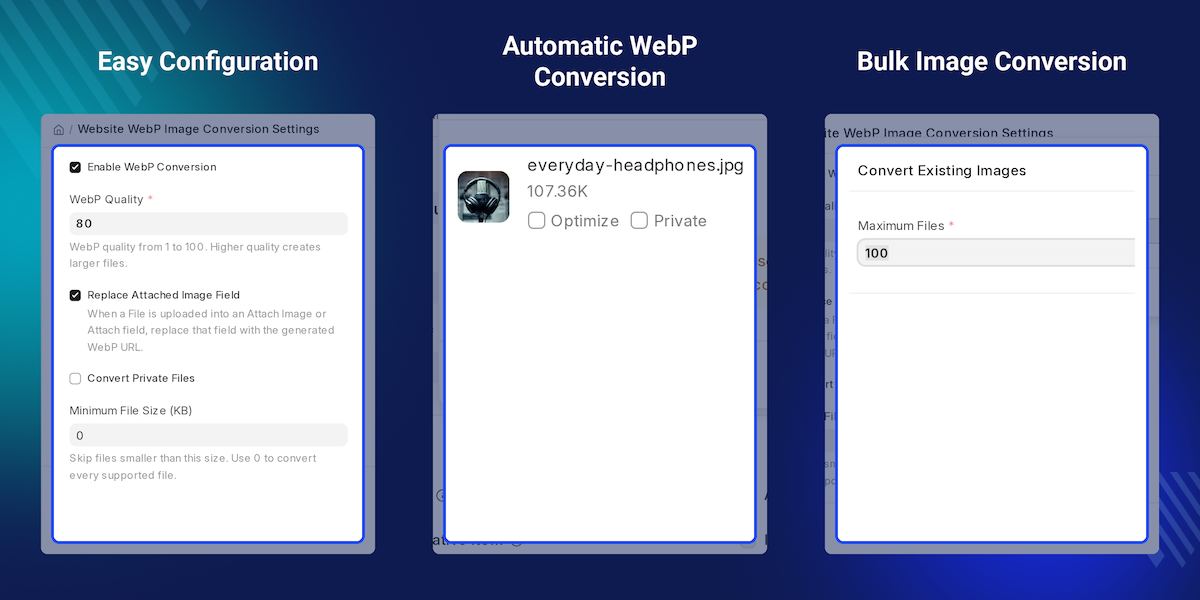
Highlighted Features of ERPNext Website WebP Image Conversion
Automatic WebP On Upload
Every new JPG, JPEG or PNG upload gets a WebP copy at once, with no extra click from the team.
Adjustable WebP Quality
An admin picks a WebP Quality from 1 to 100 to trade file size against detail, and 80 suits most product photos.
Bulk Conversion Of Old Files
Convert Existing Images processes up to a chosen number of older website images in a single run, newest files first.
Clear Run Summary
Each bulk run reports how many files it converted, how many it skipped and how many failed, so nothing goes unnoticed.
Attach Field Update
Records that still point at the original JPG switch their Attach Image field to the new WebP file on their own.
Minimum Size Filter
Icons and thumbnails below a set size in kilobytes stay exactly as they are, which keeps small logos sharp.
Private File Control
Private files convert only when an admin ticks Convert Private Files, so internal scans and documents stay untouched.
Originals Kept Safe
The source JPG or PNG stays in its folder, and each WebP copy takes a unique name such as photo-1.webp.
Why Do We Need ERPNext Website WebP Image Conversion?
A store team uploads product photos as JPG or PNG files every week. On a default ERPNext site those website images go out at full weight, and no WebP copy exists.
Converting by hand means opening an editor, exporting a WebP image and uploading it again. For a few hundred website images, that is days of repeat work.
ERPNext Website WebP Image Conversion removes the manual step. Every new upload gets a WebP copy on its own, and Convert Existing Images handles files that were already on the site.
An admin stays in control from Website WebP Image Conversion Settings. One pass through WebP Quality, the minimum file size and private file handling covers every website image after that.
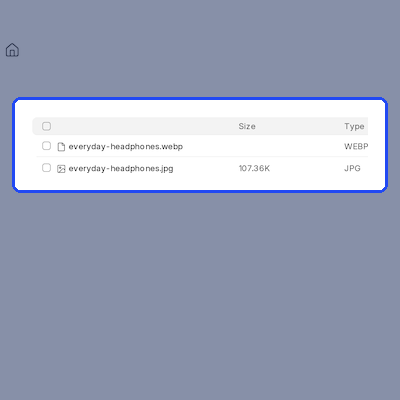
A test on ERPNext v16 shows the gain. A 107 KB product JPG became a 63 KB WebP image at the default WebP Quality of 80. That is about 41 percent smaller, with no visible loss on the item page.
Also, if customers attach their own artwork or documents to an order, you can check our app ERPNext Website File Upload.
ERPNext Website WebP Image Conversion Use Cases
-
New Catalogue Launch
A fashion store uploads 300 product photos before a season launch. Each one gets a WebP copy as it lands, so the new collection pages open quickly.
-
Cleaning Up An Old Site
Two years of trading leave hundreds of heavy JPG files behind. The admin runs Convert Existing Images in batches of 100 and reads the summary after each batch.
-
Keeping Icons Untouched
A web team uses tiny PNG icons across the site. Setting a minimum file size means only the large photos convert, and the icons stay exactly as they are.
-
Protecting Internal Files
Private scans often sit next to public product photos. Only the public website images convert, because Convert Private Files stays off by default.
Automatic WebP Conversion On Upload
ERPNext Website WebP Image Conversion watches every new File record. When a team member uploads a JPG, JPEG or PNG file, a WebP image lands beside it without any extra click.
The store team keeps uploading website images the way it always has. Each lighter WebP copy waits in the background, and the original file stays on the record.
- Works on every new PNG, JPG and JPEG upload
- Runs in the background with no extra step for the team
- Saves the WebP file in the same folder as the original
- Keeps the same attachment details as the source file
- Turns on or off with the Enable WebP Conversion checkbox

WebP Quality Control
WebP Quality sets how much detail each WebP image keeps, on a scale from 1 to 100. A fresh install starts at 80 and holds any entry inside that range.
Higher values give larger, sharper files, and lower values give smaller ones. Brand pages built with ERPNext Website Product Brand keep their logos and banners crisp at a higher setting.
- WebP Quality field accepts values from 1 to 100
- Default WebP Quality of 80 on install
- Values outside the range pull back to 1 or 100
- Encodes with the highest WebP compression effort
- Applies to new uploads and bulk runs alike
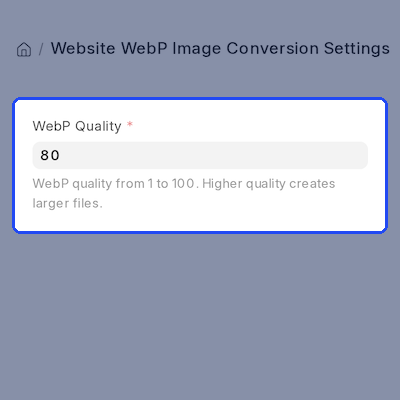
Convert Existing Images In Bulk
The Convert Existing Images button on Website WebP Image Conversion Settings handles files uploaded before installation. It asks for a Maximum Files count, then starts with the newest files.
Each run reports how many website images it converted, skipped or failed on. Failures go to the Error Log, and the rest carries on. Sites where sellers upload images in bulk often add ERPNext Multi Vendor Marketplace.
- Convert Existing Images button on the settings form
- Maximum Files limit with a default of 100
- Processes the newest files first
- Summary of converted, skipped and failed files
- Logs errors without stopping the run
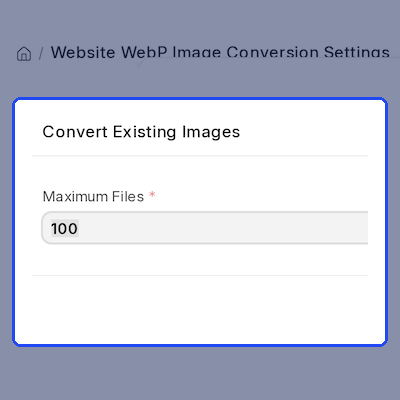
Attached Image Field Update
Replace Attached Image Field points a record at its new WebP image after conversion. Converting the file alone is half the job if the item still loads the old picture.
The switch covers Attach Image and Attach fields that still hold the original link. A field someone has edited since stays as it is. Pack sellers can add ERPNext Website Product Pack.
- Replace Attached Image Field checkbox, on by default
- Works with Attach Image and Attach field types
- Updates only fields that still link to the original
- Leaves the record modified date unchanged
- Reuses an existing WebP image instead of making a copy

File Rules And Private Files
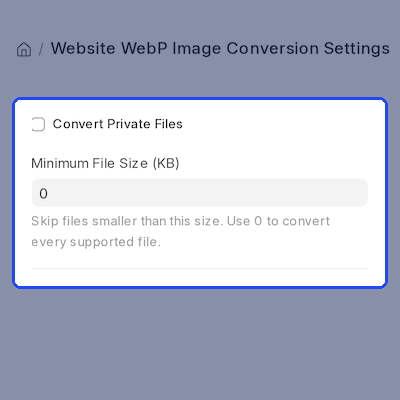
WebP Image Conversion skips files below the Minimum File Size (KB) value. Setting 0 converts every JPG, JPEG and PNG file instead.
Private files stay as they are unless Convert Private Files is on. Links to outside websites drop out too, so only website images stored on the site itself gain a WebP copy.
- Minimum File Size (KB) filter for small images
- Convert Private Files checkbox, off by default
- Handles both public and private site files
- Skips images hosted on outside websites
- Picks up only PNG, JPG and JPEG files
Safe File Handling For Website Images
WebP Image Conversion never deletes or overwrites a source file. If a WebP image with the same name exists, the new one takes a numbered name such as photo-1.webp.
Photos keep their orientation from camera data, and PNG website images keep their transparent areas. Product pages that show many cards, as ERPNext Frequently Bought Together Products does, gain the most.
- Original JPG and PNG files always stay in place
- Unique numbered names prevent overwrites
- Applies camera orientation before saving
- Carries PNG transparency into the WebP image
- No duplicate WebP records for the same file
Settings In The Website Workspace
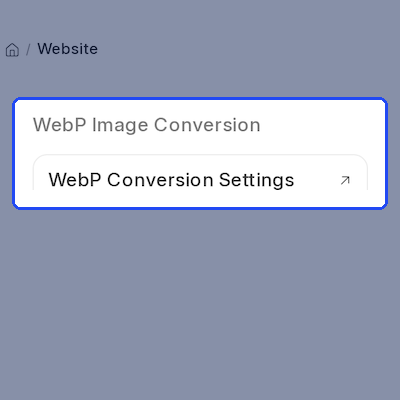
A WebP Conversion section sits in the Website workspace sidebar. The WebP Conversion Settings shortcut opens Website WebP Image Conversion Settings in one click.
Website WebP Image Conversion Settings is open to the System Manager role. A fresh install starts with conversion on and WebP Quality at 80, and an uninstall clears the workspace entries.
- WebP Conversion section in the Website workspace
- WebP Conversion Settings shortcut on the workspace page
- Access limited to the System Manager role
- Applies ready-to-use defaults on install
- Clears workspace entries on uninstall
Complete ERPNext Website WebP Image Conversion Feature List
Core WebP Conversion
- Create a WebP copy of every new JPG, JPEG and PNG upload
- Run the conversion in the background from the File record
- Save each WebP image in the same folder as its source file
- Turn conversion on or off with the Enable WebP Conversion checkbox
Quality And Output Control
- Set WebP Quality anywhere from 1 to 100, with 80 applied on install
- Pull out-of-range entries back to 1 or 100 so the value stays valid
- Apply camera orientation data and keep PNG transparency in the WebP image
- Use one quality setting for new uploads and bulk runs alike
Bulk Conversion Tools
- Convert older files from the Desk with the Convert Existing Images button
- Set a Maximum Files count for each run, with a default of 100
- Work through the newest files first
- Read a per-run summary of converted, skipped and failed files
File Rules And Filters
- Skip files below the Minimum File Size (KB) value, or set 0 to convert everything
- Leave private files untouched unless Convert Private Files is ticked
- Work with both public and private files stored on the site
- Pick up PNG, JPG and JPEG only, and skip files already in WebP
Records, Attachments And Setup
- Point Attach Image and Attach fields at the new WebP file on conversion
- Update only the fields that still link to the original image
- Give each new WebP copy a unique numbered name such as photo-1.webp
- Open settings from the WebP Conversion section of the Website workspace
- Run on the Frappe Framework with a server image library that supports WebP
Support
For any query or issue, please create a support ticket here https://webkul.uvdesk.com/en/customer/create-ticket/.
You may also check our top-quality ERPNext Apps.
Specifications
Frequently Asked Questions
Specification
Detailed technical features and requirements to help you understand the module’s capabilities and ensure smooth integration with your system.
Cloud Hosting
Detailed technical features and requirements to help you understand the module’s capabilities and ensure smooth integration with your system.
Move to Cloud Today
We’re partnered with top-tier, trusted providers!



Default Configuration Details of Server
RAM 1 Core
Processor 30 GB
Hard Disk
Database
Want to know more how exactly we are going to power up your eCommerce Website with Cloud to fasten up your store
* Server Configuration may vary as per application requirements.
