- Description
- Reviews
- FAQ
- Customers ()
- Specifications
- Cloud Hosting
- Changelog
UnoPim Canva Connector is a UnoPim extension that links the PIM with Canva, so merchandisers design product imagery without another tool.
With this Canva integration, an admin opens an image, gallery item, or DAM asset, edits it in Canva, and syncs it back.
The finished file lands on the attribute it came from, so nobody emails or re-uploads a file.
Admins add one Client ID and Client Secret and set the Canva App ID. They also pick the thumbnail and title attributes.
The connector supports UnoPim 3.1.x. It exports PNG, JPG, GIF, and PDF, then re-encodes WebP, BMP, TIFF, and AVIF.
Additionally, if you want to keep product media in cloud storage with UnoPim, then check UnoPim Cloudinary Connector.
Highlighted Features of UnoPim Canva Connector
Edit Product Images
Open any image attribute in Canva and sync the export back to the same field, always as a PNG file.
Edit Gallery Items
Change one gallery slot at a time, so sibling items keep their order and their array keys.
Edit DAM Assets
Edit an image or a PDF from the asset grid. The result is saved as a new asset beside the original.
Canva App Panel
Search products, filter by category and brand, and bind names, prices, and attribute values onto a design.
Why Do We Need UnoPim Canva Connector?
UnoPim Canva Connector exists because UnoPim stores product images but has no design tool. Every banner, badge, or spec graphic is made elsewhere.
Without it, a designer exports a file, a merchandiser downloads it, and someone uploads it to the right attribute, channel, and locale.
Each hand-off costs time and invites errors, such as a file on the wrong locale or a gallery that loses its order.
UnoPim Canva Connector moves that work into the product screen. The admin clicks the Canva control, edits, and syncs.
The connector also refuses to sync before Canva has autosaved, so an untouched original is never written back over good artwork.
Also, to keep your asset library on a shared drive, check our extension UnoPim Nextcloud DAM Integration.
Further, if you want to publish product feeds with these images to Google, you can check UnoPim Google Shopping Connector.
If your catalog speaks many languages, you can also check UnoPim DeepL Translation Module.
To feed AI shopping search with the same catalog, check UnoPim AI Product Feed for OpenAI Search.
For new catalogs, UnoPim Auto SKU Generator can create product codes before you design images.
UnoPim Canva Connector Use Cases
-
Refresh Seasonal Product Images
A merchandiser adds a sale badge to a product image and syncs it back to the same scope.
-
Build Spec Sheet Graphics
A content team binds live names, prices, and attribute values onto a design, so no spec is retyped.
-
Curate Product Galleries
An editor replaces a single gallery item and imports finished Canva designs without breaking the item order.
-
Update Brand Asset Libraries
A brand team edits a DAM image or PDF. The edit joins the library as its own file, and the original stays.
Canva Connector Connection Settings
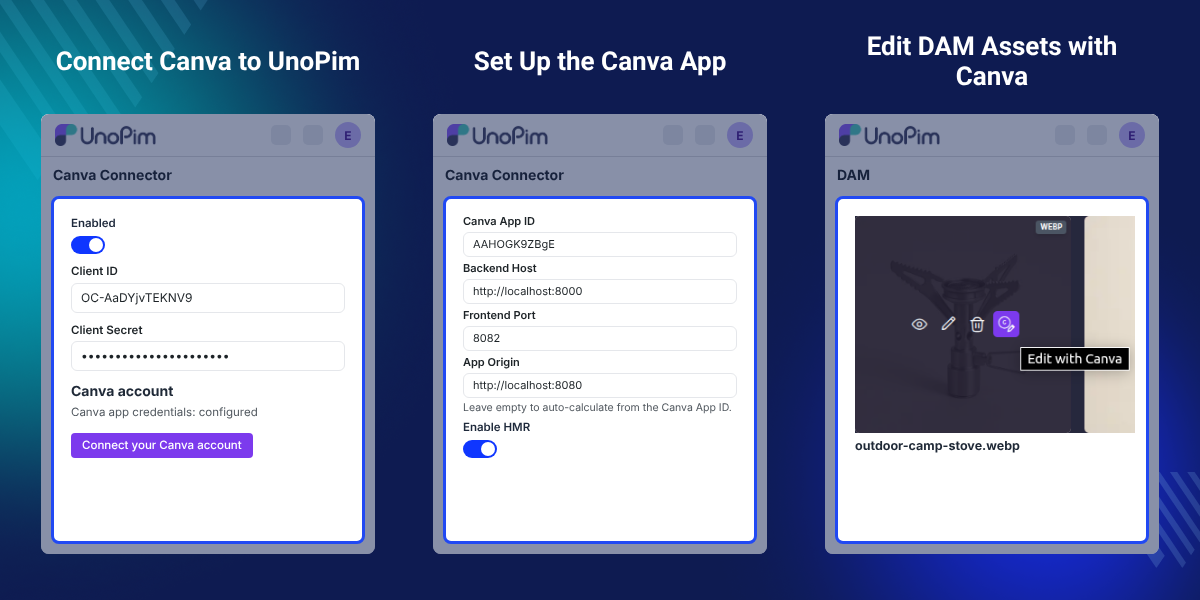
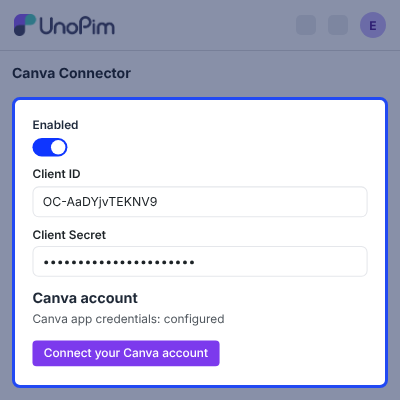
Connection Settings links UnoPim to Canva, allowing admins to save and use a single shared Canva account..
UnoPim validates the credentials against Canva when saved, so a wrong value fails early.
- Turn the Canva Connector on or off with the Enabled switch.
- Enter the Client ID and Client Secret for the whole installation.
- Click Connect your Canva account to sign in with OAuth 2.0 and PKCE.
- Copy the redirect URI into the Canva Developer Portal app.
- Check the live status line, which reads Canva app credentials: configured.
Canva App Frontend Settings
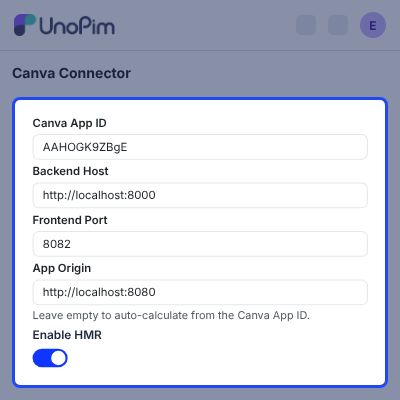
Canva App Frontend Setting holds the values the Canva app needs. Saving the group writes them into the Canva app's own .env file.
Every other line of that file stays untouched, so developers keep their own settings.
- Enter the Canva App ID, which Canva uses to verify each request from the app.
- Set the Backend Host, the UnoPim base URL the app calls.
- Choose the Frontend Port for the local dev server.
- Leave App Origin empty to calculate it from the Canva App ID.
- Switch Enable HMR on for development only.
Product List Settings for the Canva App
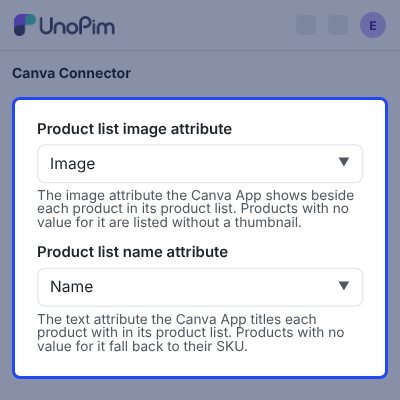
Product List settings decide how each product appears inside the Canva app. Admins pick one image attribute and one name attribute.
Teams use this to show the thumbnail and title their designers recognise.
- Select the Product list image attribute shown beside each product.
- Select the Product list name attribute used as the product title.
- Products with no image value are listed without a thumbnail.
- Products with no name value fall back to their SKU.
Edit Product Image Attributes with Canva
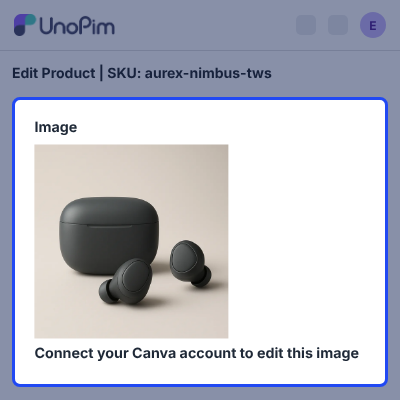
Every image attribute on the product edit page gets a Canva control. The admin edits the current file in Canva and syncs it back.
An empty image field can start a blank Canva design, so new artwork needs no upload first.
- Find the Canva control under the Image field on the Edit Product page.
- Connect a Canva account first, or the field shows Connect your Canva account to edit this image.
- Sync the export to replace the file in the scope it was opened from.
- Receive a PNG export for every single image attribute.
- Resolve inherited values for editing and save them as the row's own override.
Edit and Import Gallery Images from Canva
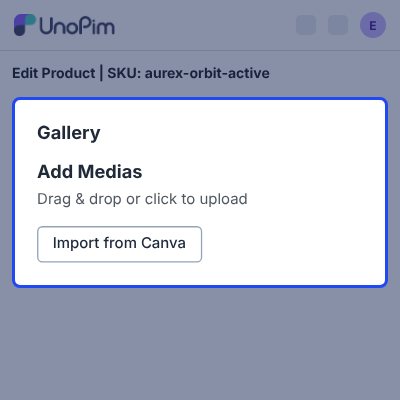
Gallery attributes get a Canva icon on each item and an Import from Canva button. Admins edit one item or import whole designs.
Only the chosen slot changes, so the curated order of the gallery stays as it was.
- Click the Canva icon on a gallery card to edit that item.
- Click Import from Canva to pick from the connected account's designs, 24 per page.
- Import one gallery item for each design page.
- Edit png, jpg, jpeg, jfif, gif, webp, bmp, tif, and tiff items.
- Leave video and PSD entries in the gallery untouched.
Edit DAM Assets with Canva
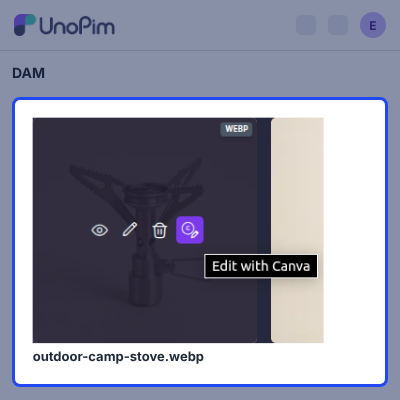
Edit DAM Assets adds a Canva icon to each card in the DAM grid. Admins edit an image or a PDF without leaving the asset library.
Each edit becomes its own file, so teams can try designs without losing the original.
- Hover a DAM card and click the Canva icon, which shows the Edit with Canva tip.
- Watch the card ring while its design is open in Canva.
- Find the result in the same directory as the original.
- Edit image and PDF assets, and keep the original file untouched.
- Grant the DAM permission to roles that may edit assets with Canva.
Complete UnoPim Canva Connector Feature List
Image & Gallery Editing
- Edit product image attributes in Canva and sync the export back onto the same attribute
- Edit one gallery item at a time, keeping sibling items in order with their array keys
- Start a blank Canva design from an empty image field
- Import designs the connected account already holds, appending one gallery item per design page
- Limit gallery edits to png, jpg, jpeg, jfif, gif, webp, bmp, tif, and tiff items
DAM Asset Editing
- Edit images and PDFs from the DAM grid with a Canva icon on the card hover row
- Store every edit as a separate file in the same directory, so originals are never overwritten
- Ring the DAM card while a design is open
- Require the UnoPim DAM package for asset editing
Formats, Scope & Variants
- Export PNG, JPG, GIF, and PDF from Canva, with JPG quality set to 100
- Re-encode WebP, BMP, TIFF, and AVIF locally so each field keeps its original format
- Write exports back to the scope the design was opened from
- Offer common-level attributes on the parent, variant-level attributes on the variant, and never axis attributes
Canva App & Product Data
- Search products and filter by category and brand, with pagination and a channel and locale picker
- Bind names, prices, attribute values, and media URLs onto the open design
- Show each variant of a configurable product with its own resolved attribute values
- Save the open design onto an image or gallery attribute of the chosen product
- Map attribute roles such as name, brand, price, and images through configuration
Connection & Security
- Connect a single Canva account through OAuth 2.0 with PKCE for use by all admins.
- Encrypt access and refresh tokens at rest and refresh them before expiry under a lock
- Validate the Client ID and Client Secret against Canva when they are saved
- Verify every Canva app call with a Canva-signed token checked against Canva's published key set
- Request the asset:read, asset:write, design:content:read, design:content:write, and design:meta:read scopes
Admin Tools & Setup
- Add a Canva Connector sidebar entry with its own settings screen
- Install with php artisan canva-connector:install, which runs migrations and publishes assets
- Add three tables of its own and leave every core table unchanged
- Support UnoPim 3.1.x, PHP 8.4 or higher, Laravel 13, and MySQL 8.0 or PostgreSQL 16
Support
For any query or issue, please create a support ticket here http://webkul.uvdesk.com/. You may also check our all UnoPim Extensions.
Specifications
Frequently Asked Questions
Specification
Detailed technical features and requirements to help you understand the module’s capabilities and ensure smooth integration with your system.
Cloud Hosting
Detailed technical features and requirements to help you understand the module’s capabilities and ensure smooth integration with your system.
Move to Cloud Today
We’re partnered with top-tier, trusted providers!



Default Configuration Details of Server
RAM 1 Core
Processor 30 GB
Hard Disk
Database
Want to know more how exactly we are going to power up your eCommerce Website with Cloud to fasten up your store
* Server Configuration may vary as per application requirements.
Change Logs
- - Feature Add (+)
- - Feature remove (-)
- - Bug Fixed (!)
- - Modification (*)
- + Edit product images and single gallery items in Canva and sync them back to the same attribute, channel and locale.
- + Import Canva designs into a gallery, and start blank designs for empty image fields.
- + Auto-sync every 10 seconds while a design is open, with revert to the previous image.
- + Edit DAM images and PDFs in Canva, saved as a new asset beside the original.
- + Canva App: browse products inside the Canva editor, bind their values onto a design and save it back to the product.
- + OAuth 2.0 with PKCE per admin; tokens encrypted and refreshed automatically.
- + Separate permissions for images, galleries and DAM assets.
- + Original formats kept: WebP, BMP, TIFF and AVIF are re-encoded after export.
- + Adds three tables of its own; no core table is altered.
- + Translated into 33 locales.
