USD
  • EUR
  • INR
  • USD
Cart
Cart 0
  • You have no items in your shopping cart.
    WooCommerce Extensions
    Cart
    Cart 0
    • You have no items in your shopping cart.
    Hire a Developer
    ×
    Contact Us!
    Send Again
    Close
    Please Login to Write Your Review
    WooCommerce Barcode Scanner for Inventory and Orders

    WooCommerce Barcode Scanner for Inventory and Orders

    x

    * Required Fields

    $199.00
    Add To Cart
    30 Days Money Back Guarantee*
    Only One Time Payment

    WooCommerce Barcode Scanner for Inventory and Orders lets admins scan a product or order barcode to edit stock, change order status, and create counter orders.


    • Scan a product or order barcode from one console in WordPress admin.

    • Edit SKU, price, stock, and EAN code without leaving the scan popup.

    • Match scans by product ID, SKU, GTIN, UPC, EAN, ISBN, or custom field.

    • Open any order by scanning its label and edit status, address, or note.

    • Add Picked, Packed, and Shipped statuses to the WooCommerce order flow.

    • Advance an order one stage by scanning it a second time.

    • Generate, download, and print QR labels for single or bulk orders.

    • Build counter orders by scanning items straight into a cart.

    • Record every scan and edit in searchable activity logs.

    • Works with High-Performance Order Storage and legacy order tables.

    WooCommerce Barcode Scanner for Inventory and Orders
    WooCommerce Barcode Scanner for Inventory and Orders
    $199.00
    Check How It Works
    $199.00
    Configure and Buy
    30 Days Money Back Guarantee*
    Only One Time Payment
    X
    • Description
    • Reviews
    • FAQ
    • Customers ()
    • Specifications
    • Cloud Hosting
    • Changelog

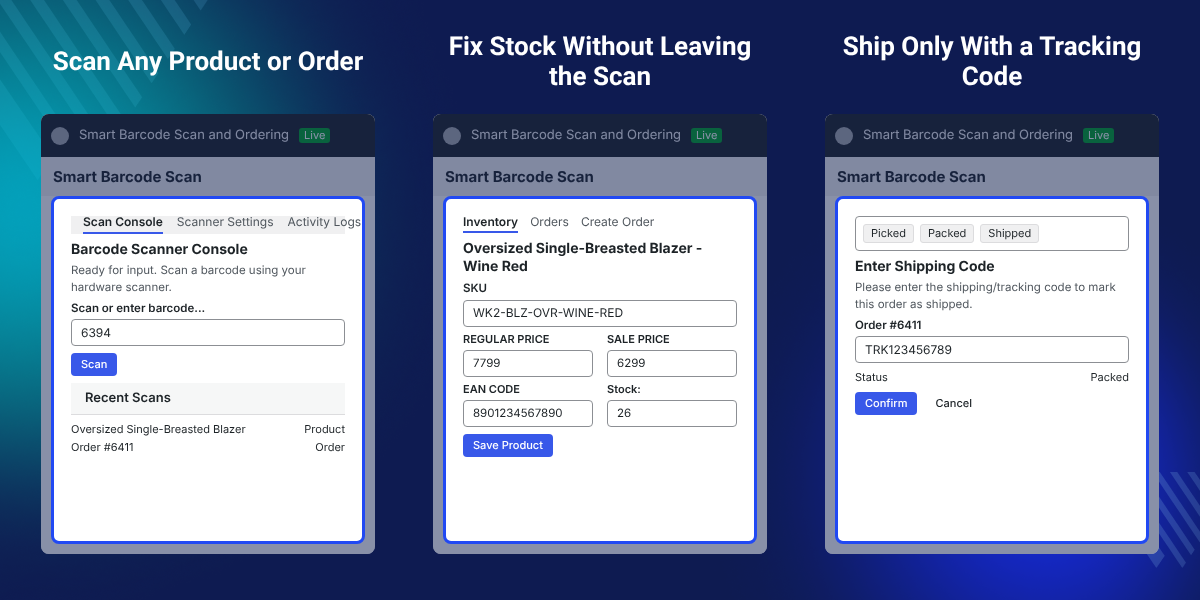
    WooCommerce Barcode Scanner for Inventory and Orders is a WooCommerce plugin that turns one scan into an action. Admins work from a single barcode scanning console in WordPress admin.

    The console sits at Webkul WC Addons > Smart Barcode Scan, with the cursor already in the scan box. Scan a product, scan an order label, or type the code by hand.

    A product match opens the Inventory tab. Staff edit the SKU, regular price, sale price, stock quantity and EAN code there, then save without opening the product.

    An order match opens the Orders tab. Staff change the order status, fix both addresses, and enter a shipping code as the order moves through fulfillment.

    Picked, Packed and Shipped statuses, order QR code labels and full activity logs sit on top. Everything runs on High-Performance Order Storage and the legacy order tables.

    Additionally, if you want to manage supplier procurement and raise purchase orders when stock runs low, then check WooCommerce Purchase Order Plugin.
    WooCommerce Barcode Scanner for Inventory and Orders

    Highlighted Features of WooCommerce Barcode Scanner

     One Scan Console

    Scan a product or an order from one box in WordPress admin, with the cursor already in the scan field.

     Inline SKU and Stock Editing

    Correct the SKU, price, stock quantity and EAN code inside the popup, then save without opening the product.

     Scan-to-Advance Statuses

    Scan an order that is already open to move it one stage along the Picked, Packed and Shipped flow.

     Order QR Labels

    Generate, download and print QR labels for a single order or a whole batch from the order list.

     Counter Order Creation

    Scan items into a cart, attach a customer, apply a coupon and create a real WooCommerce order.

     Full Activity Logging

    Record every scan, edit and order creation with the barcode, the outcome and the user who did it.

    Why Do We Need a WooCommerce Barcode Scanner?

    WooCommerce has no scan box. Fixing the stock of one product means searching the product list, opening the product, editing a field, saving, then repeating it.

    Order fulfillment has the same gap. WooCommerce ships no pick pack ship states between Processing and Completed, so a picked order and a packed order look identical.

    WooCommerce Barcode Scanner for Inventory and Orders replaces that with one scan. A product opens ready to edit. An order opens ready to advance.

    One detail matters before setup. Saving from the Inventory tab switches Manage stock on for that product, so a product that ignored stock starts counting it.

    Also, if you run warehouse picking across several sites, you can check our Warehouse Management System (WMS) Mobile App for WooCommerce.

    Barcode Scanner Use Cases for WooCommerce Stores

    • Warehouse Picking and Order Fulfillment

      Scan each order label down the pick line and move it from Processing to Picked in one action.

    • Stock Count Corrections

      Walk the shelves with a scanner and fix the quantity of every product that does not match the count.

    • Counter and Phone Sales

      Build an order at the till by scanning items, then attach a customer or register a new one.

    • Receiving Supplier Stock

      Scan incoming items, raise the stock quantity, and add EAN codes to products that arrived without one.

    • Packing Desk Handover

      Move an order from Packed to Shipped by entering the shipping code, which the console will not skip.

    • Catalog Data Cleanup

      Scan products with a missing SKU or a wrong price, and correct the field in the same popup.

    WooCommerce Barcode Scanner Console

    The Scan Console is the home screen of WooCommerce Barcode Scanner for Inventory and Orders. It opens with the cursor in the scan box, so a hardware scanner works at once. Recent Scans keeps the last five lookups.
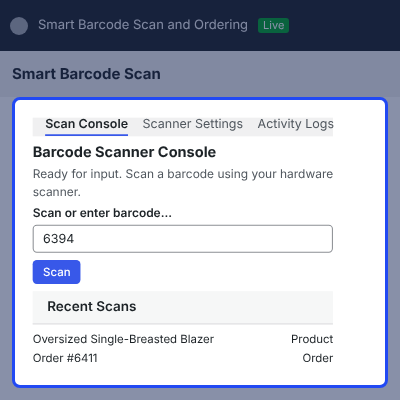
    • Scan a code or type it by hand, then press Enter.
    • Read the last five lookups with a Product, Order or Coupon badge.
    • Keep scanning inside the result popup without closing it.
    • Open the Barcode Scanner button from the WordPress toolbar on any screen.
    • Hear a success or error tone, and mute it for the session.
    WooCommerce Barcode Scanner Console

    Barcode Matching Rules and Settings

    Barcode matching decides what the scanned code means. The console checks it against each enabled field in a fixed order and stops at the first match.

    Product variations match directly, not through their parent. To load barcode values into a custom meta field in bulk, take a look at WooCommerce Advanced Import Export.
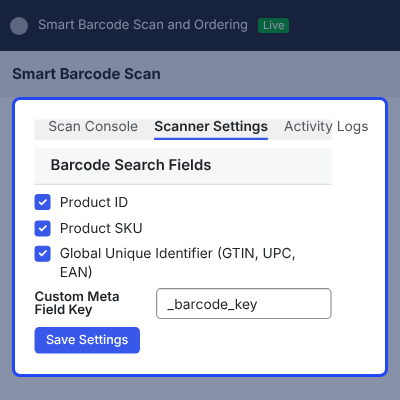
    • Match numeric codes against the product ID when Product ID is on.
    • Match the exact product SKU, which is on by default.
    • Match the global unique identifier for GTIN, UPC, EAN or ISBN.
    • Match a custom meta field key from an import or another plugin.
    • Fall back to the product or variation name for published products.
    • Match the order ID or an order custom meta field for order labels.
    Barcode Matching Rules and Settings

    Scan to Update Stock and Product Data

    A product match opens the Inventory tab. It shows the image, product type, publish status, stock status, price and stock level in one view, and staff save every field from the popup.
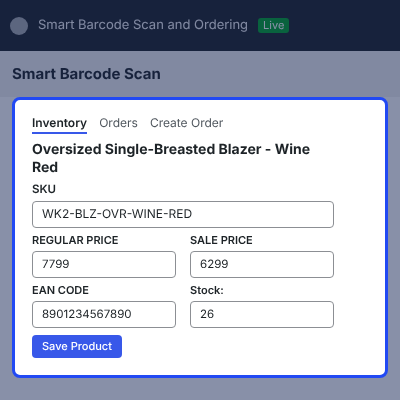
    • Edit the SKU and save it inside the popup.
    • Set the regular price and the sale price.
    • Change the stock quantity for a stock-managed product.
    • Add or correct the EAN code for GTIN, UPC, EAN or ISBN.
    • Replace the product image from the WordPress media library.
    • Spot out-of-stock products, which the console refuses to add to an order.
    Scan to Update Stock and Product Data

    Order Lookup and Editing

    Scan an order label or type the order ID to open the Orders tab. The order shows its customer, line items, totals, both addresses and the customer note.

    Each order status change writes an order note recording that it came from the scanner. For returns and replacements on the same orders, our WooCommerce RMA Plugin covers that flow.
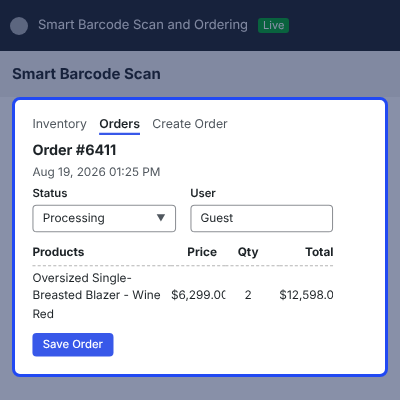
    • Open any order by scanning its label or typing the order ID.
    • Expand the customer, line item and totals sections as needed.
    • Change the order status from the same popup.
    • Edit both addresses, the customer note and the shipping code.
    • Read the order note trail left by each scanner change.
    Order Lookup and Editing

    Picked, Packed and Shipped Order Statuses

    Three statuses join the order flow right after Processing. Picked marks items collected from the shelves, Packed marks a parcel ready to hand over, and Shipped records the tracking code.

    Scanning an order that is already open moves it one stage forward. To track the delivery leg after Shipped, try WooCommerce Delivery Boy App.
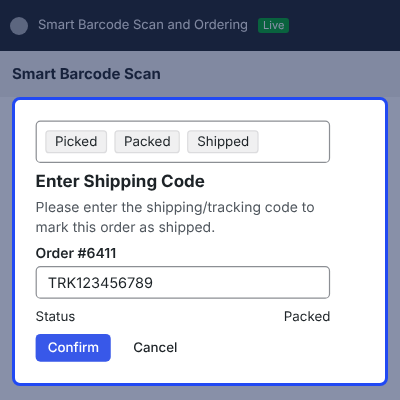
    • Filter the order list by Picked, Packed or Shipped, and use them in reports.
    • Advance Pending or On hold to Processing, Picked, then Packed.
    • Enter a carrier tracking code in the Enter Shipping Code prompt before Packed becomes Shipped.
    • Read "Shipping code is required." when the prompt is empty, or Cancel to abandon the change.
    • See the stored tracking code again each time staff rescan the order.
    • Confirm before Shipped becomes Completed, and leave other statuses untouched.
    • Find "Status updated via Barcode Scanner scan." in the order notes after each advance.
    Picked, Packed and Shipped Order Statuses

    Order QR Code Labels

    Order QR code labels come from WooCommerce > Orders. A Generate QR row action covers one order, and a Generate QRs bulk action covers a batch. The drawer shows the order number, customer, date, status and total.
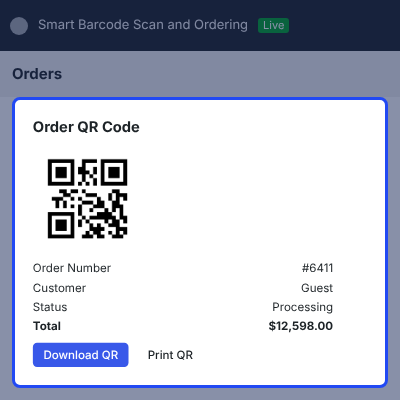
    • Generate a QR code for one order from the row action.
    • Generate QR codes for many orders at once in bulk.
    • Download the QR code as a file, or print it directly.
    • Use it on High-Performance Order Storage or the legacy screen.
    • Hide the actions when Print Barcode Products and Orders for WooCommerce runs.
    Order QR Code Labels

    Create Order by Scanning Products

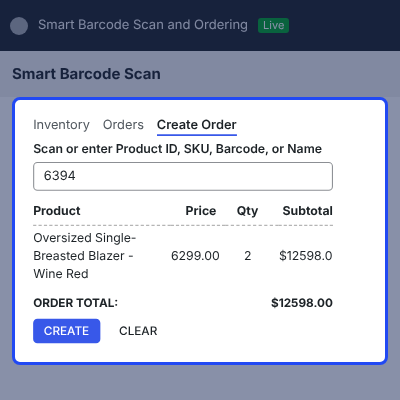
    • Create Order builds a counter order from scanned items, and the toolbar scanner shares the same cart. If you want customers to order in bulk by SKU themselves, you can check WooCommerce Quick Order Plugin.
    • Scan items into the cart and scan again to raise the quantity.
    • Cap the quantity at available stock when stock is managed.
    • Search a customer by username, name or email address.
    • Register a new user with any site role and an optional welcome email.
    edit

    Activity Logs and Scanner Settings

    Activity Logs record every scan, product edit, order edit, order creation and settings change. Each entry stores the time, the barcode, the outcome, the record and the user.

    Scanner Settings control which fields a scan checks and how the console behaves during a shift.
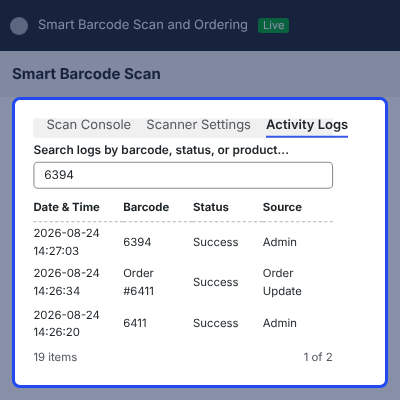
    • Search the log across barcode, product, status and source.
    • Sort by date or barcode, and expand a row for the detail panel.
    • Delete one entry, delete in bulk, or clear all logs.
    • Set rows per page and a log limit between 10 and 500.
    • Turn Audio Feedback, Auto Clear Input and Activity Logging on or off.
    Activity Logs and Scanner Settings

    Complete WooCommerce Barcode Scanner Feature List

    Barcode Scanning and Matching

    • Scan from one console at Webkul WC Addons > Smart Barcode Scan, with the cursor placed automatically
    • Use any keyboard-emulating barcode scanner, or type the code by hand
    • Match a scan against product ID, SKU, GTIN, UPC, EAN, ISBN, a custom meta field key, or the product name
    • Match product variations directly and add them to an order as the variation, not the parent
    • Scan from any screen with the toolbar button, and review Recent Scans

    Product and Inventory Management

    • Edit the SKU, regular price, sale price and stock quantity, then save without leaving the popup
    • Add or correct the EAN code covering GTIN, UPC, EAN and ISBN
    • Replace the product image from the WordPress media library
    • Flag out-of-stock products and refuse them when adding to an order

    Order Lookup and Editing

    • Open an order by scanning its label or typing the order ID
    • Edit the order status, billing address, shipping address, customer note and shipping code
    • Write an order note on every status change, recording that it came from the scanner
    • Switch to the Orders tab when one code matches both a product and an order

    Order Fulfillment Statuses and QR Labels

    • Add Picked, Packed and Shipped order statuses immediately after Processing
    • Advance an order one stage per scan, from Pending or On hold through to Completed
    • Require a carrier tracking code before Packed becomes Shipped, and a confirmation before Completed
    • Generate, download and print order QR code labels singly or in bulk, on HPOS and legacy tables

    Counter Ordering

    • Scan items into a cart shared with the toolbar scanner across admin pages
    • Raise the quantity on a repeat scan, capped at available stock
    • Search customers by username, name or email, or register a new user
    • Calculate live shipping rates, and validate coupons against expiry and usage rules
    • Create a real WooCommerce order in any status, with stock reduced

    Access, Logs and Compatibility

    • Limit the console to users with the Manage WooCommerce capability, such as Administrator and Shop Manager
    • Check every console action against the user capability, a security token and license state
    • Search, sort and delete activity logs, with a limit of 10 to 500 entries
    • Run on High-Performance Order Storage and the legacy order tables, tested up to WooCommerce 8.5
    • Require WordPress 5.0, PHP 7.4 and WooCommerce 5.0 or later, and translate it with the bundled .pot file

     Support

    For any query or issue please create a support ticket here http://webkul.uvdesk.comYou may also check our other top-quality WooCommerce Plugins.

    Specifications

    Product Version1.0.0
    Released2 days ago
    CategoryWooCommerce
    Last UpdatedAugust 25, 2026 (2 days ago)
    Supported VersionsWordPress  6.x.x  7.x.x  WooCommerce  9.x.x  10.x.x  

    Ratings

    We'd love to hear your thoughts! Share your feedback and help us craft an even better experience tailored just for you.

    Write a review

    Frequently Asked Questions

     Which barcode formats are supported?

    This plugin supports EAN-13 and UPC-A barcode formats for generating, importing, and assigning barcodes to WooCommerce products easily.

     
     Which product types are supported?

    This plugin works with simple products, external products, and variations. It skips variable parent products during barcode assignment automatically.

     
     Can I cancel a running bulk assignment?

    Yes, you can stop a running bulk assignment anytime. Completed barcode assignments stay safe and are not changed or removed.

     
     Does WooCommerce GTIN Manager prevent duplicate barcodes?

    Yes, this plugin checks imported files, existing products, and assigned values to stop duplicate barcodes across your WooCommerce store.

     
     Will existing barcodes be overwritten?

    No, existing barcodes stay unchanged. You can enable or disable overwrite protection based on your barcode assignment preferences and needs.

     
     Can I continue using multiple barcode files?

    Yes, this plugin keeps using available barcodes from the next imported file without requiring any manual steps or extra work.

     
     Does WooCommerce Barcode Generator support large product catalogues?

    Yes, background processing manages large barcode imports and assignments, making it suitable for WooCommerce stores with thousands of products.

     
     What happens if I refresh the page during a bulk assignment?

    The background process keeps running after a page refresh, and you can check its progress later.

    Specification

    Detailed technical features and requirements to help you understand the module’s capabilities and ensure smooth integration with your system.

    Cloud Hosting

    Detailed technical features and requirements to help you understand the module’s capabilities and ensure smooth integration with your system.

    Default Configuration Details of Server

    1 GB
    RAM
    1 Core
    Processor
    30 GB
    Hard Disk
    1 GB RAM & 1 Core Processor
    Database

    Want to know more how exactly we are going to power up your eCommerce Website with Cloud to fasten up your store

    * Server Configuration may vary as per application requirements.

    Change Logs

    • - Feature Add (+)
    • - Feature remove (-)
    • - Bug Fixed (!)
    • - Modification (*)
    Version 1.0.0
    • + Intial Release


